Manage your tenant's Knowledge Base
Your tenant can host its own knowledge base alongside the platform-provided one. This article covers writing tenant-specific articles.
Before you start
You need the Admin role. Tenant KB articles are scoped to your tenant.
Step 1 — Open the KB admin
Open Configuration → Knowledge base. The list shows every article your tenant owns with its category, tags and publish state.
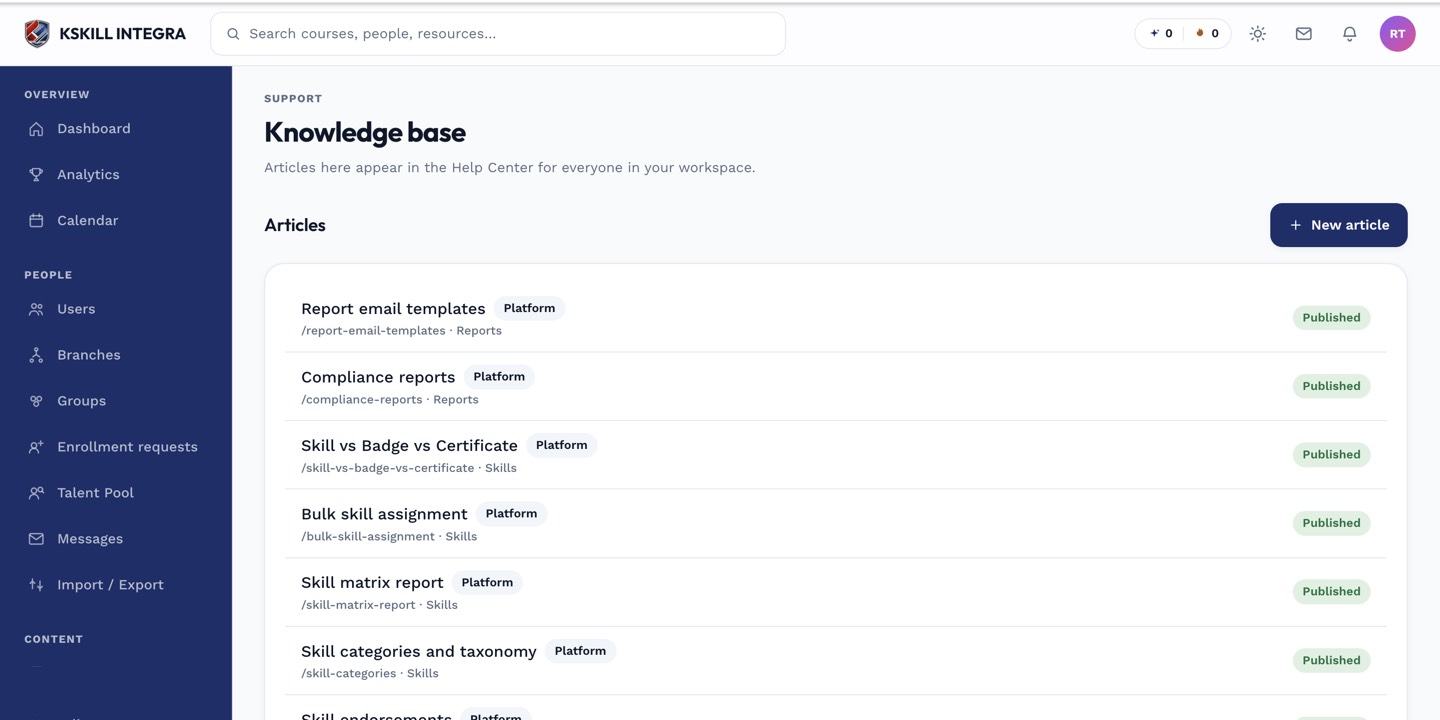
The KB admin surface is where every tenant-scoped article is edited and published.
Step 2 — Create or edit an article
Click New article or pick an existing one. Use the rich-text editor to write. Add a category and tags so it's findable. Save as draft, then publish when ready. Draft articles are visible to admins only.
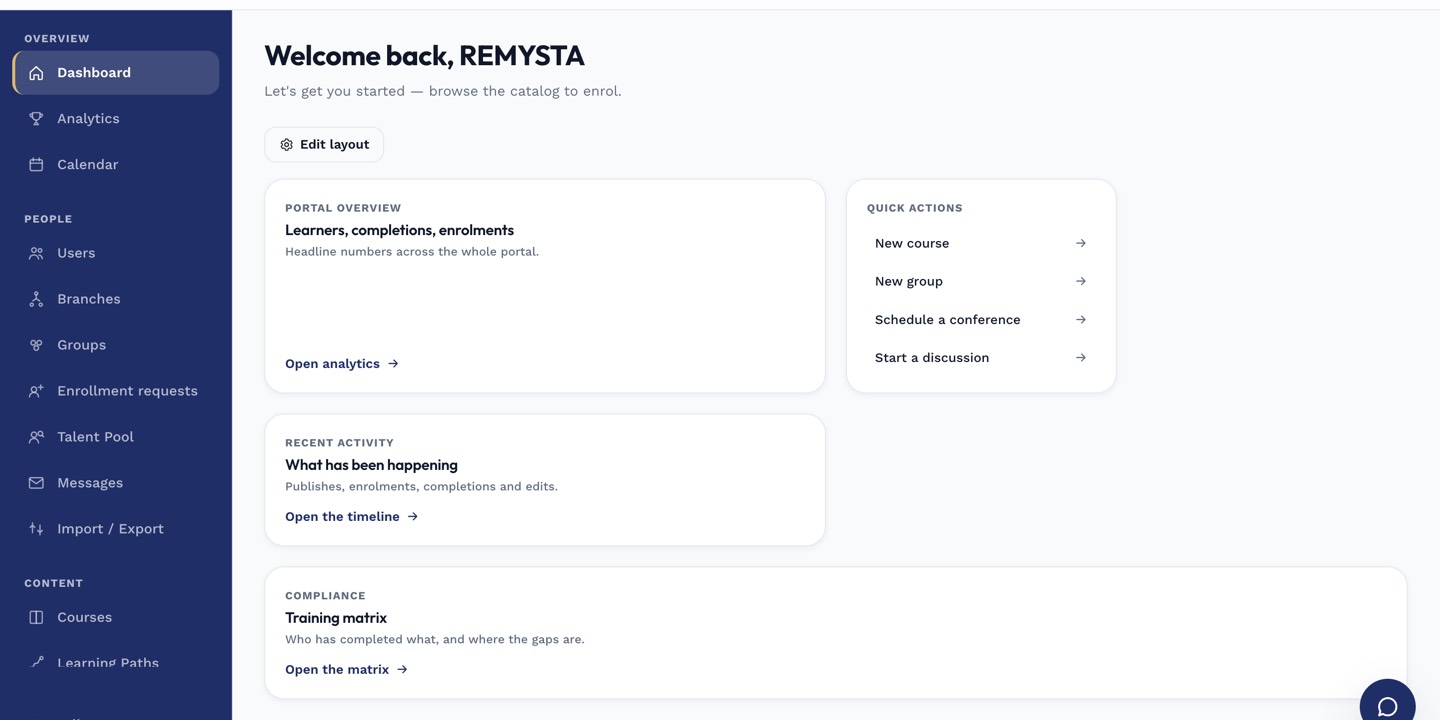
The left rail is the anchor for every admin task; every screen you visit starts with a click here.
Step 3 — Point users at it
Published articles show up in the help panel's search alongside platform articles. Link to specific articles from broadcast messages or from your onboarding checklist so users find them at the right moment.
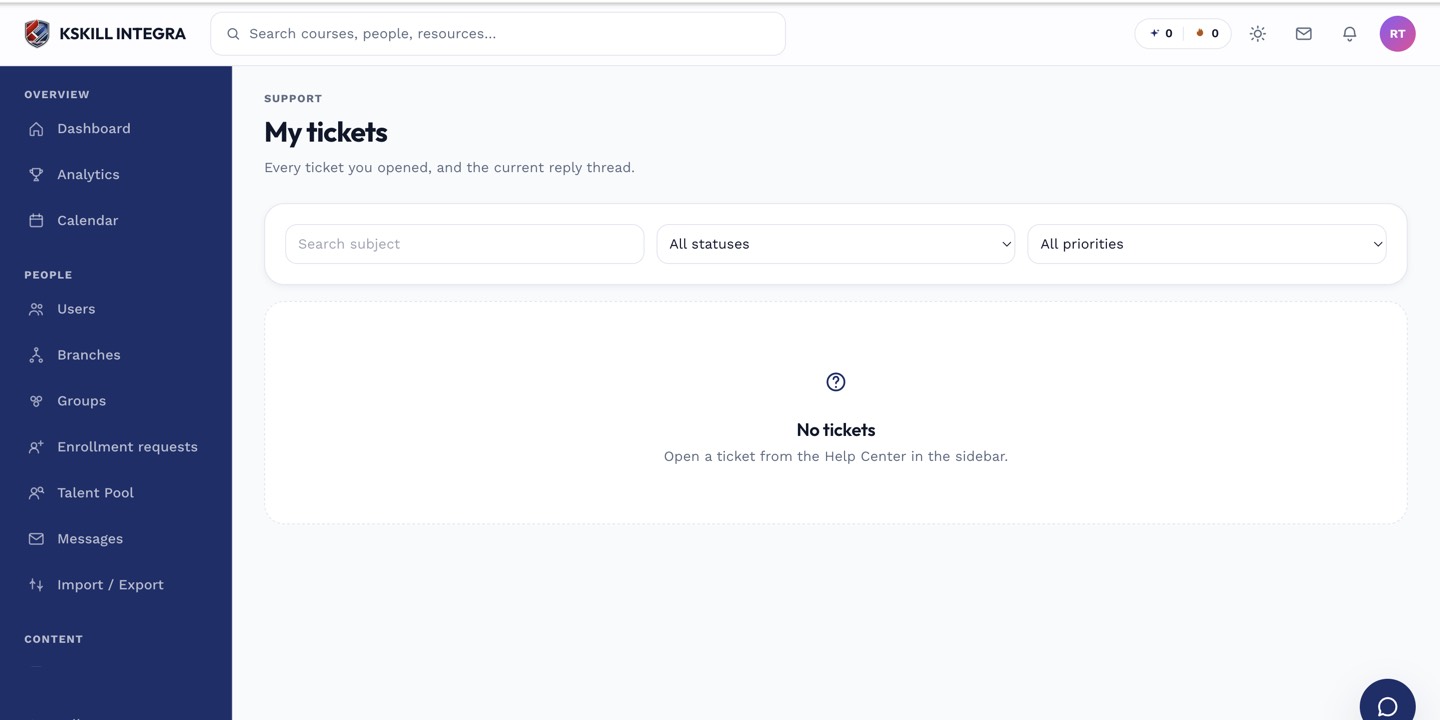
The learner ticket list shows every conversation with support in one thread view.
Notes
- Platform articles are read-only for you — tenant KB is the place for your own overrides and additions.
- Screenshots in tenant articles must be uploaded via the files feature and referenced as URLs.