Audit log
The audit log is your immutable record of who did what. This article covers reading it, filtering it and exporting evidence.
Before you start
You need the Admin role. Instructors and learners cannot see the audit log — that is intentional.
Step 1 — Open the audit log
Open Configuration → Audit log. Every state-changing action on the tenant is listed with a timestamp, actor, event type, target and IP.
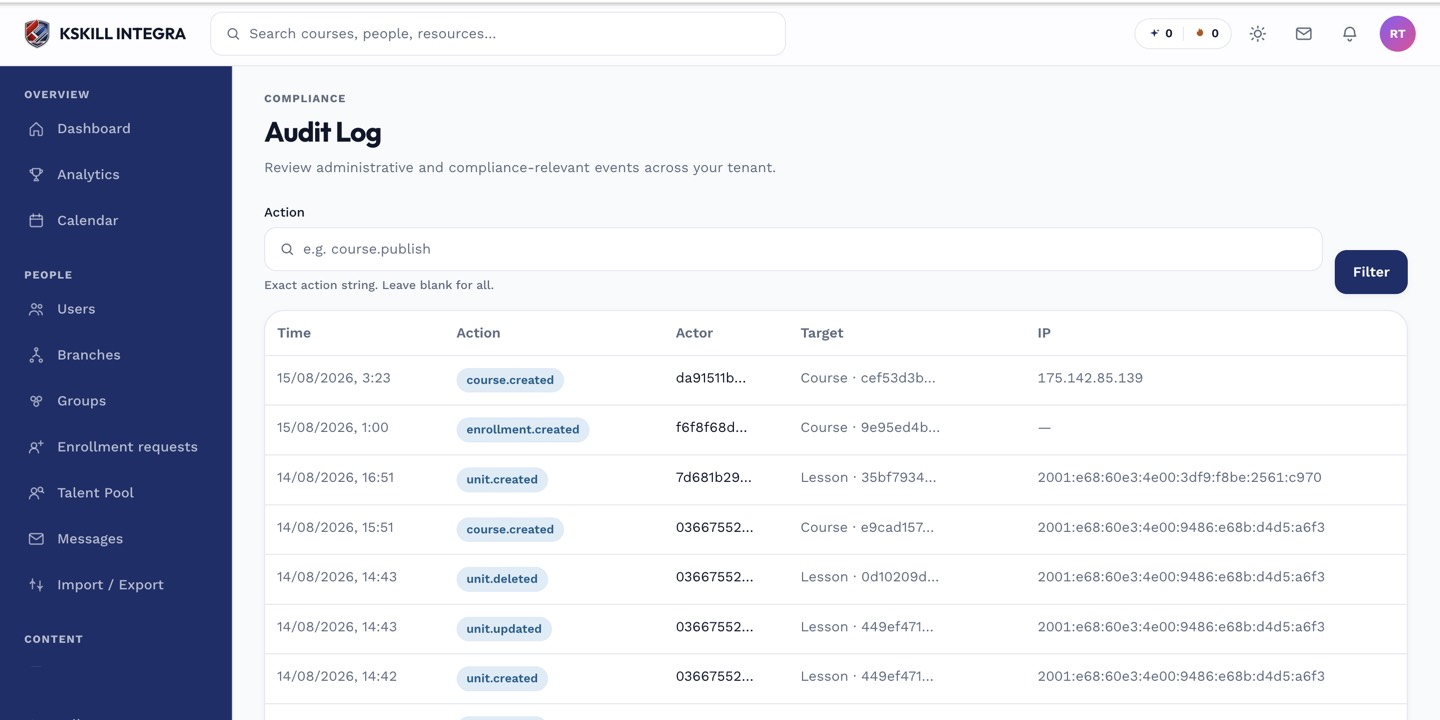
The audit log is your immutable record of who did what.
Step 2 — Filter to the question
Use the filters at the top to narrow — by actor, event type, date range, target course or target user. For a compliance review, filter by event type skill.granted or enrollment.created. Export the filtered view as CSV for the auditor.
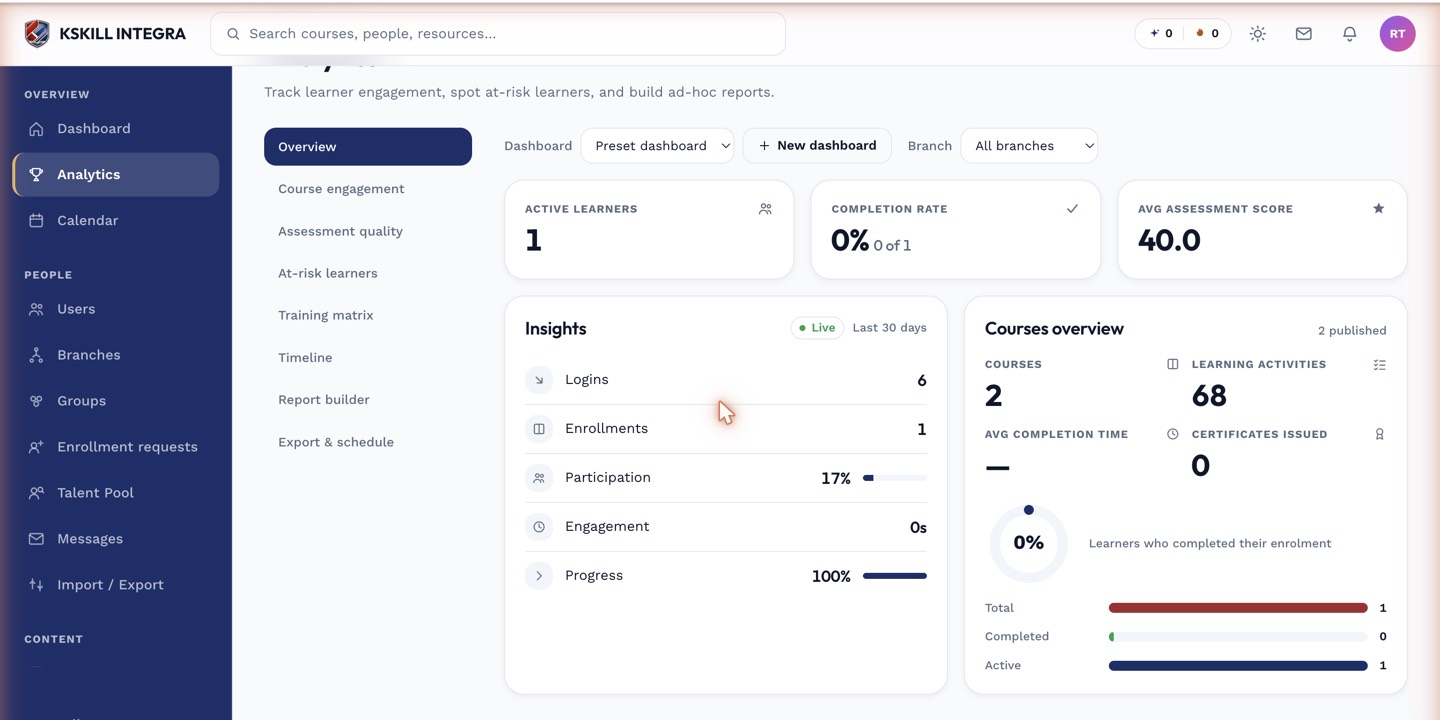
The detail panels give you the breakdown behind each KPI tile.
Step 3 — Preserve for evidence
Audit log entries are immutable — nothing can edit or delete them once written. Export sensitive slices to a durable off-platform store if your compliance framework demands it. The log itself is retained indefinitely by default.
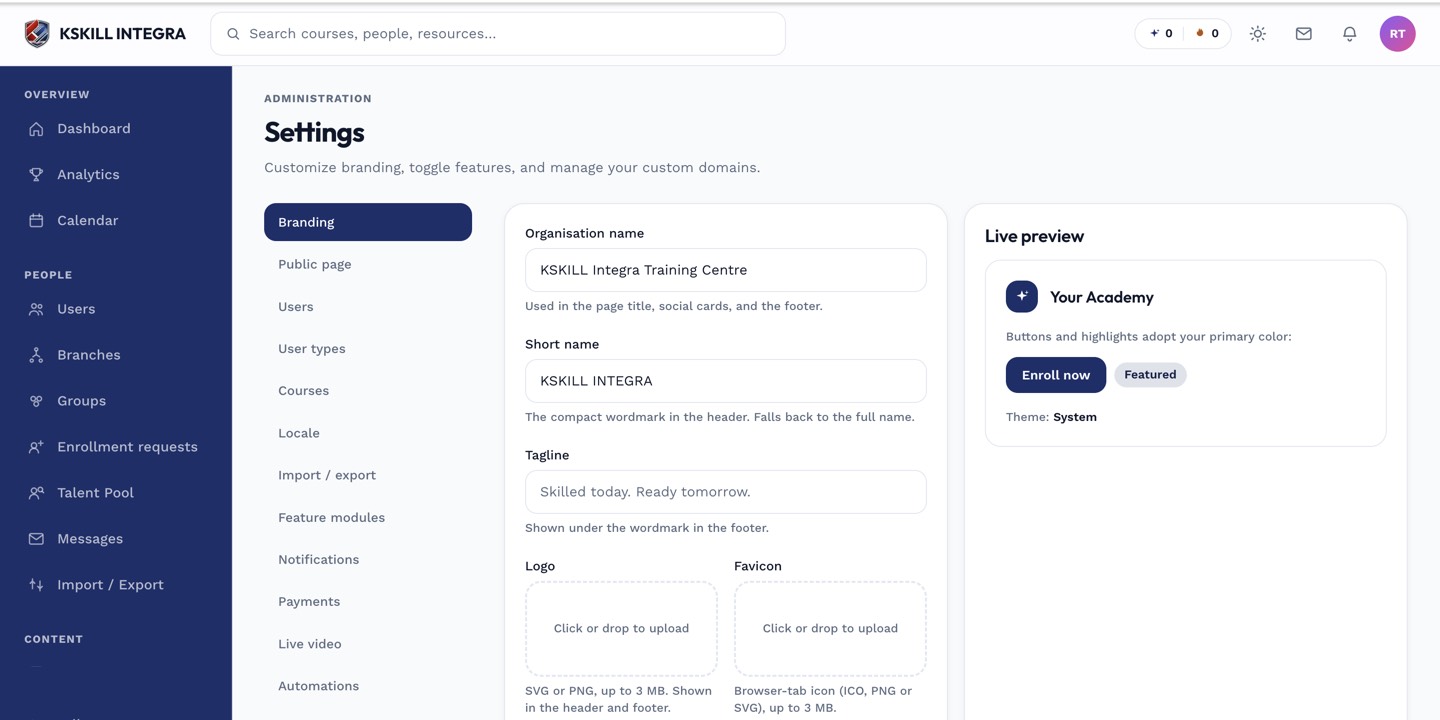
The Settings page is the single home for every tenant-level toggle.
Notes
- The IP column may show internal Docker addresses in some deployments — see your ops team if that is your case.
- Cross-reference with the analytics timeline for a fuller narrative.