Password policy
The password policy decides how strong passwords must be. This article covers the tenant-wide policy and how to change it.
Before you start
You need the Admin role. Policy changes apply on next password change — existing passwords keep working until they change.
Step 1 — Open Security settings
Open Configuration → Settings and pick Security. The password-policy card lists the current rules — minimum length, required character classes, disallowed dictionary words, and rotation cadence.
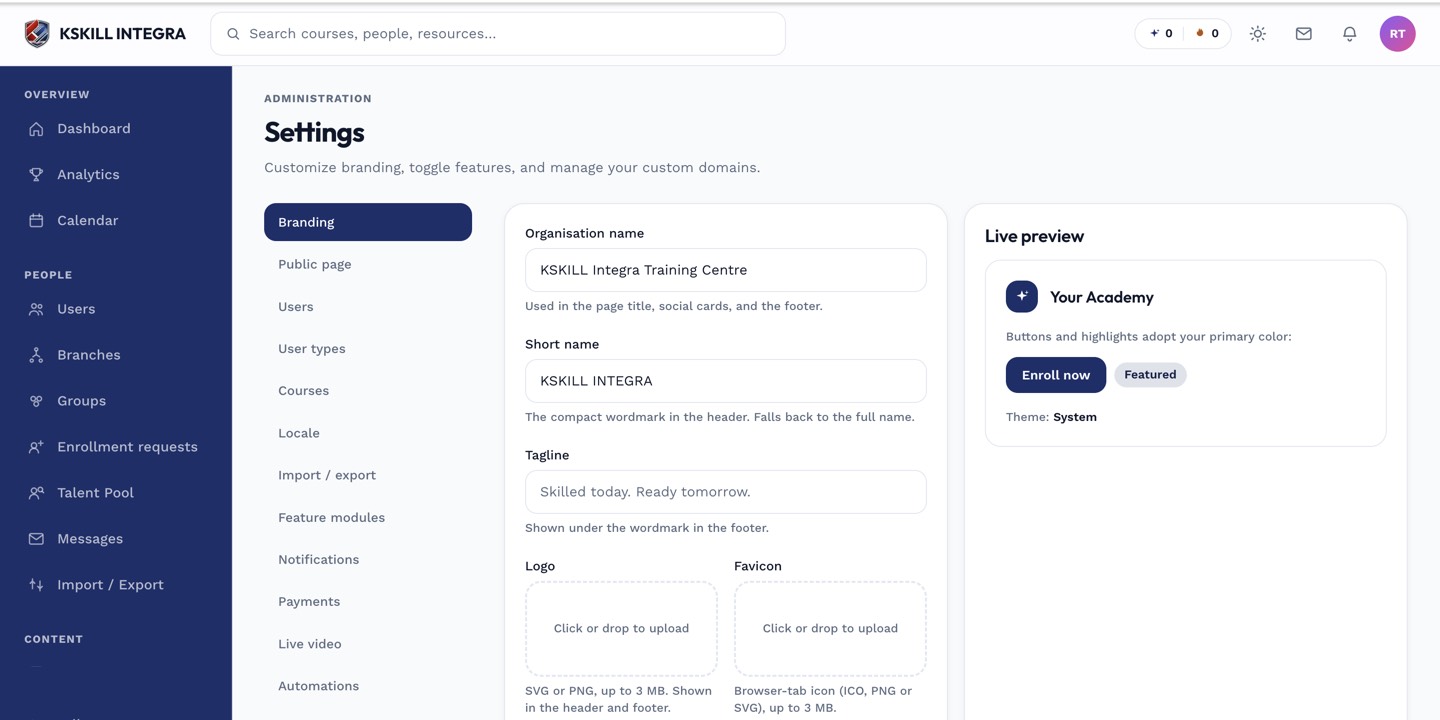
The Settings page is the single home for every tenant-level toggle.
Step 2 — Tune the policy
Adjust the minimum length (14 recommended), pick which character classes are required, and set a rotation cadence if compliance demands one. Save. Every new password on the tenant now respects the policy.
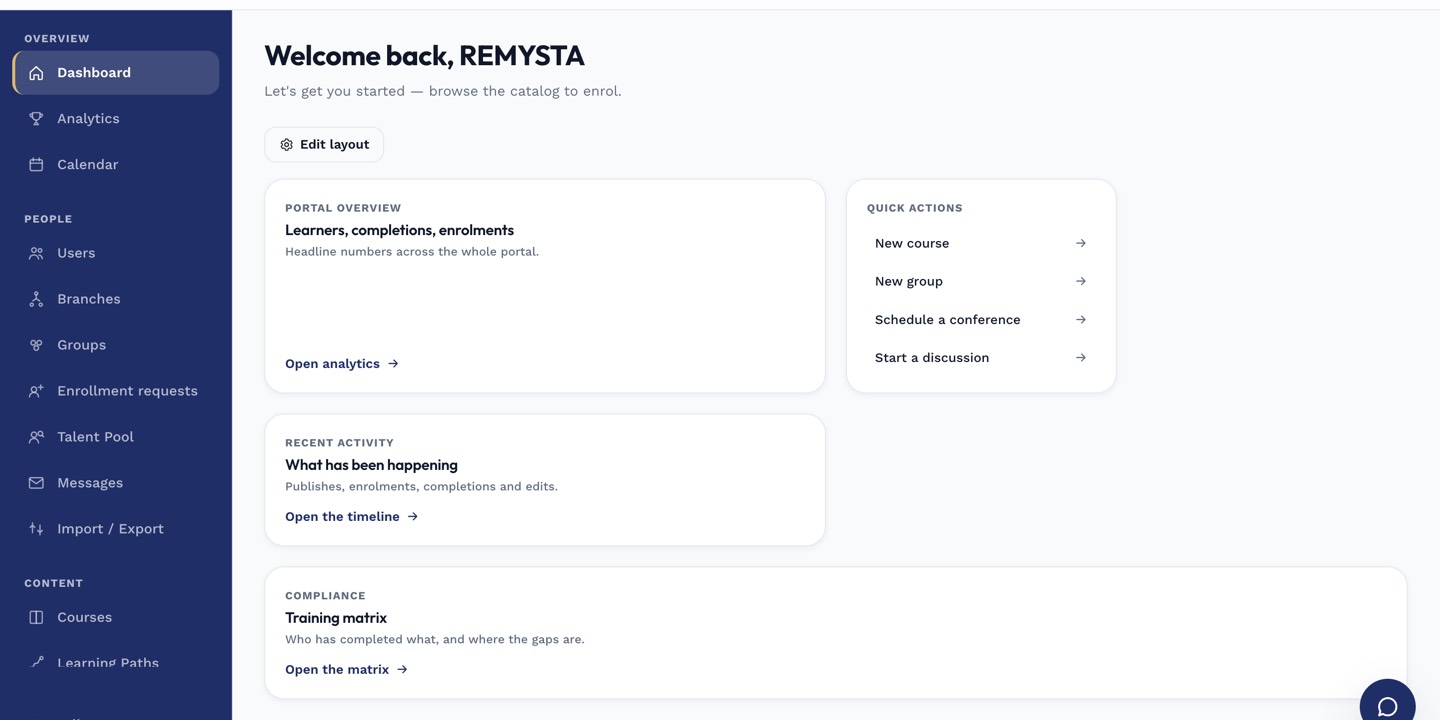
The left rail is the anchor for every admin task; every screen you visit starts with a click here.
Step 3 — Communicate the change
Notify users before the next rotation deadline if you tightened the policy. Consider a grace period during which weak passwords still work but users are prompted to upgrade. Loud silence produces support tickets.
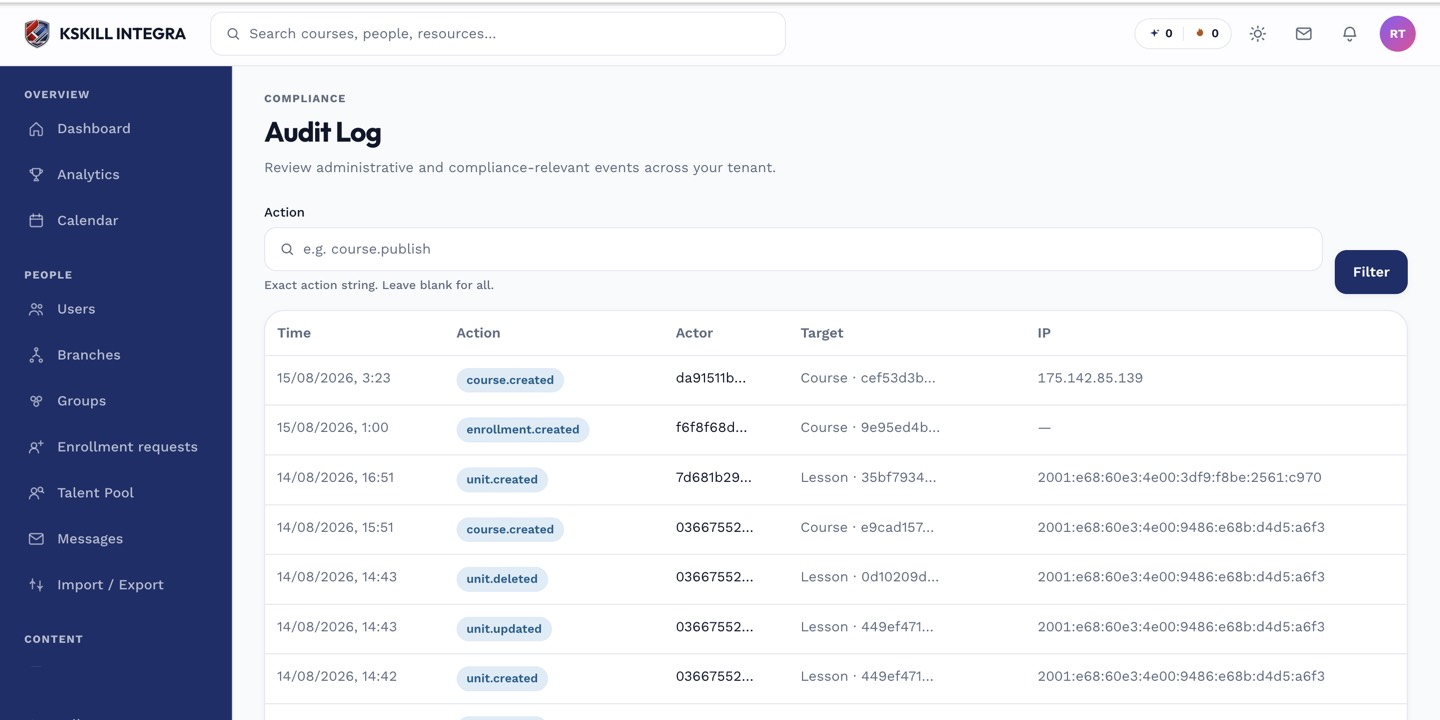
The audit log is your immutable record of who did what.
Notes
- For SSO tenants, the identity provider's policy wins — the LMS's rules apply only to non-SSO accounts.
- Length beats complexity — a long passphrase is safer than a short cryptic string.