Configure your AI provider
This article covers picking a provider and dropping in credentials.
Before you start
You need the Admin role and API credentials from your chosen provider.
Step 1 — Open AI settings
Open Configuration → Settings and pick AI. The page shows the currently-configured provider and a Where used list of features that depend on it.
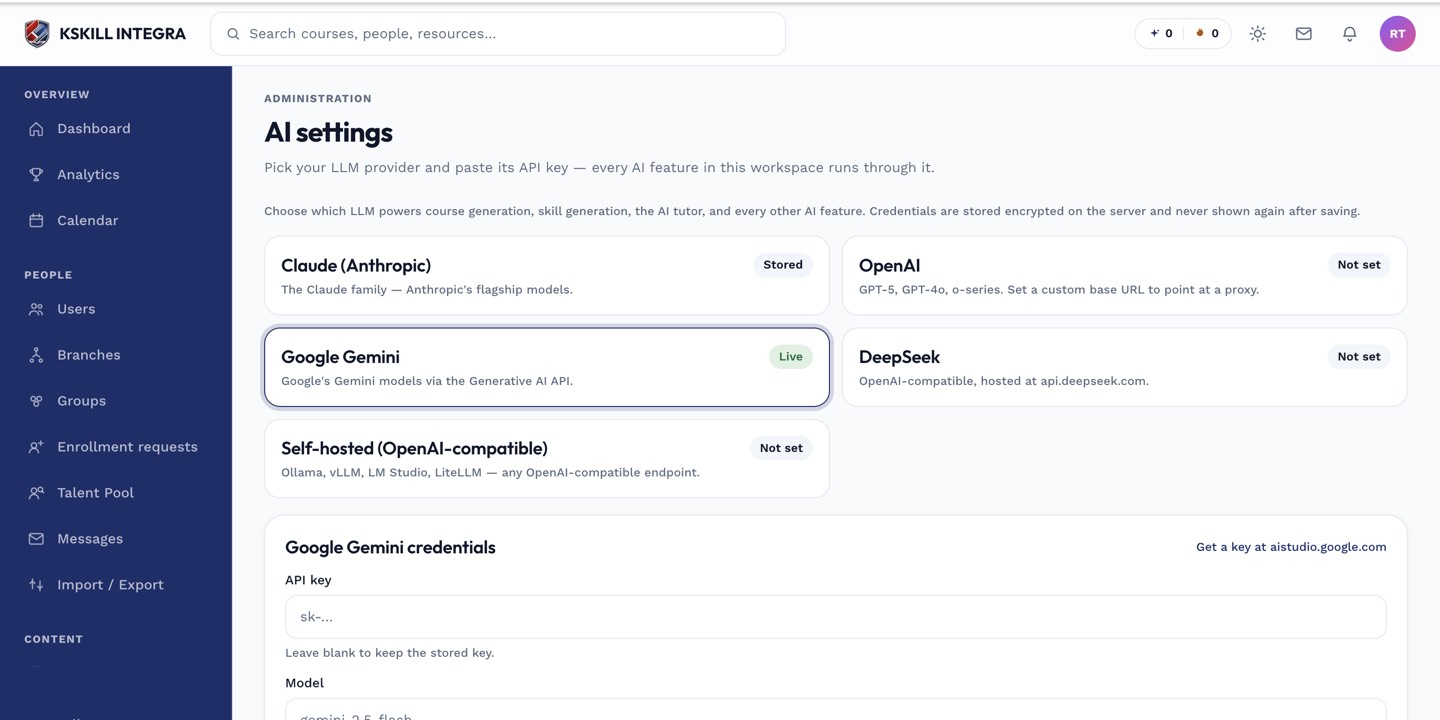
The AI settings page is where every AI-powered feature gets its credentials.
Step 2 — Pick provider and enter credentials
Pick one of Anthropic, OpenAI, Gemini, DeepSeek, or Self-hosted. Enter the API key and any model preferences. The form shape adapts per provider — self-hosted asks for a base URL, cloud providers only need a key. Save.
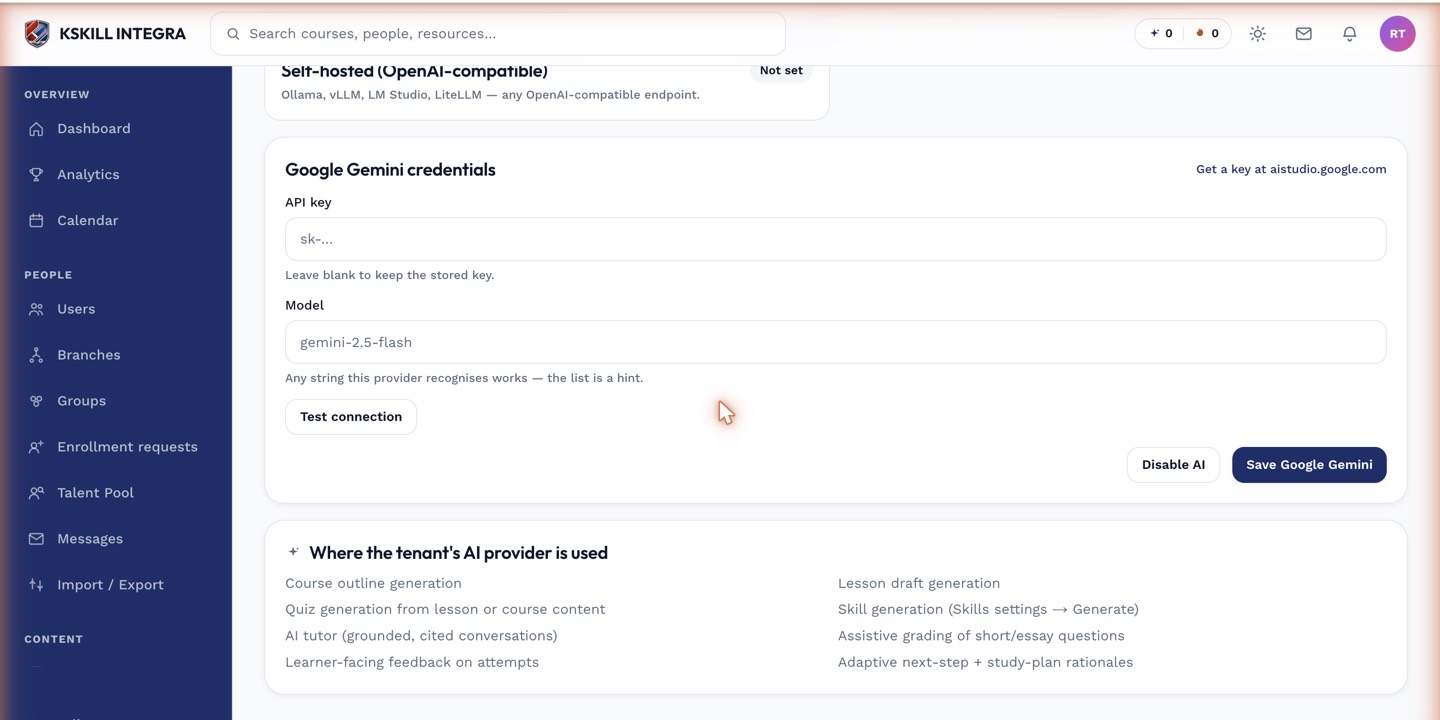
The provider form is the single place every AI feature gets its credentials — the 'where used' list tells you exactly what will start working.
Step 3 — Test the connection
Click Test connection. The platform hits the provider's identity endpoint and reports back within seconds. On success, every feature on the Where-used list starts working immediately. On failure, the error tells you which field is wrong.
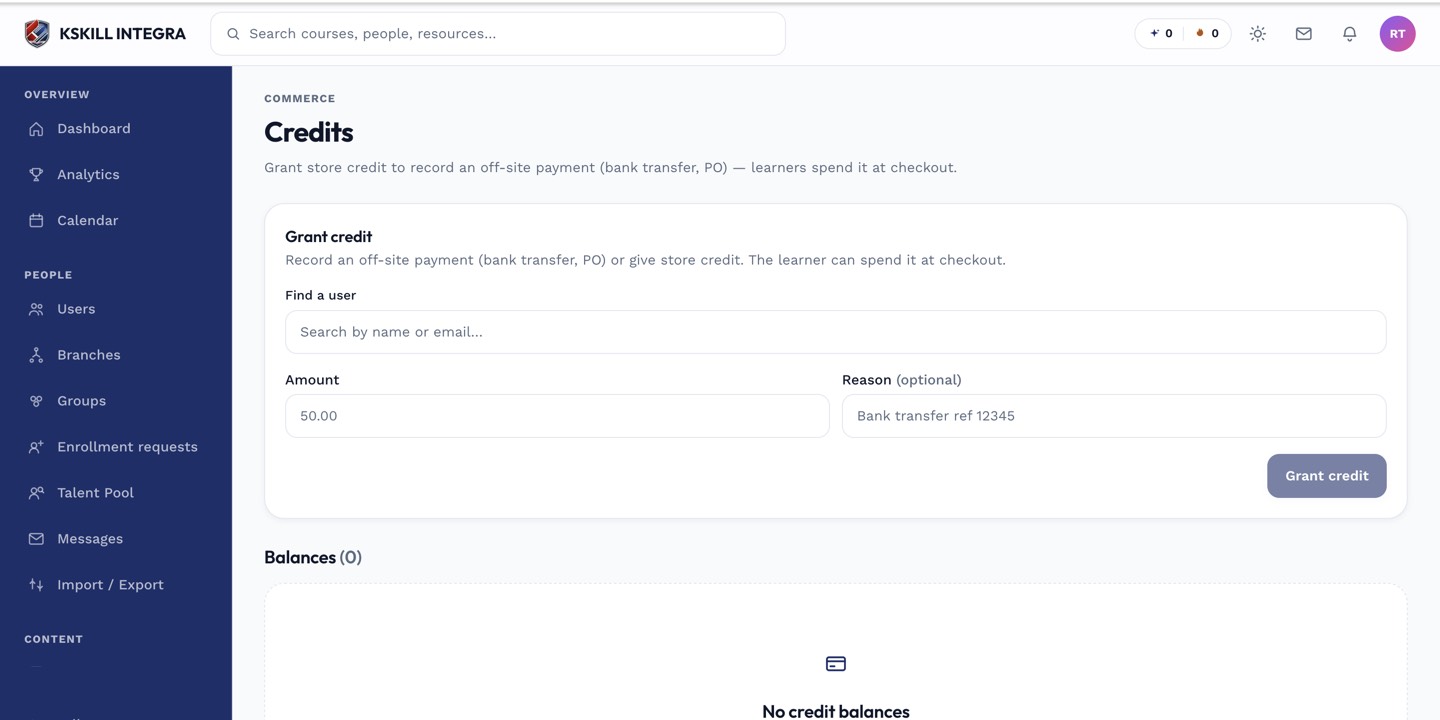
The credits page tells you exactly how much AI capacity remains and where it went.
Notes
- Every feature routes through LLMProviderFactory.buildForTenant() — no bypass, no env-var fallback.
- Rotate keys by pasting new ones over old and saving; there's no separate rotation step.