Generate quiz questions with AI
The AI quiz generator drafts questions from a lesson's content. This article covers using it responsibly.
Before you start
You need the Admin or Instructor role and an AI provider configured.
Step 1 — Open the Test builder
Open a course's Tests tab and click into an assessment. Click Generate with AI in the header. The drawer asks for a source — a lesson unit, a document, or a free-text prompt.
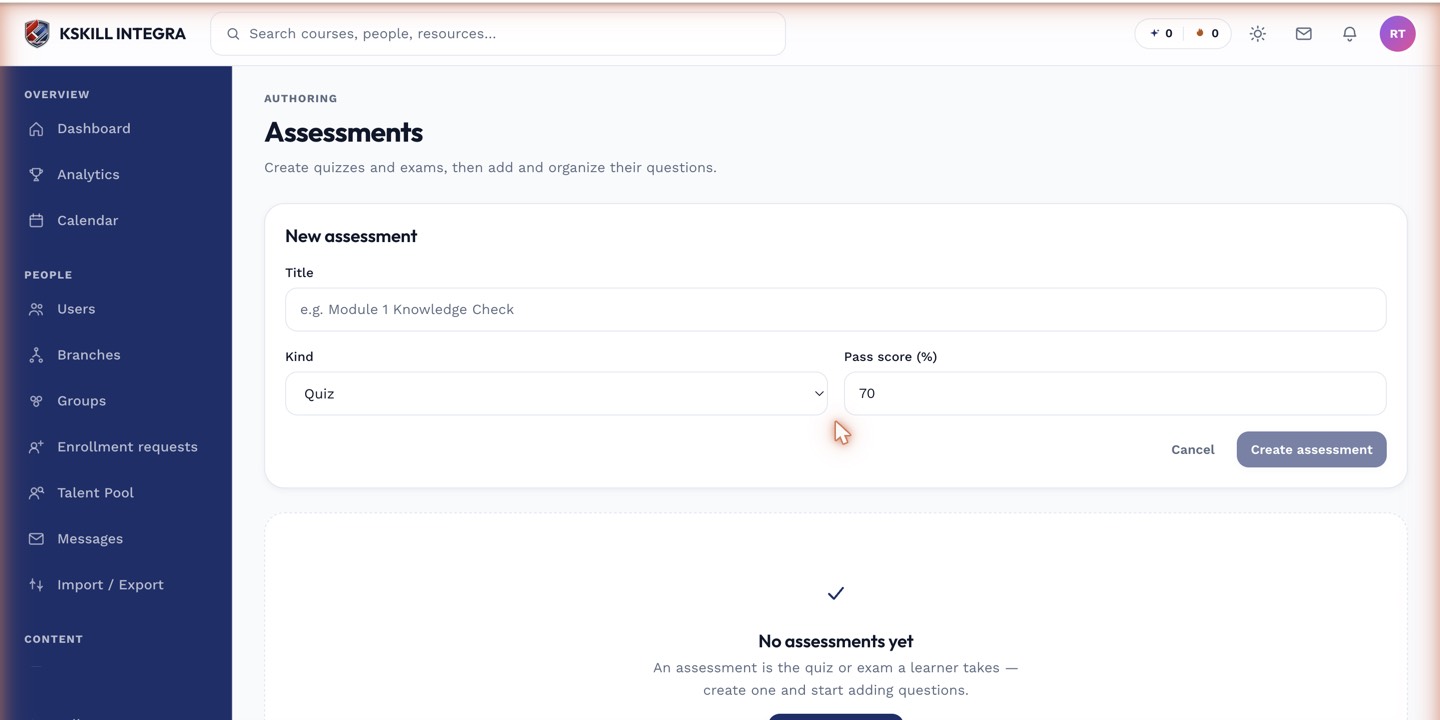
The builder combines the settings panel and the question list on a single screen.
Step 2 — Pick source and question mix
Pick the source and the question types you want (single, multi, match, short). Set the count and difficulty. Submit. The generator queues the job and returns proposed questions with correct answers marked.
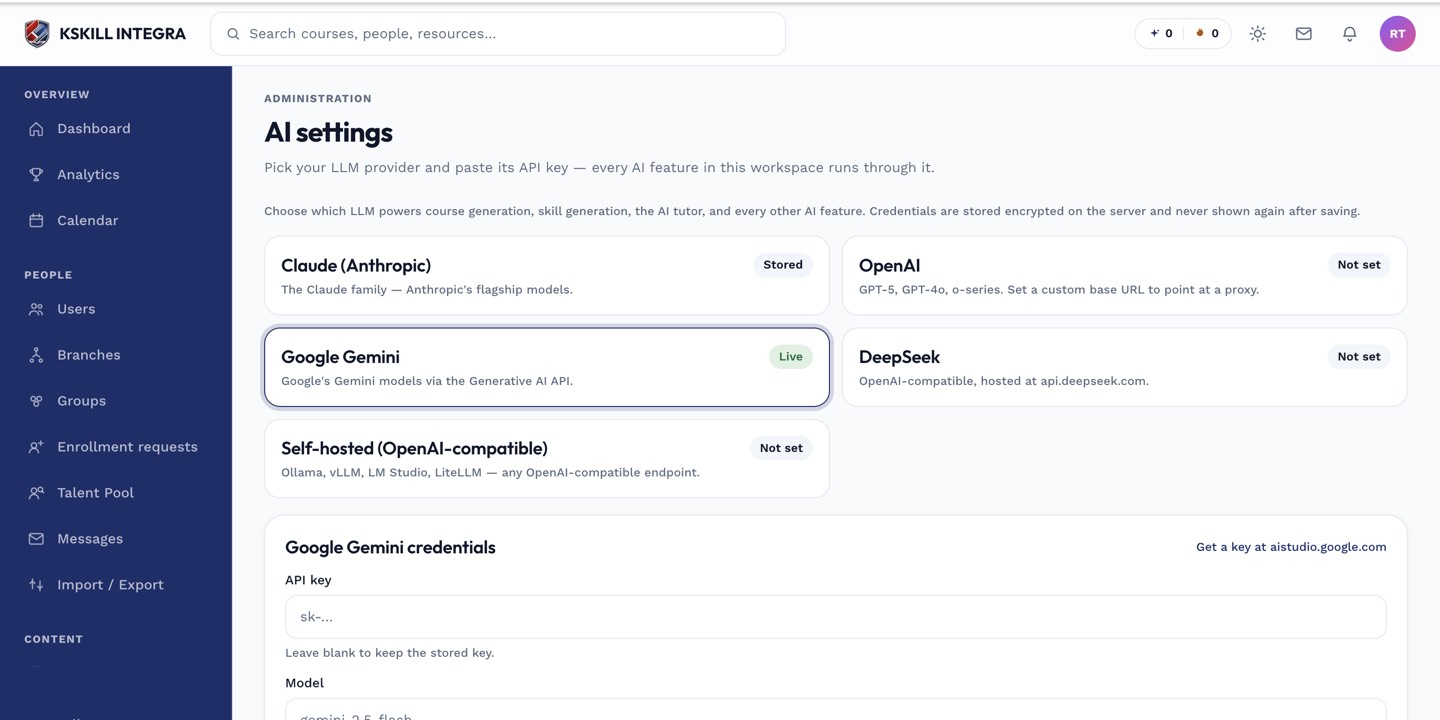
The AI settings page is where every AI-powered feature gets its credentials.
Step 3 — Review before applying
Every generated question needs a human check. Look for hallucinated facts, ambiguous wording, and answers that a smart learner could argue about. Uncheck anything you don't want. Click Apply to add the checked ones to the assessment.
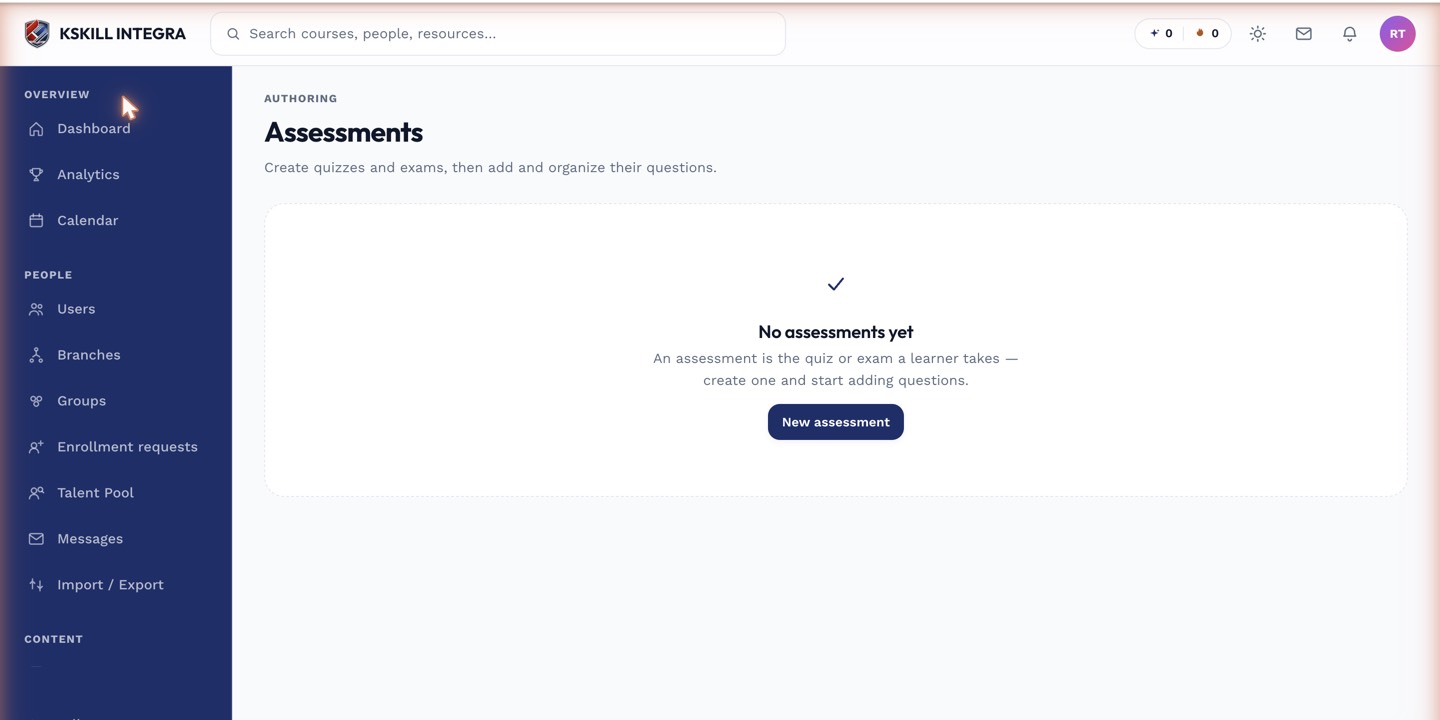
The Tests tab is where you create and manage every graded assessment inside a course.
Notes
- AI-generated questions must be reviewed — otherwise you ship errors at scale.
- For high-stakes exams, prefer human-authored questions and use AI for practice quizzes only.