Deactivate a user
Deactivation locks a user out of sign-in without deleting their data. Use it when someone leaves or their access should pause.
Before you start
You need the Admin role. Deactivation is reversible; deletion is not — always deactivate first.
Step 1 — Open the user profile
Open People → Users and click the user. Their profile shows every field, their enrolments, their groups and their audit history. The Active toggle in the header controls sign-in access.
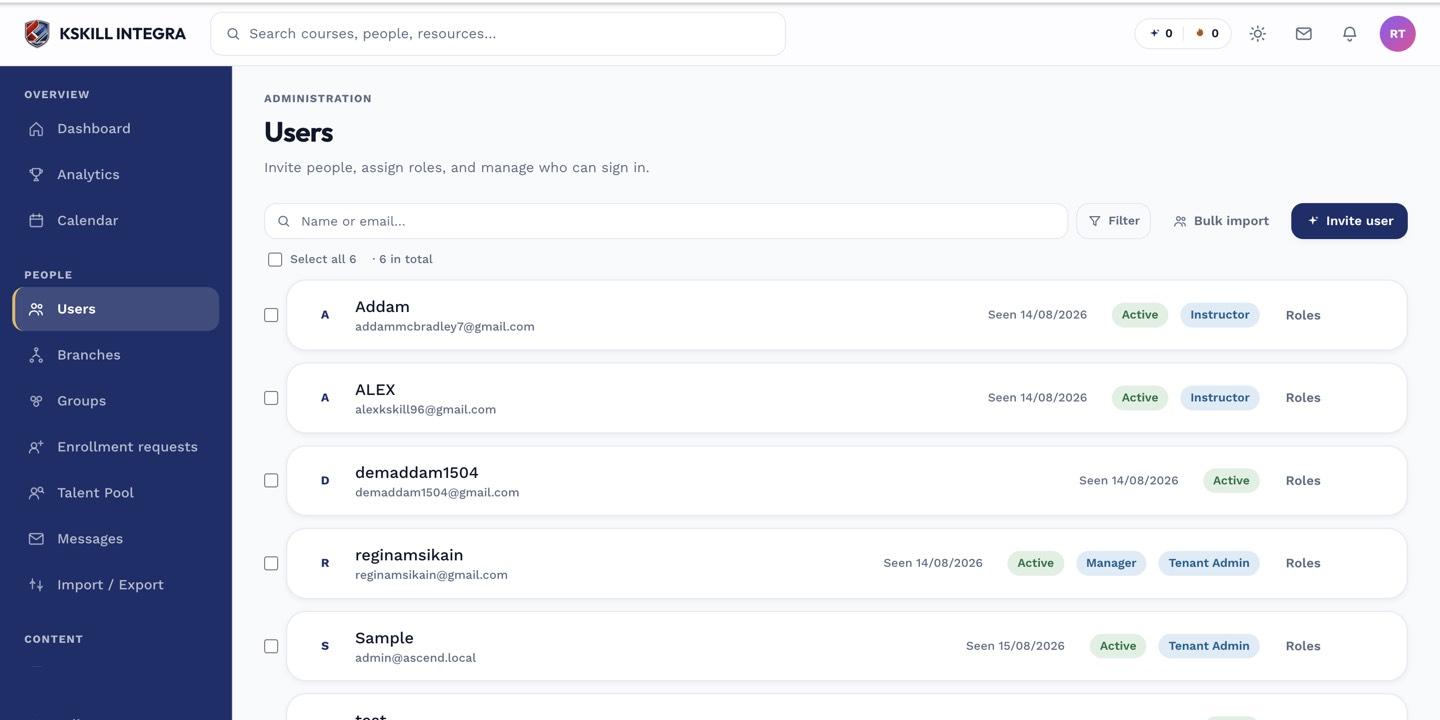
The Users list is the entry point for every person-related admin task.
Step 2 — Flip the Active toggle off
Toggle Active off. The next time they try to sign in, Keycloak refuses with a friendly message. Existing sessions expire on their next refresh — usually within an hour. Their courses, certificates and reports stay untouched.
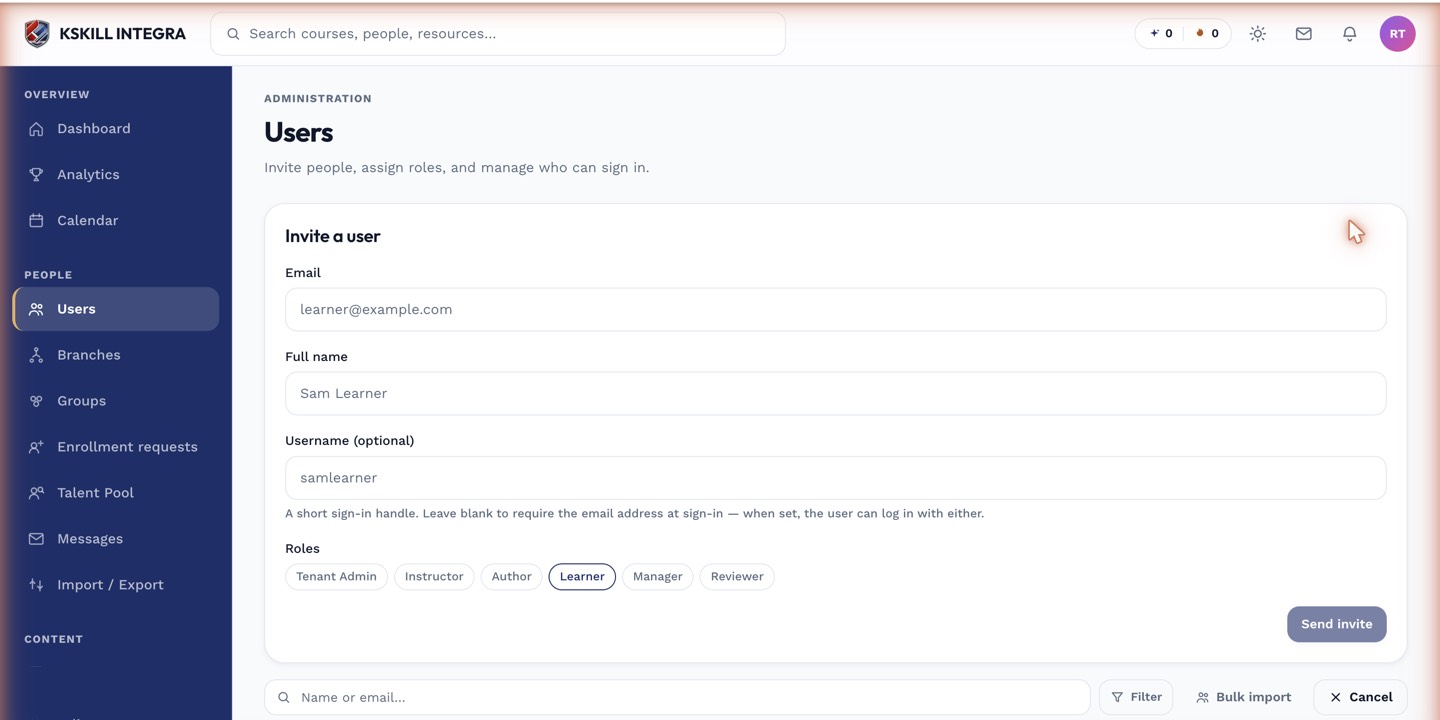
The invite drawer is the same shape whichever role you assign.
Step 3 — Reactivate if needed
Toggle Active back on and the user can sign in immediately. Nothing else needs to change — enrolments, group memberships, and their learning history are all where they left them.
The Users list is the entry point for every person-related admin task.
Notes
- Deactivation preserves audit history. Compliance reports still count their past completions.
- For a permanent, GDPR-compliant removal, use Data export and deletion instead.