Sign in and reset your password
This article covers signing in the first time, resetting a forgotten password and switching accounts if you belong to more than one tenant.
Before you start
You need an invitation email or a self-registration URL from your admin. Sign-in uses Keycloak — the same login form you saw when you first activated your account.
Step 1 — First sign-in
Open the invite email and click Set your password. You land on the Keycloak form, pick a password that meets your tenant's policy, and you are dropped on your dashboard already signed in. No second step, no email verification loop.
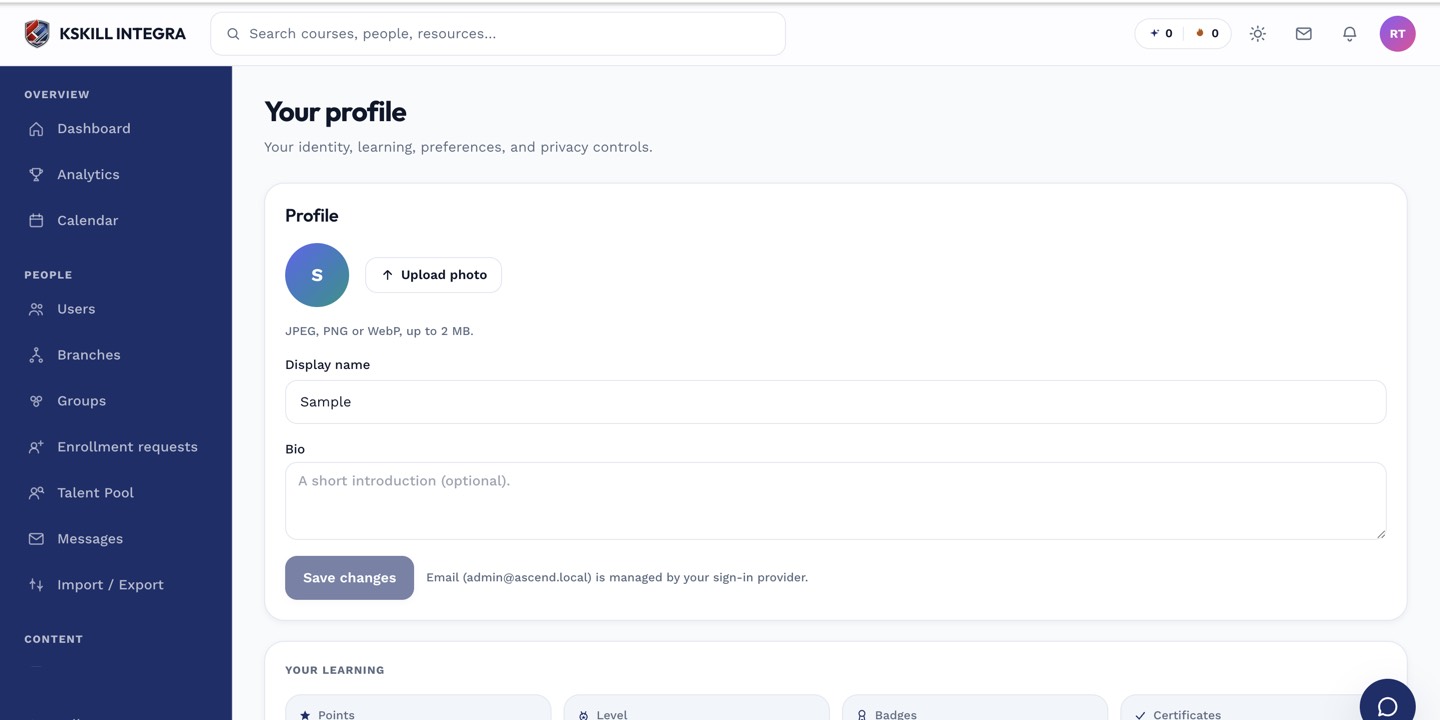
The account settings page is where a learner controls their own personal data.
Step 2 — Reset a forgotten password
On the sign-in page, click Forgot password. Enter the email you registered with and Keycloak emails a reset link. The link is single-use and expires in an hour, so click it soon after it arrives. Pick a new password and you are back in.
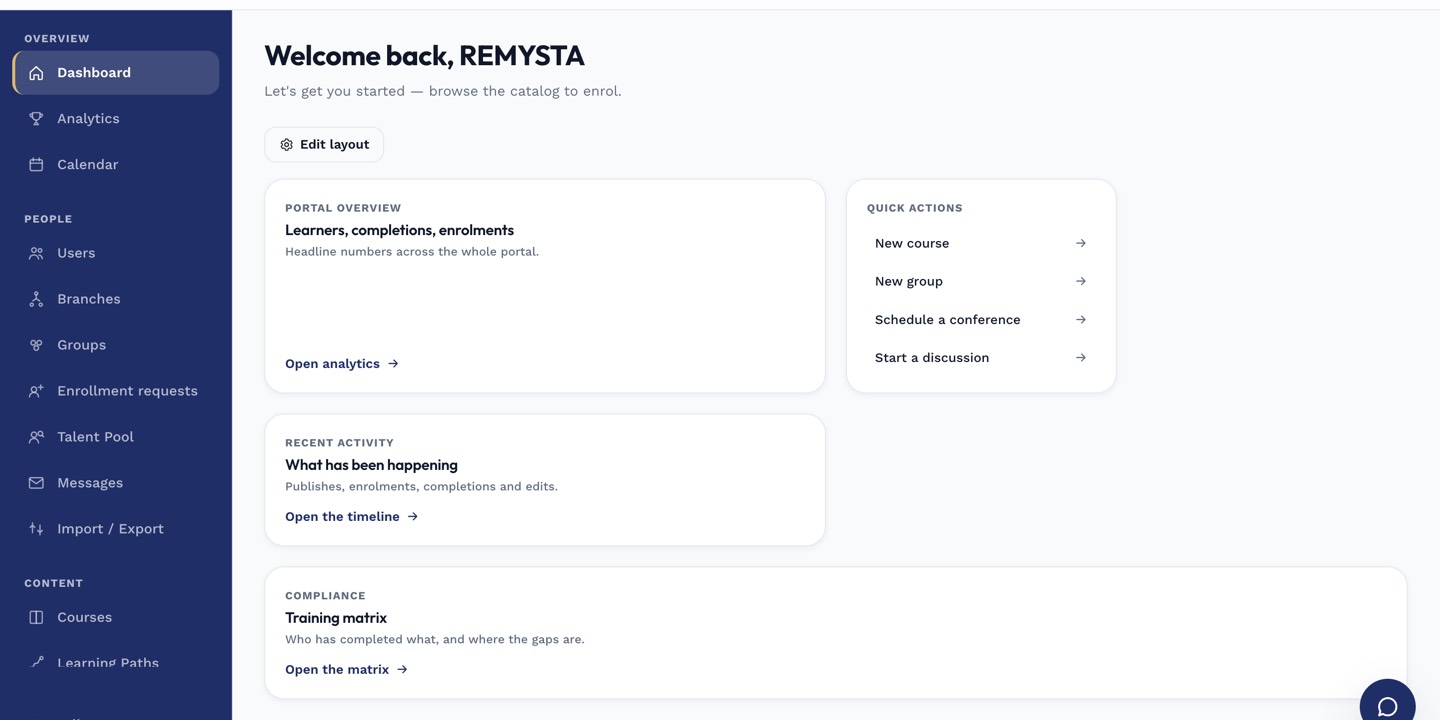
The left rail is the anchor for every admin task; every screen you visit starts with a click here.
Step 3 — Change your password on demand
Once signed in, open your profile picture and pick Account settings. Switch to the Security tab and use the Change password form. This is the mechanism to use whenever you suspect your password has leaked.
The account settings page is where a learner controls their own personal data.
Notes
- If your tenant is on SSO (SAML or Okta), the sign-in form redirects you to your identity provider instead — the LMS never sees your password.
- Two-factor authentication is optional but strongly recommended for admin accounts.