Creating a Group
GroupsUpdated September 21, 2026
A group is a standing collection of users tied to courses, learning paths, and shared files — the tool for an ongoing team or community space rather than a one-off scheduled delivery.
Create the group
- Open Manage → Groups from the sidebar.
- Click New group and give it a name.
- Save. The group opens to its detail page with five tabs: Users, Courses, Learning paths, Files, and Info.
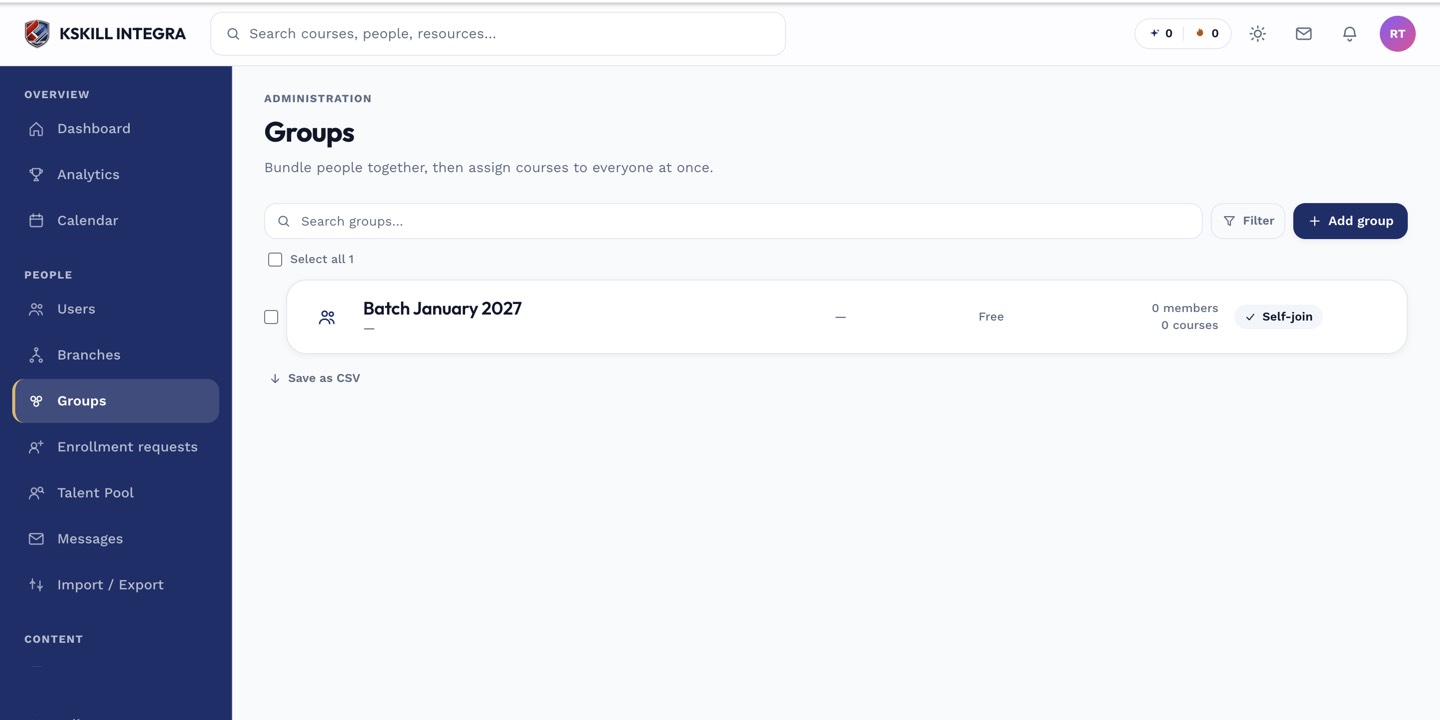 New groups start empty across every tab — you populate them next.
Adding content to each tab
Each tab has its own add flow, and every one of them opens as a right-edge drawer rather than navigating you away from the group. Add users from the Users tab, attach courses from the Courses tab, attach learning paths from the Learning paths tab, and upload shared materials from the Files tab.
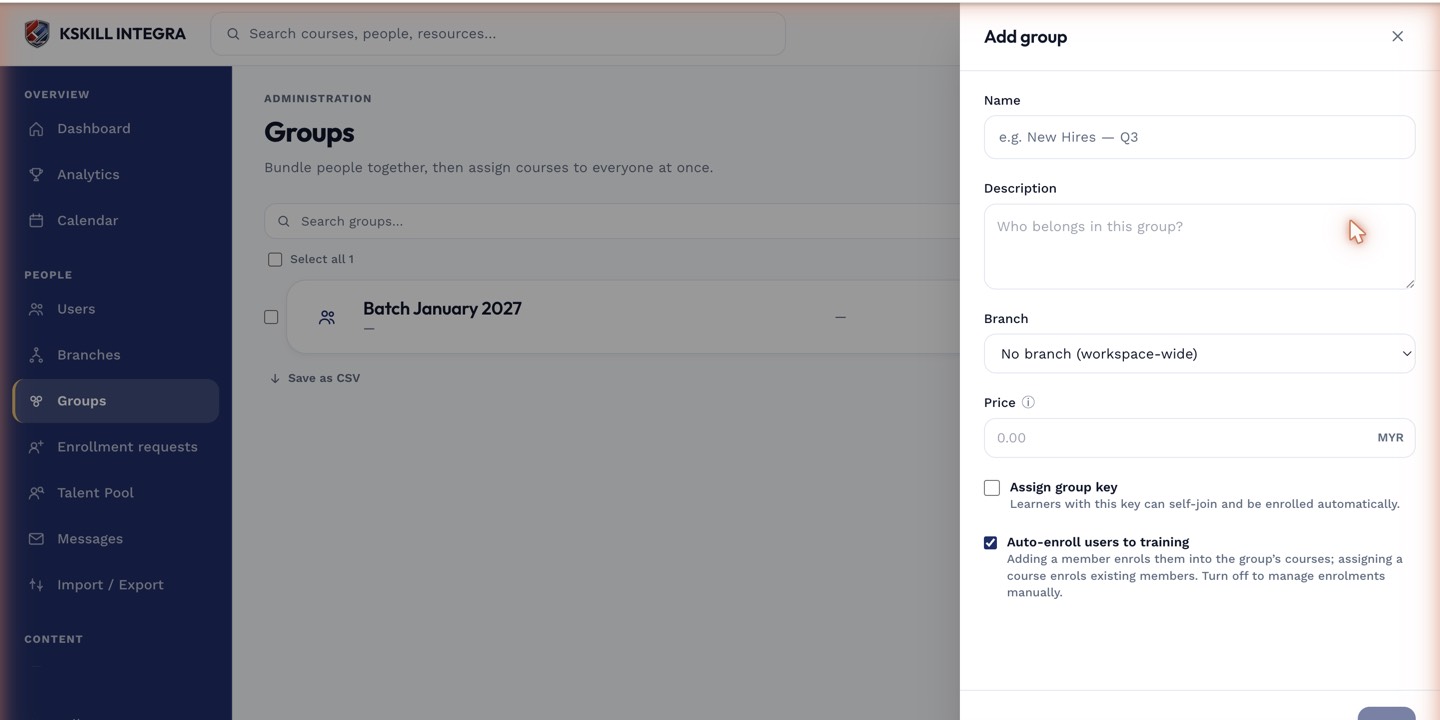 Adding a course, a user, or a path all use the same right-edge drawer pattern.
What next?
#groups#setup#users#courses#admin