Group discussion
Groups can have a shared discussion thread. This article covers turning it on and moderating it.
Before you start
You need to be a Group owner or an admin.
Step 1 — Enable discussion
Open the Group detail page and switch to the Info tab. Toggle Group discussion on. A new Discussion tab appears immediately alongside Users and Courses.
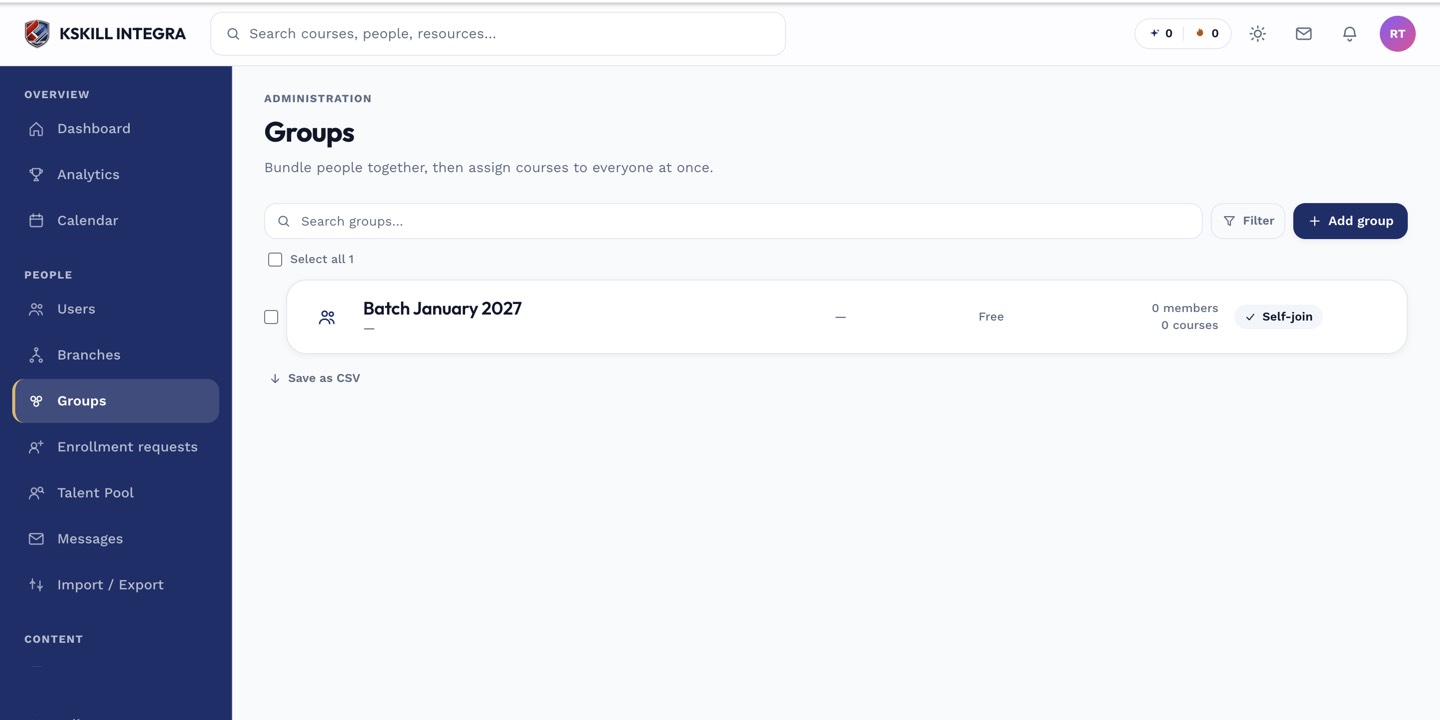
Every group management task starts from this list.
Step 2 — Post and moderate
The Discussion tab works like any other thread — new topics, replies, mentions. Owners and admins can pin important threads to the top and delete anything that violates policy. Members get notifications on new posts by default.
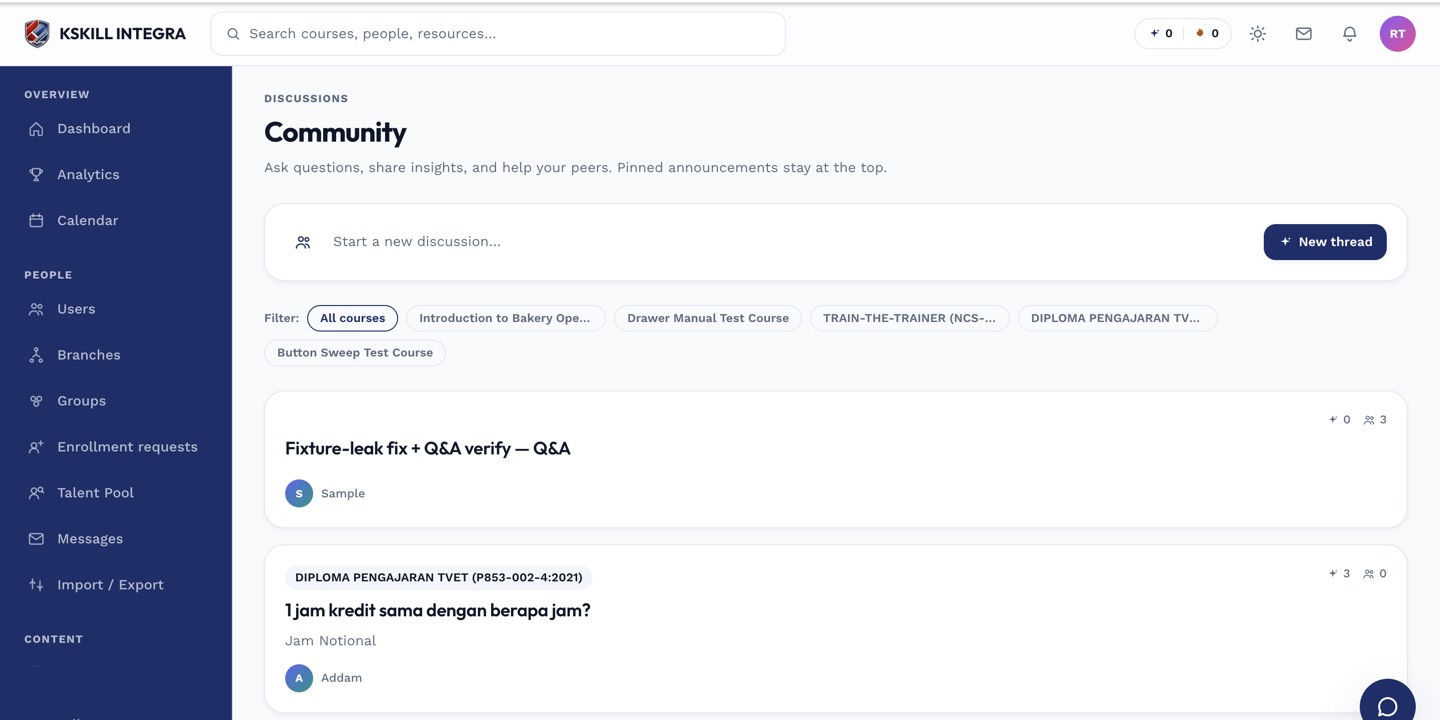
The community surface hosts open-ended discussion outside any single course.
Step 3 — Disable if it goes quiet
If the thread stays empty for months, disable it from the Info tab to remove the sidebar noise. History is preserved and comes back on re-enable.
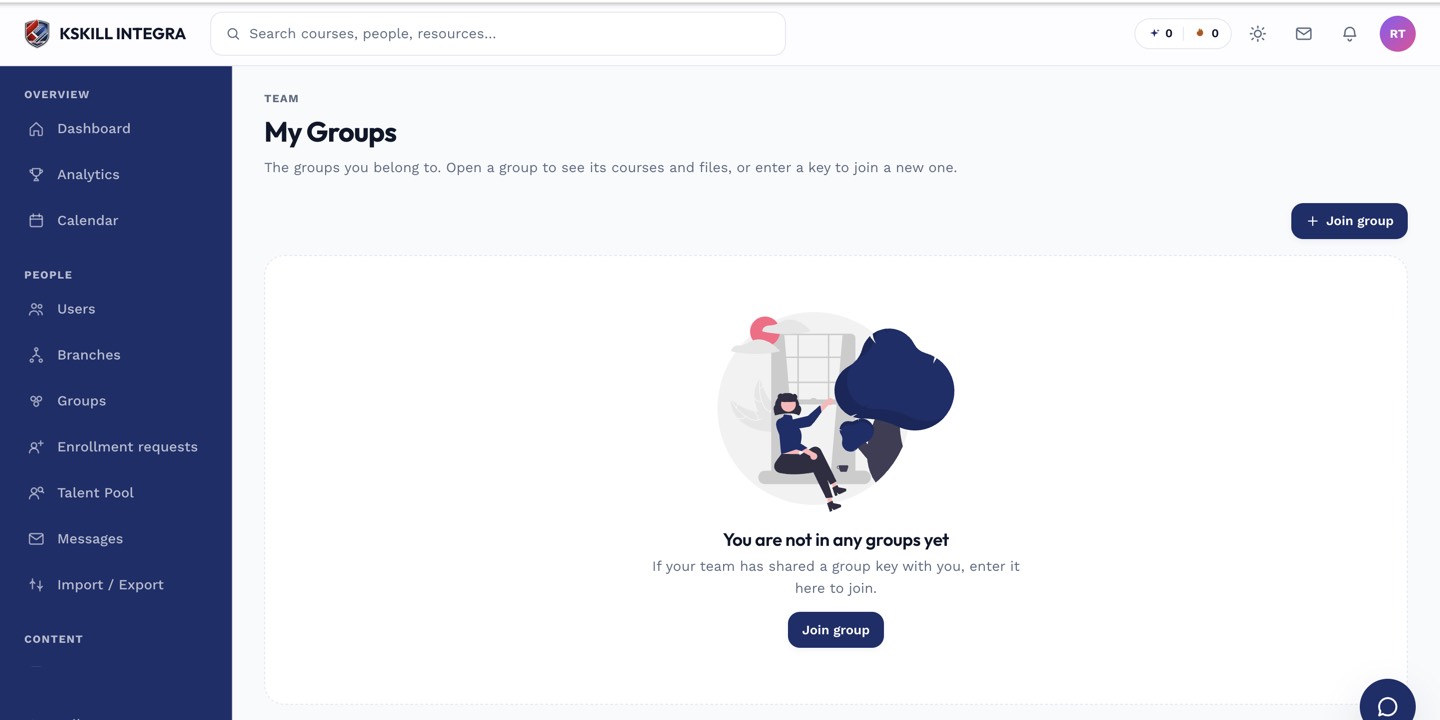
My Groups is the learner's roll-up of every group and cohort they belong to.
Notes
- For time-boxed conversation, use a Cohort — its discussion auto-creates and lives on the cohort's timeline.
- Discussion respects branch scoping — cross-branch group discussion isn't allowed by default.