Historical completion import
You can import past course completions so they appear in reports and certificates. This article covers the workflow.
Before you start
You need the Admin role. Users must already exist on the tenant — the completion import doesn't create them.
Step 1 — Download the completion template
Open Configuration → Settings → CSV templates and grab the Historical completions template. Columns include user email, course slug, completion date, score and issued certificate.
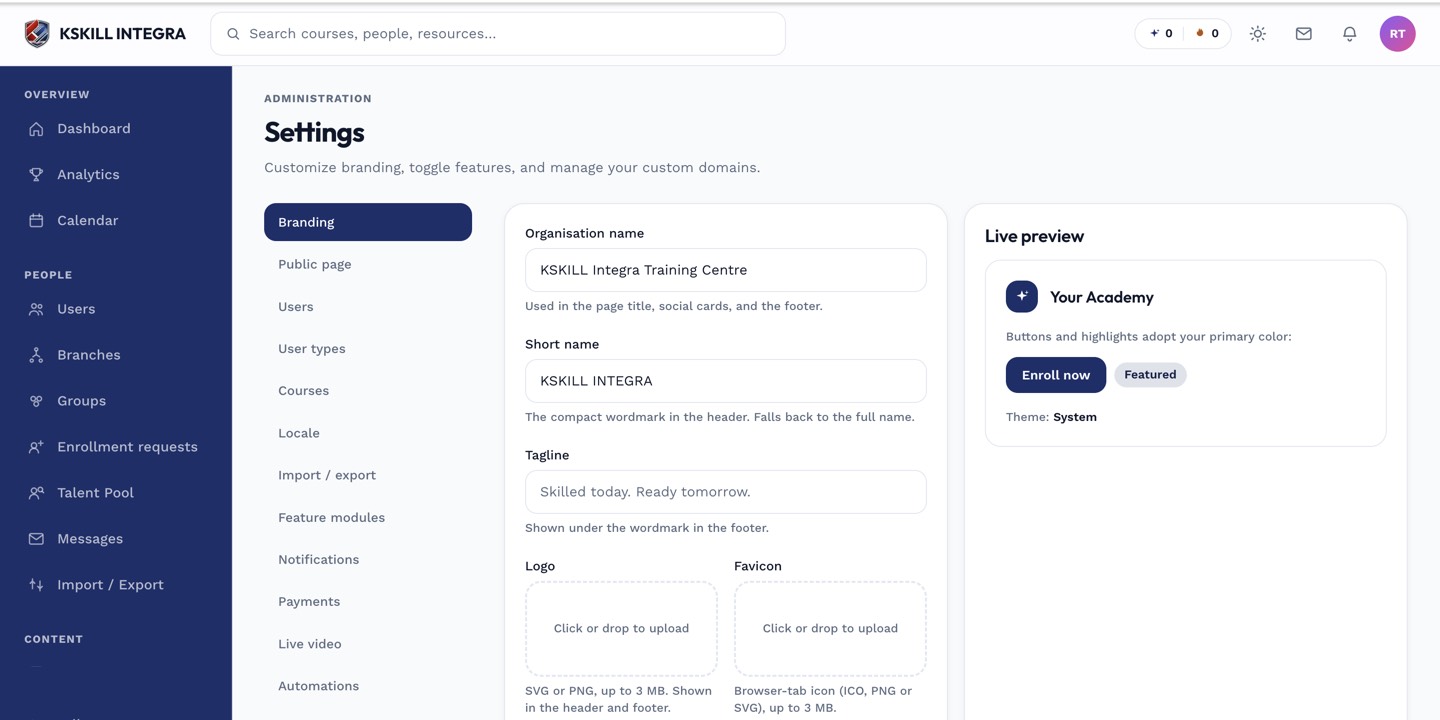
The Settings page is the single home for every tenant-level toggle.
Step 2 — Populate with your history
Fill in one row per historical completion. Dates can be any past date; the platform doesn't reject 'impossible' dates. Score is optional; skip for courses without a graded outcome.
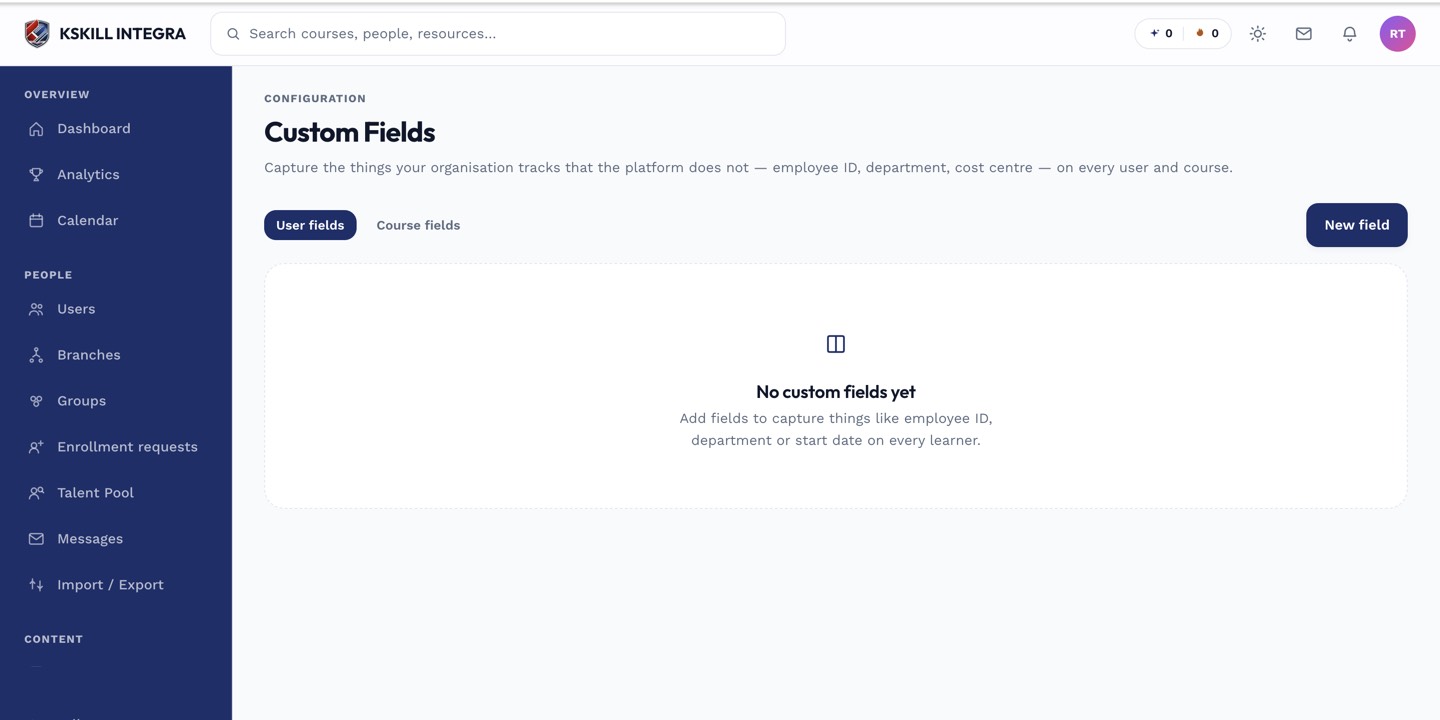
Custom fields extend the built-in profile so you can capture the columns your CSV imports need.
Step 3 — Import and verify
Open Content → Completions and click Import historical. Drop the CSV. The importer creates completion records and, if the course has a certificate template, issues certificates dated to the historical date. Verify by spot-checking a user's learning history.
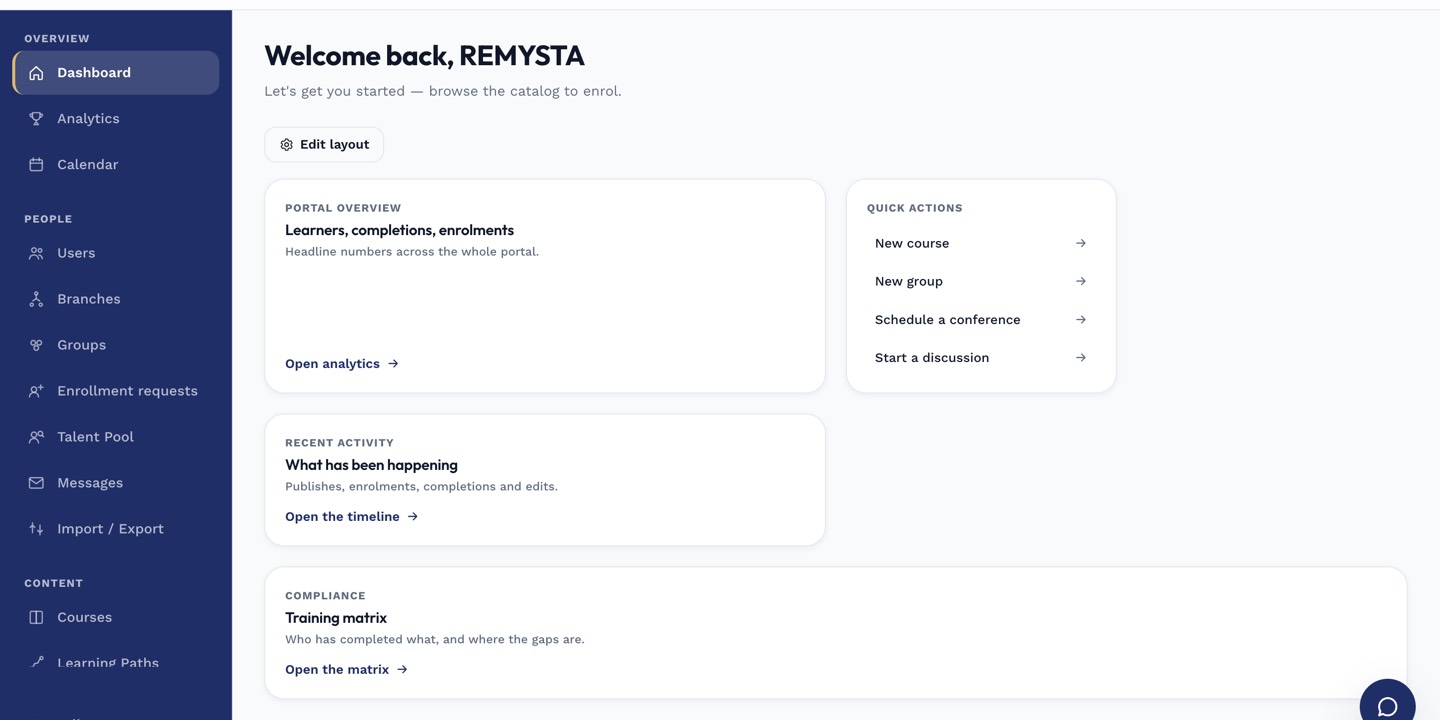
The left rail is the anchor for every admin task; every screen you visit starts with a click here.
Notes
- Historical completions count toward compliance reports — great for auditors, dangerous if the source data is wrong.
- Idempotent: re-importing the same row doesn't duplicate.