Locale and language
Locale controls the default language, date format and number format for your tenant. This article covers picking one.
Before you start
You need the Admin role. Locale can also be overridden per-user under account settings.
Step 1 — Open Locale settings
Open Configuration → Settings and pick Locale. The page shows the current tenant default and a preview of dates and numbers in that locale.
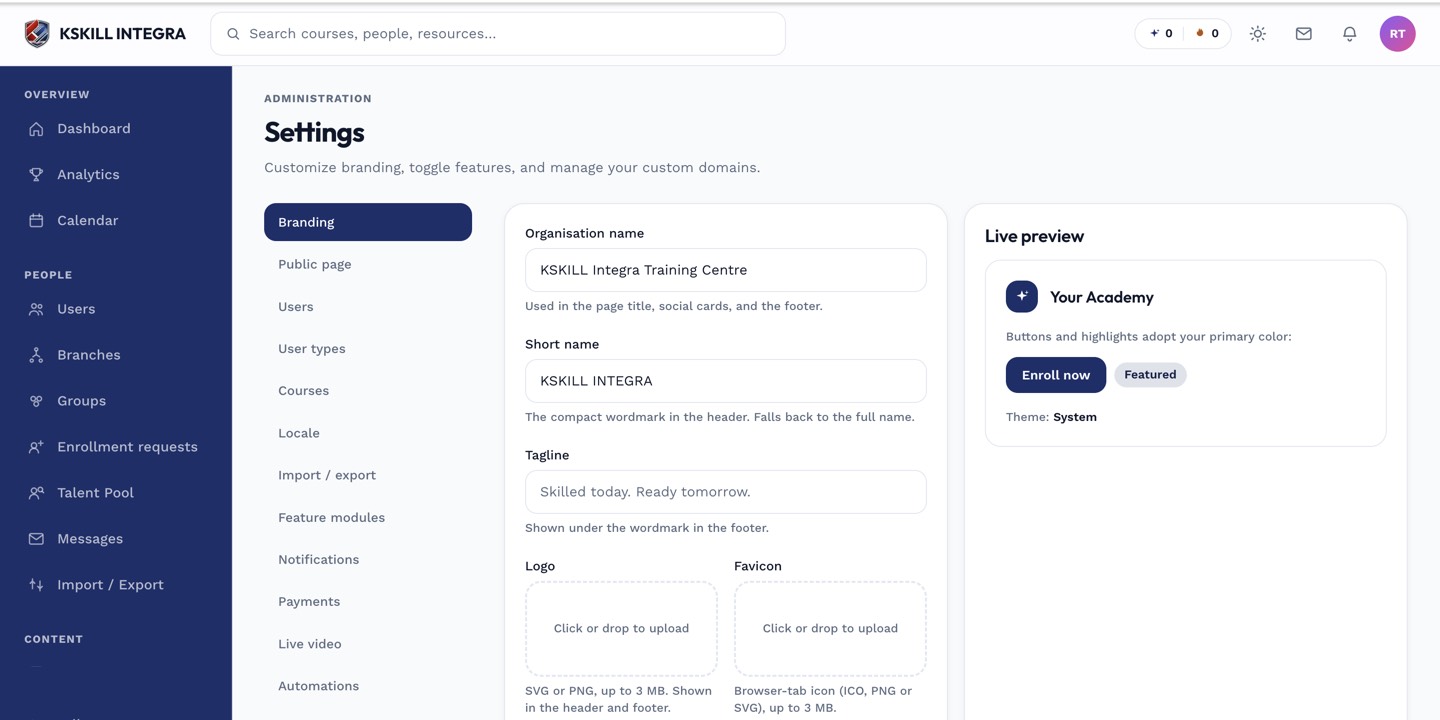
The Settings page is the single home for every tenant-level toggle.
Step 2 — Pick the tenant default
Select a locale from the dropdown. Common picks are en-MY, ms-MY and en-US. Save. Every user without a personal override sees dates, numbers and system copy in that locale.
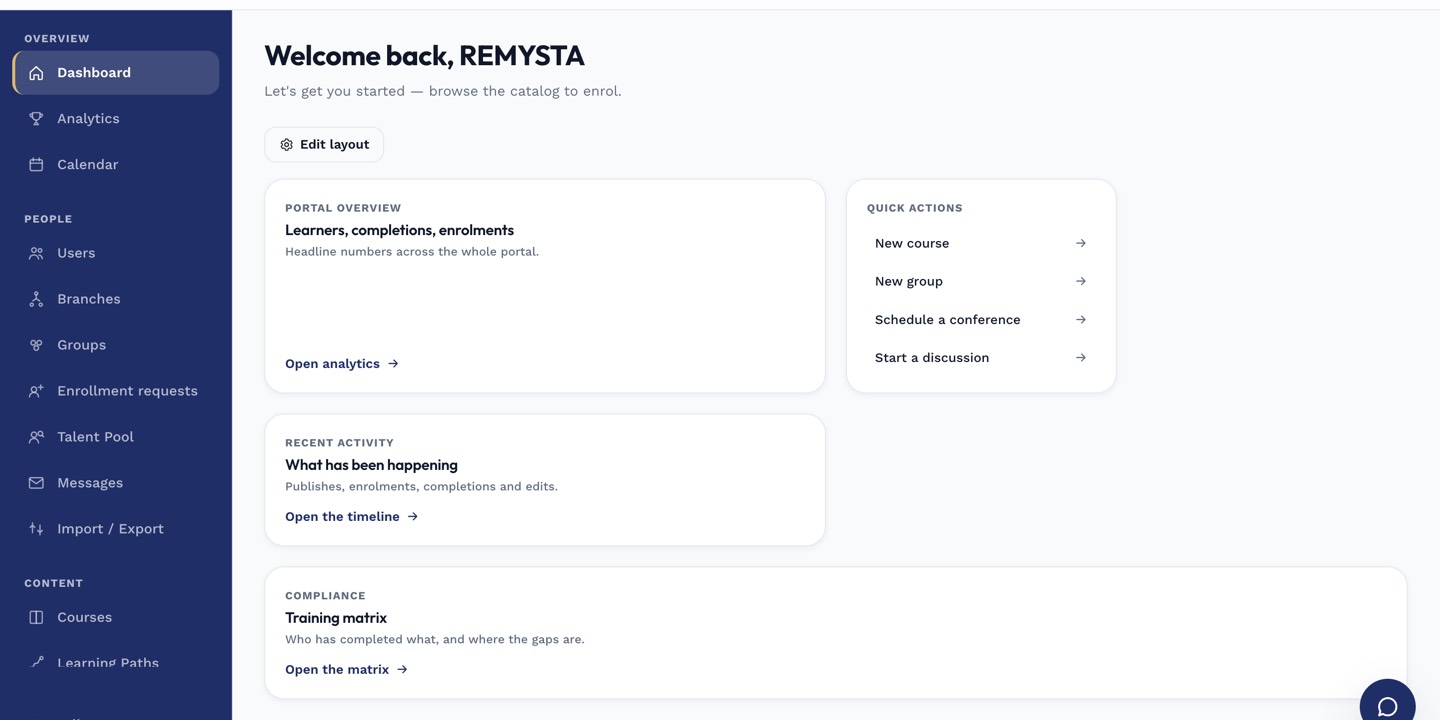
The left rail is the anchor for every admin task; every screen you visit starts with a click here.
Step 3 — How per-user override works
Individual learners can override the tenant default from their account settings. The tenant default is the fallback, not a hard rule. Content itself is not translated by this setting — that requires translated source material.
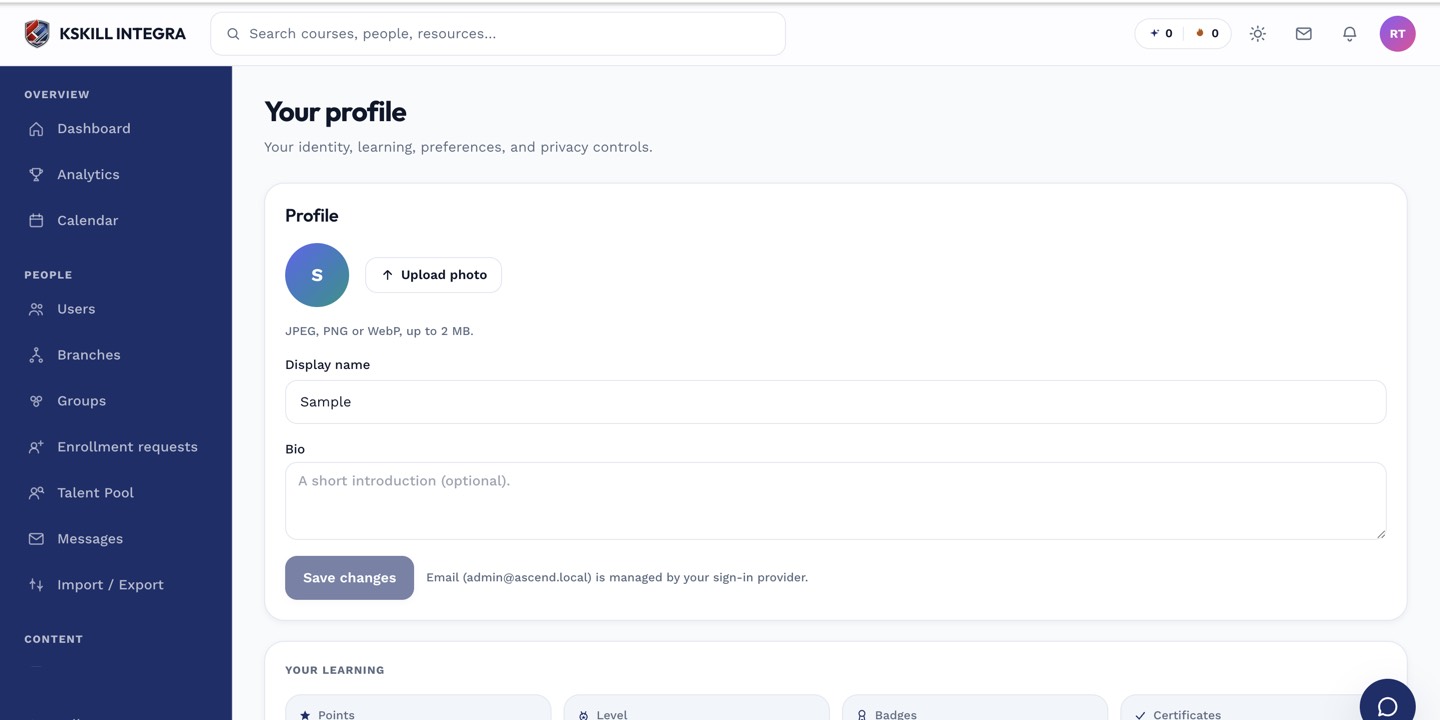
The account settings page is where a learner controls their own personal data.
Notes
- User.locale is stored but the translation runtime for content isn't wired yet — only system copy translates.
- Time zones are a separate setting; see the time-zone article.