LTI resource link deep dive
A resource link is the reference a peer tool uses to launch a specific LMS course or unit. This article covers creating and consuming them.
Before you start
You need the Admin role and an LTI handshake already configured.
Step 1 — Copy the launch URL
Open the course editor, switch to the LTI tab (visible when the LTI Services tab is enabled), and copy the Launch URL. Each unit also has its own launch URL if you want finer granularity.
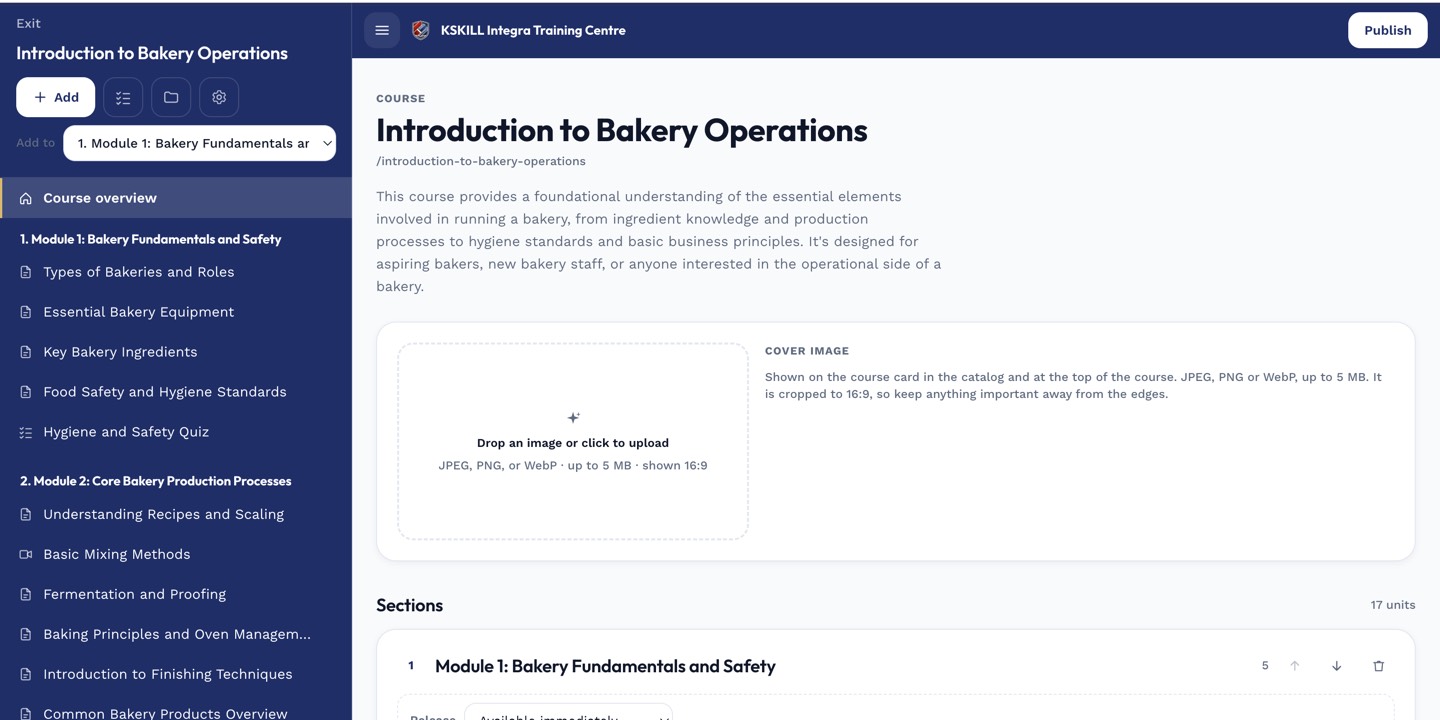
The editor shows sections and units together so you can drag either one to reorder.
Step 2 — Paste into the peer tool
In the peer tool, create a new LTI resource link and paste the launch URL. The peer's launch renders inside a frame; the LMS handles the OIDC handshake and signs the learner in automatically.
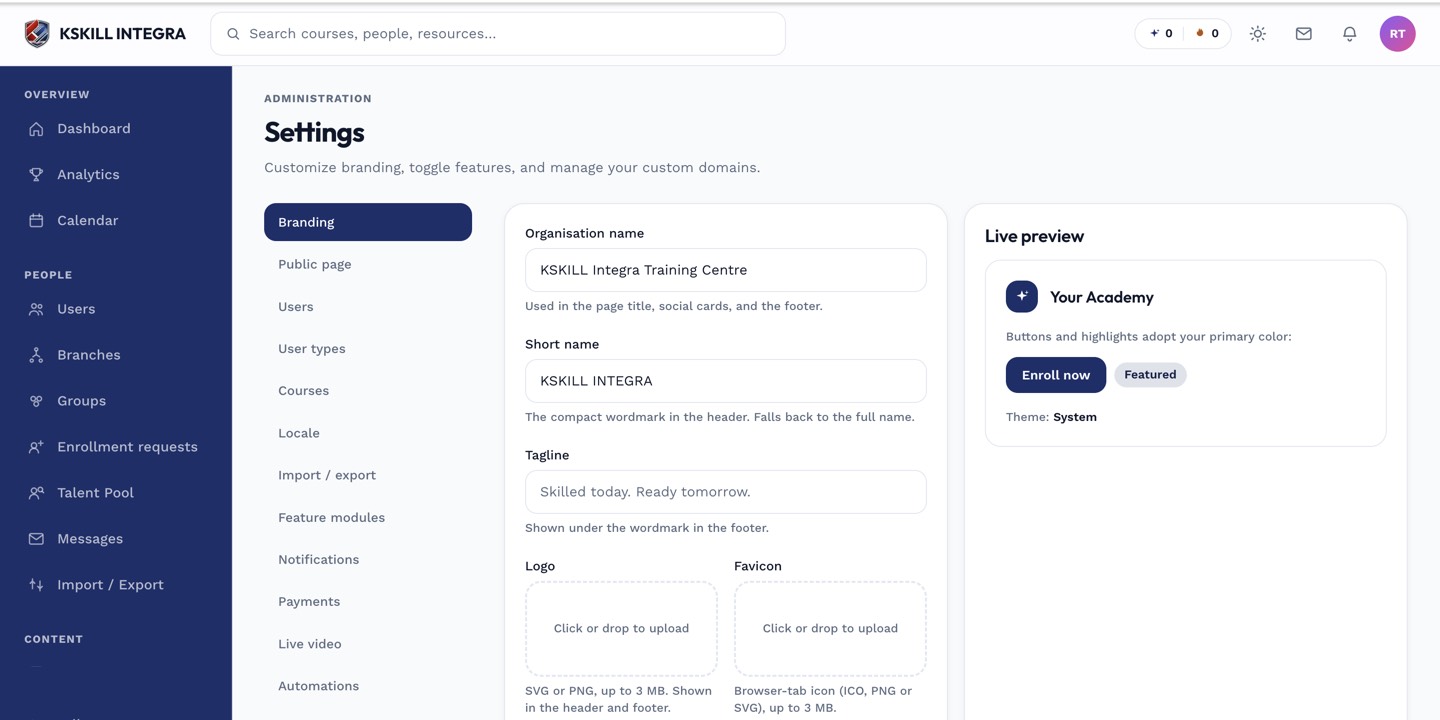
The Settings page is the single home for every tenant-level toggle.
Step 3 — Verify the learner experience
Launch from the peer tool as a test learner. The LMS course opens with them already signed in. Any grades they earn flow back via AGS. If sign-in fails, the OIDC handshake needs debugging — check the LMS's audit log.
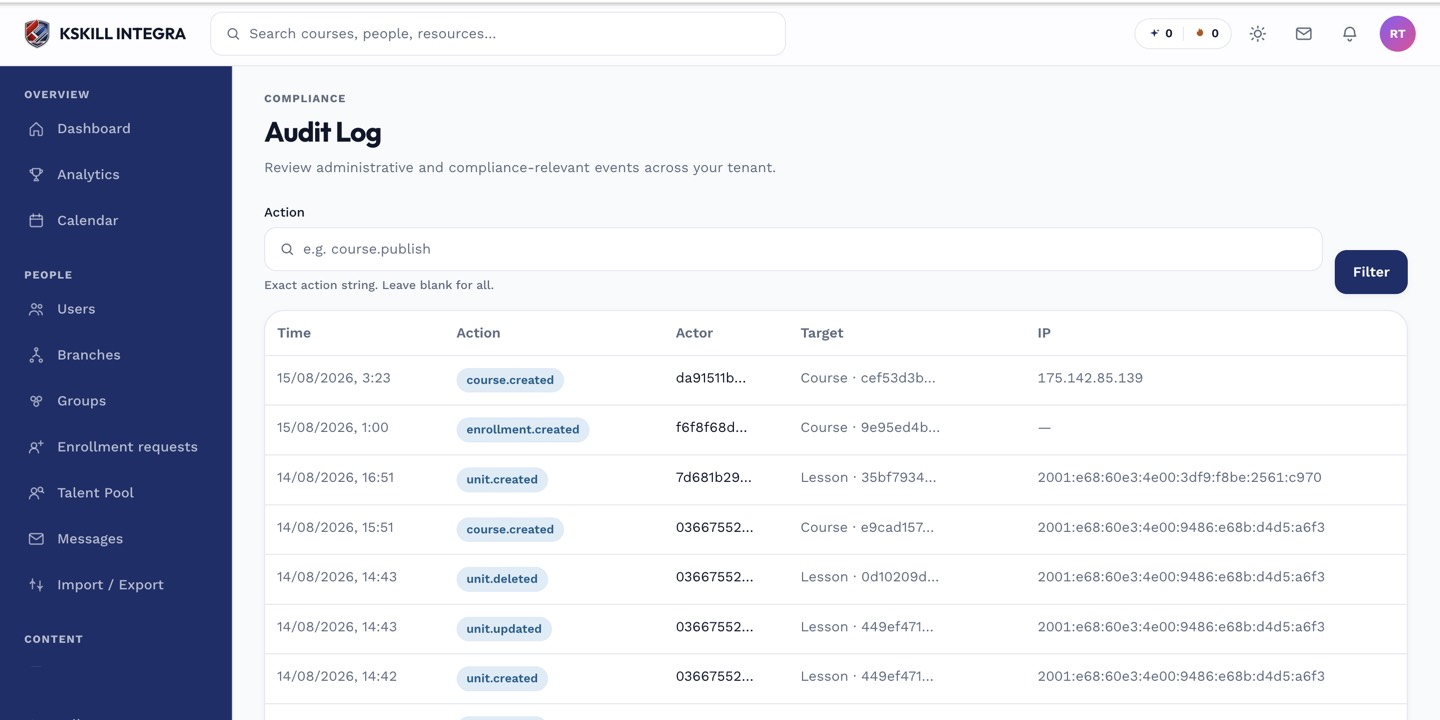
The audit log is your immutable record of who did what.
Notes
- Resource links are stable across sessions — the same peer link keeps launching the same LMS course.
- For deep linking (peer picks the LMS resource at authoring time), see the LTI DL spec — configuration follows the same pattern.