Configuring notification rules
ConfigurationUpdated September 19, 2026
Nothing gets delivered until an admin builds a notification rule. A rule is a simple chain: pick an event, pick a channel, pick a recipient type, and write the message template that goes out when the event fires.
The four parts of a rule
- Event — what triggers the notification (a course completion, a failed payment, a new support ticket, and so on).
- Channel — in-app, email, or any other channel your tenant has configured.
- Recipient type — Learner, Instructors, Manager, or Tenant admins. A single event can have several rules pointing at different recipient types.
- Message template — the actual copy the recipient reads, with merge tags for names, course titles, and similar details.
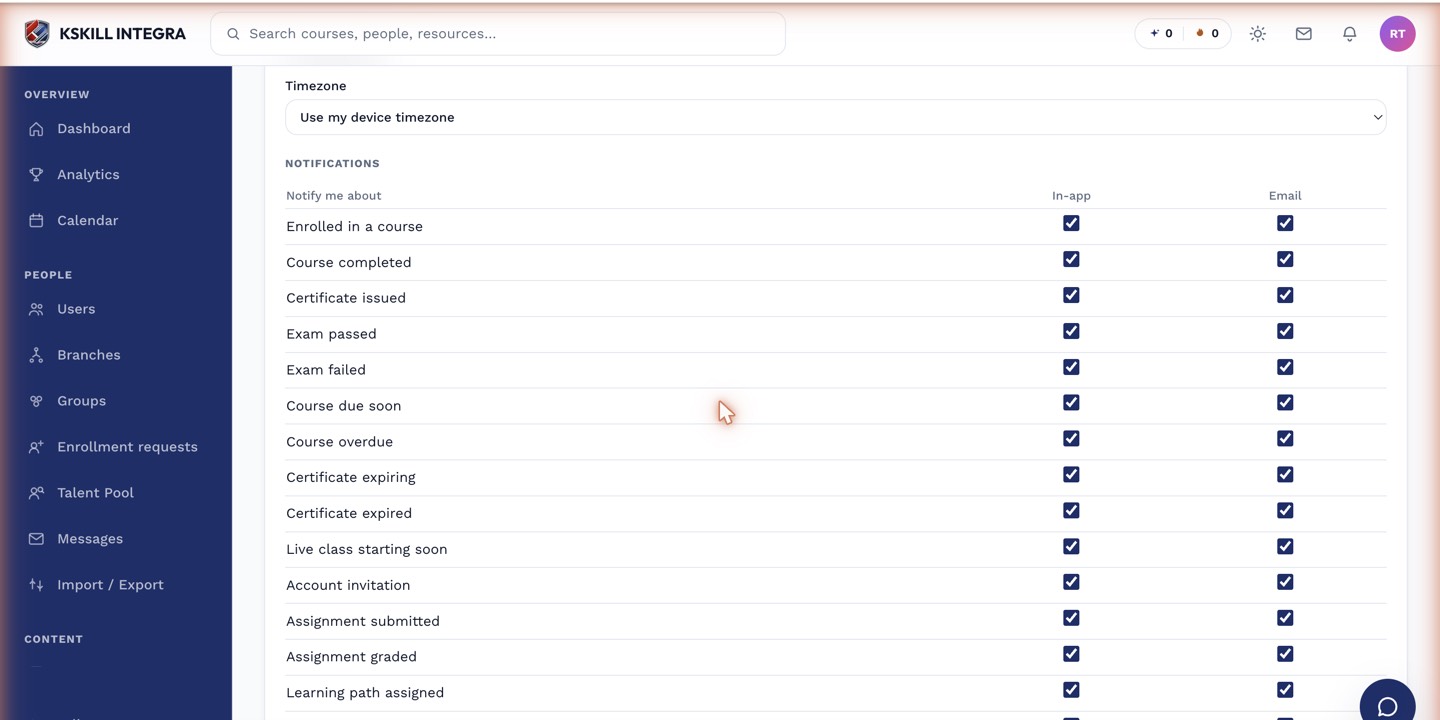 A rule is inert until every part of this chain is filled in and saved.
Why nothing arrives if you skip this
An event firing with no matching rule produces nothing — no email, no in-app badge, nothing for a learner to unsubscribe from. This is the most common reason a "notification" a tenant assumed was automatic never shows up. If a learner or agent reports a missing notification, check here first before assuming a delivery bug.
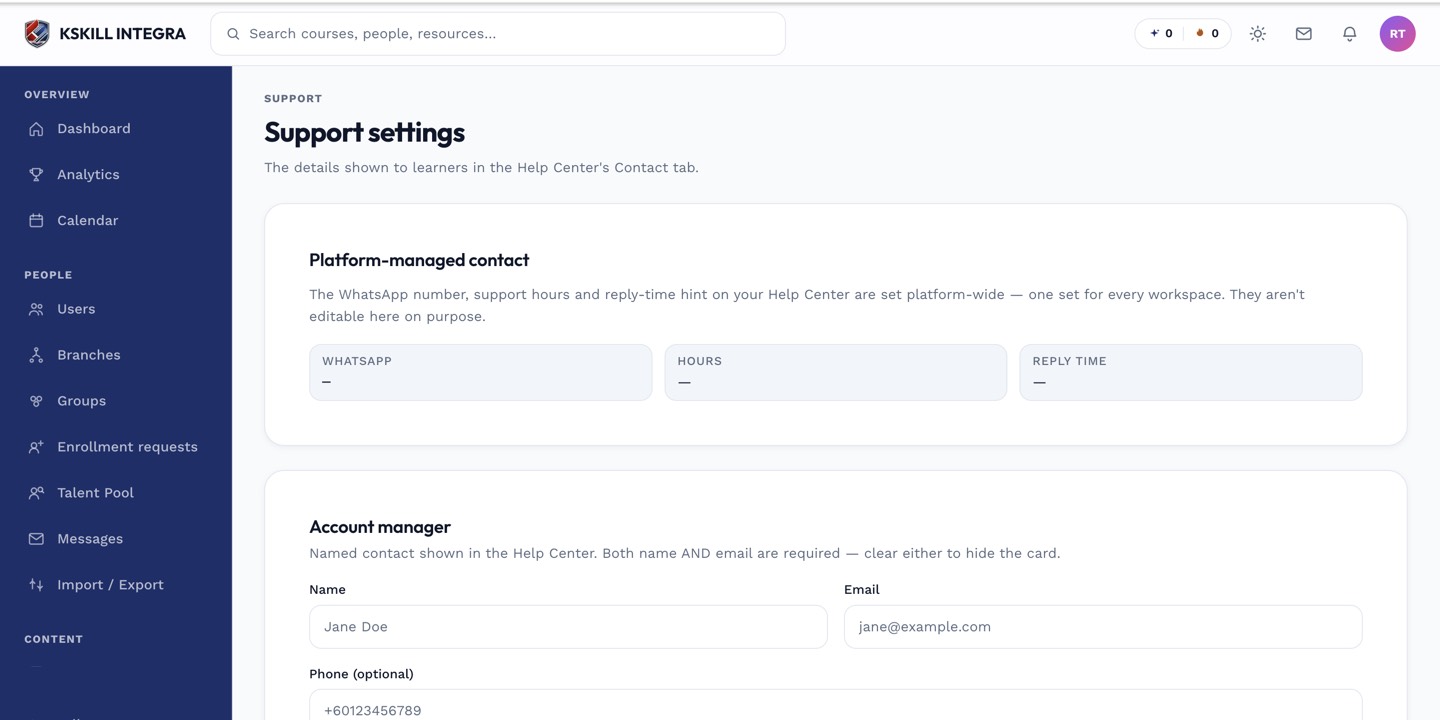 Notification rules sit in the same configuration area as your other tenant-wide settings.
Notes
Recipients can still individually mute a channel from their own notification preferences even after you create a rule — a rule makes delivery possible, it does not force it past a personal opt-out.
What next?
#notifications#rules#admin#channels#templates