Read learner reports
Learner reports answer the question 'how is this person doing?' at the individual level. This article covers reading one.
Before you start
You need the Admin or Instructor role. Instructors see only their own courses.
Step 1 — Open the learner profile
Open People → Users and click a learner. The profile lists every enrolment with its status and score. Click any course to open the per-course report.
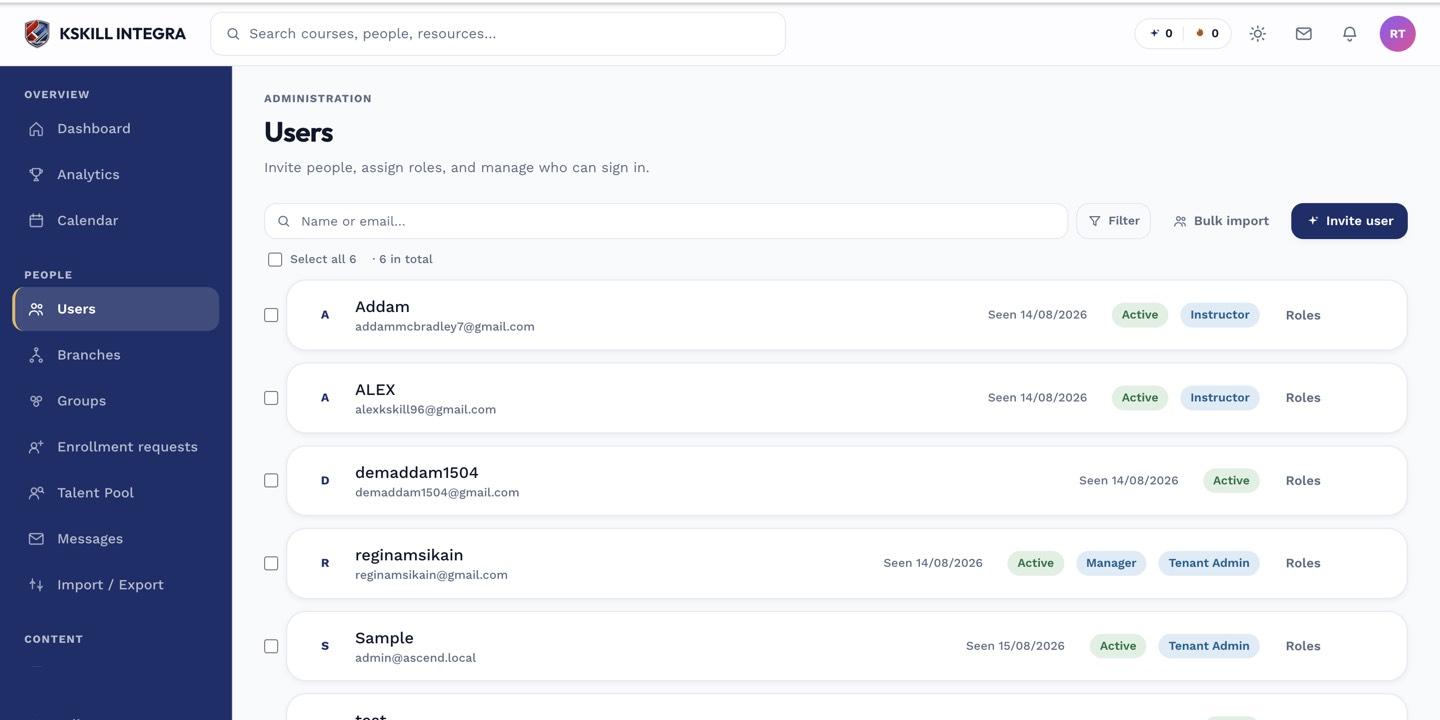
The Users list is the entry point for every person-related admin task.
Step 2 — Read the per-course view
The per-course report shows units completed, attempts on each test, time spent, and the current pass/fail state. Filter to a specific unit if you want the detail on one lesson. Instructors can also grade pending submissions from here.
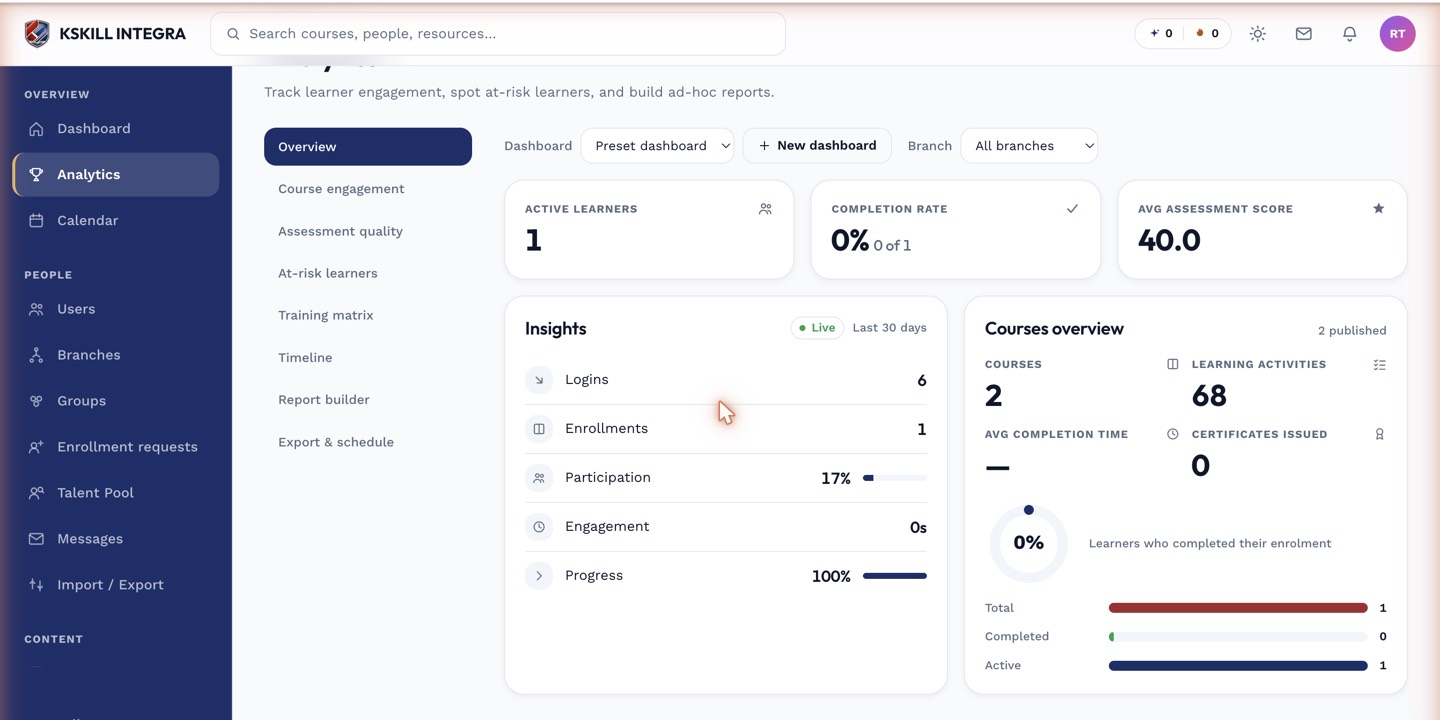
The detail panels give you the breakdown behind each KPI tile.
Step 3 — Cross-reference against analytics
For patterns across many learners, jump to Configuration → Analytics. The At-risk report flags learners trending toward failure; the Training matrix maps role skills to completions per person. The per-learner drill-down is right there.
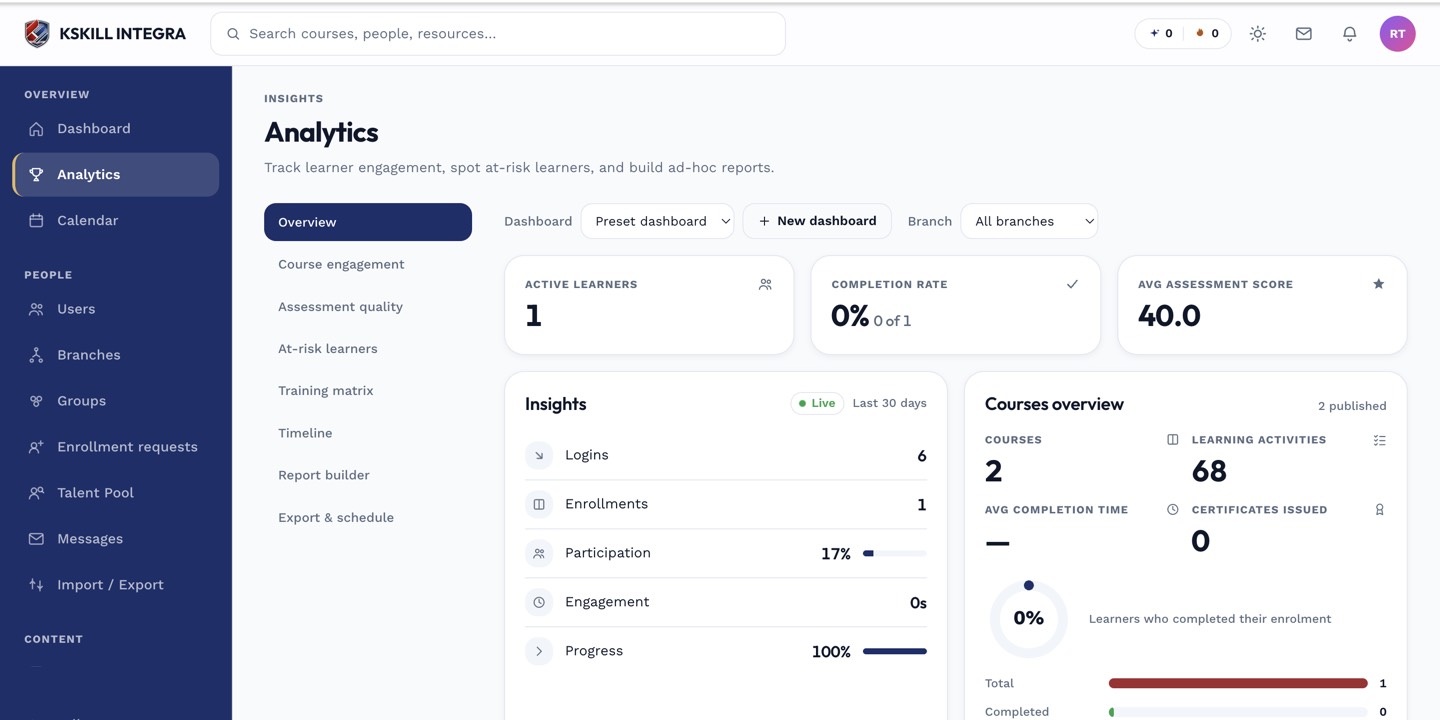
The Overview tab is the one everyone lives in — the deeper tabs answer sharper questions.
Notes
- Reports respect branch scoping — instructors in the KL branch never see Penang learners.
- Export any report as CSV or PDF from the top-right icon.