Send notifications to Slack
Slack notifications route platform events into a shared channel. This article covers connecting a workspace and picking events.
Before you start
You need the Admin role on both the LMS and the target Slack workspace.
Step 1 — Open Slack integration
Open Configuration → Settings and pick Slack. The card has a Connect Slack button that starts the OAuth handshake.
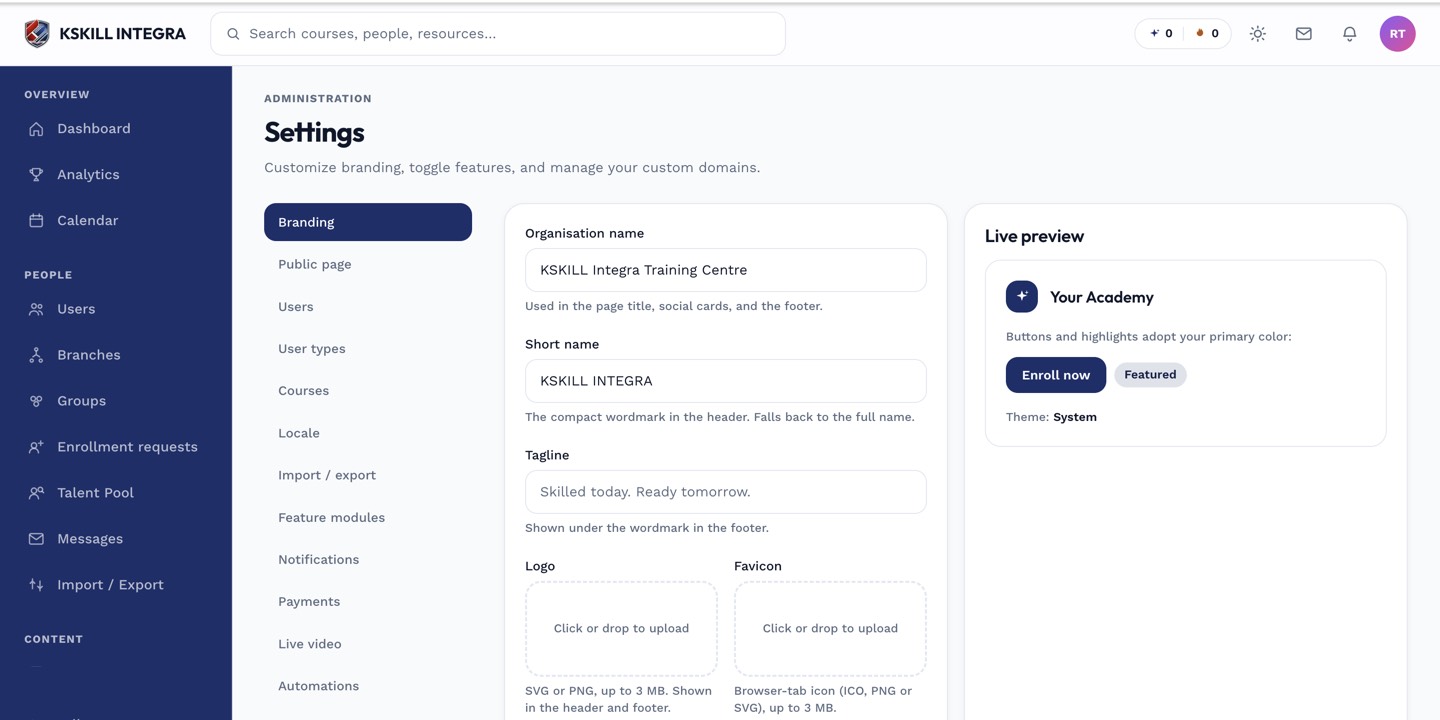
The Settings page is the single home for every tenant-level toggle.
Step 2 — Authorise the workspace
Click Connect Slack. You are redirected to Slack to pick the workspace and channel. Grant the permissions Slack asks for. On success you are redirected back to the LMS with the connection live.
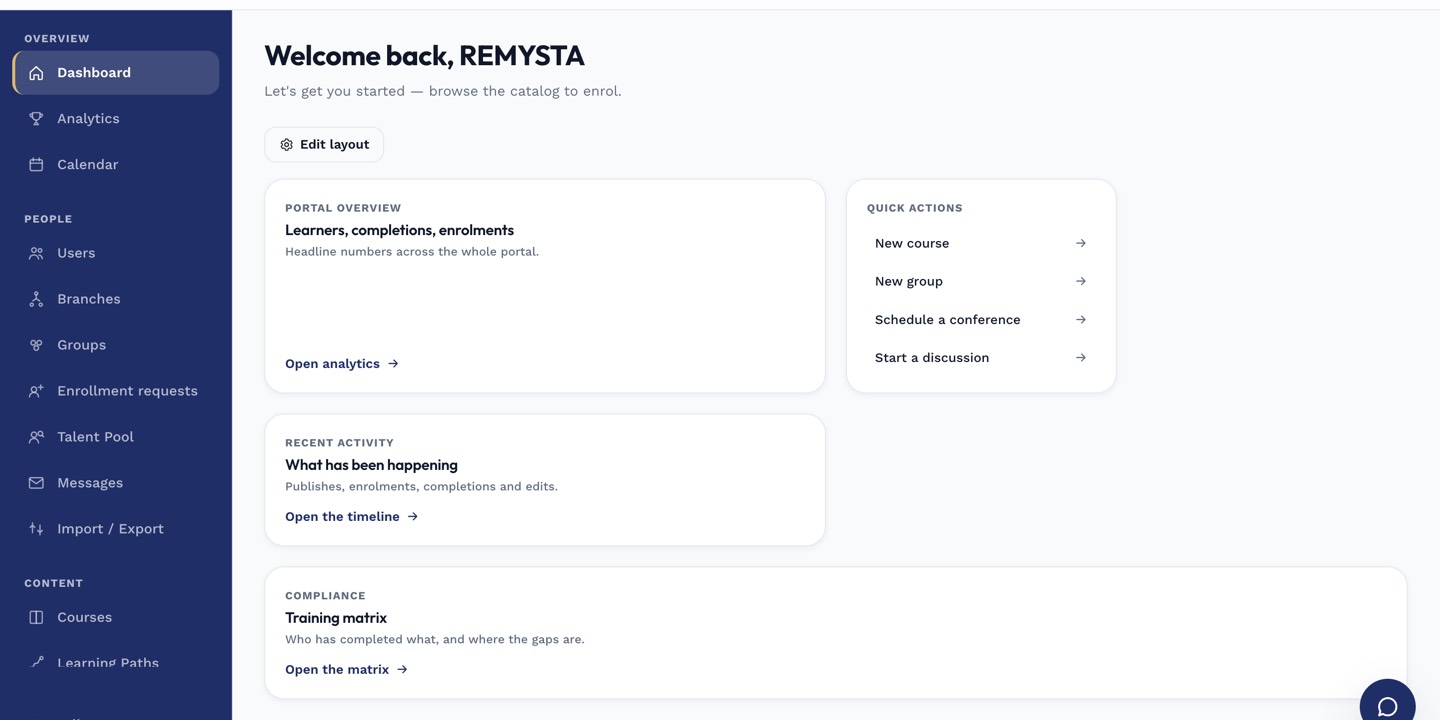
The left rail is the anchor for every admin task; every screen you visit starts with a click here.
Step 3 — Pick which events fire
Back on the Slack card, pick the events that should fire into Slack — usually completion, certificate awarded, and cohort milestones. Save. Test with a real event to confirm the message lands in the target channel.
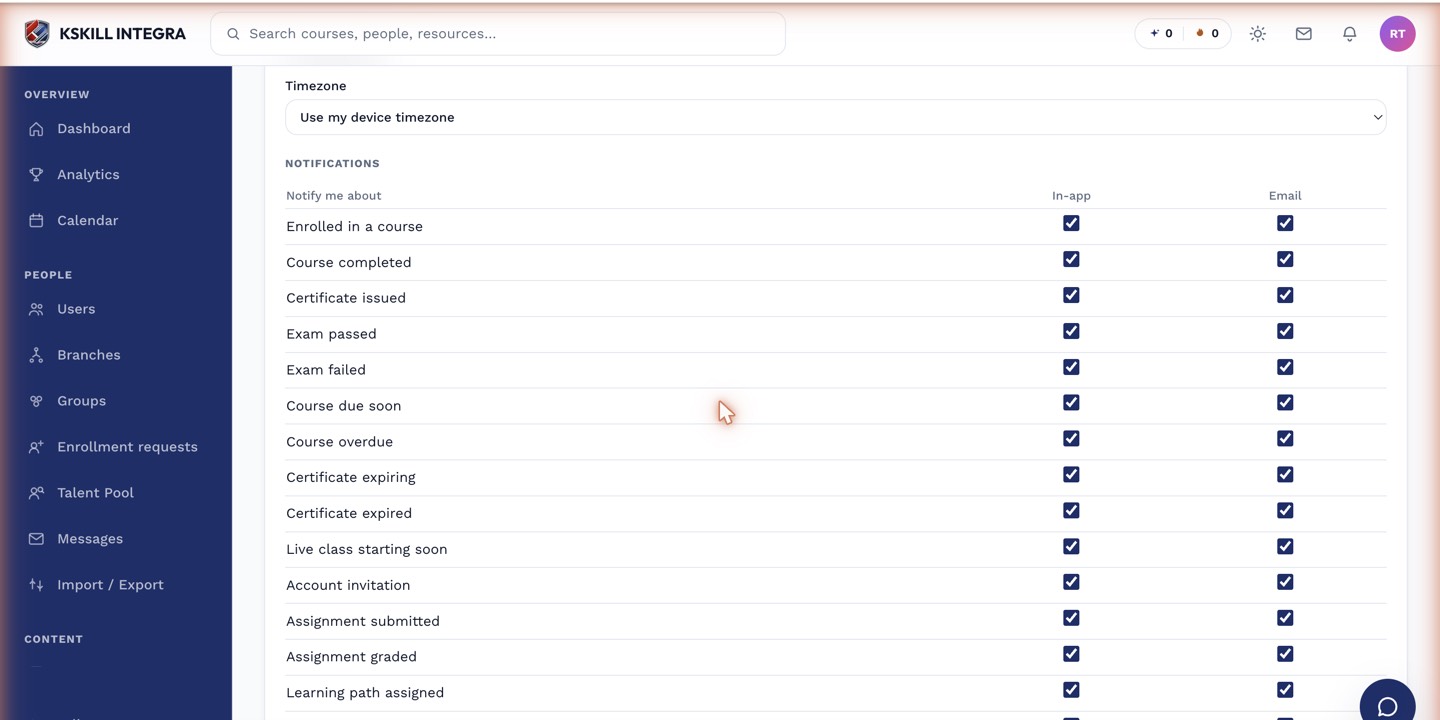
The preferences table is the per-user matrix of every event by every channel.
Notes
- Disconnect the workspace from the same card if you rotate Slack tokens.
- For per-branch Slack workspaces, connect each branch separately.