Connecting Stripe to Your Tenant
ConfigurationUpdated September 21, 2026
Stripe is the gateway of choice if most of your learners pay by card or digital wallet and you want checkout to feel like it never left your site. Its Payment Element embeds directly on your own /checkout page, with no redirect to a third-party domain.
Before you start
You need a Stripe account and its secret key and publishable key from the Stripe dashboard. You also need the Admin role in your tenant.
Enter your keys
- Open Settings → Payments.
- In the Stripe card, paste your secret key and publishable key.
- Click Save. The fields immediately mask to "On file" — this confirms they were stored, not that anything is live yet.
- Click Activate to make Stripe the gateway learners actually pay through.
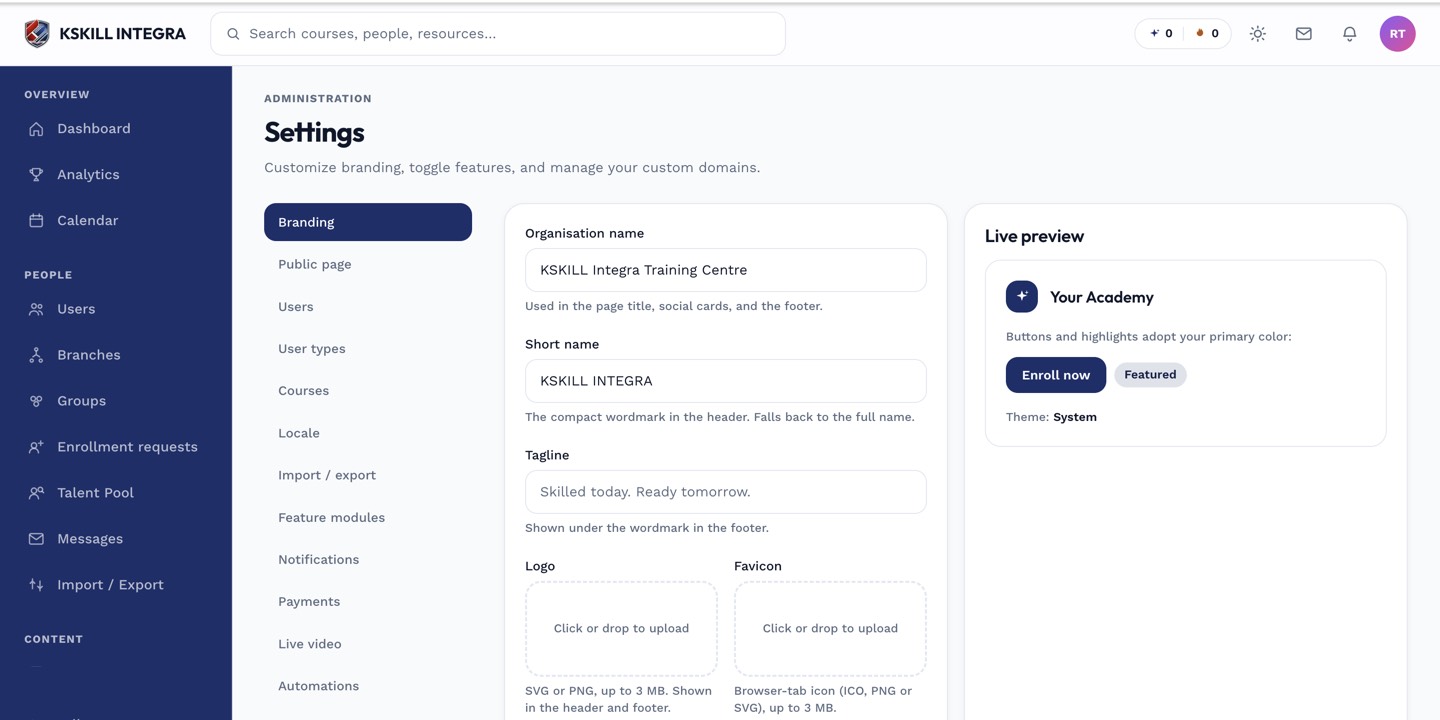 Secret and publishable keys are entered once, then hidden behind a masked "On file" row.
What learners see
Once active, the /checkout page renders Stripe's Payment Element inline — card fields, Apple Pay/Google Pay if enabled on your Stripe account, all without leaving your domain.
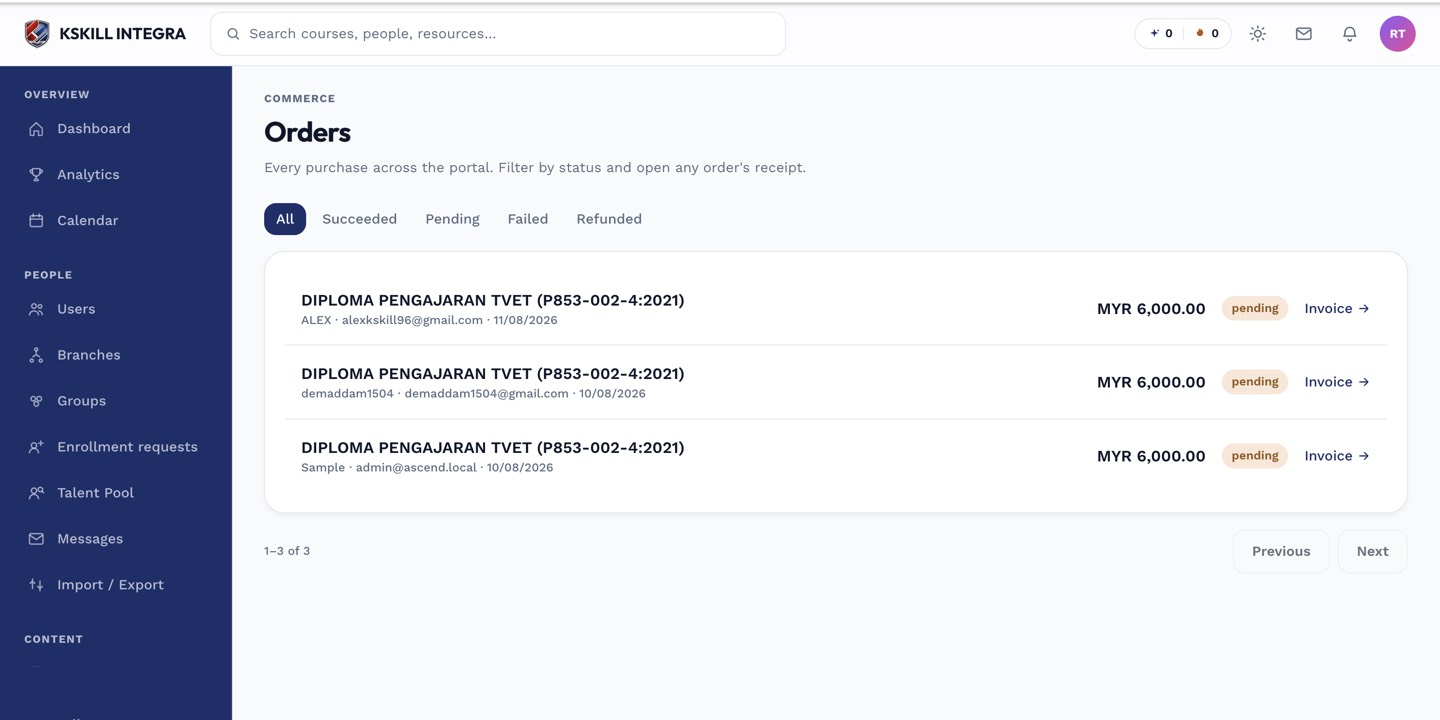 A completed Stripe order settles instantly and appears in Orders without any redirect step.
Notes
Stripe is also the only gateway with a live auto-debit engine today, which matters if you plan to sell courses on a deposit + installment plan.
What next?
#stripe#payments#checkout#credentials#gateway