Timeline of events
The timeline report replays activity over time — enrolments, completions, grade decisions. Useful when investigating a specific incident.
Before you start
You need the Admin role. The report can be noisy — filter aggressively before scanning.
Step 1 — Open the report
Open Configuration → Analytics and switch to the Timeline tab. Every event on the tenant is listed with a timestamp, actor and target. Default view is the last 24 hours.
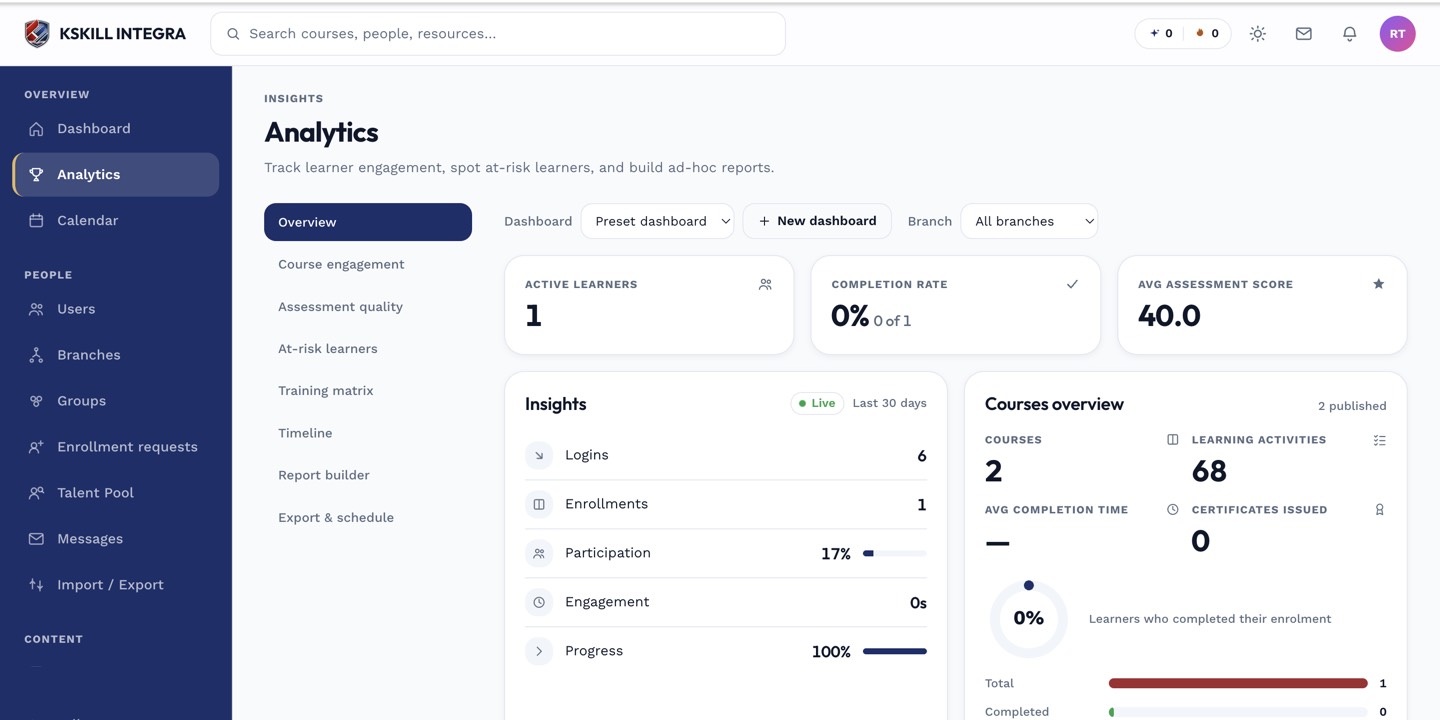
The Overview tab is the one everyone lives in — the deeper tabs answer sharper questions.
Step 2 — Filter and search
Filter by event type, actor, target course, or date range. Use search to find a specific record fast (e.g. an email address). The timeline supports Ctrl+F within the visible window, but the server-side filter is faster for anything older than a day.
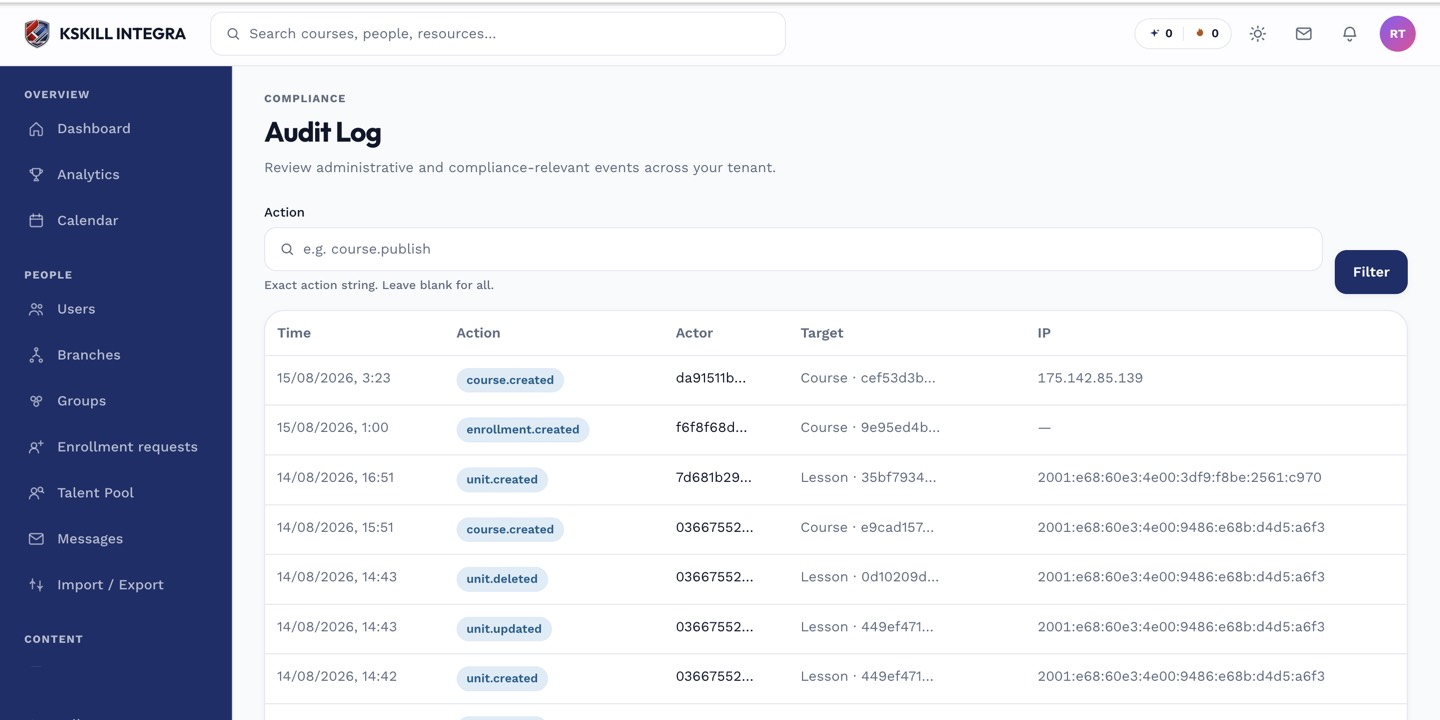
The audit log is your immutable record of who did what.
Step 3 — Cross-reference the audit log
For a chain-of-custody question, use the audit log instead — it is immutable. The timeline is analytics, the audit log is compliance evidence. Use both when reconstructing what happened.
The audit log is your immutable record of who did what.
Notes
- Timeline retention is 90 days by default; older events roll off unless you change the retention policy.
- The audit log is durable and never rolls off.