The MATCH question type
MATCH questions ask a learner to pair items from two columns — a term with its definition, a country with its capital, a step with its order in a process. It's one of the auto-graded question types, so results are instant.
Before you start
You build MATCH questions inside a question bank, from the test builder. You need the Instructor or Admin role.
Build a MATCH question
- Open the question bank you're adding to and click New question.
- Choose Match as the question type.
- Enter your prompt items on the left and their correct matches on the right — each left item needs exactly one correct pairing.
- Save the question. It's now available to any assessment that draws from this bank.
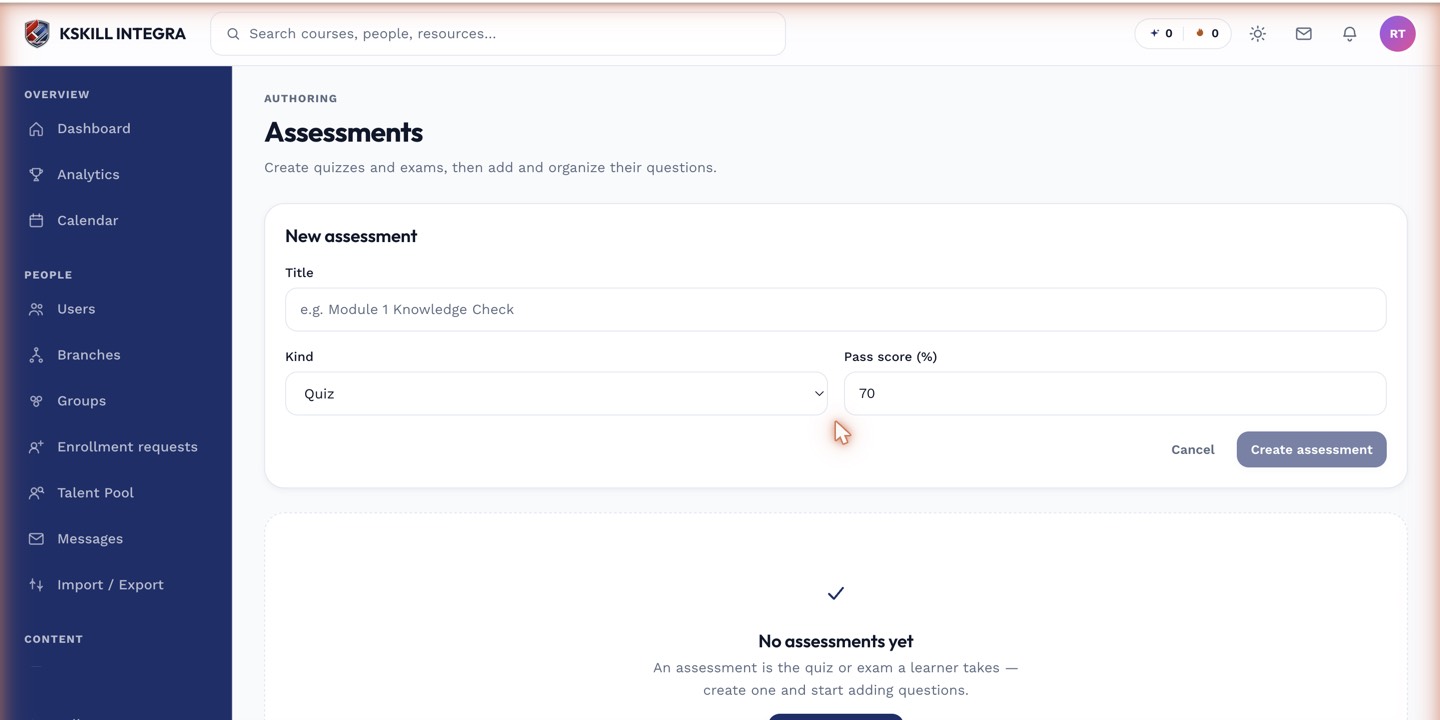 Learners see the right-hand items shuffled and drag each one to its matching left-hand item.
How it's scored
The learner drags each right-hand item onto the left-hand item they believe it pairs with. The system compares every pair against the correct answer key and scores automatically — no grading queue involvement, even for partially correct attempts (depending on how partial credit is configured for the question).
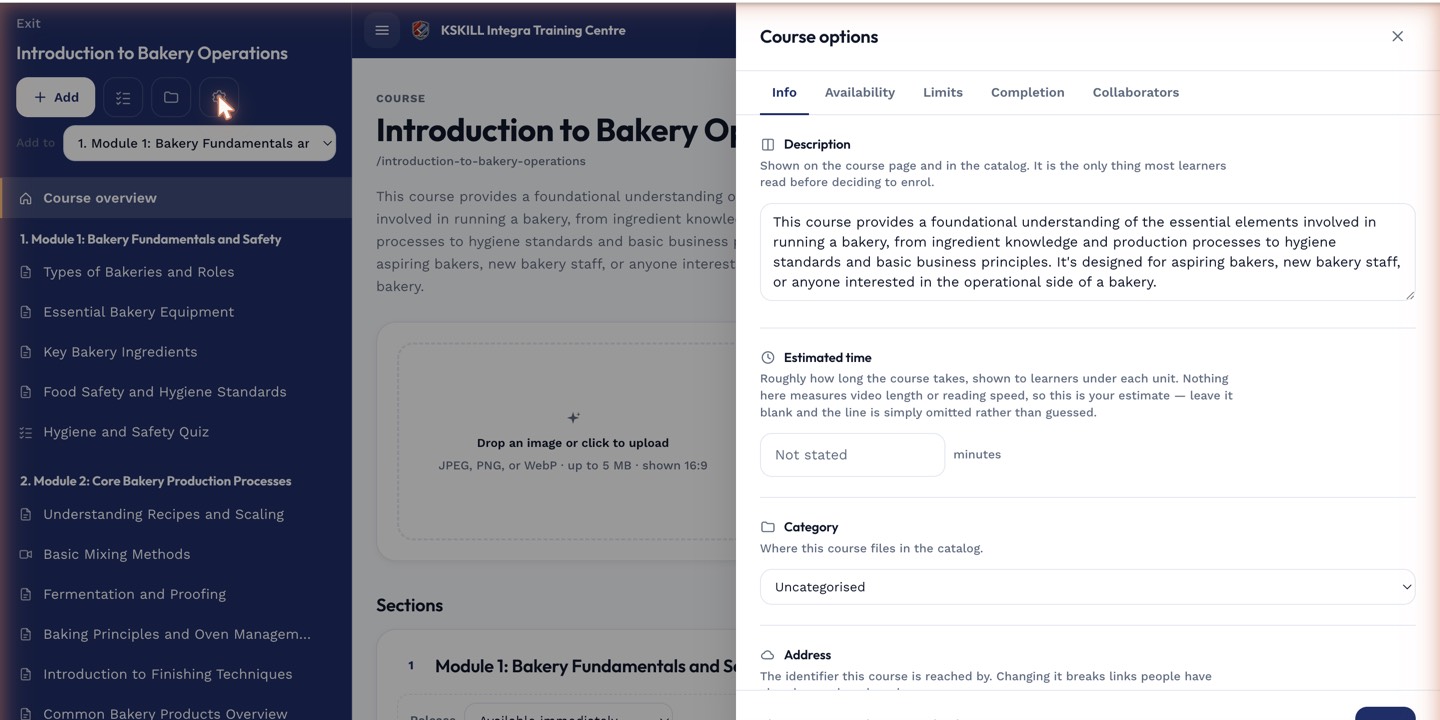 Whether a MATCH question awards partial credit for some-but-not-all correct pairs is controlled alongside other scoring rules in the course's test settings.
Notes
Keep the number of pairs reasonable — beyond six or seven, the drag interface gets fiddly on smaller screens, especially for learners on mobile.