Course options and test settings
Content authoringUpdated September 23, 2026
A course's assessment behavior — how tests are scored, timed, and retried — is configured in one place: the Course options drawer, opened from the course editor.
Before you start
You need the Instructor or Admin role and edit access to the course.
Open Course options
- Open the course in the course editor.
- Click Course options to open the settings drawer.
- Find the Tests or Assessment section of the drawer.
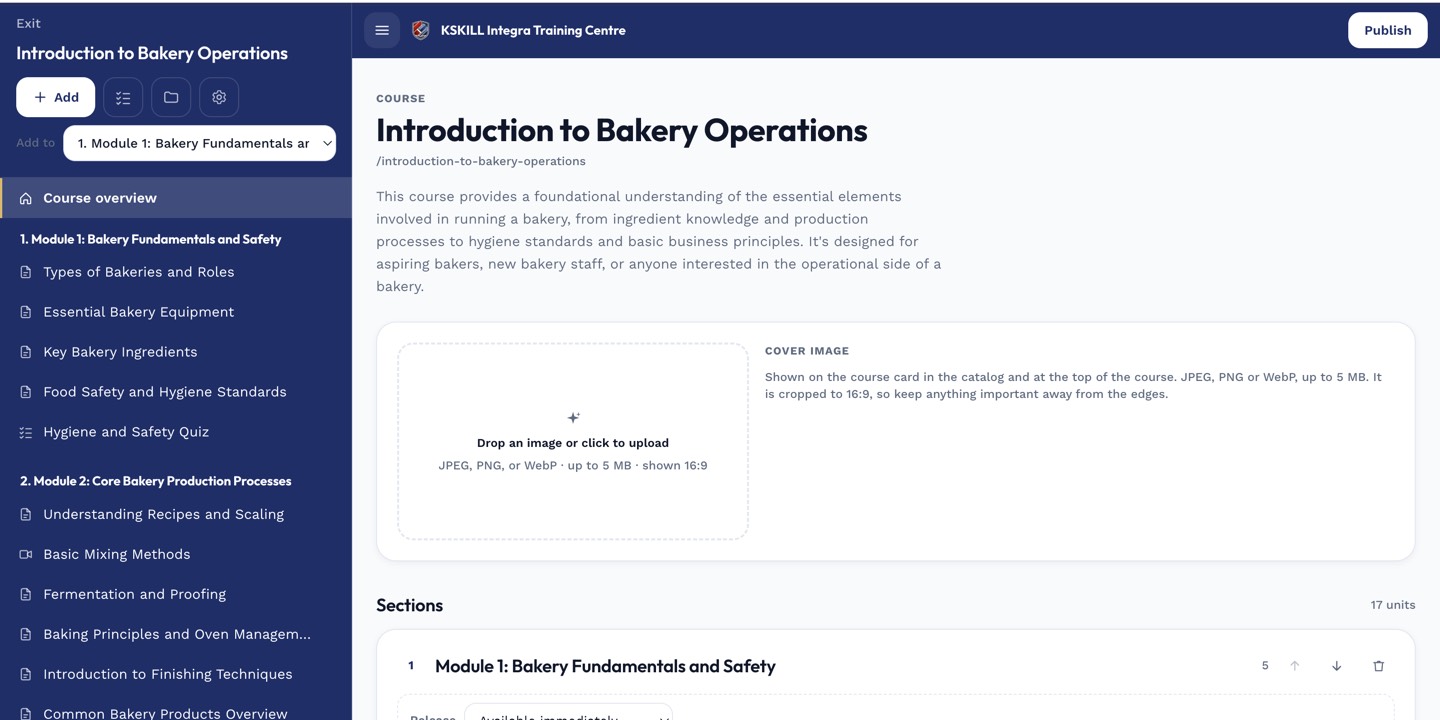 Course options sits alongside the unit list, not buried in a separate settings page.
What you can configure
- Pass mark and scoring rules, including whether partial credit applies to question types like MATCH.
- Time limits and number of allowed attempts per assessment.
- Whether results are shown to the learner immediately or held until manual grading completes.
- Which question banks feed which quiz or exam units in the course.
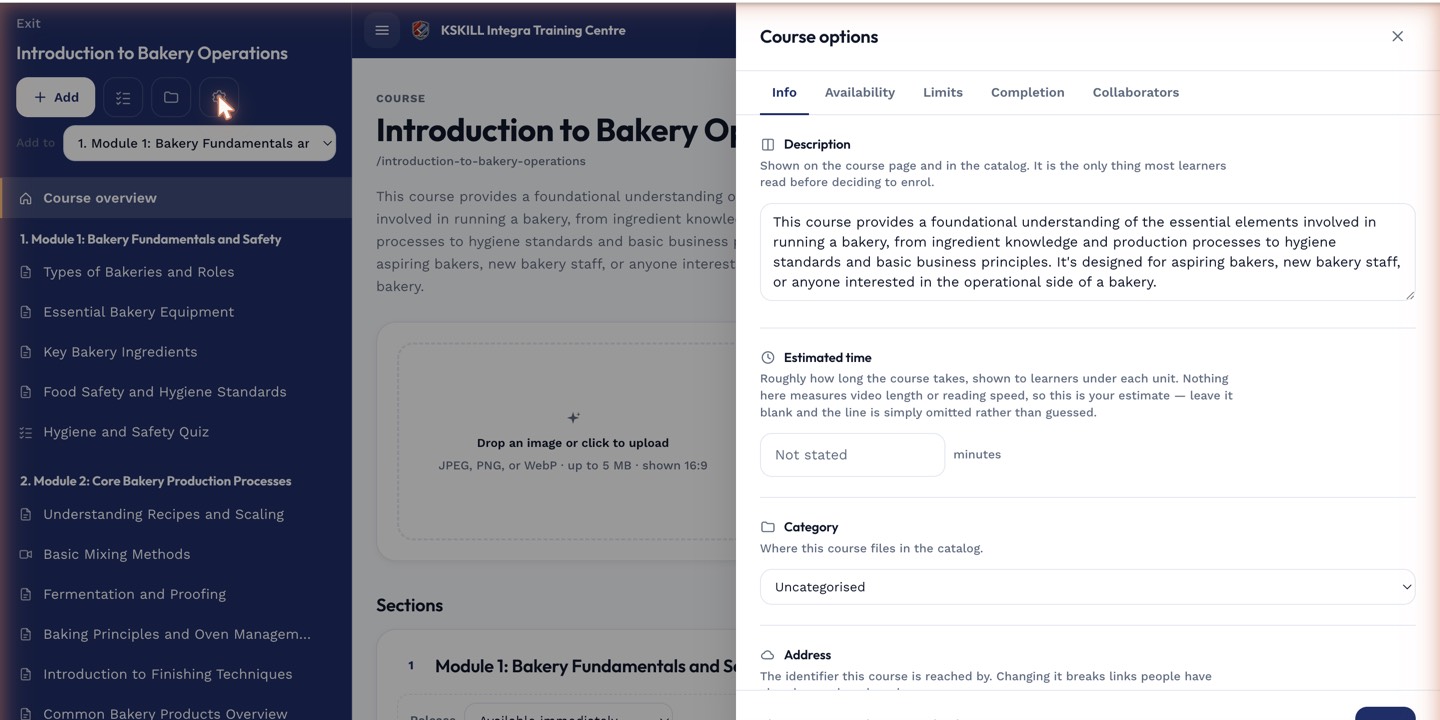 Settings here apply per course — copying a course copies its test settings along with it.
Notes
Changing test settings on a course that learners are already partway through only affects new attempts; in-progress attempts keep the rules they started under.
What next?
#course-options#test-settings#assessments#authoring