Export a slide deck as SCORM
You can export a slide deck as a SCORM package for use in other LMSs. This article covers the export step.
Before you start
You need to be in the Slide Builder with a saved deck.
Step 1 — Open the deck's overflow menu
Open the deck in Slide Builder. Click the overflow menu in the top-right and pick Export as SCORM. The dialog offers SCORM 1.2, SCORM 2004 and cmi5.
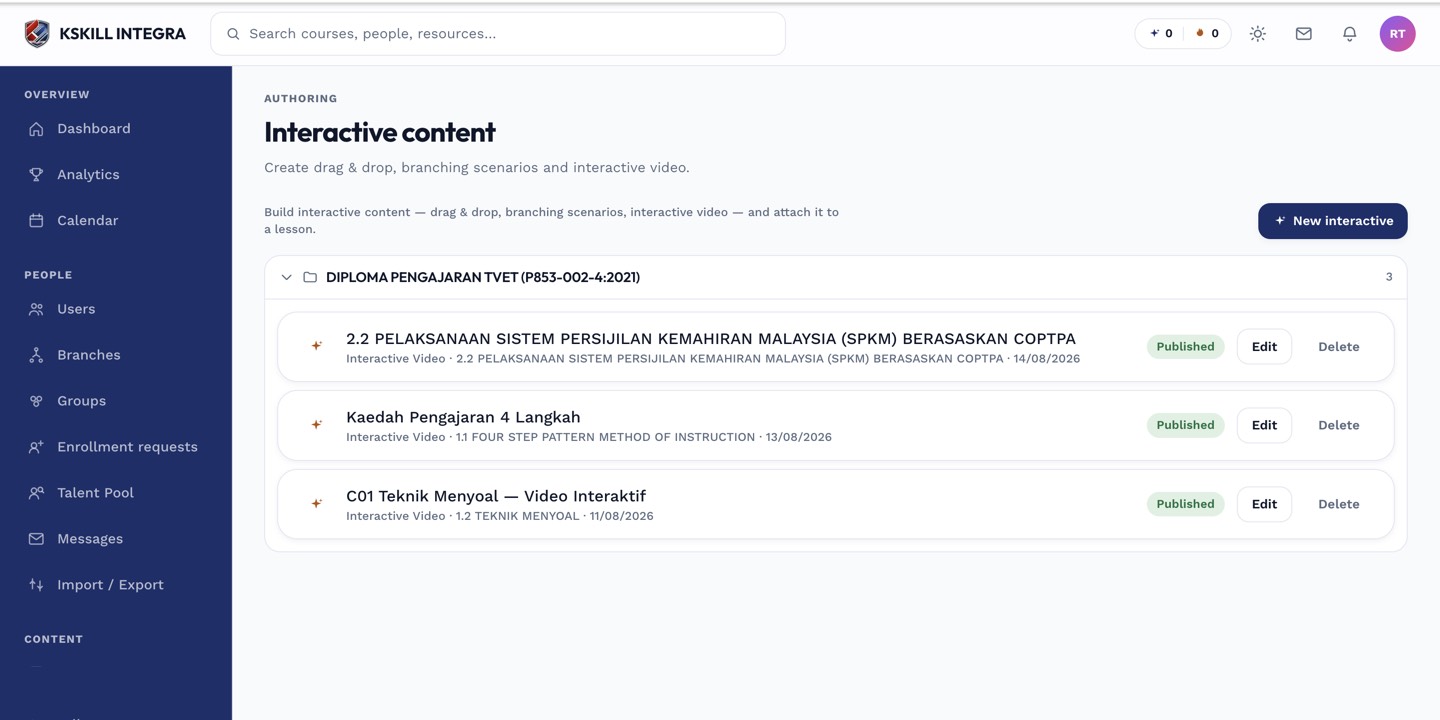
The interactive-content library is where uploaded H5P and SCORM packages are managed.
Step 2 — Pick a standard and download
Pick SCORM 1.2 if you don't know what the destination LMS wants — it is the widest-compatible option. Click Download. A ZIP lands with the SCORM manifest and every asset embedded.
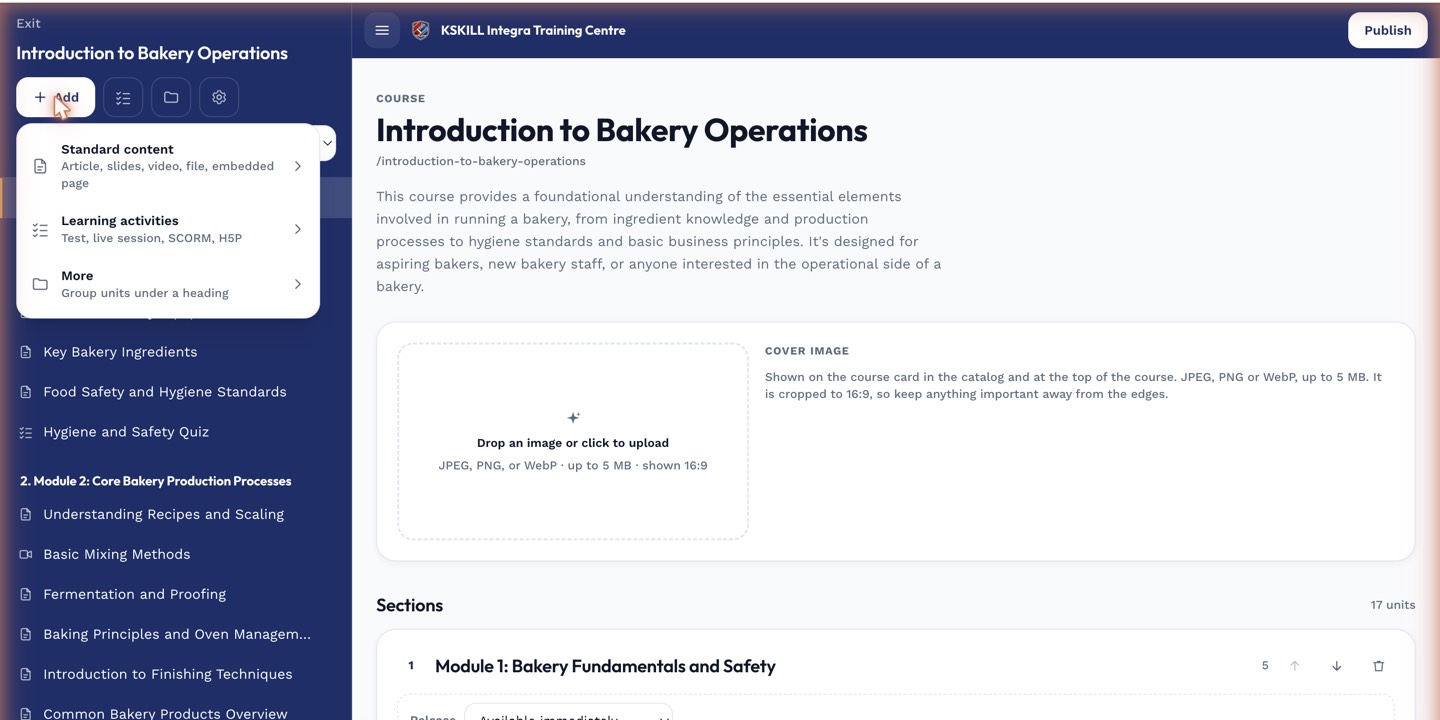
The lesson-type picker is the same one whichever section you add into.
Step 3 — Upload to the destination LMS
Follow the destination LMS's SCORM import steps. Verify learners can launch it, progress, complete and be graded. If completion never registers, check that the destination LMS allows the SCORM to reach its API — some firewalls block it.
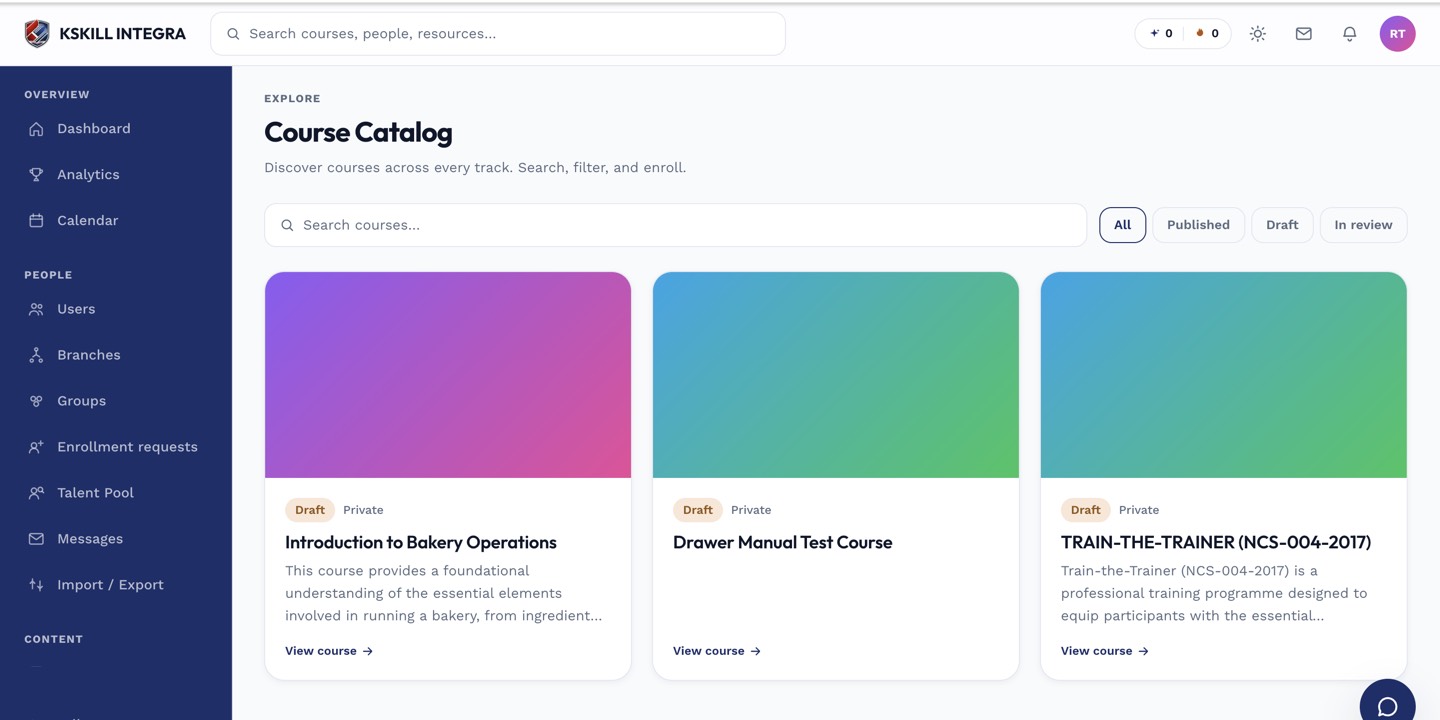
My Courses is the learner's grid of everything they are currently enrolled in.
Notes
- SCORM exports are self-contained — assets are embedded, not linked.
- Editing the deck after export does not update the exported ZIP — re-export.