Assign or remove Skills from users manually
Sometimes a learner already has a skill from outside the LMS. This article covers granting or revoking a skill by hand.
Before you start
You need the Admin role. Manual grants are audited — every action shows who did it and why.
Step 1 — Open the user's Skills tab
Open People → Users, click the learner, and switch to the Skills tab on their profile. Every skill they currently hold is listed with its source, date and level.
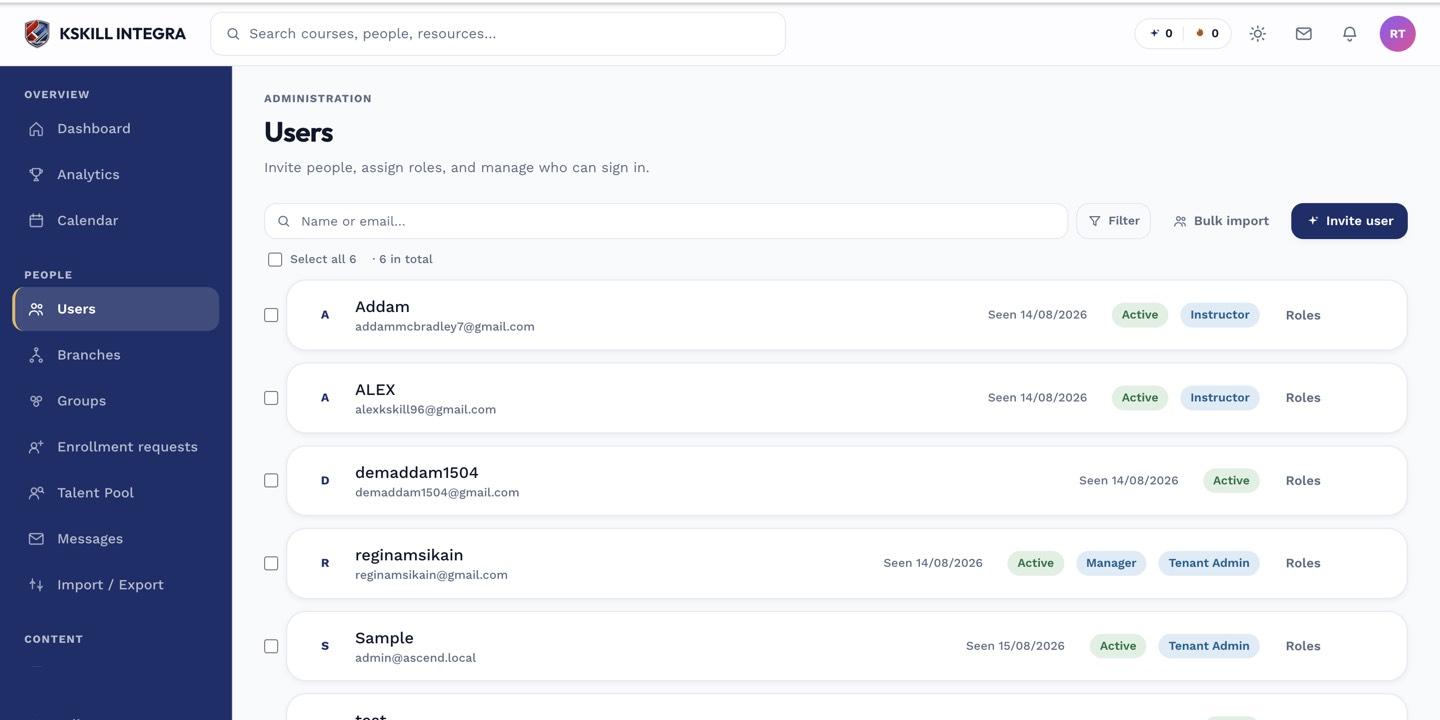
The Users list is the entry point for every person-related admin task.
Step 2 — Grant a skill
Click Grant skill. Pick the skill from the picker, pick the level (if applicable), and add a reviewer note explaining why. Save. The learner sees the new skill on their My Skills page immediately.
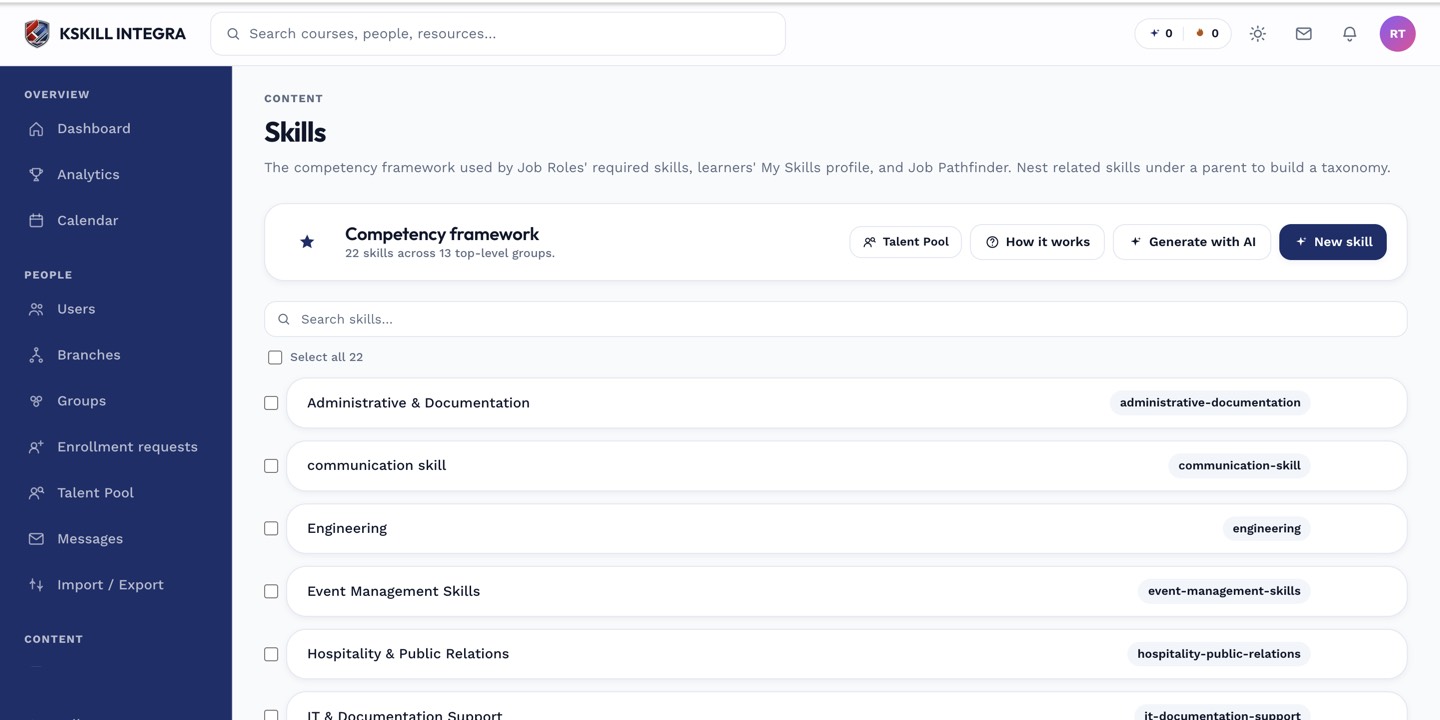
The Skills manager is the source of truth for every skill your tenant tracks.
Step 3 — Revoke if needed
Hover the skill row and click the overflow menu. Pick Revoke and add a reason. Revocations are also audited. The skill disappears from the learner's My Skills page but the historical grant remains in the audit log.
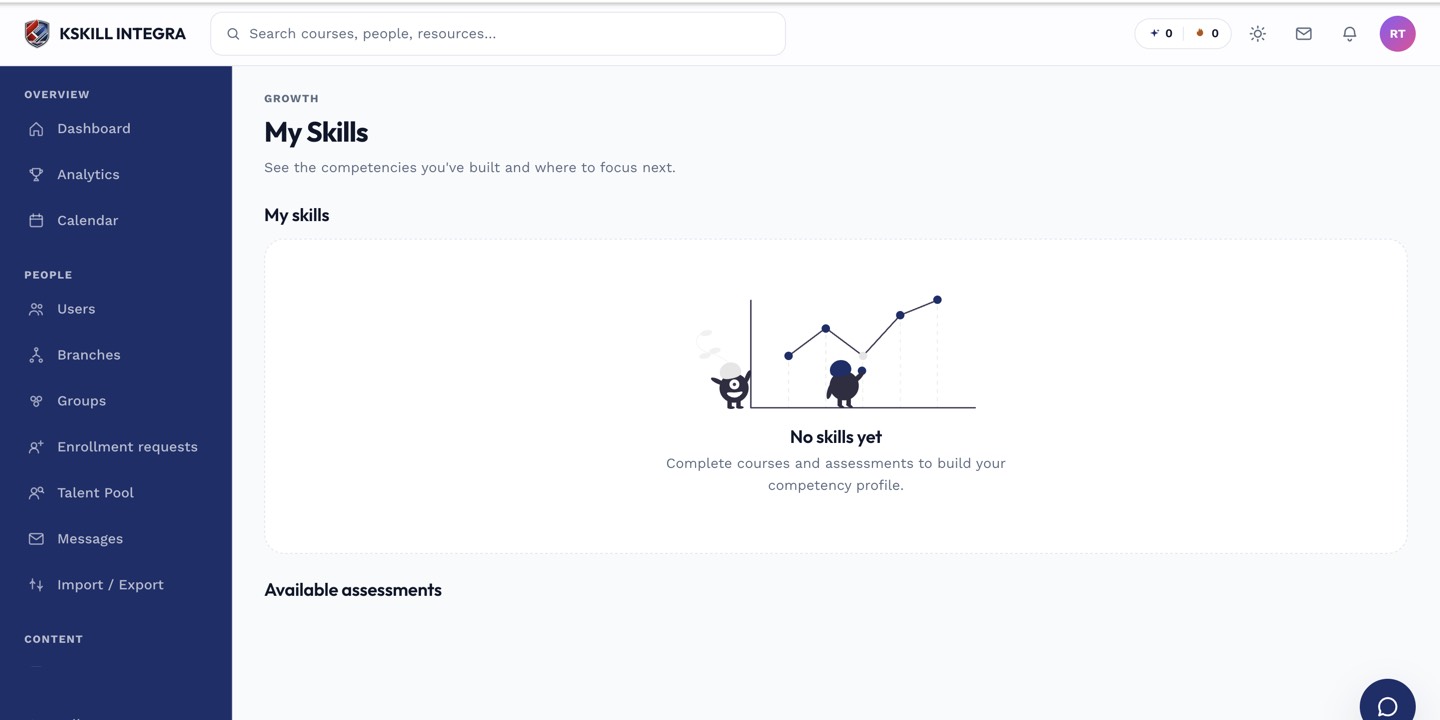
My Skills is the learner's own view of what they have proven so far.
Notes
- Manually-granted (reviewer) skills are durable — they do not expire.
- For a bulk grant across many learners, use the bulk skill assignment article.