Branch admin role
The branch admin manages one branch without touching other branches. This article covers what they can and can't do.
Before you start
You need to be nominated as a branch admin on at least one branch.
Step 1 — Sign in and see your branch
As a branch admin, your sidebar is scoped to your branch. You see users, courses, groups and reports for your branch only. The tenant-wide surfaces (payments, integrations, branding) are hidden unless you're also a full admin.
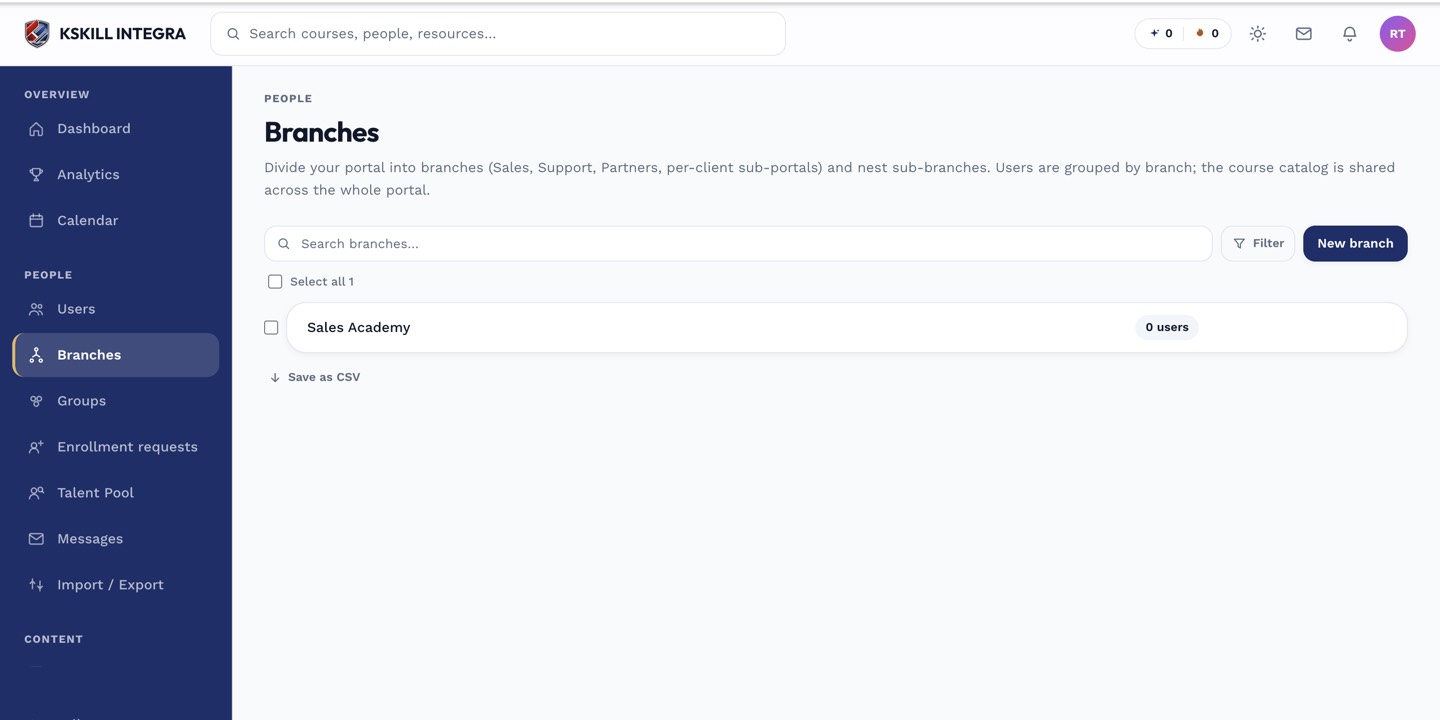
The Branches list is the roll-up view of every sub-portal on the tenant.
Step 2 — Manage your branch's users and courses
You can invite users into your branch, create courses in your branch's catalog, and set up groups scoped to your branch. Every action respects the isolation — you can't reach into another branch's data.
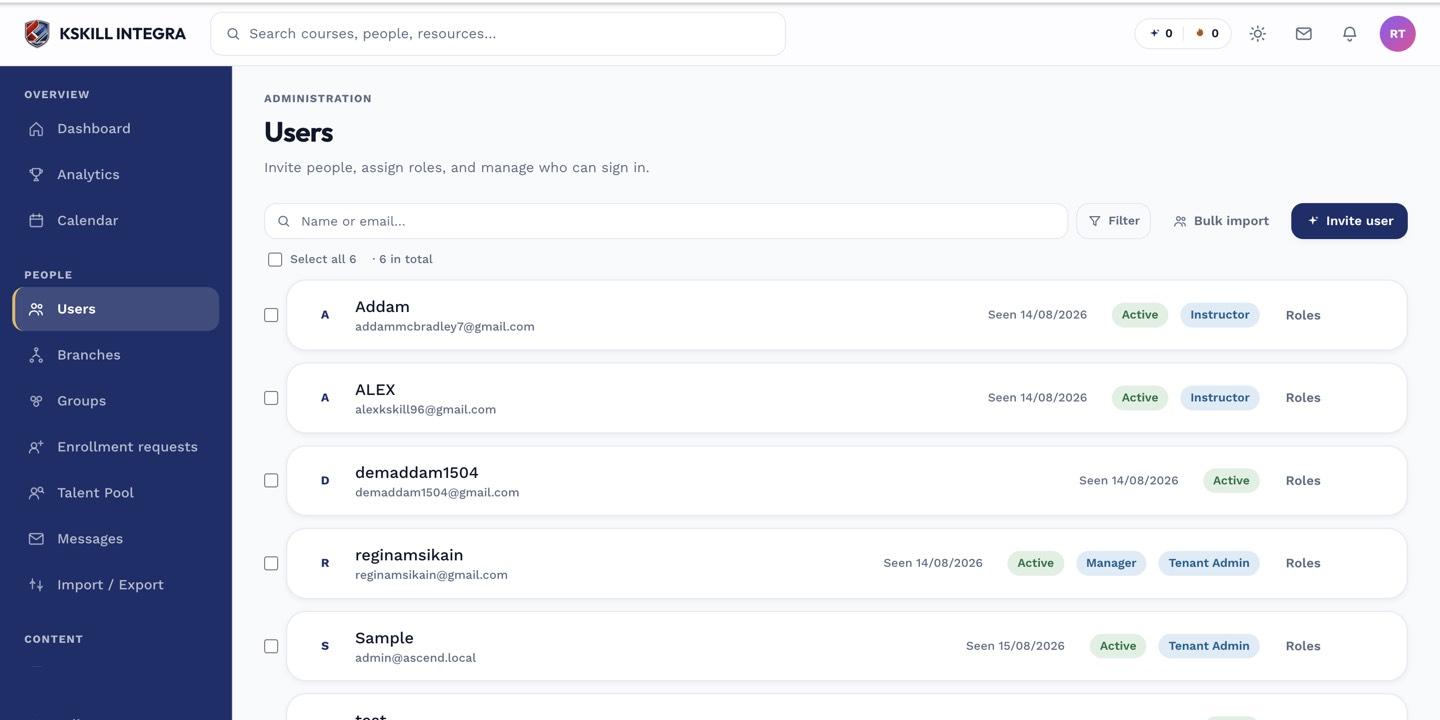
The Users list is the entry point for every person-related admin task.
Step 3 — Tune branding and support
Your branch has its own branding, support settings and (if the flag is on) payment provider. Configure these under the branch's tabs. Changes apply to users in your branch only, not the whole tenant.
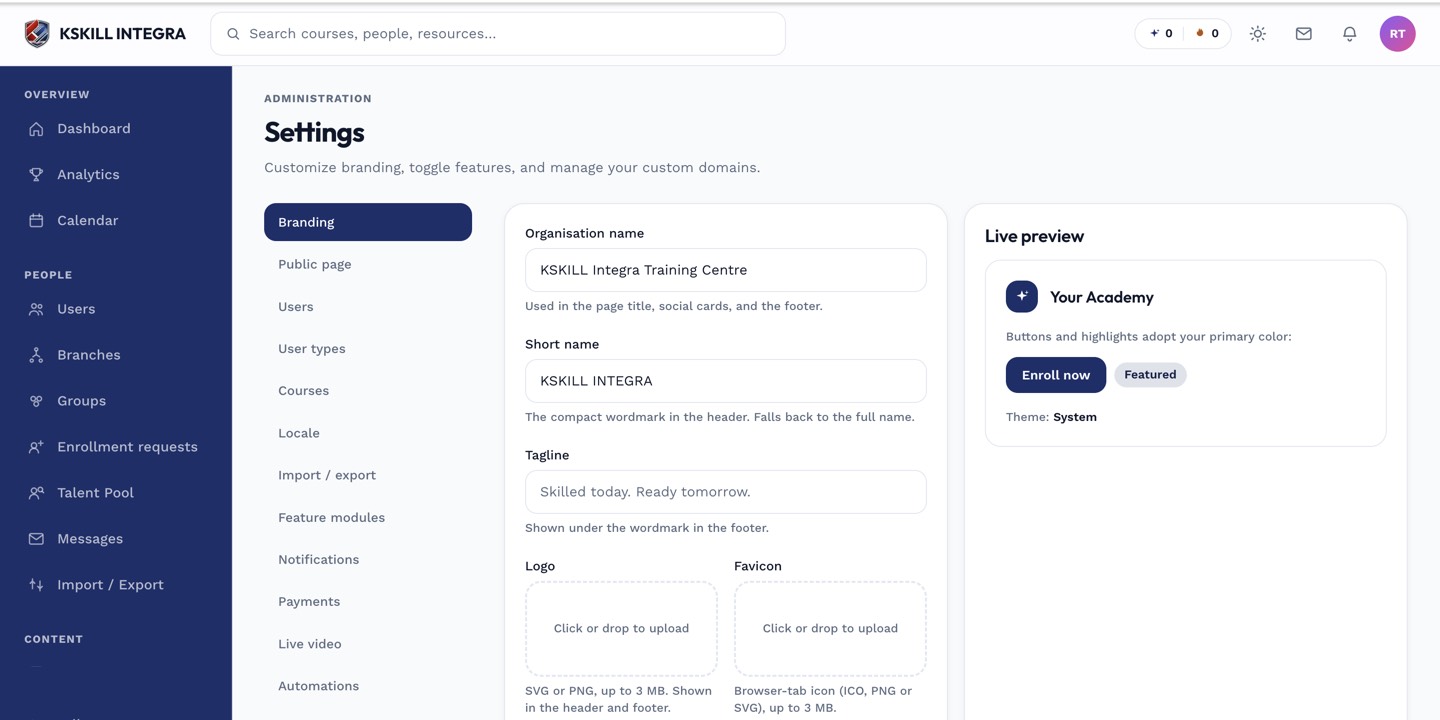
The Settings page is the single home for every tenant-level toggle.
Notes
- Branch admins can be promoted to full tenant admins by an existing tenant admin.
- For cross-branch reporting, ask a full admin — branch admins never see beyond their scope.