Catalog filters and search
The catalog has filters that make big libraries navigable. This article covers each filter and how they combine.
Before you start
You need to be signed in as a Learner. The catalog only shows courses your tenant has marked Public in catalog.
Step 1 — Filter by category
The category chip row at the top scopes the catalog to one category. Click a chip to filter; click it again to clear. Nested sub-categories appear once you pick a parent — one level of nesting is supported.
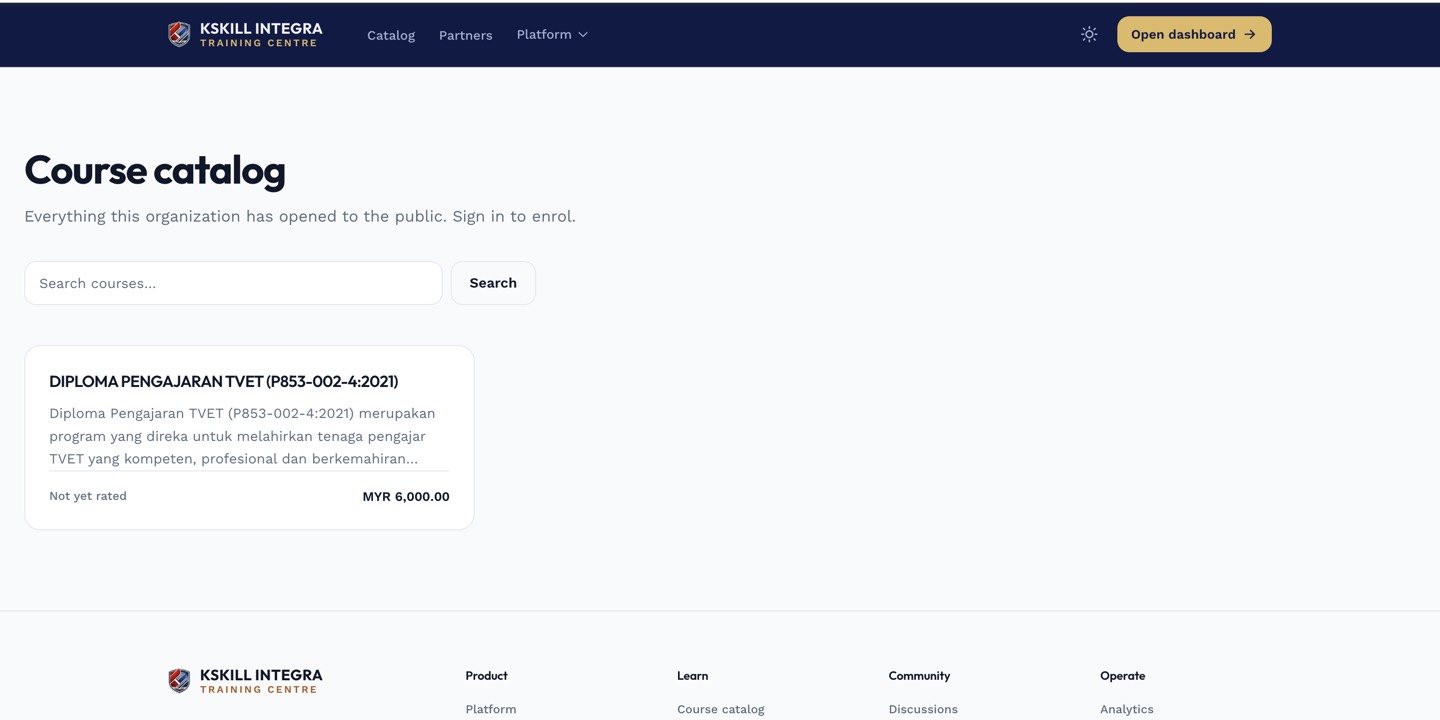
The catalog is the learner-facing shelf of everything a learner is allowed to self-enrol into.
Step 2 — Filter by level and language
Use the level and language dropdowns in the filter bar to further narrow. Combine with category to answer 'show me intermediate Bahasa Malaysia courses on compliance'. Filters combine with AND, not OR.
My Courses is the learner's grid of everything they are currently enrolled in.
Step 3 — Search by keyword
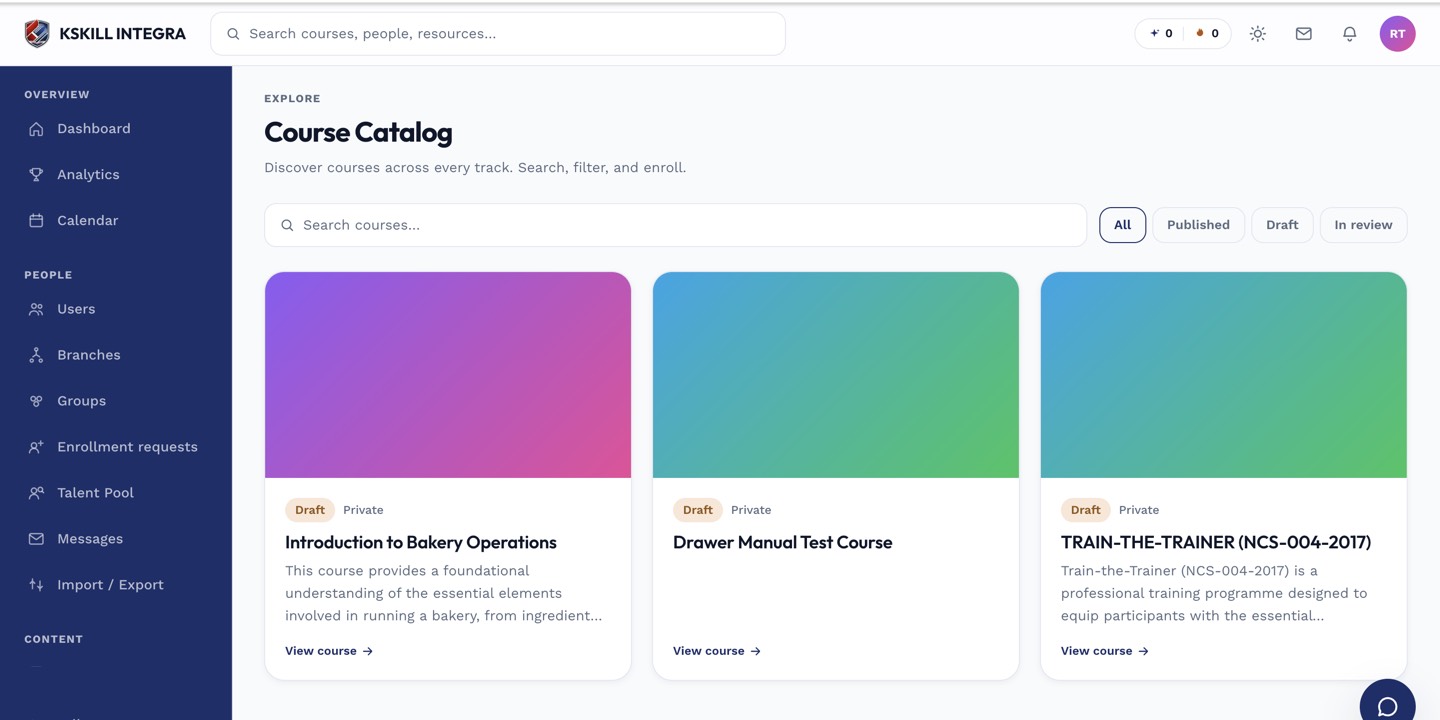
The search box at the top does full-text search over title, description and tags. Type and results filter in real time. Clear the search box to reset. Search combines with the active filters.
The catalog is the learner-facing shelf of everything a learner is allowed to self-enrol into.
Notes
- Cleared filters persist across sessions — start with a fresh filter set if search results look wrong.
- Some tenants disable specific filters — ask your admin if you see fewer chips than expected.