Continue where you left off
The platform remembers exactly where you stopped — down to the video timestamp or the slide number. This article covers the shortcuts.
Before you start
You need to be signed in. Progress syncs from the last device you used, so the shortcut works cross-device.
Step 1 — Use the Continue tile
The top of My Learning has a Continue where you left off tile that points at the most recent unit. Click it and you land on that exact unit — no course navigation needed.
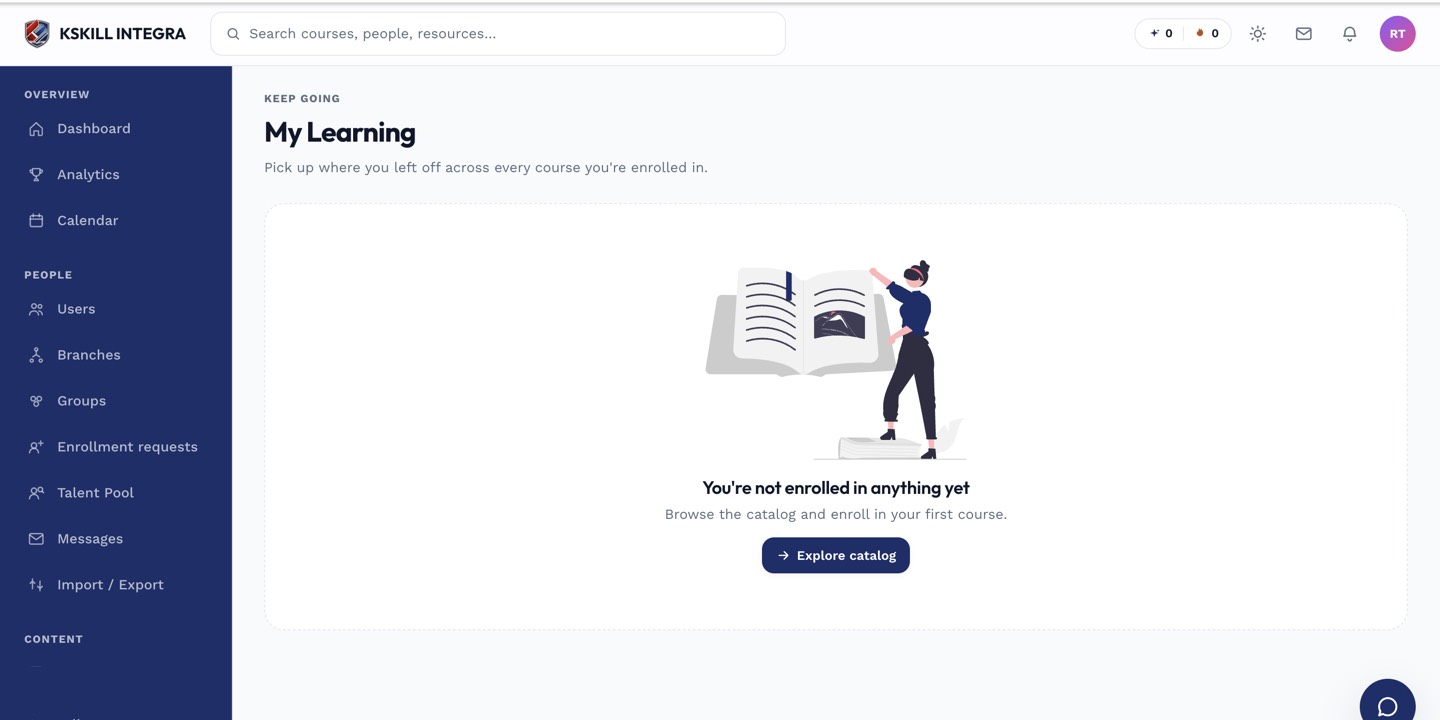
My Learning is the learner's default landing page — every enrolled course is one click away.
Step 2 — Open the course directly
If you know the course, click its card. The course opens on the last unit you visited. Video units resume at the timestamp; SCORM units restore the bookmark; text units scroll to your last position.
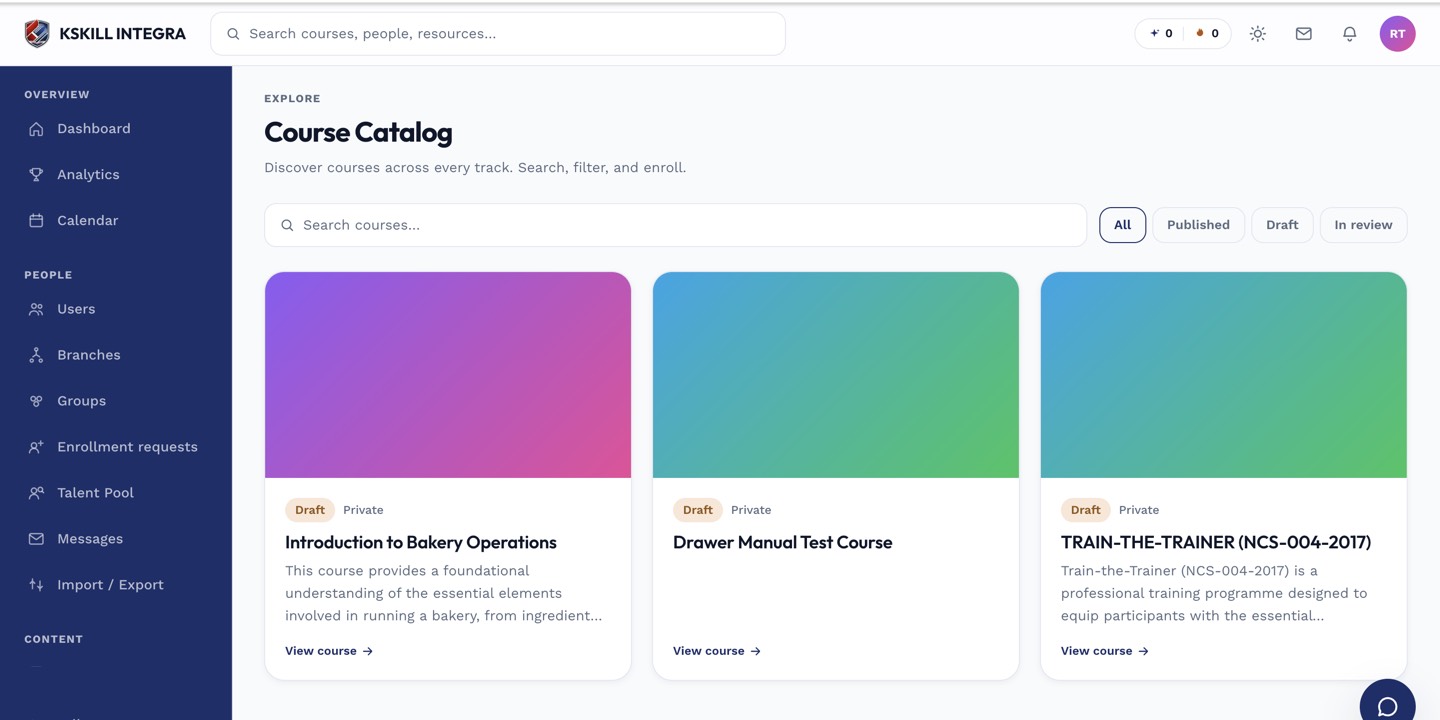
My Courses is the learner's grid of everything they are currently enrolled in.
Step 3 — Use the calendar for scheduled things
For live classes and cohort sessions, the calendar entry is the shortcut. Click a reminder or a calendar tile 15 minutes before it starts and you land on the join link, no digging required.
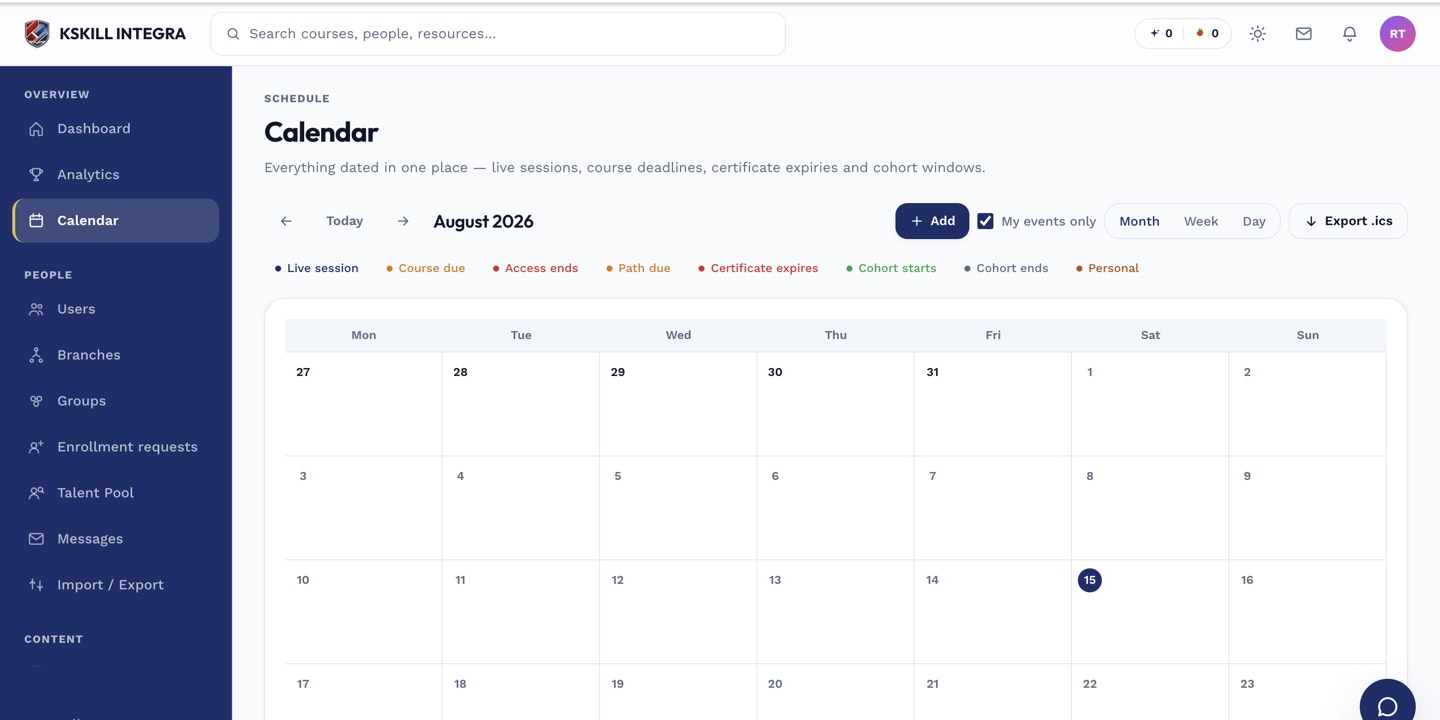
The calendar shows every scheduled live class, deadline and cohort milestone.
Notes
- Bookmarks sync when the page or app closes cleanly; a hard-crashed tab loses the last few seconds.
- Continue tile shows the most recent activity across every enrolled course, not just one.