Change your password
This article covers changing your password from account settings.
Before you start
You need to be signed in. For SSO tenants, password change happens at your identity provider, not here.
Step 1 — Open account settings
Click your profile picture and pick Account settings. Switch to the Security tab. The change-password form is at the top.
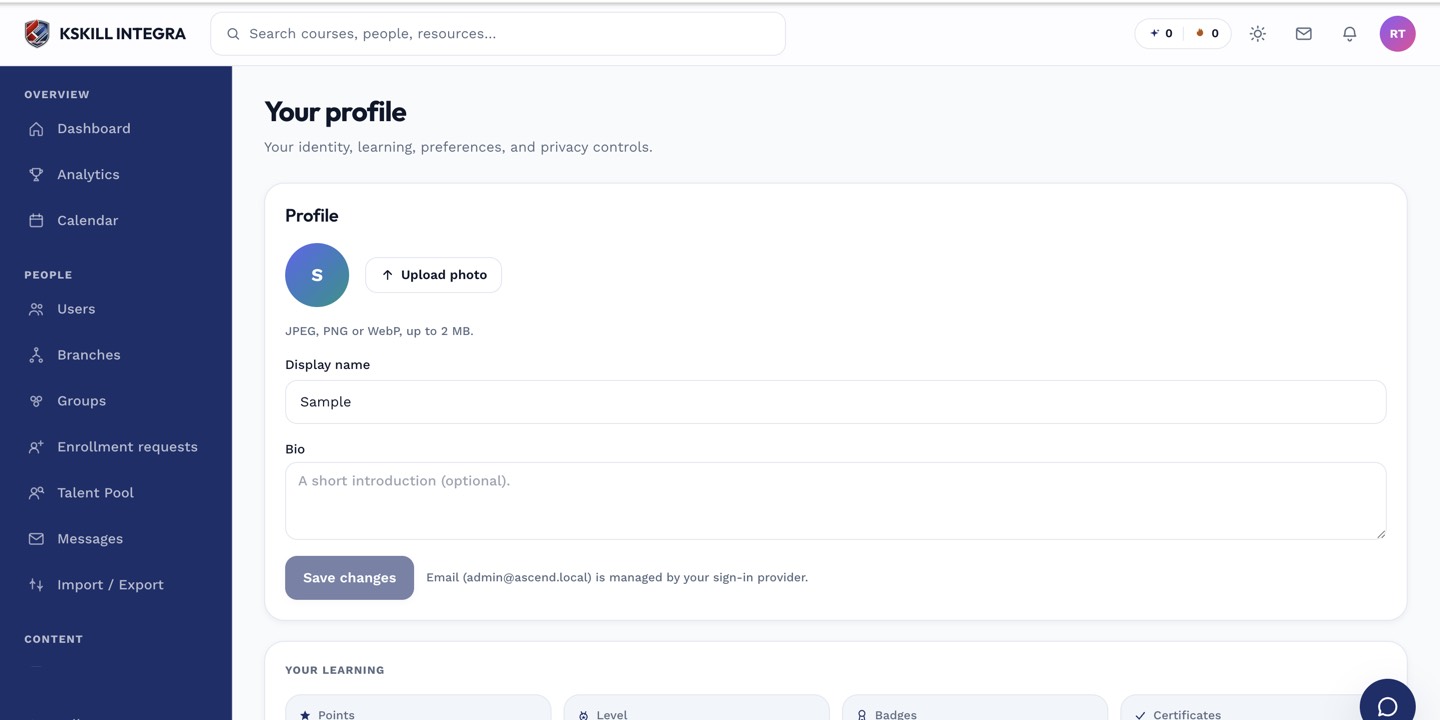
The account settings page is where a learner controls their own personal data.
Step 2 — Enter the new password
Enter your current password, then the new one twice. The form enforces your tenant's password policy — minimum length, character classes, and any specific rules your admin has set. Submit and the change is live immediately.
The account settings page is where a learner controls their own personal data.
Step 3 — Sessions expire
Other active sessions on other devices are signed out on their next refresh. You stay signed in on the current device. Consider turning on two-factor authentication from the same page for an extra layer.
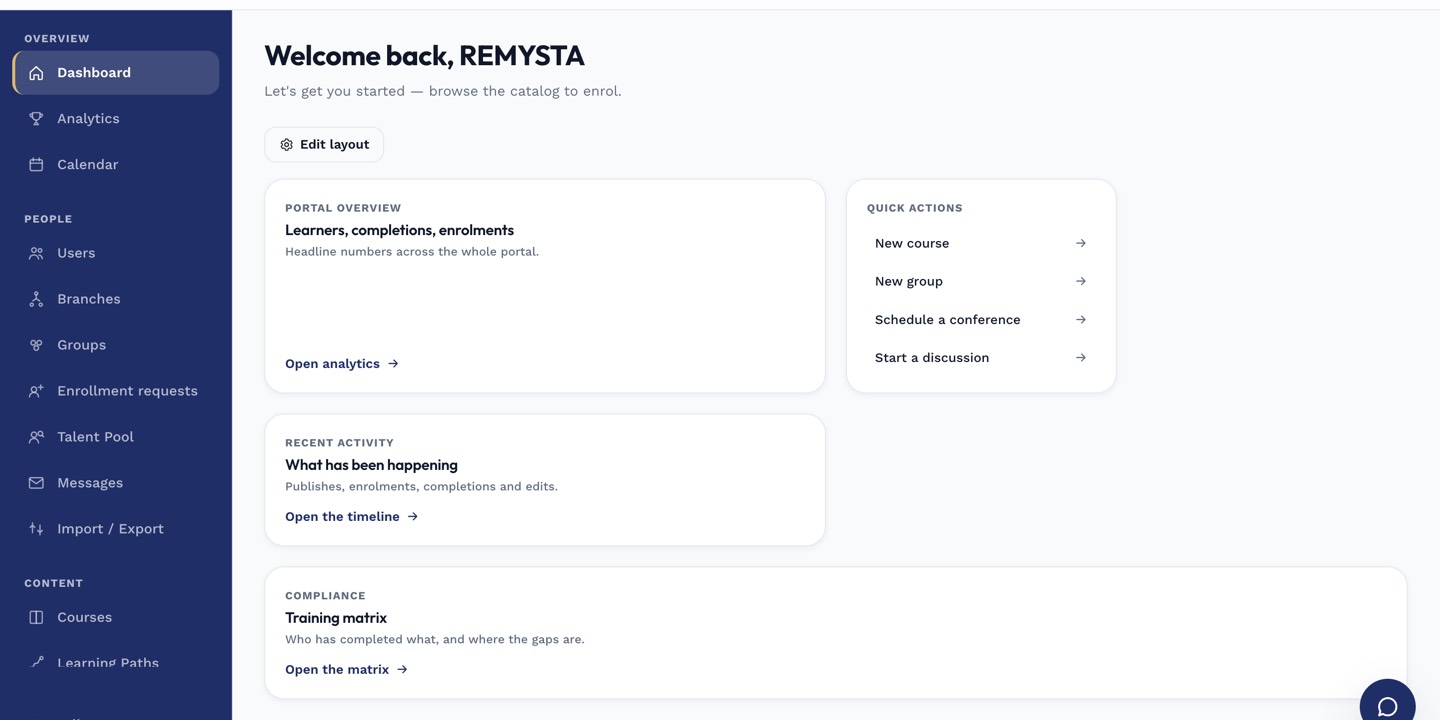
The left rail is the anchor for every admin task; every screen you visit starts with a click here.
Notes
- For a forgotten password, use the Forgot-password link on the sign-in page instead.
- Admins cannot see your password — Keycloak owns credentials and does not expose them.