Course reviews
Learners can rate and review completed courses. This article covers writing one and reading them on the catalog card.
Before you start
You need to have completed the course. Reviews are visible to every learner who can see the course.
Step 1 — Rate after completion
The completion screen prompts you for a star rating (1–5) and an optional text review. Submit both or just the stars — the platform accepts either. Reviews are attributed to you but visible to anyone with access to the course.
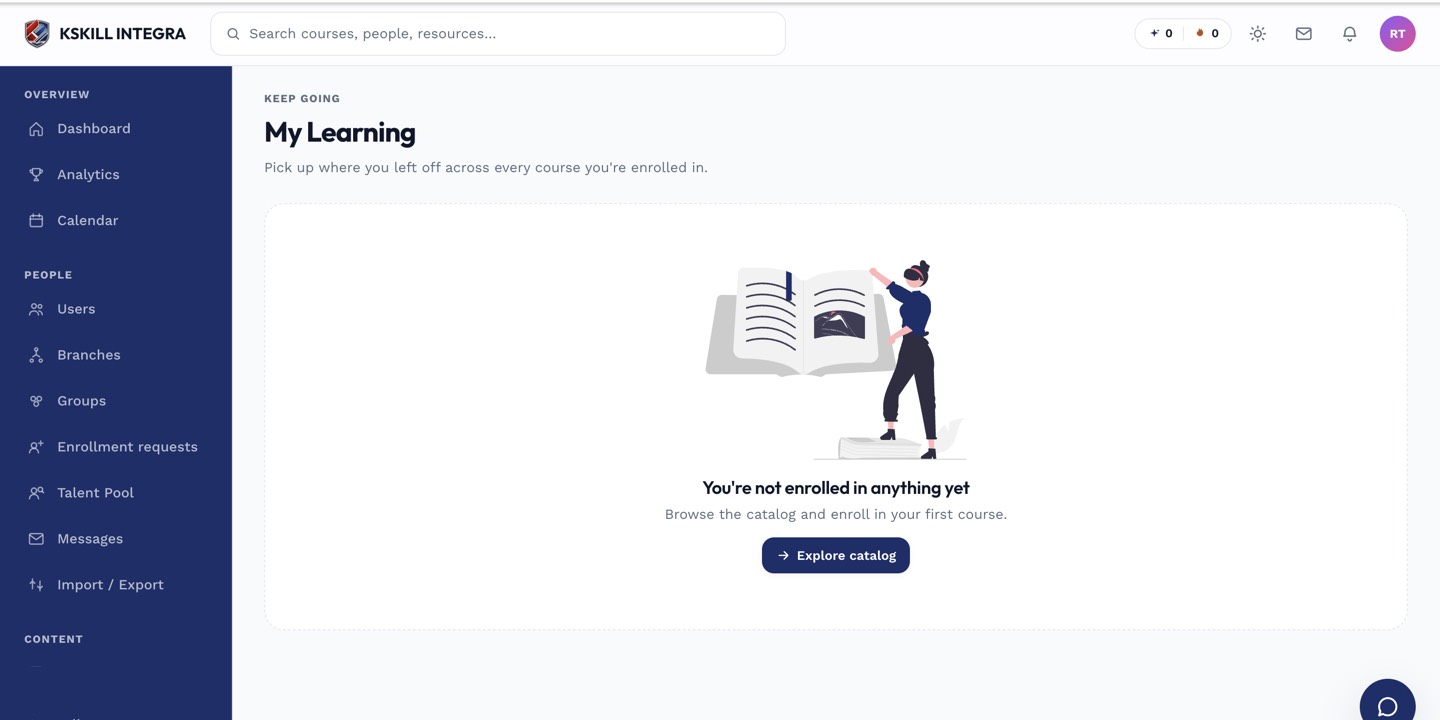
My Learning is the learner's default landing page — every enrolled course is one click away.
Step 2 — Read reviews on the catalog card
The catalog card shows the average rating and a review count. Click into the course landing page to read individual reviews sorted by recency. Filter by rating to see only 5-star or 1-star reviews.
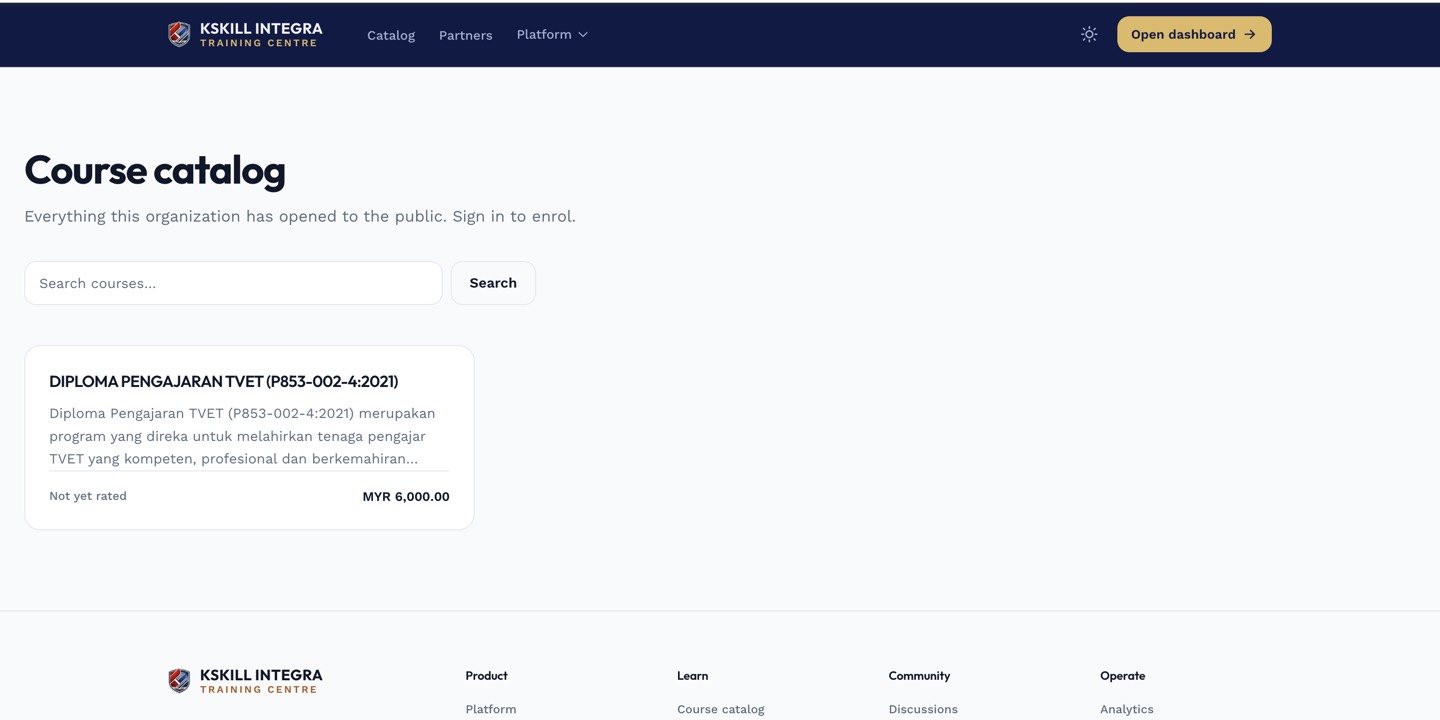
The catalog is the learner-facing shelf of everything a learner is allowed to self-enrol into.
Step 3 — Edit or delete your review
Open the course landing page and find your review. Use the overflow menu to edit or delete. Edits are timestamped; deletes are hard — no way to recover once deleted.
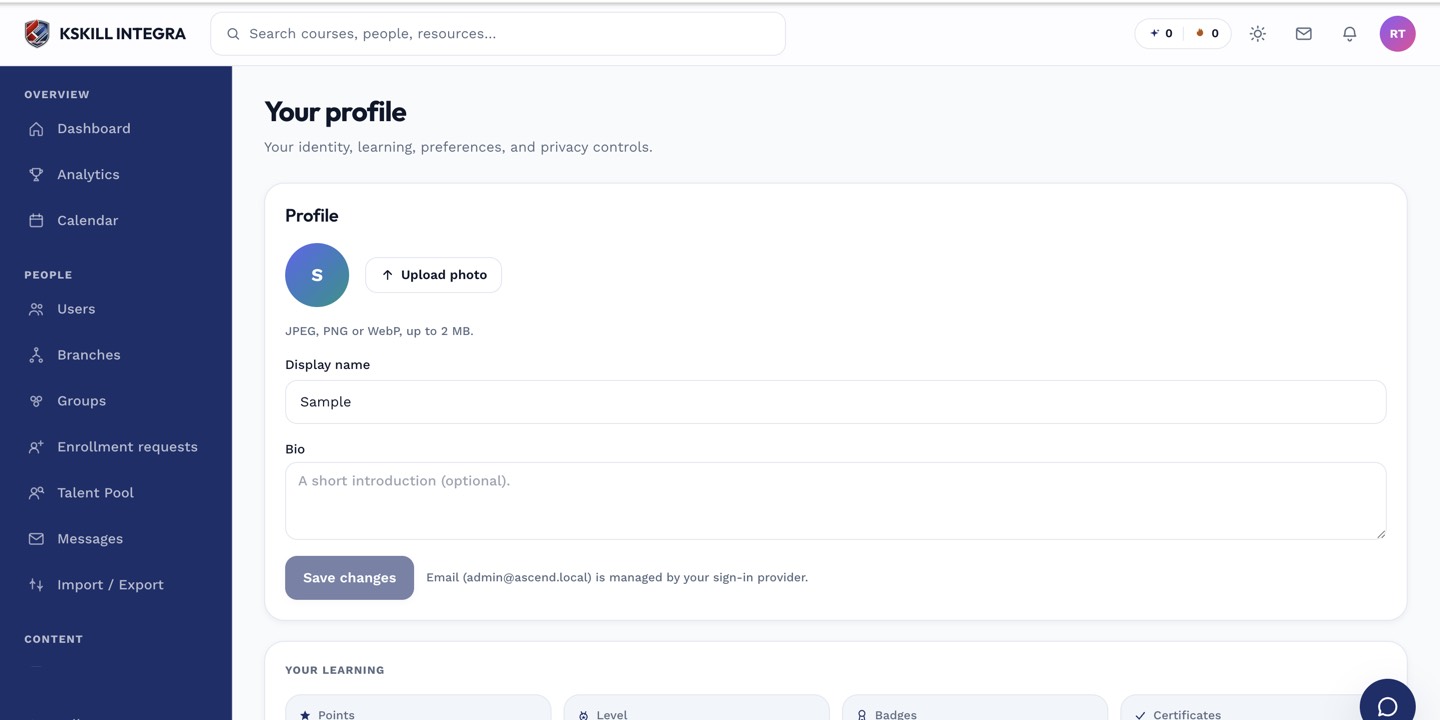
The account settings page is where a learner controls their own personal data.
Notes
- Reviews are moderated by admins if the moderation feature is on — flagged reviews sit in a queue.
- For private feedback that shouldn't be public, message the instructor directly.