CSV import errors
CSV imports fail row-by-row, not all-or-nothing. This article covers reading the error report and fixing common problems.
Before you start
You need to have attempted a CSV import.
Step 1 — Download the error report
After a failed import, the summary card offers Download error report. The CSV contains only the failed rows plus an explanation column. Open it in Excel or Sheets to see exactly what went wrong.
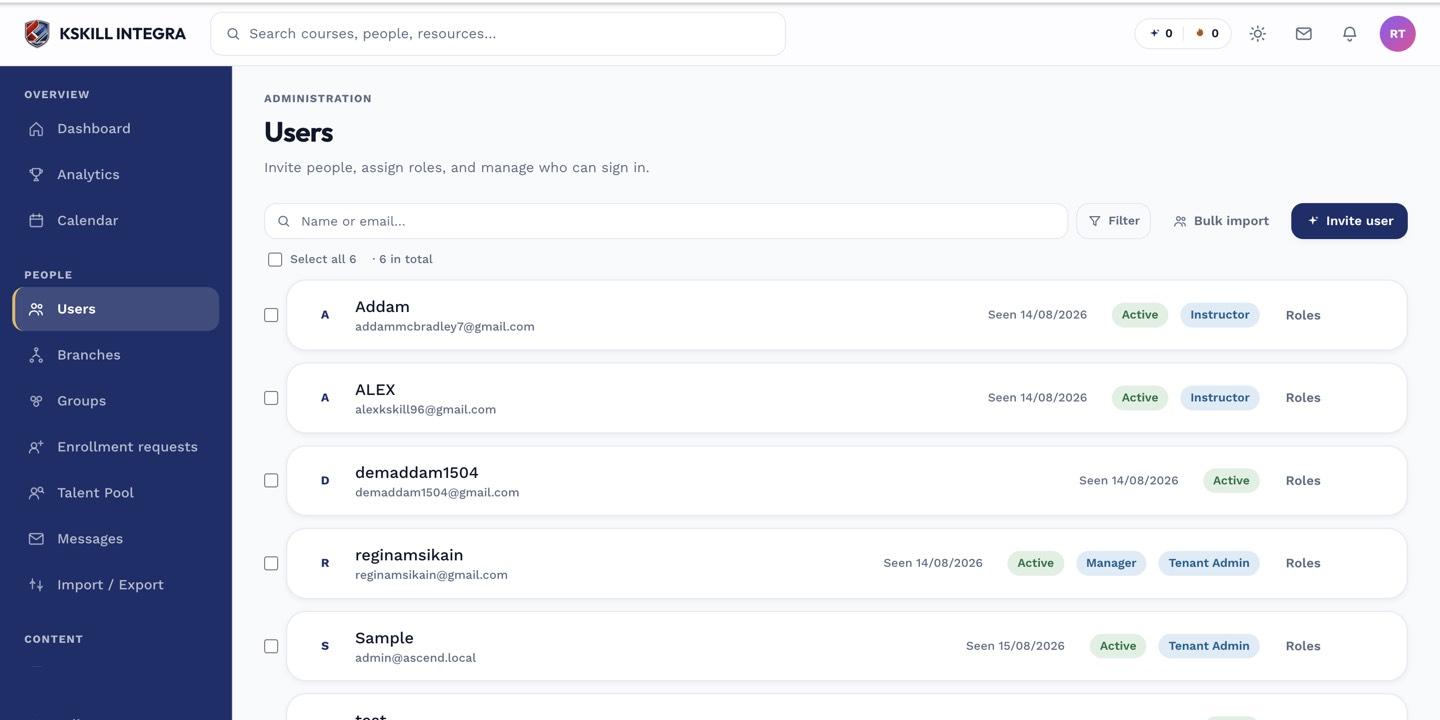
The Users list is the entry point for every person-related admin task.
Step 2 — Fix common errors
Duplicate emails skip existing users (not an error, just informational). Invalid role names must exactly match Learner/Instructor/Admin. Custom field mismatches happen when the column name doesn't match what you defined in Settings. Unknown branch or group names are ignored.
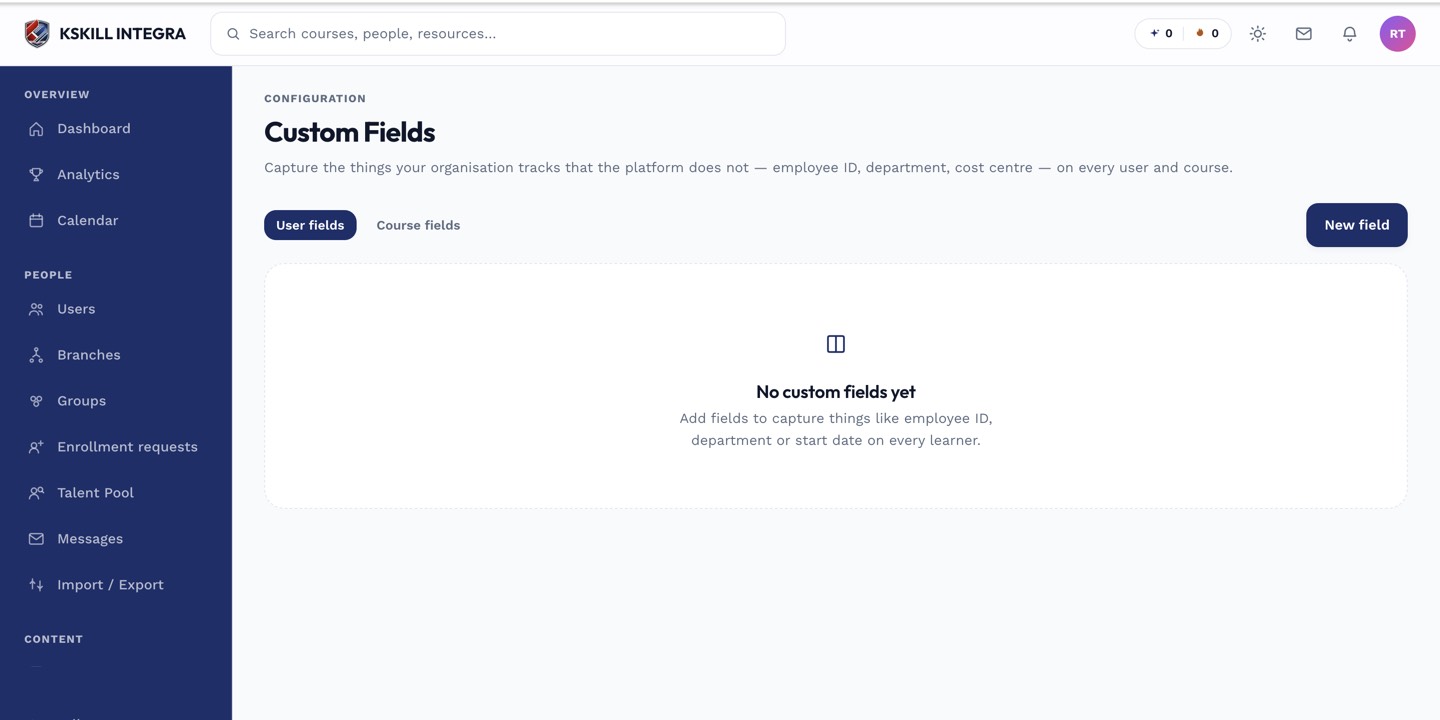
Custom fields extend the built-in profile so you can capture the columns your CSV imports need.
Step 3 — Re-upload only the fixed rows
Save the corrected file and upload it. The import runs only the rows you provided — successful rows from the first import are untouched. Verify the summary shows zero errors on the second pass.
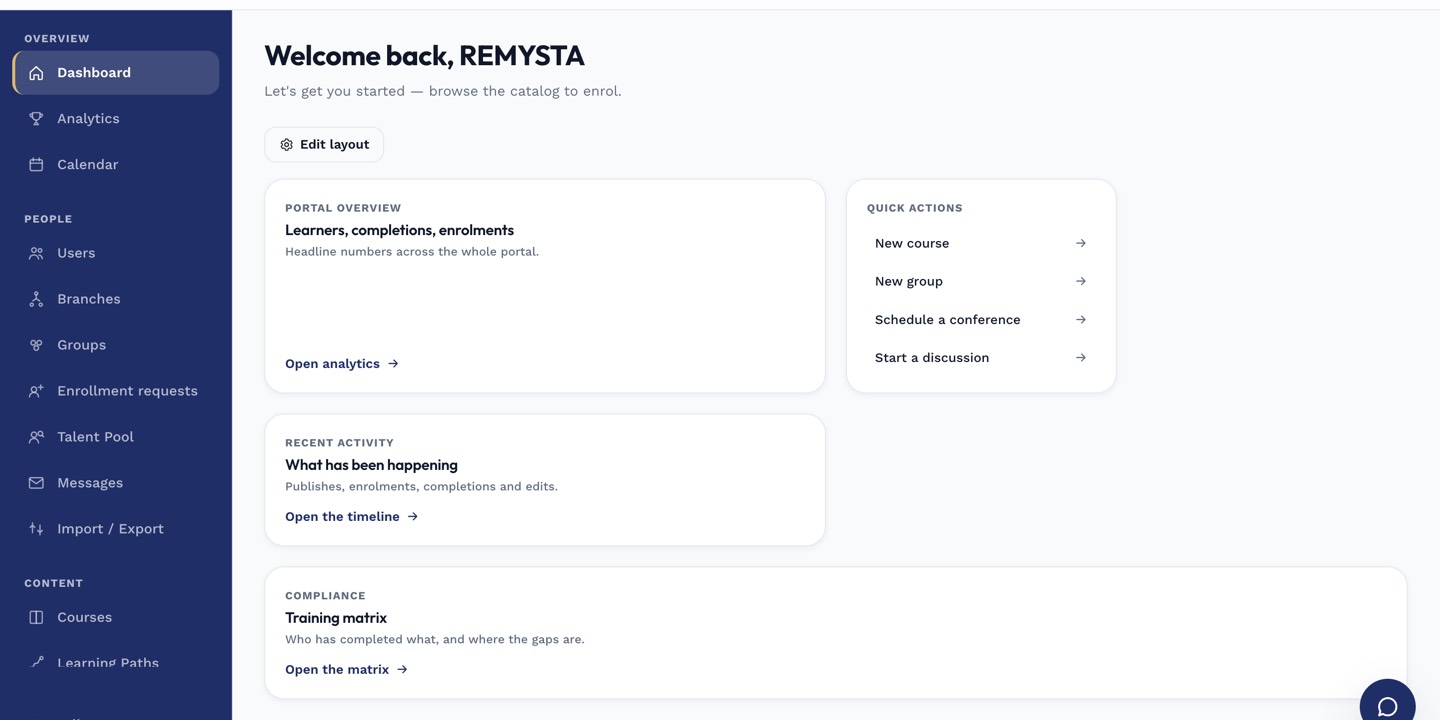
The left rail is the anchor for every admin task; every screen you visit starts with a click here.
Notes
- Save your CSV as UTF-8 — the platform expects it and Excel's default encoding often breaks non-ASCII names.
- For very large imports (10,000+ rows), split into chunks of 5,000 or use the API directly.