Live class join issues
This article covers common problems joining a live class — permissions, firewalls and stuck join screens.
Before you start
You need to be signed in and scheduled for the session.
Step 1 — Grant camera and microphone
First-time joiners see a browser permission prompt. Accept both. If you accidentally denied earlier, reset the site permissions in your browser settings and reload. Without permission, you can watch but not participate.
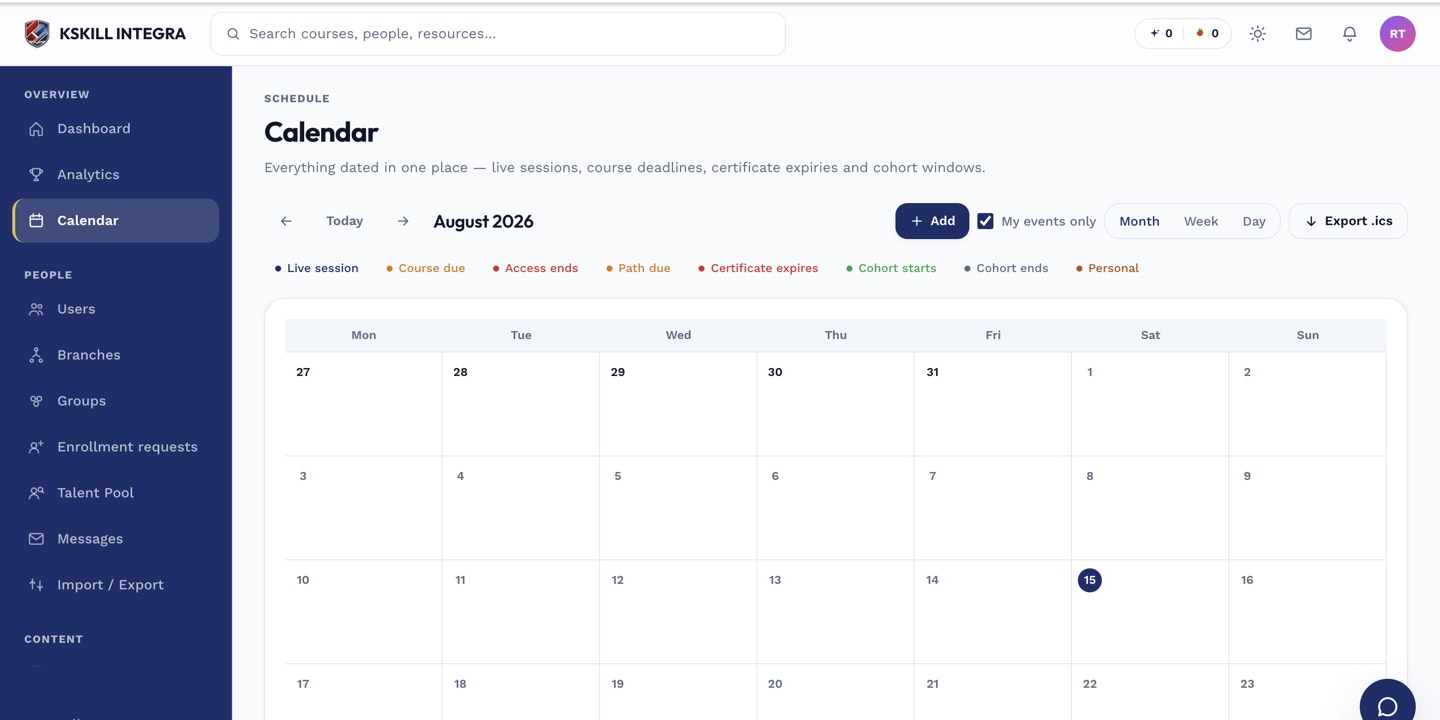
The calendar shows every scheduled live class, deadline and cohort milestone.
Step 2 — Firewall blocking media
LiveKit uses UDP for peer-to-peer media. Corporate firewalls sometimes block UDP; you'll see the video freeze while chat still works. Switch to Zoom or Meet for the session if UDP is blocked. Ask IT to open UDP for a permanent fix.
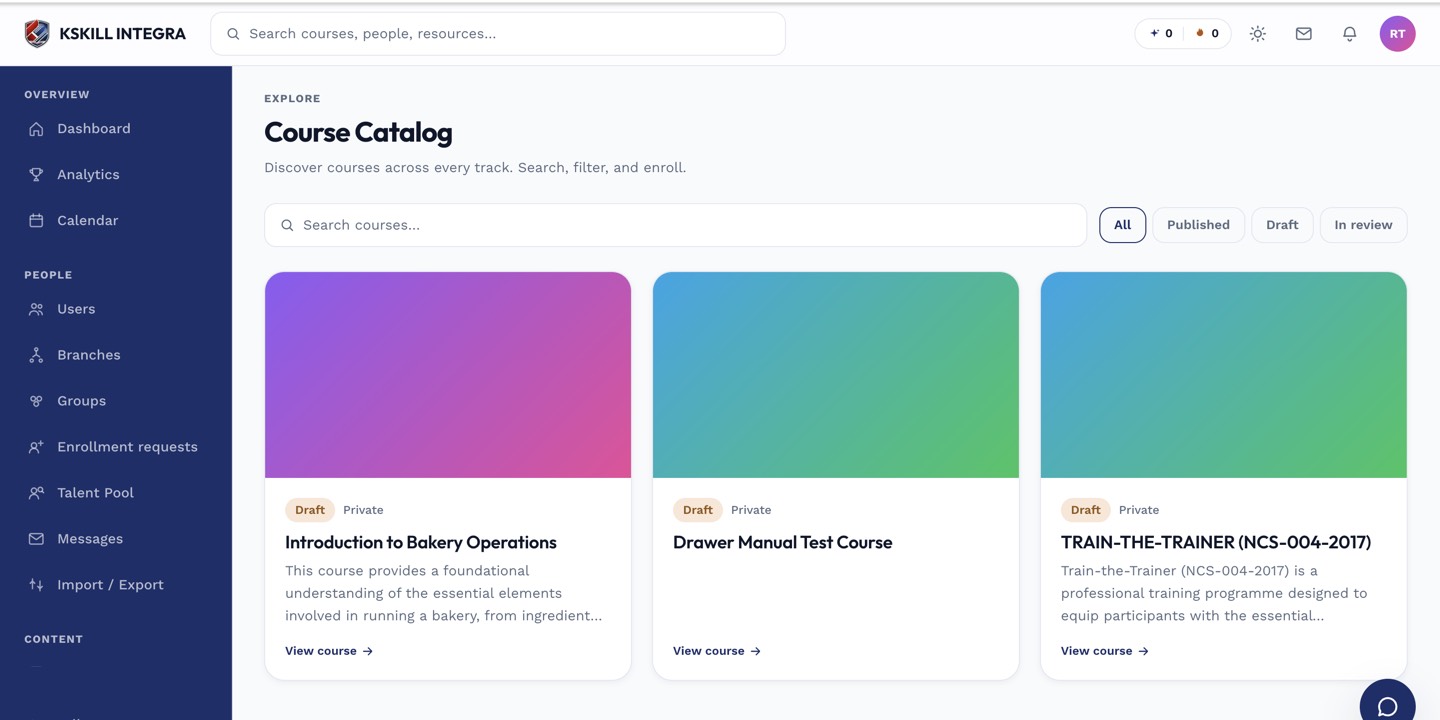
My Courses is the learner's grid of everything they are currently enrolled in.
Step 3 — Stuck join screen
Refresh the page. Try a different browser (Chrome and Firefox are most reliable). If nothing works, join by phone if the session has dial-in — some platforms allow that as a fallback.
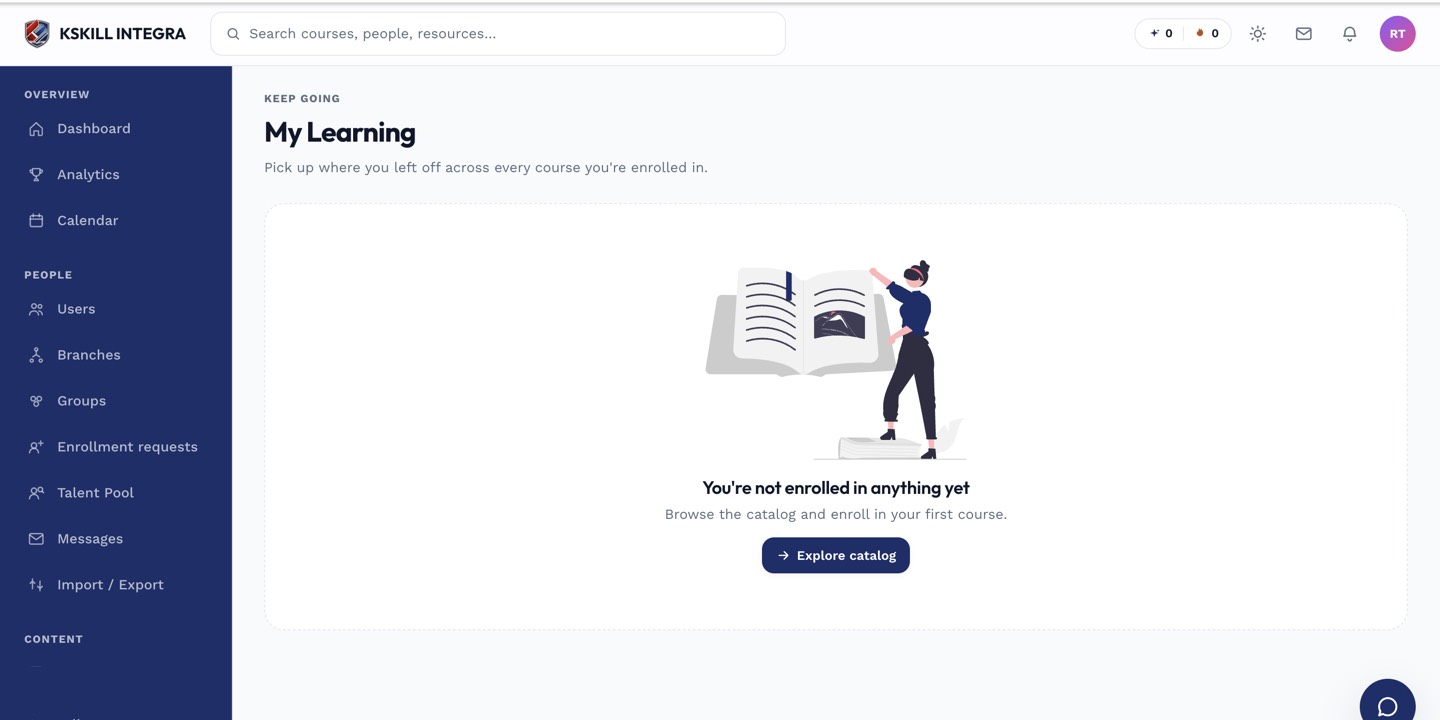
My Learning is the learner's default landing page — every enrolled course is one click away.
Notes
- For public LiveKit sessions, external learners join with a link — they don't need an LMS account.
- Recordings land in the course's Files tab within minutes of the session ending.