Join a live class or conference
Live classes appear on your calendar with a join link. This article covers what happens 15 minutes before start and how the join step works.
Before you start
You need to be signed in and either enrolled in the course or invited to the specific session.
Step 1 — See the reminder
Fifteen minutes before start, a reminder appears on your dashboard and in your notifications. The email reminder arrives at the same time. Click either to jump to the join step — no need to hunt for the calendar.
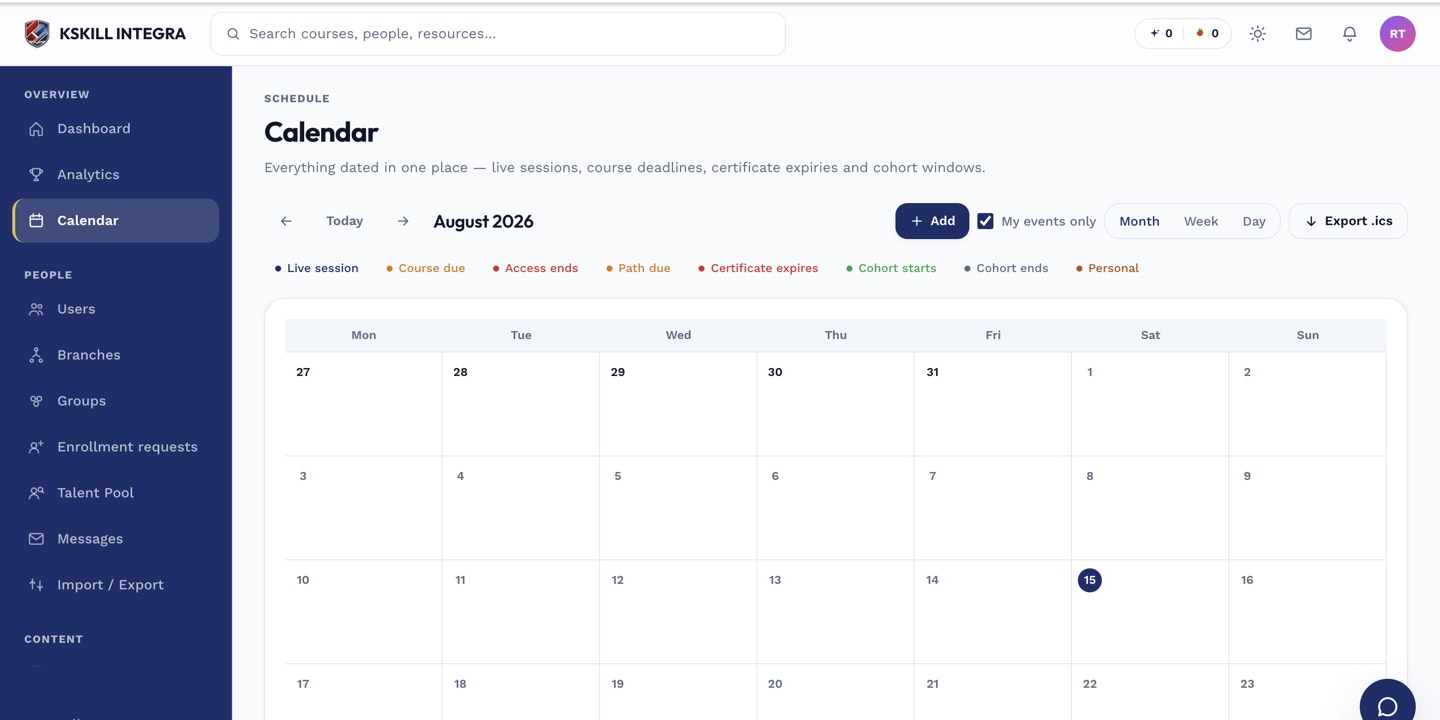
The calendar shows every scheduled live class, deadline and cohort milestone.
Step 2 — Join the session
The join button appears at start-time. LiveKit sessions open in-browser; Zoom and Google Meet open in their respective apps or web clients. First-time attendees may see a device-permission prompt for camera and microphone — allow whichever the session needs.
The calendar shows every scheduled live class, deadline and cohort milestone.
Step 3 — After the session
Recordings (if the instructor enabled them) land in the course's Files tab within a few minutes. Chat transcripts and shared files also land there. If you missed it, that is where to catch up.
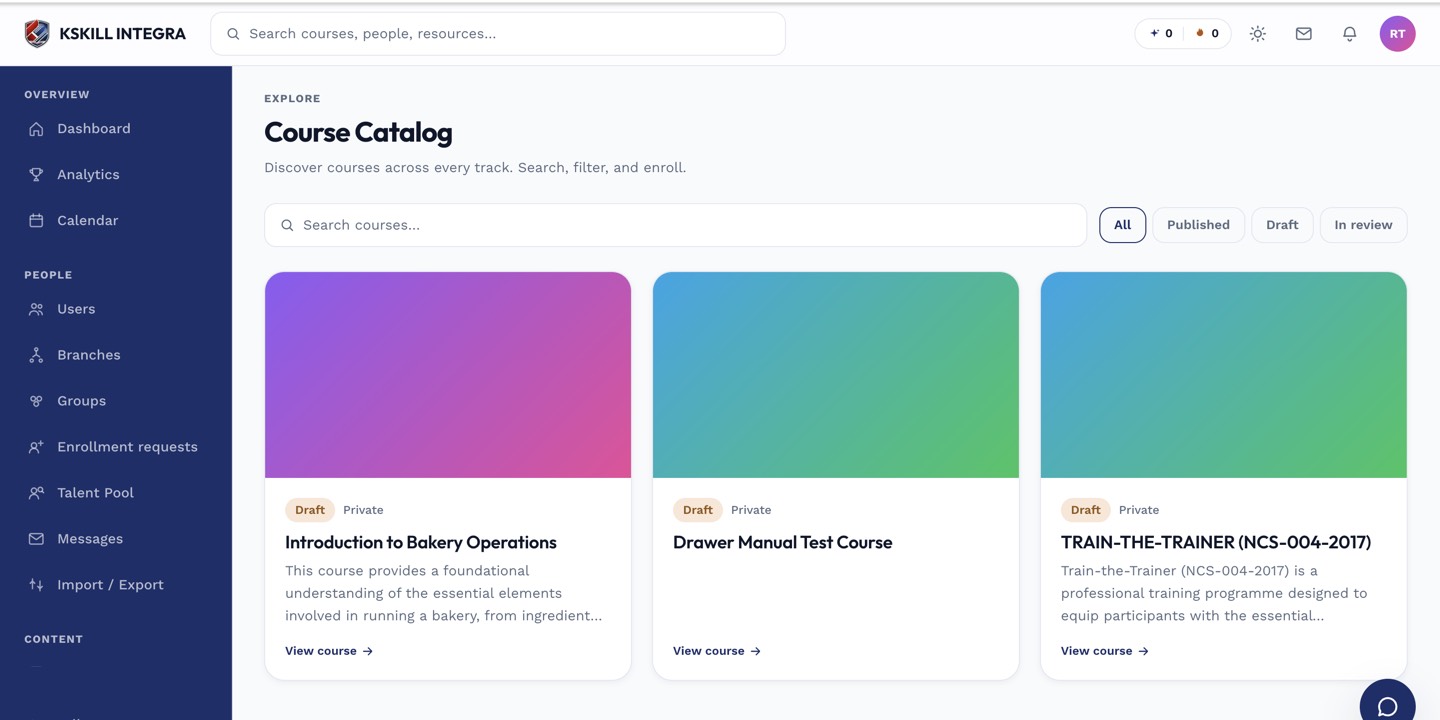
My Courses is the learner's grid of everything they are currently enrolled in.
Notes
- For LiveKit, media travels peer-to-peer over UDP — a restrictive corporate firewall can block it. Use Zoom or Meet in that case.
- Attendance is recorded automatically — your admin can see who joined and how long they stayed.