Learner activity log
The activity log is your own audit trail — every sign-in, enrolment and grade. This article covers reading it.
Before you start
You need to be signed in. You see only your own activity.
Step 1 — Open account settings
Click your profile picture and pick Account settings. Switch to the Activity tab. Every action tied to your account appears in reverse-chronological order.
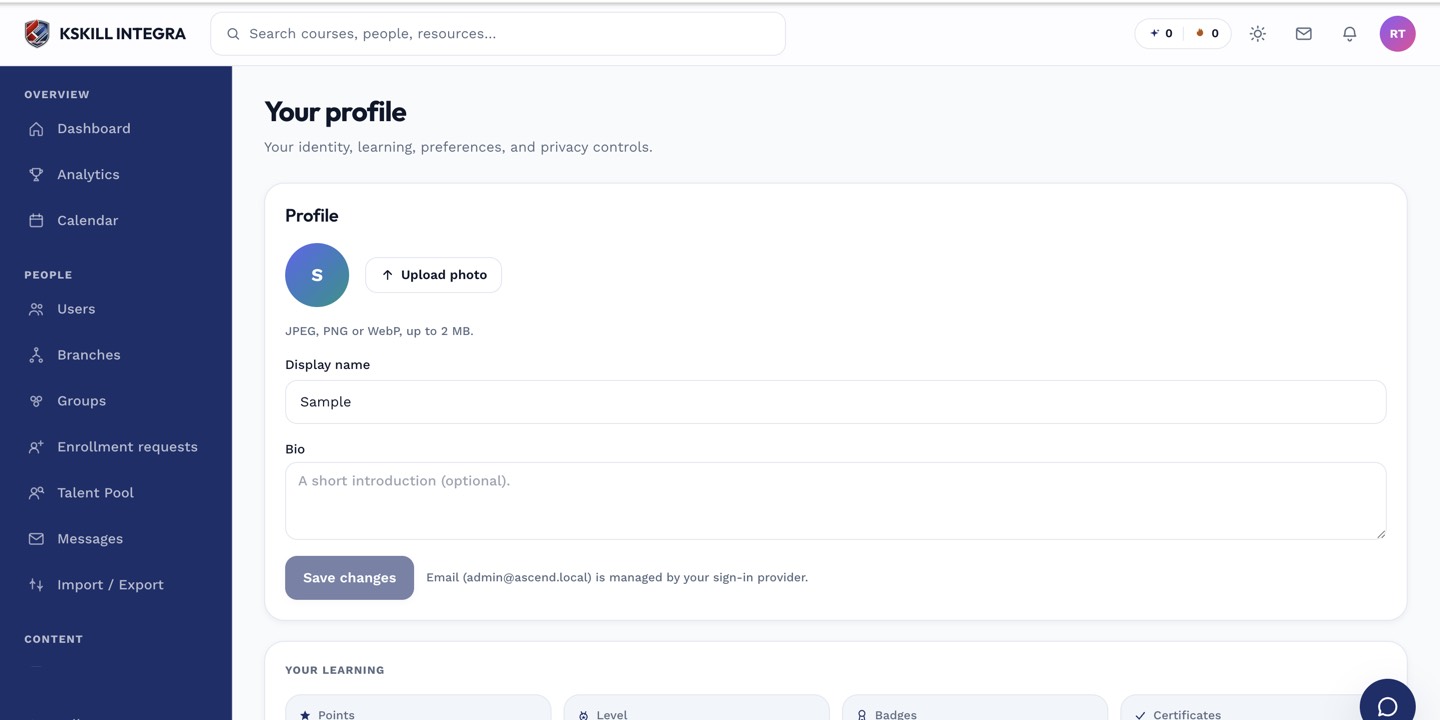
The account settings page is where a learner controls their own personal data.
Step 2 — Filter by category
Use the category filter to narrow — sign-ins, enrolments, completions, grades, purchases. Handy when you're trying to remember when you finished a specific course.
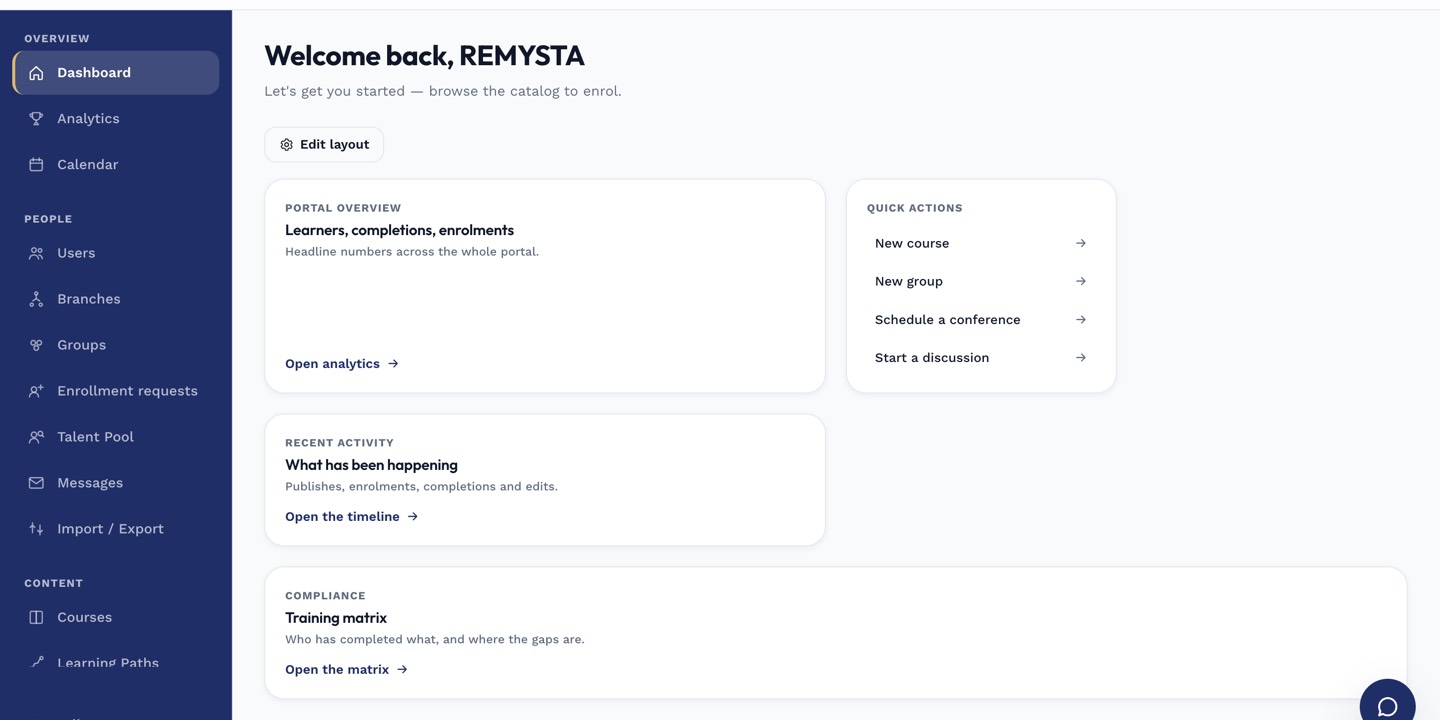
The left rail is the anchor for every admin task; every screen you visit starts with a click here.
Step 3 — Report anything you didn't do
If you see a sign-in from a location you didn't recognise, change your password immediately and turn on 2FA if it isn't already. Escalate to your admin so they can review the audit log for anything suspicious.
The account settings page is where a learner controls their own personal data.
Notes
- The activity log is a copy of the tenant's audit log filtered to you — admins have a broader view.
- Retention matches the tenant's data retention policy.