Learner profile customization
Your profile is what peers, instructors and cohort mates see. This article covers customising it.
Before you start
You need to be signed in. Some fields are locked by your admin — you can't edit those.
Step 1 — Open account settings
Click your profile picture and pick Account settings. The Profile tab holds everything visible to others — display name, avatar, bio, custom fields.
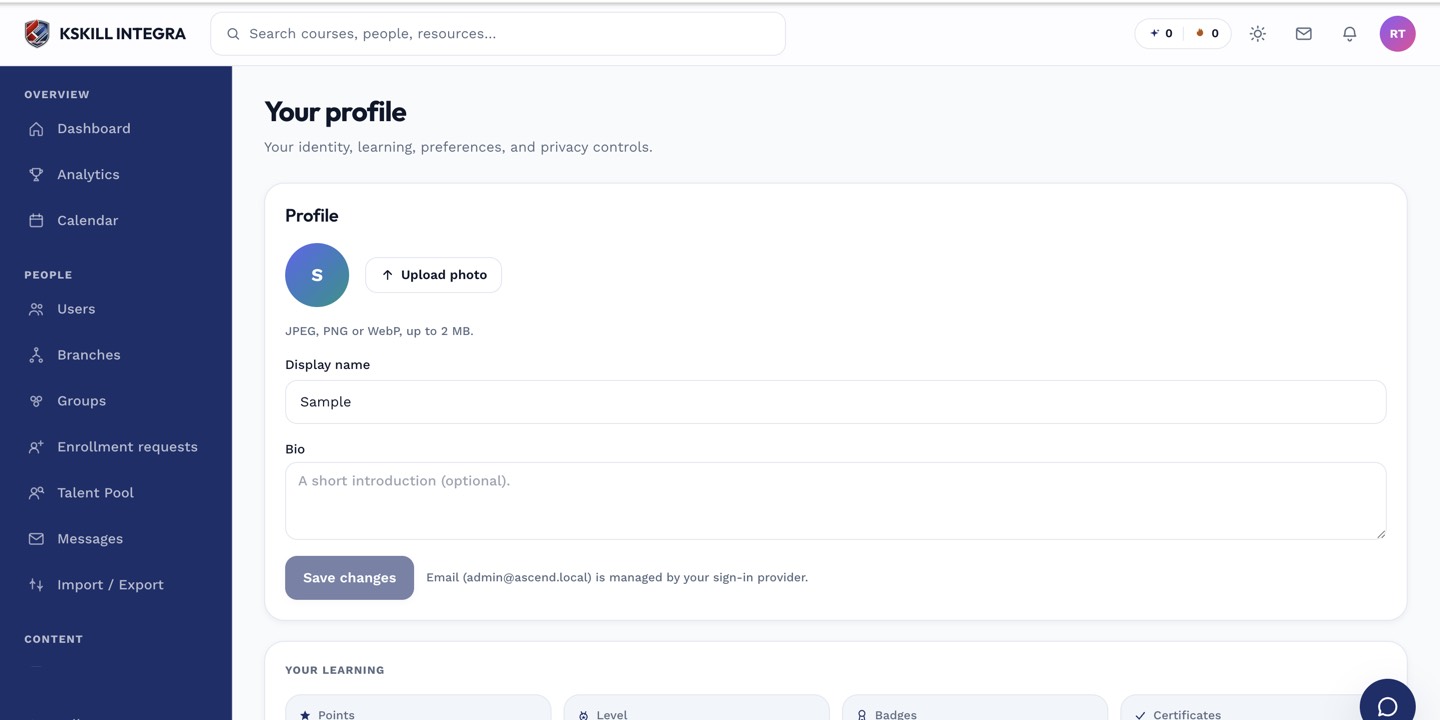
The account settings page is where a learner controls their own personal data.
Step 2 — Update the visible fields
Change your display name if you go by a nickname. Upload a square avatar. Write a short bio that says what you do and what you're learning. Custom fields (defined by your admin) appear alongside.
The account settings page is where a learner controls their own personal data.
Step 3 — Pin badges and skills
Switch to the Achievements tab. Pin your favourite badges to the top so they show on your profile card. Do the same on the Skills tab. Others see the pinned selection when they hover your name.
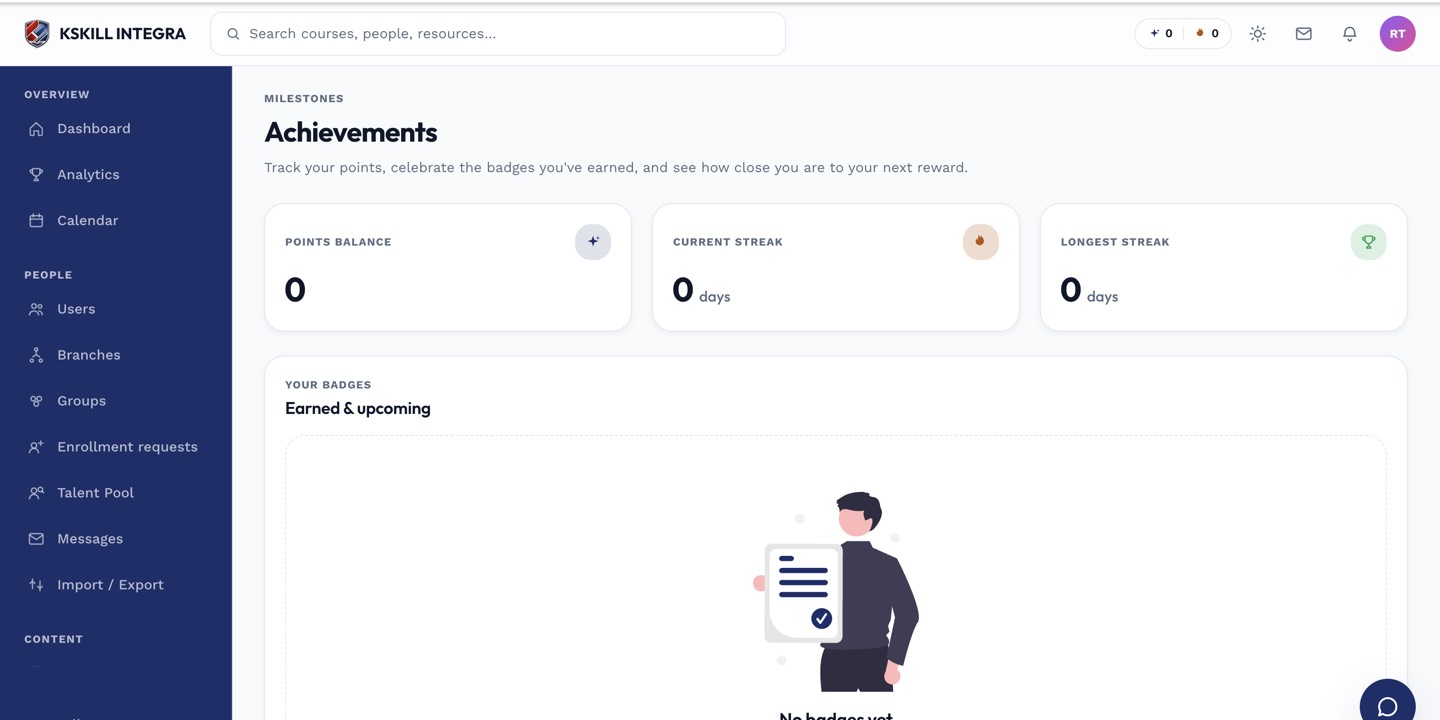
Achievements are the badges a learner has earned and can show off on their profile.
Notes
- Email is admin-only visible — other learners never see it.
- For privacy-conscious tenants, ask your admin what fields are visible by default.