Manage your inbox
This article covers filtering, searching and archiving in your inbox.
Before you start
You need to be signed in.
Step 1 — Filter and search
The inbox has filter chips at the top for unread, archived, or from a specific sender. Search by keyword to find a message across every thread — the search is full-text over the entire history.
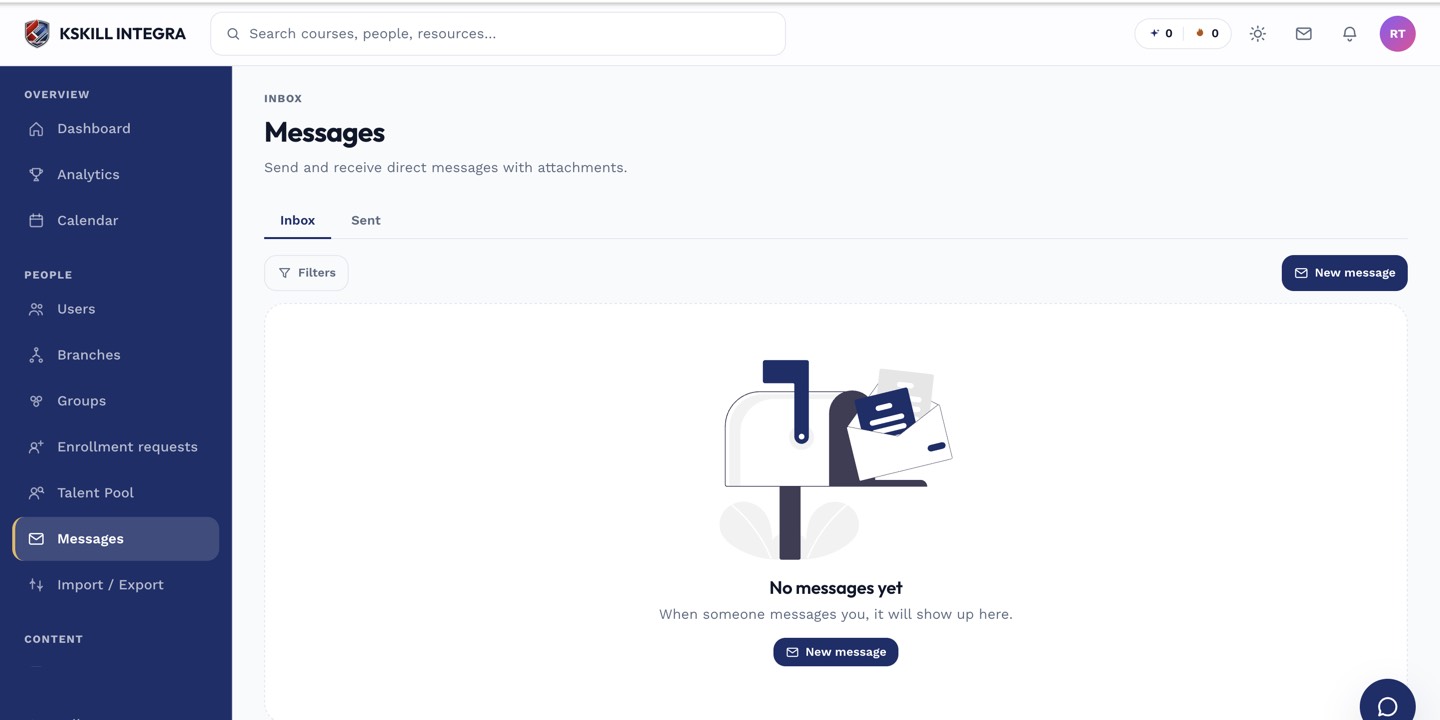
The inbox is where every direct message and broadcast lands.
Step 2 — Archive completed threads
Click the archive icon on a thread to move it out of the default inbox. Archived threads still show up in search and can be un-archived any time. This is the trick to keeping the inbox scannable.
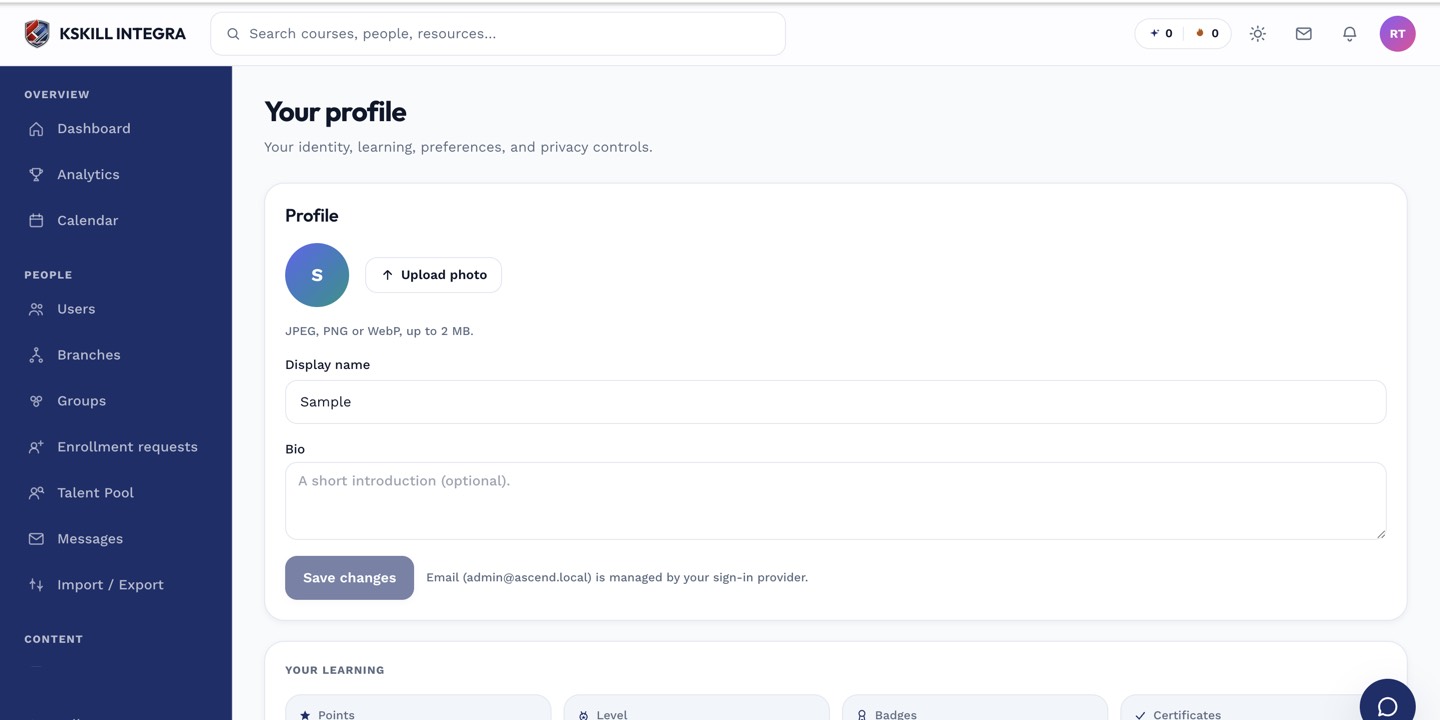
The account settings page is where a learner controls their own personal data.
Step 3 — Mute noisy threads
Click the bell icon on a thread to mute notifications. You'll still see new activity in the inbox but won't get in-app or email pings. Useful for busy group threads you don't need real-time.
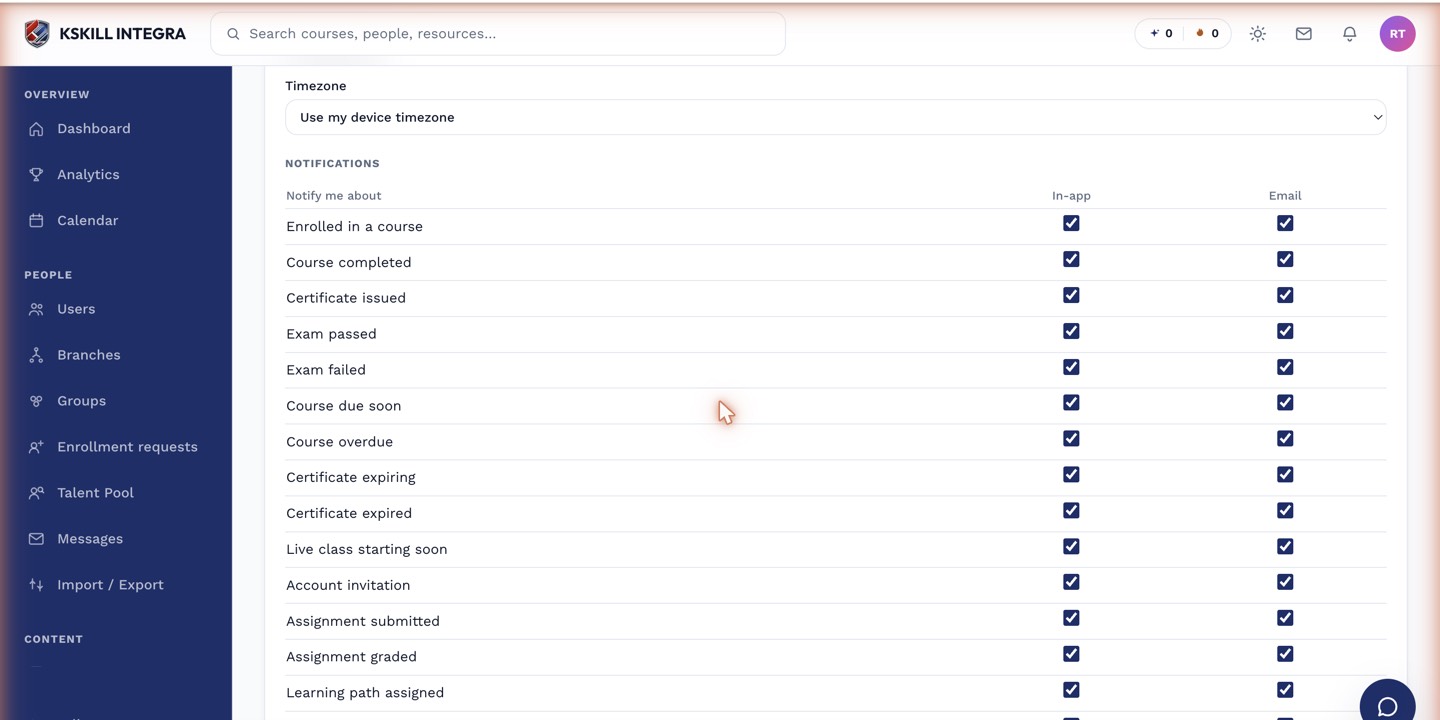
The preferences table is the per-user matrix of every event by every channel.
Notes
- There is no delete — archiving is the closest equivalent.
- Bulk actions are available via the header checkbox on the inbox list.