Message an instructor
Direct messages let you ask an instructor a private question without opening a public thread. This article covers sending one.
Before you start
You need to be signed in. The instructor must be someone you can message — usually anyone in your enrolled courses.
Step 1 — Open Messages
Open Messages from your sidebar. The inbox shows every existing conversation. Click New message in the header to start a new one.
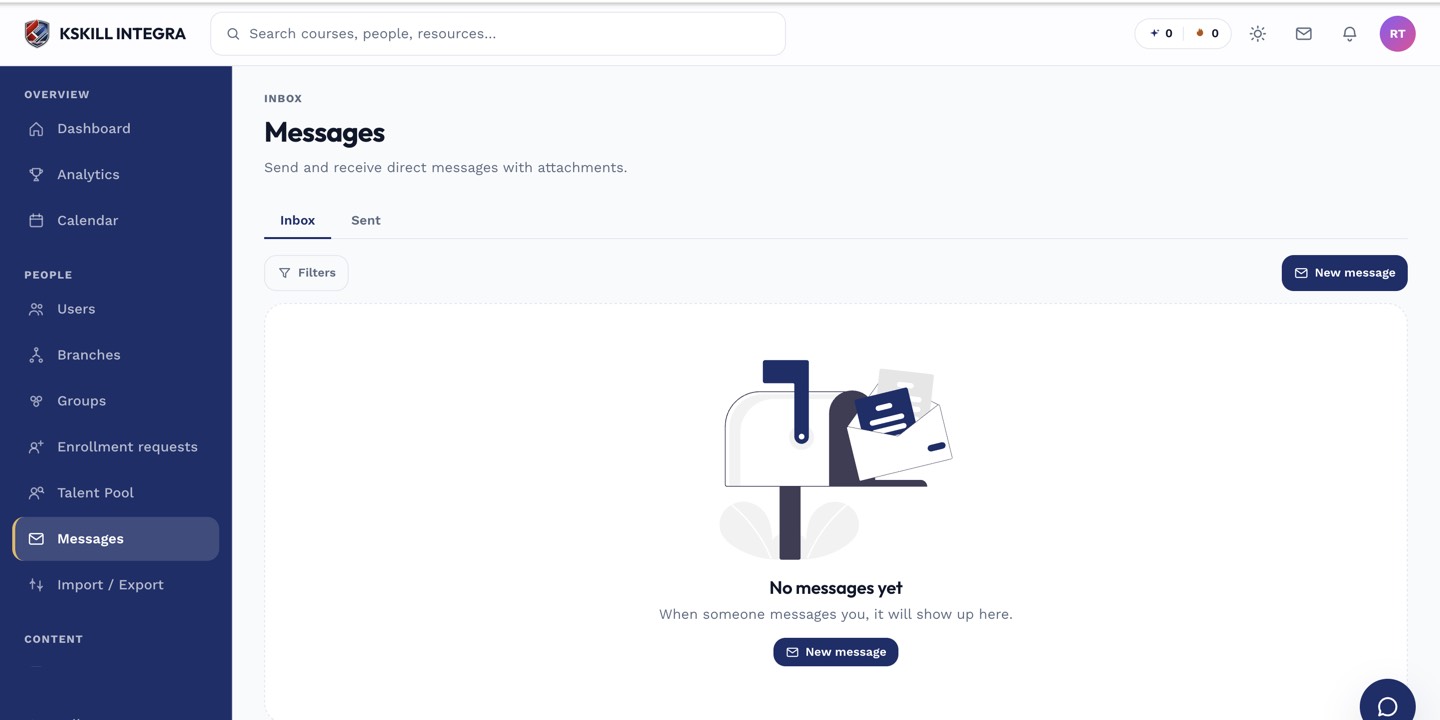
The inbox is where every direct message and broadcast lands.
Step 2 — Find the instructor
Search by name in the recipient picker. Instructors from courses you are enrolled in appear at the top. Pick one, write your message, attach any files if useful, and send. They receive an in-app notification and (if their preferences allow) an email.
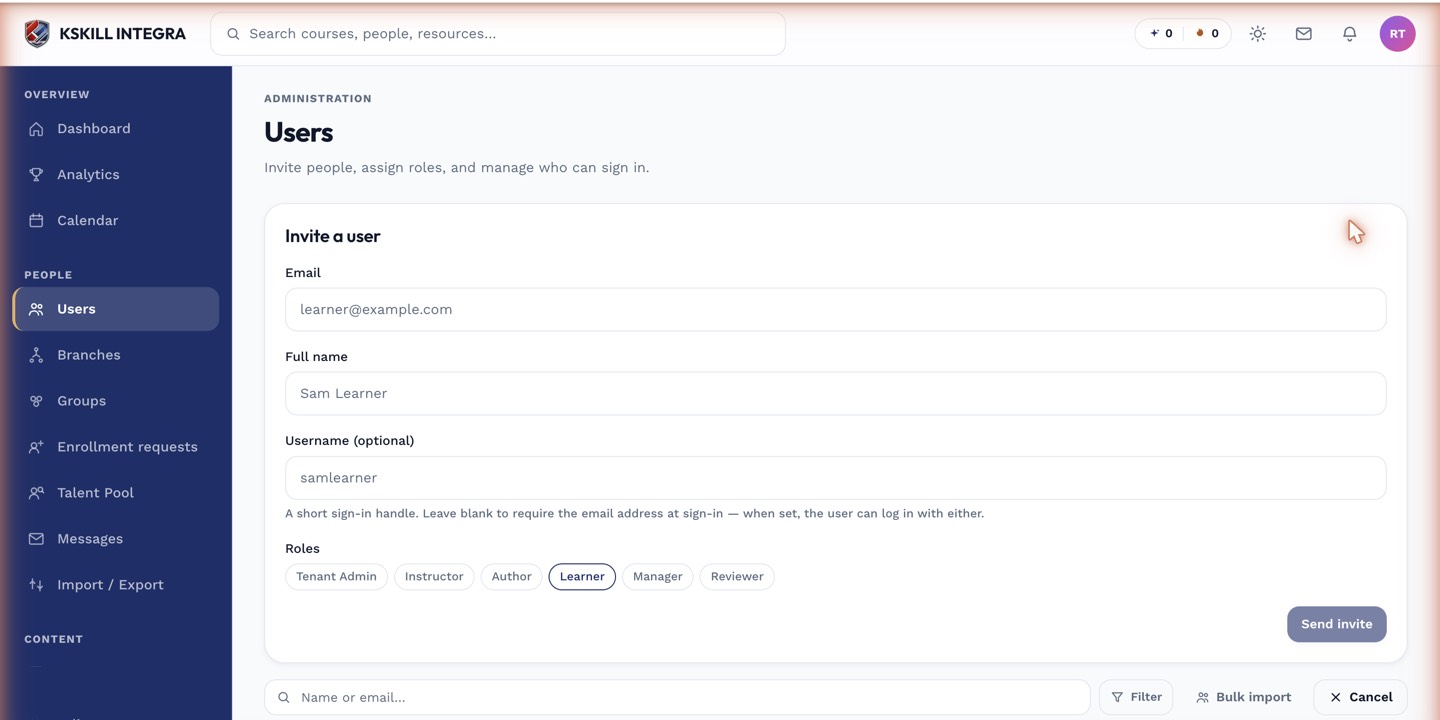
The invite drawer is the same shape whichever role you assign.
Step 3 — Follow the reply
Their reply lands in the same thread. Click the thread in your inbox to see the whole history. You can add follow-up messages any time — the conversation stays open until you or they close it.
The inbox is where every direct message and broadcast lands.
Notes
- Some tenants disable direct messages to learners — you will see the option greyed out if so.
- For a whole class discussion, post in the course discussion instead.