Message attachments
Messages support file attachments. This article covers types, sizes and limits.
Before you start
You need to be signed in. Attachment size defaults to 25 MB per file.
Step 1 — Attach a file
In the message composer, click the paperclip icon and pick a file. It uploads immediately; a progress bar shows the state. Once uploaded, the file appears as a chip in the composer. Add more if needed.
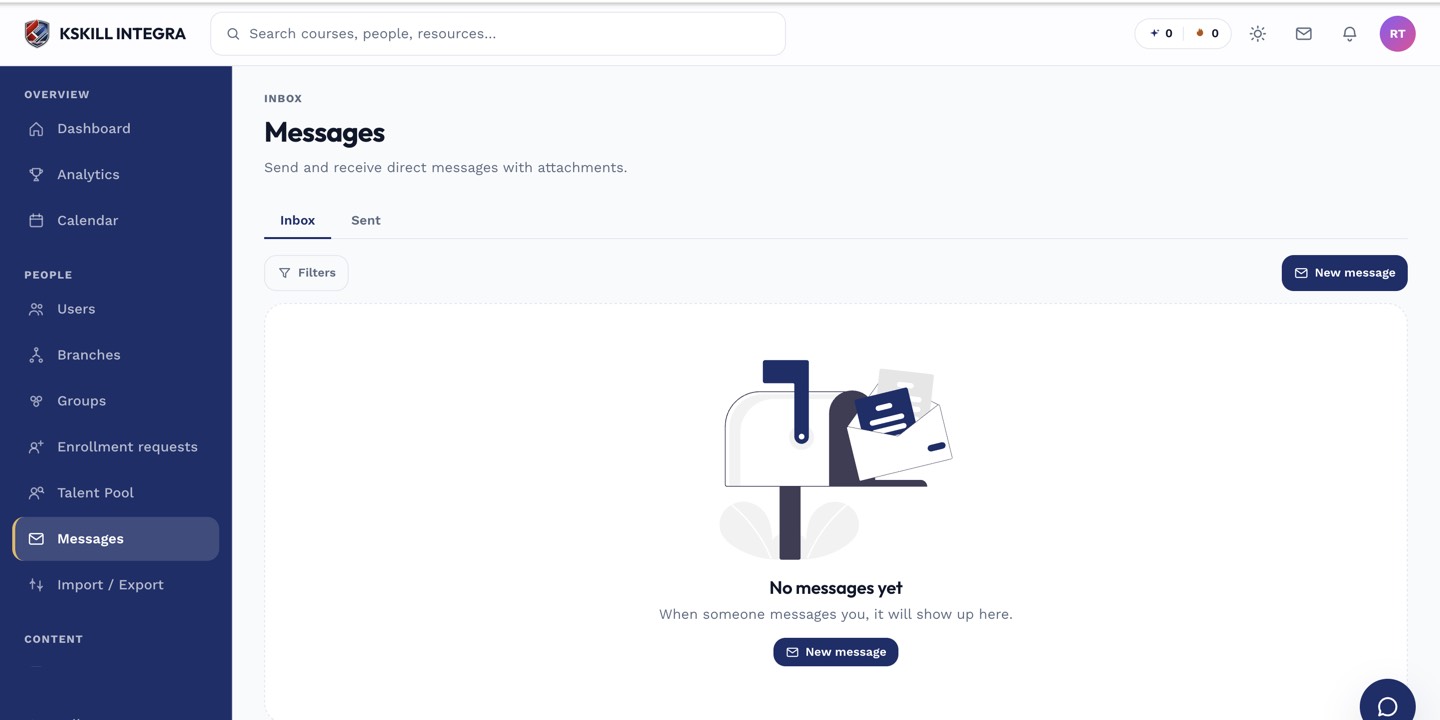
The inbox is where every direct message and broadcast lands.
Step 2 — Recipient view
The recipient sees the attachment inline in the thread. Images render as previews; other files show as download chips. Click any to download. The link is authenticated so nobody outside the conversation can grab it.
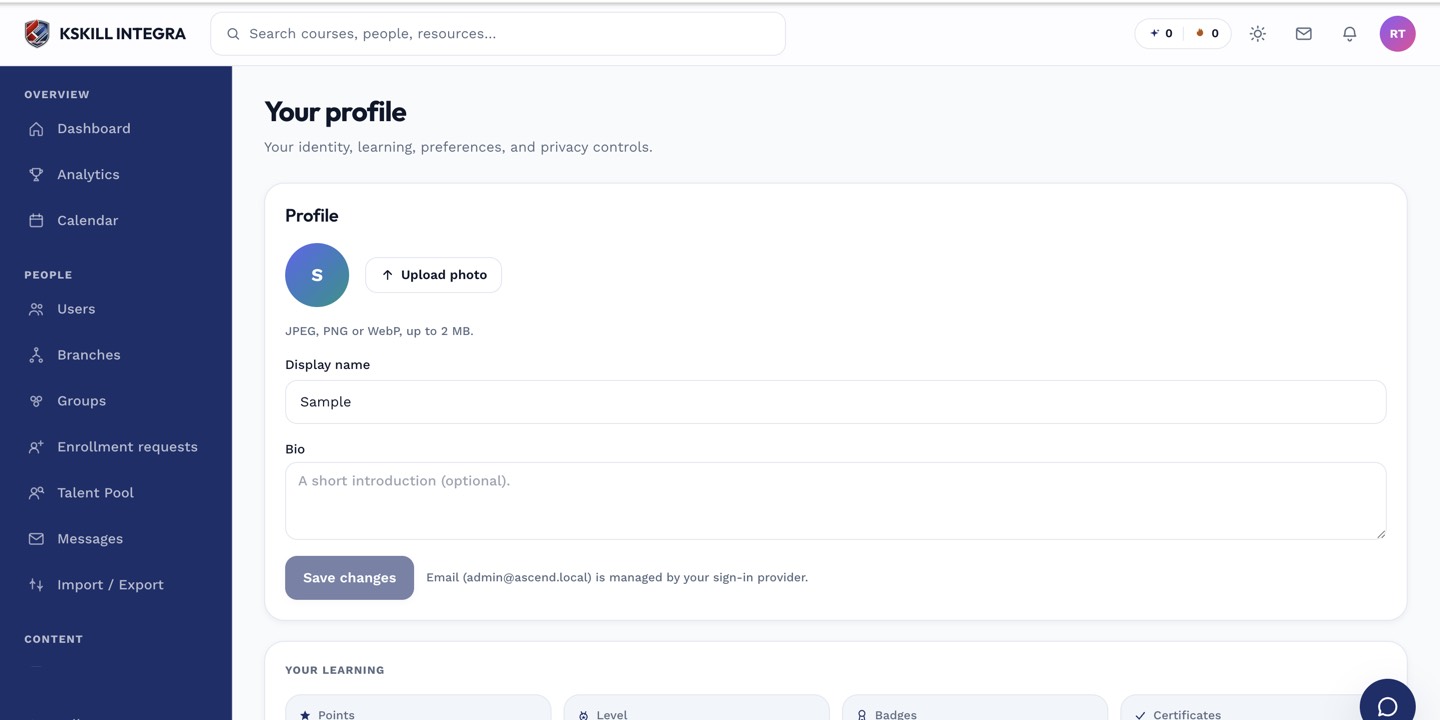
The account settings page is where a learner controls their own personal data.
Step 3 — Manage storage
Attachments count against your account storage quota. Old threads with attachments still count — archive to hide, delete the underlying files if you need the space. Ask your admin if you're near the quota.
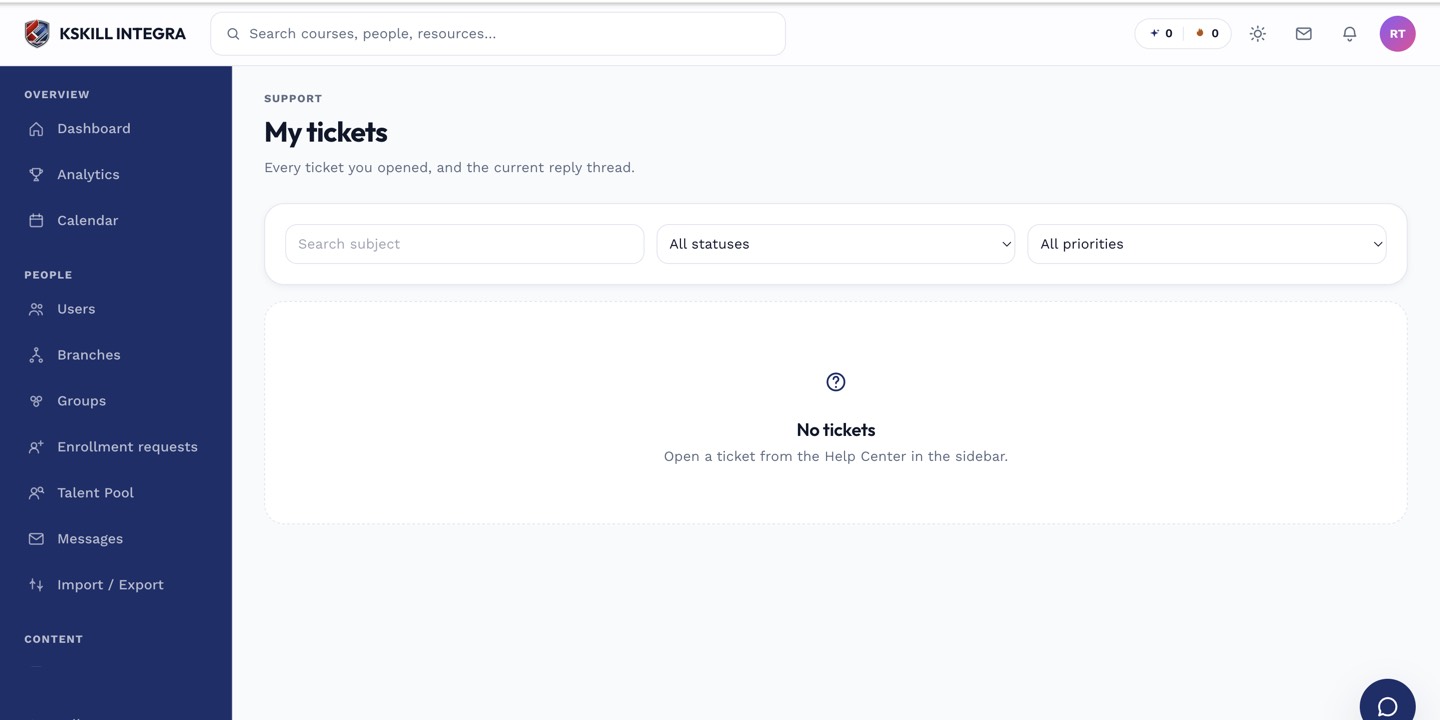
The learner ticket list shows every conversation with support in one thread view.
Notes
- Executable files are rejected by default for safety.
- For anything larger than 25 MB, use the Files feature and share the link instead.