Messaging overview
Messaging is the platform's built-in inbox for direct conversations. This tour points at the parts you'll use every day.
Before you start
You need to be signed in. Any user can message any other user unless the admin has restricted it.
Step 1 — Open the inbox
Open Messages from your sidebar. The inbox lists every existing thread with the last message, timestamp and unread count. Threads with new activity sort to the top.
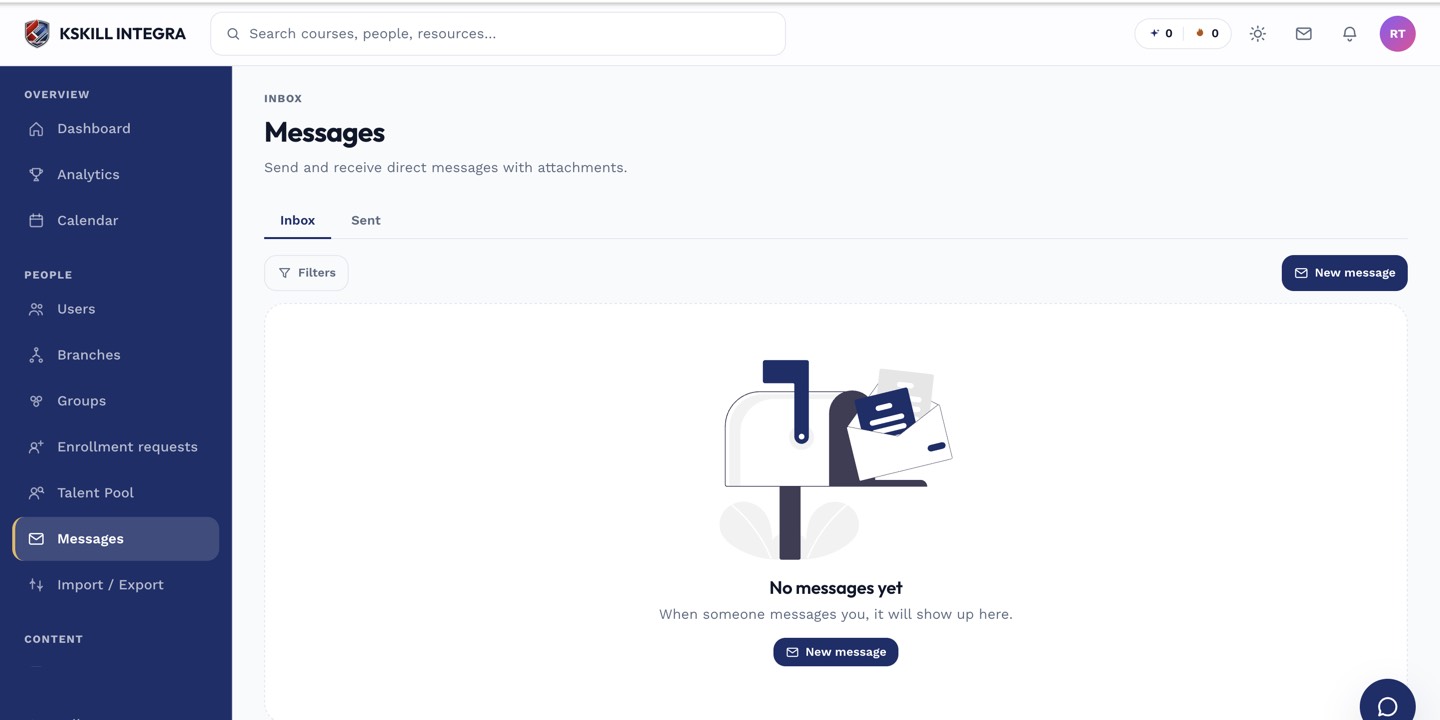
The inbox is where every direct message and broadcast lands.
Step 2 — Start a new thread
Click New message. Pick recipients from the picker (single-user thread or a small group), write your message, attach a file if useful, and send. The recipients get in-app notifications and (if their preferences allow) an email.
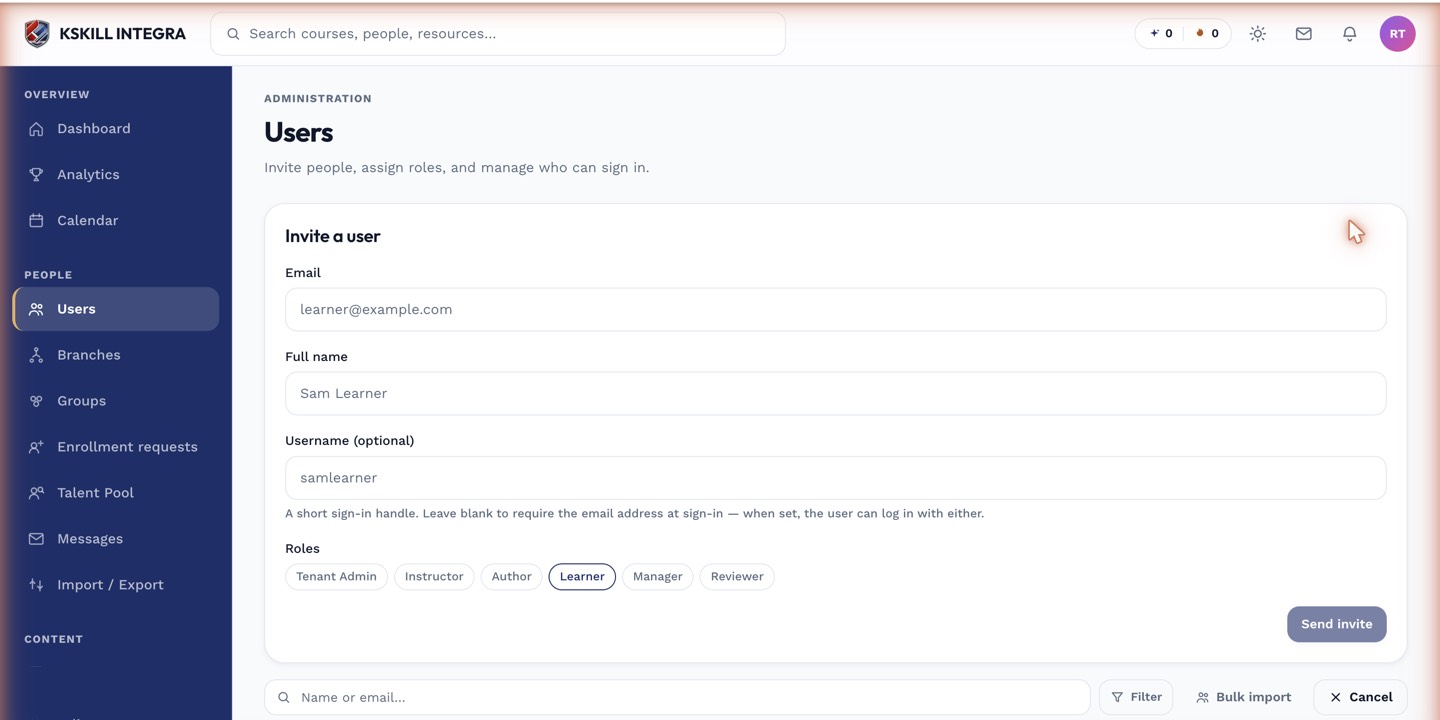
The invite drawer is the same shape whichever role you assign.
Step 3 — Reply and archive
Click any thread to open it. Type in the reply box at the bottom and send. Archive threads you no longer need with the archive icon; archived threads still show up in search but don't clutter the inbox.
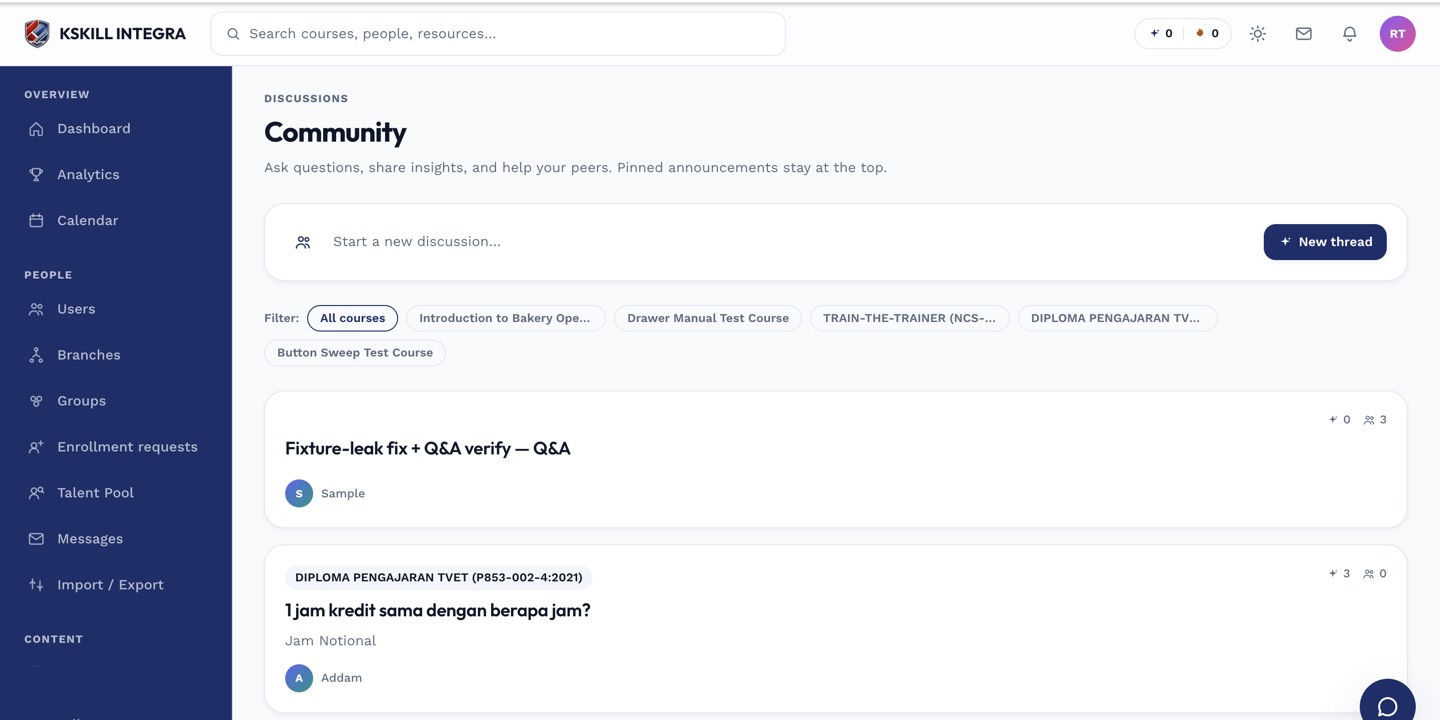
The community surface hosts open-ended discussion outside any single course.
Notes
- For a whole class discussion, use the course's Discussion tab instead — messaging is 1:1 to few.
- Broadcast messages to Groups and Cohorts have their own admin action — see the broadcast article.