My cohorts page
My Cohorts shows every scheduled intake you're part of. This article covers reading the page.
Before you start
You need to be signed in. Cohorts are optional; not every tenant uses them.
Step 1 — Open My Cohorts
Open My Cohorts from your sidebar (nested inside My Groups on some tenants). Each cohort card shows the name, dates, facilitator and progress bar.
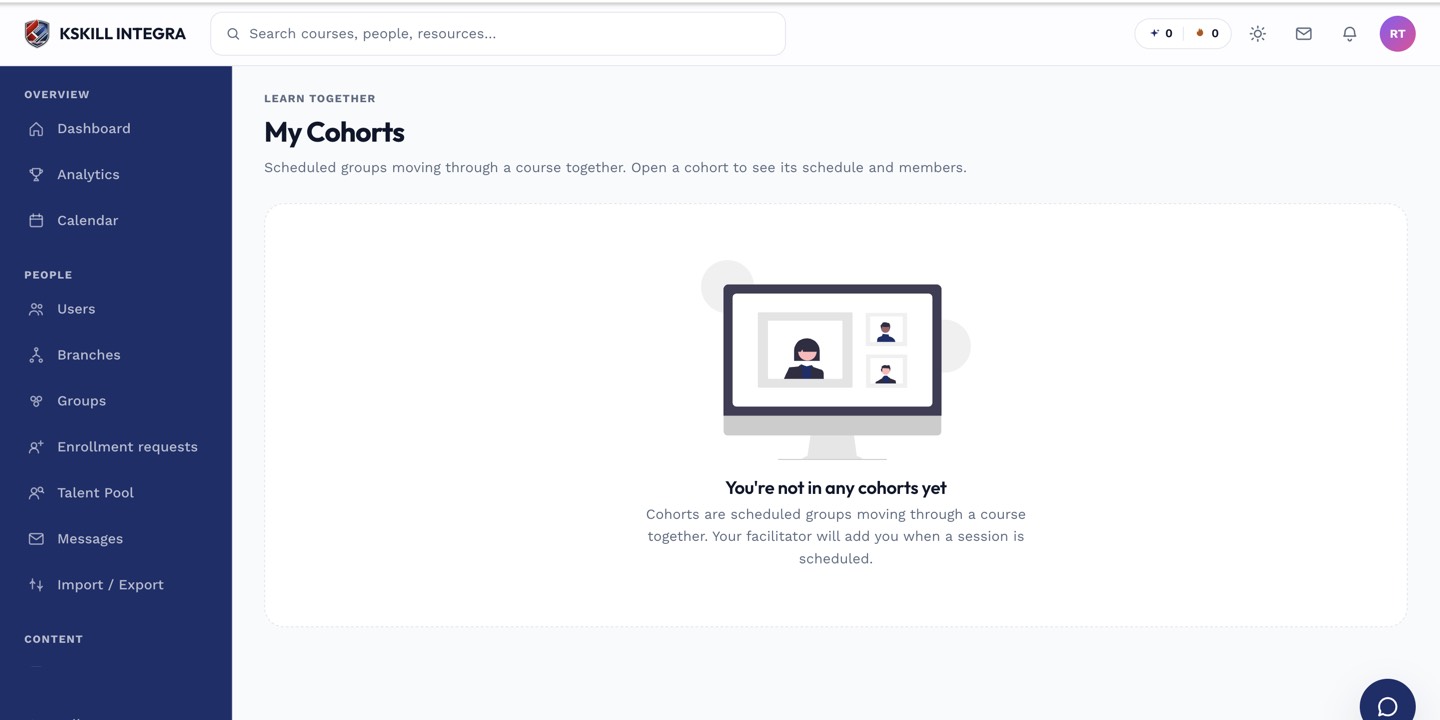
The learner cohorts view shows every scheduled intake the learner belongs to.
Step 2 — See the schedule
Click a cohort to open its detail. The Timeline tab shows the start, mid-point and end dates plus any scheduled live sessions. Add these to your personal calendar with the calendar-export icon.
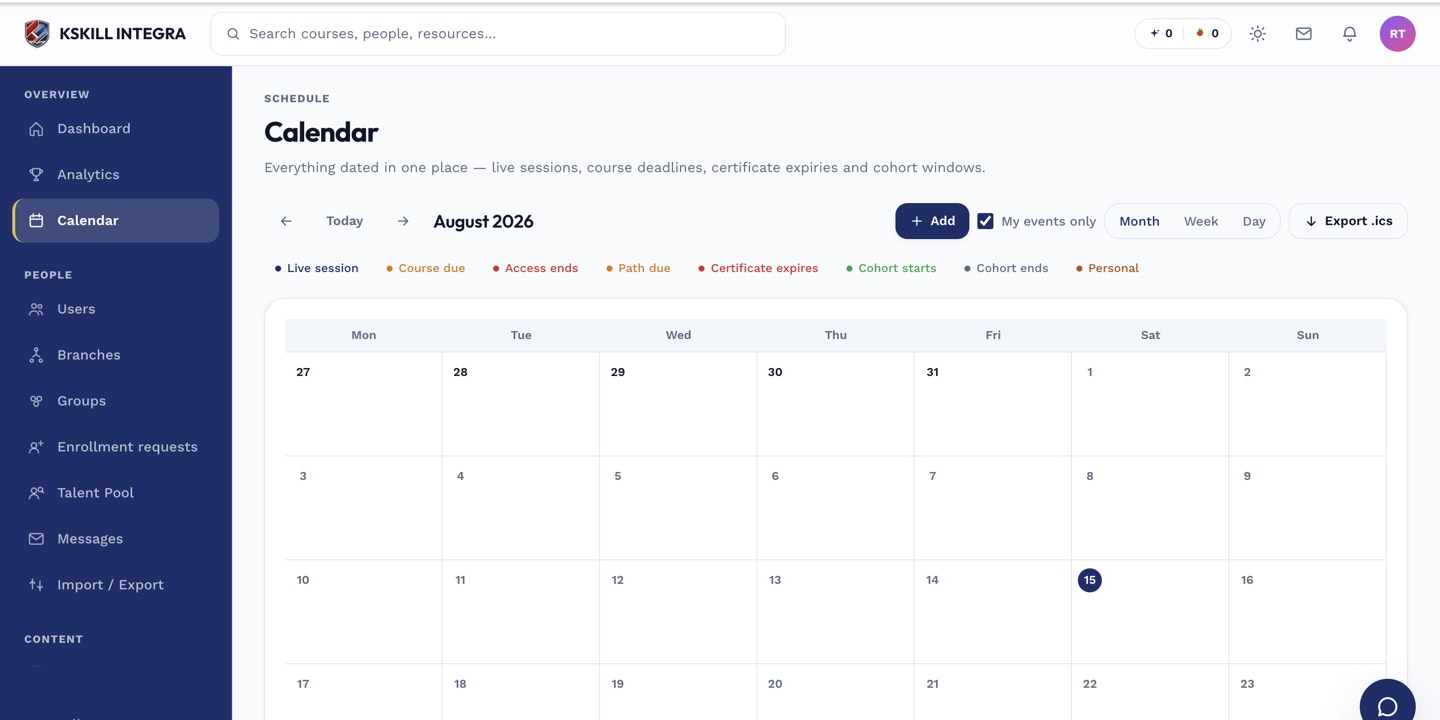
The calendar shows every scheduled live class, deadline and cohort milestone.
Step 3 — Join the shared discussion
Every cohort has an auto-created Discussion thread scoped to its members. Post questions, share resources, or catch up on missed conversations. The thread is durable — it persists after the cohort ends.
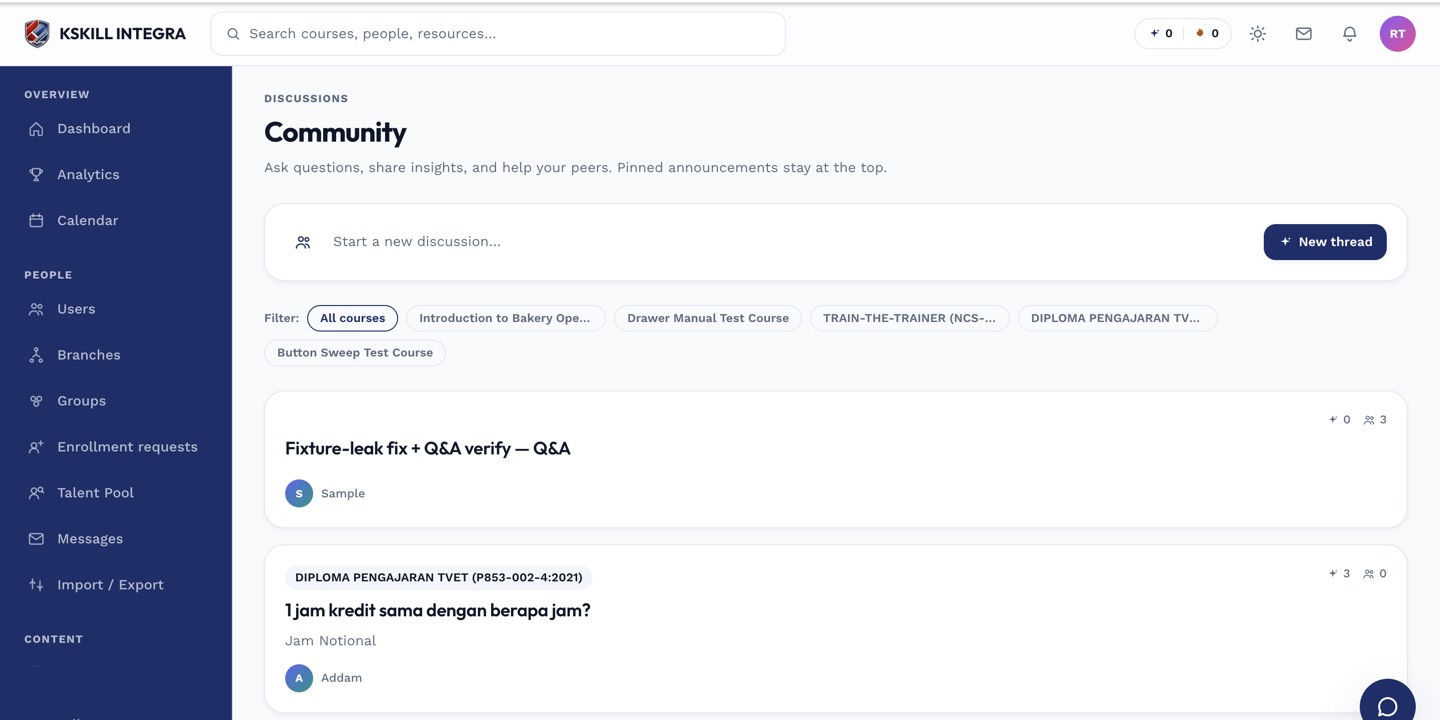
The community surface hosts open-ended discussion outside any single course.
Notes
- Cohort progress is your progress on the cohort's course, not a separate metric.
- You get lifecycle notifications (kick-off, mid-point, end) as milestones tick past.