Navigate your dashboard
Your learner dashboard puts everything you need one click away. This tour points at the six surfaces you will return to most.
Before you start
You need to be signed in as a Learner. The exact tiles you see depend on which features your tenant has enabled.
Step 1 — Read the top of My Learning
The top of My Learning summarises where you are: courses in progress, average score, badges earned this month. Click any tile to jump into the corresponding page — Continue where you left off is usually the most useful.
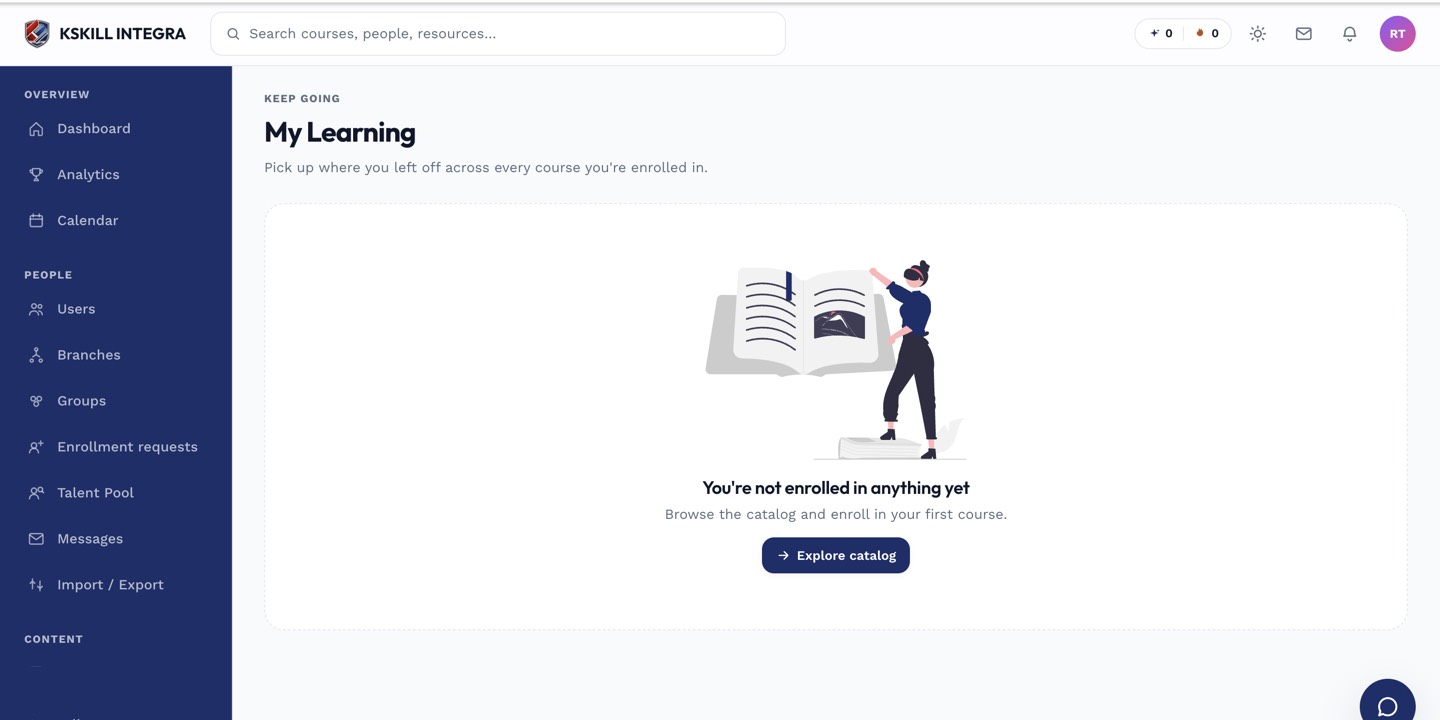
My Learning is the learner's default landing page — every enrolled course is one click away.
Step 2 — Browse the catalog and calendar
The catalog is your shelf of self-enrollable courses; the calendar shows every scheduled live class and deadline. Both are one sidebar click away and update in real time as your instructor changes the schedule.
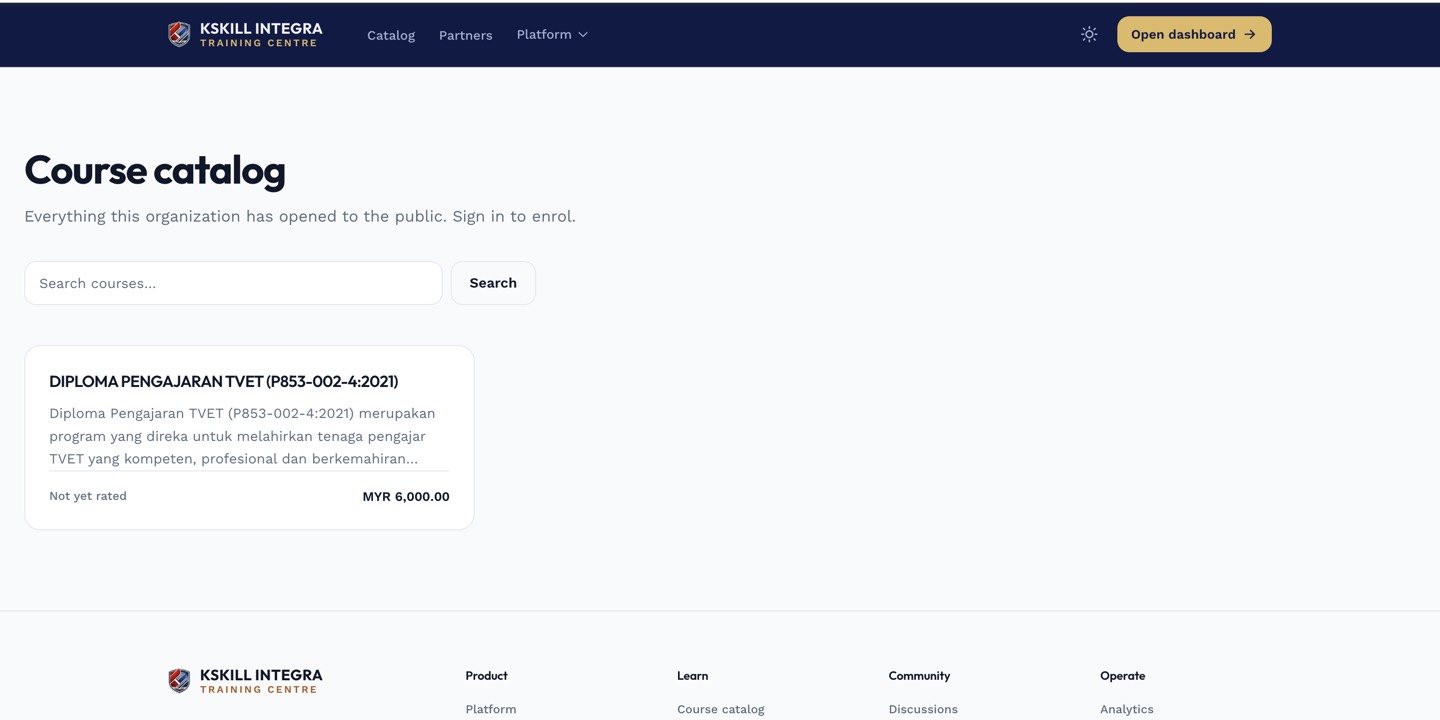
The catalog is the learner-facing shelf of everything a learner is allowed to self-enrol into.
Step 3 — Follow your growth arc
Open My Skills for a snapshot of proven capability and Pathfinder if you want to close a gap toward a target role. Together with the achievements page, these three surfaces make the arc from novice to expert visible over time.
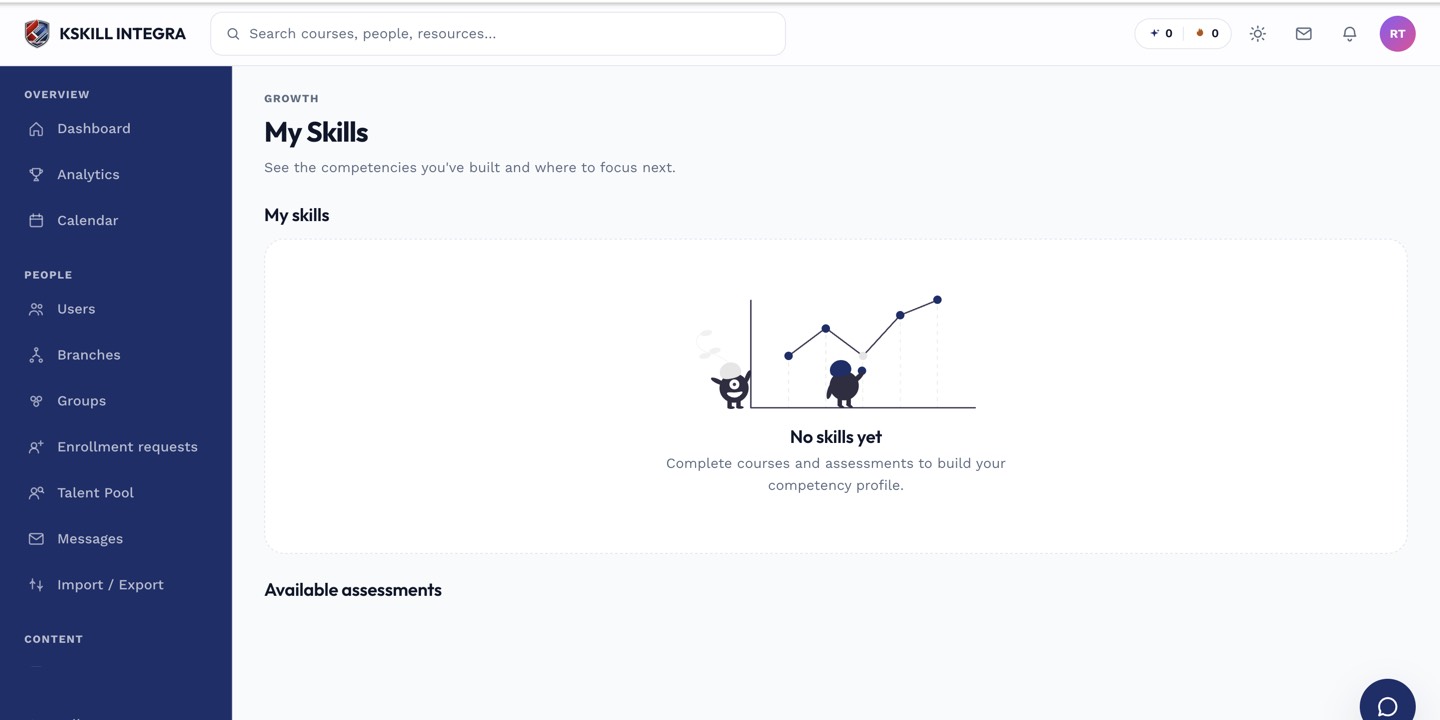
My Skills is the learner's own view of what they have proven so far.
Notes
- Every page has a ? icon top-right — start there when you get stuck.
- Your profile menu (top-right avatar) leads to account settings, notification preferences and sign-out.