Post in a course discussion
Course discussions are threaded conversations scoped to a course. This article covers posting, replying and following.
Before you start
You need to be enrolled in the course. Discussion is on by default; some courses turn it off.
Step 1 — Open the Discussion tab
Every course has a Discussion tab in its header. Click it to see the thread list — one per topic. Threads are ordered by recent activity so live conversations rise to the top.
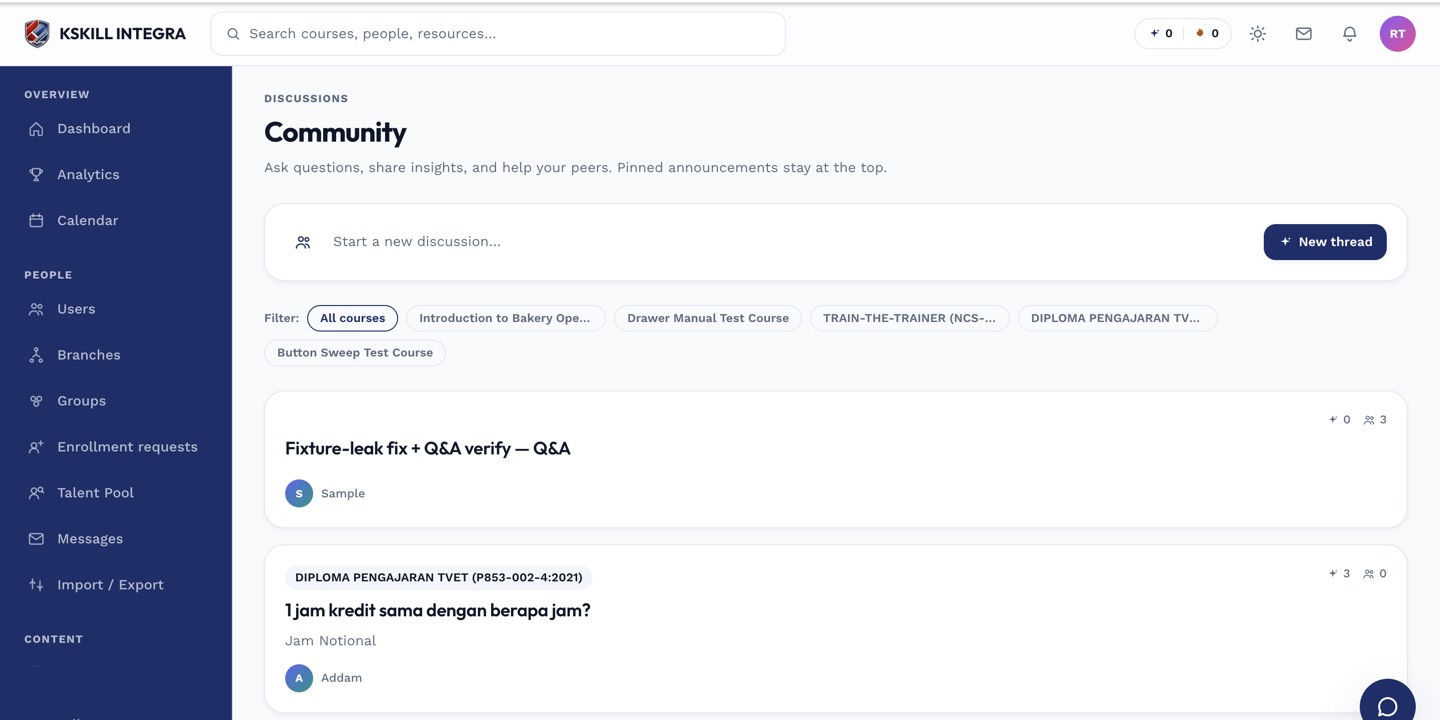
The community surface hosts open-ended discussion outside any single course.
Step 2 — Start or reply to a thread
Click New topic to start, or click an existing thread and hit Reply. Rich text, code blocks and file attachments are supported. Mention someone with @name and they get a notification.
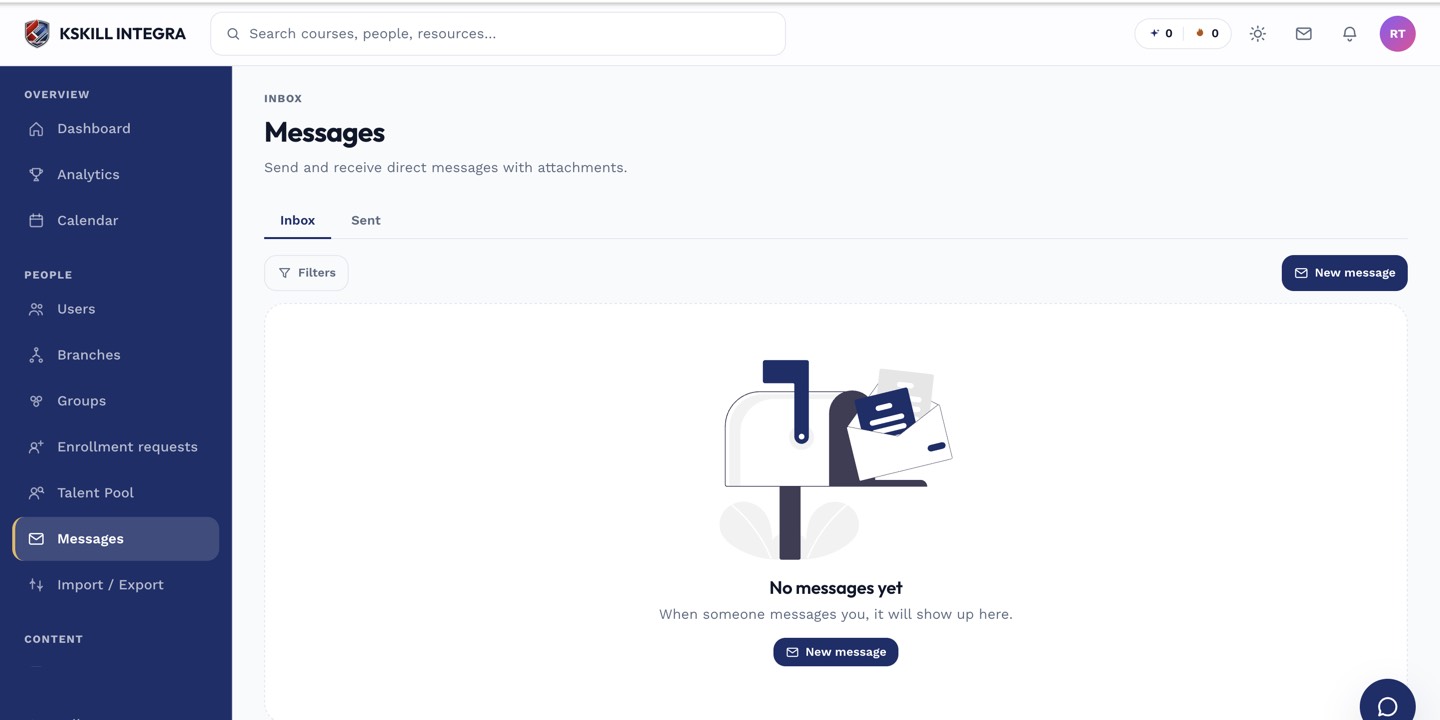
The inbox is where every direct message and broadcast lands.
Step 3 — Follow to get notified
Click Follow on any thread to get an in-app or email notification the next time someone posts. Unfollow just as easily. Your preferences page controls whether new-thread notifications for enrolled courses fire by default.
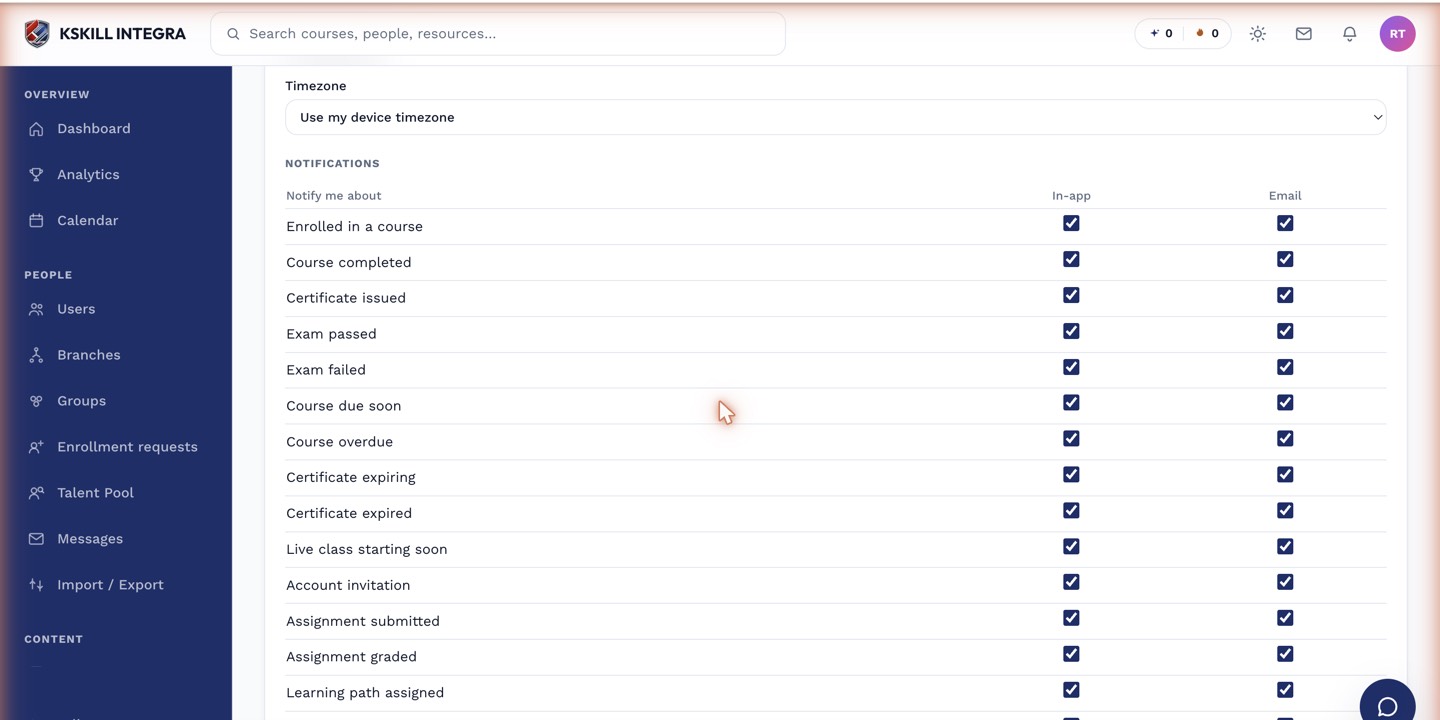
The preferences table is the per-user matrix of every event by every channel.
Notes
- Instructors and admins can moderate and pin threads.
- For open-ended conversation not tied to a single course, use the Community surface instead.