Request enrolment in a restricted course
Some courses need admin approval before you can enrol. This article covers filing a request and tracking it.
Before you start
You need to be signed in. The course must be marked as needing approval — the enrol button says Request enrolment if so.
Step 1 — Find the course and request
Open the course from the catalog. The button reads Request enrolment instead of Enrol. Click it, add a short note explaining why you want in, and submit. Your admin gets a notification.
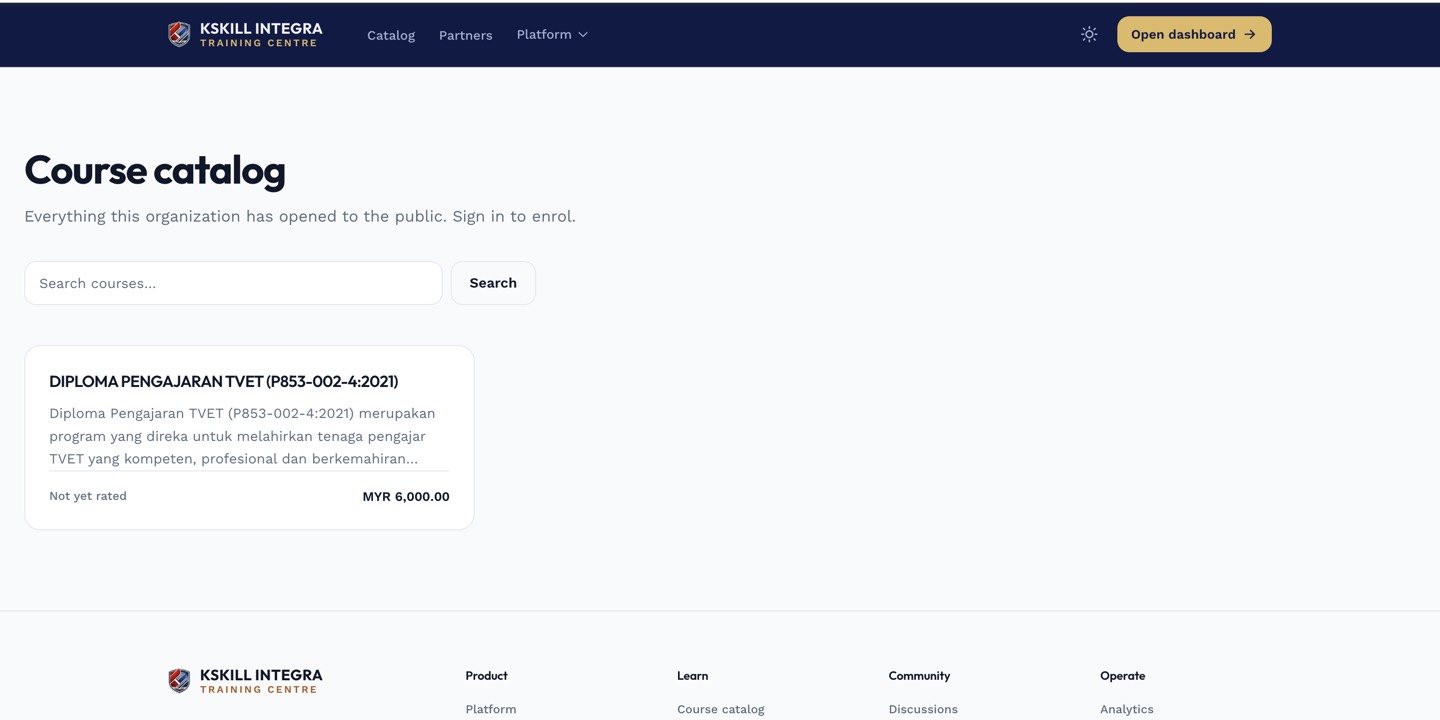
The catalog is the learner-facing shelf of everything a learner is allowed to self-enrol into.
Step 2 — Wait for a decision
The request appears in the admin's Enrolment requests queue. They approve, reject with a note, or ask for more information. Either way, you get a notification when they act.
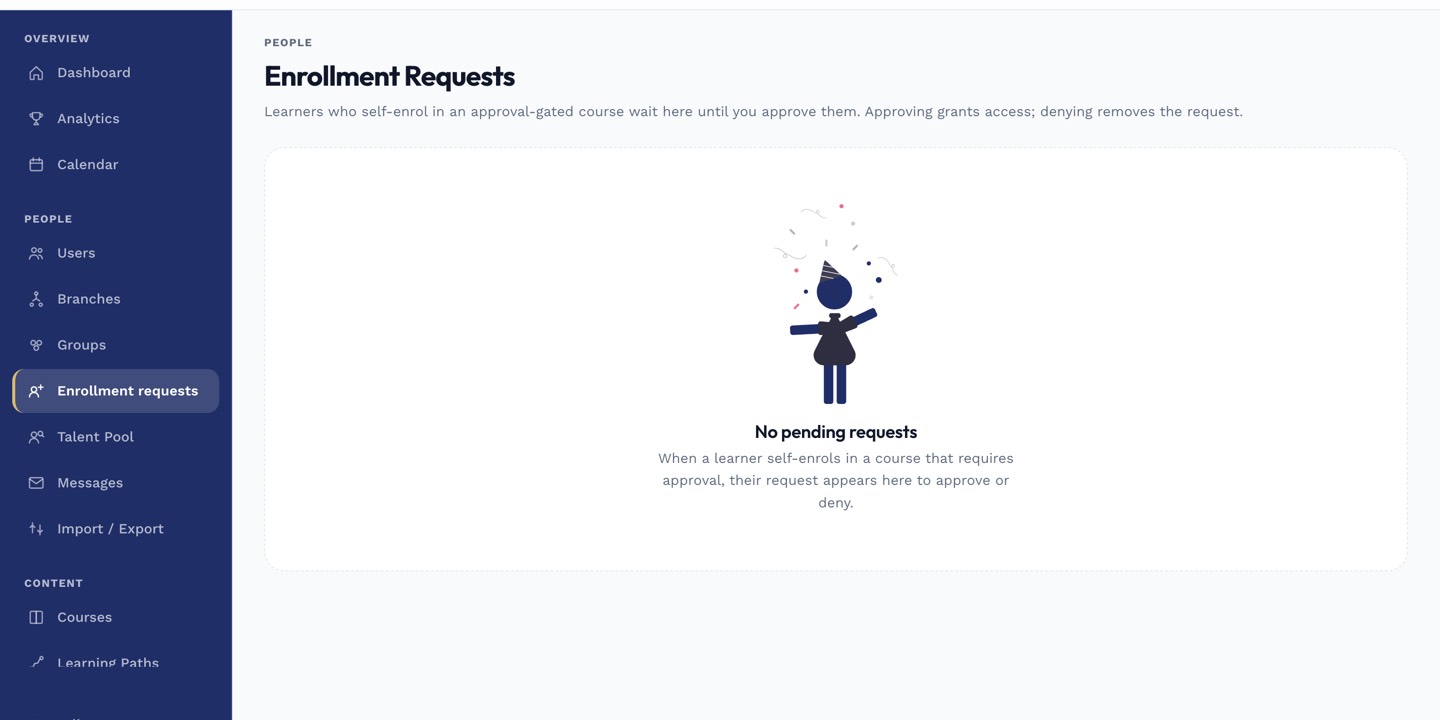
The enrolment-requests page is where restricted-course requests are approved or rejected.
Step 3 — What happens on approval
Approved requests auto-enrol you. The course appears on My Learning within seconds, ready to start. Rejected requests do not enrol you — you can file another request with a fresh note if the situation changes.
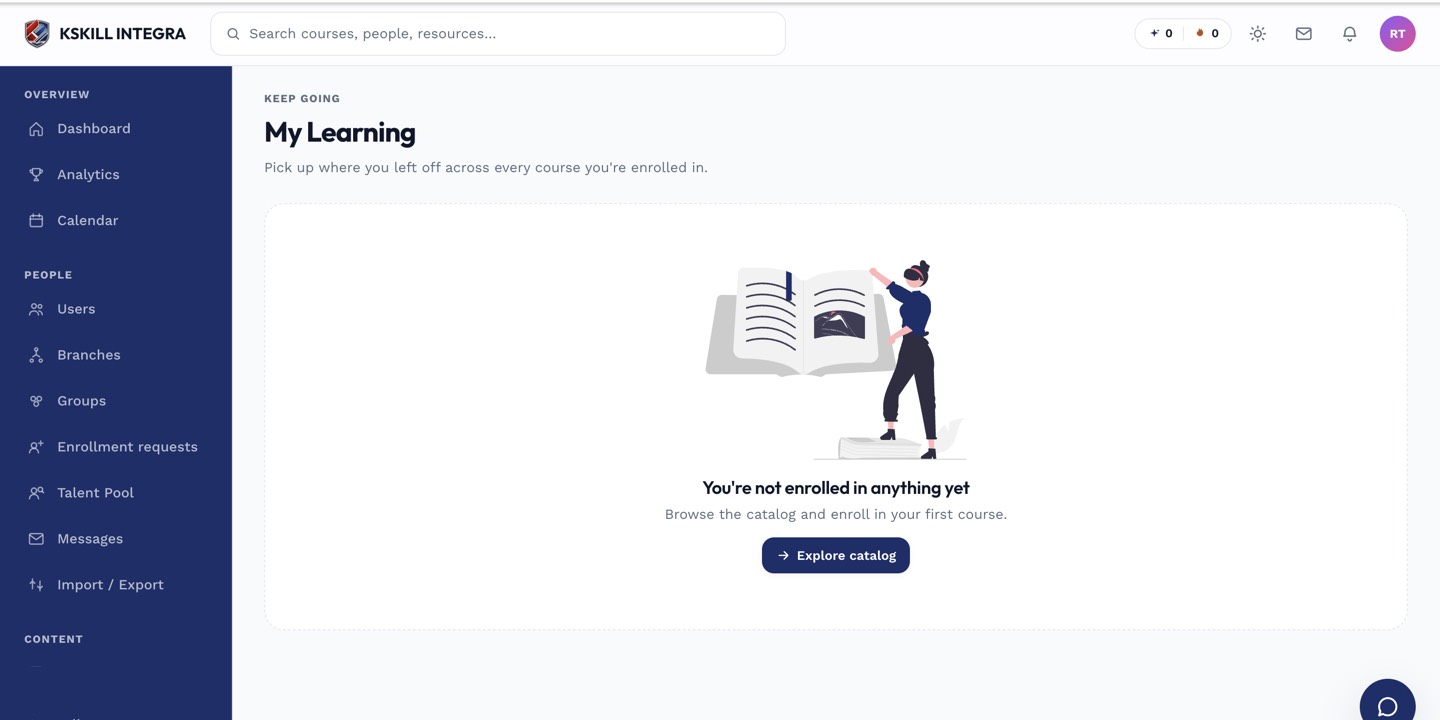
My Learning is the learner's default landing page — every enrolled course is one click away.
Notes
- You can only have one pending request per course at a time.
- Ask your admin how long approvals usually take — SLAs vary by tenant.