Slide block types
This article lists the block types the Slide Builder supports and what each does best.
Before you start
You need to be in the Slide Builder.
Step 1 — Static blocks
Text supports rich formatting and inline links. Image takes an uploaded file with alt text. Video streams an uploaded file or embeds YouTube/Vimeo. Shape is a coloured rectangle useful as a background layer.

The interactive-content library is where uploaded H5P and SCORM packages are managed.
Step 2 — Interactive blocks
Quiz embeds a single graded question inline. Hotspot makes an image region clickable. Drag-and-drop pairs items in two zones. Reveal hides content until the learner clicks. All interactive blocks report to the course's completion tracker.
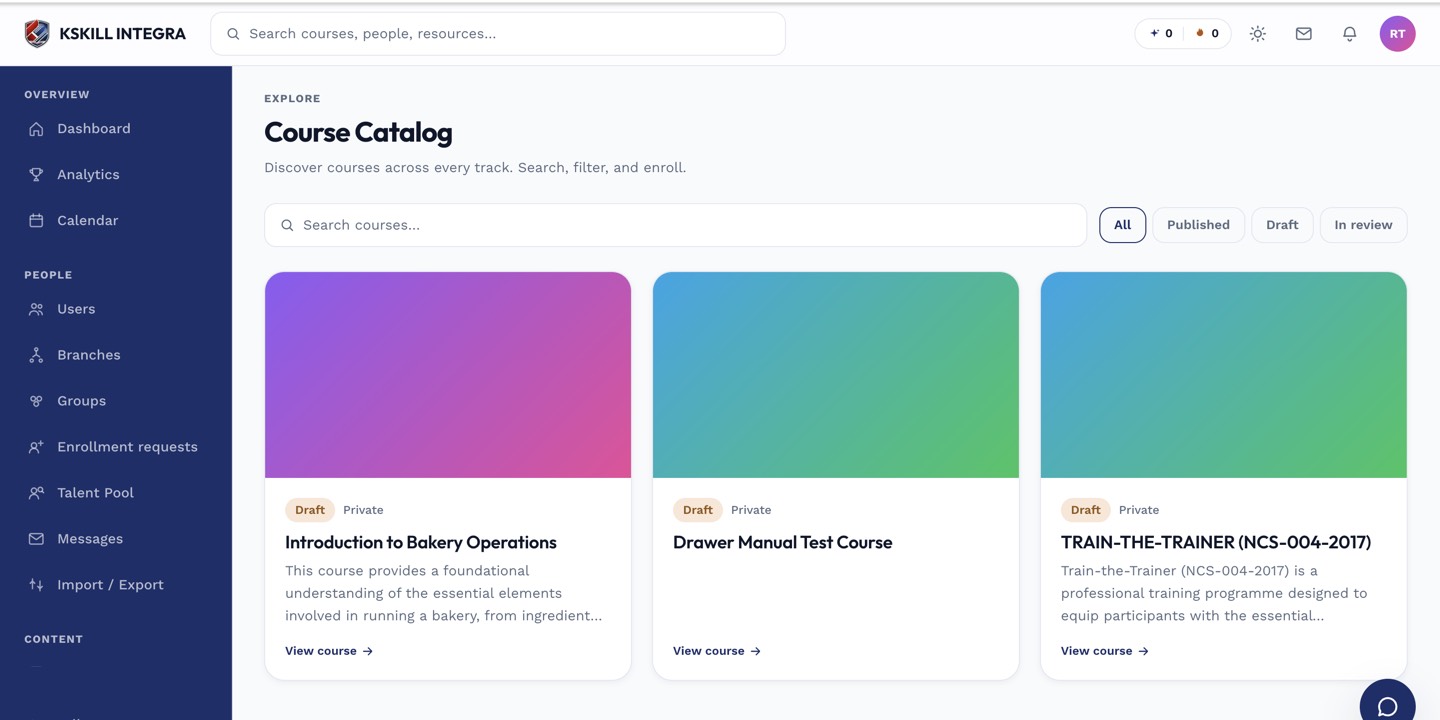
My Courses is the learner's grid of everything they are currently enrolled in.
Step 3 — Layout helpers
Grid arranges child blocks in a responsive grid. Tabs lets a single slide hold multiple mini-slides. Timer adds a countdown — great for time-boxed quiz slides.
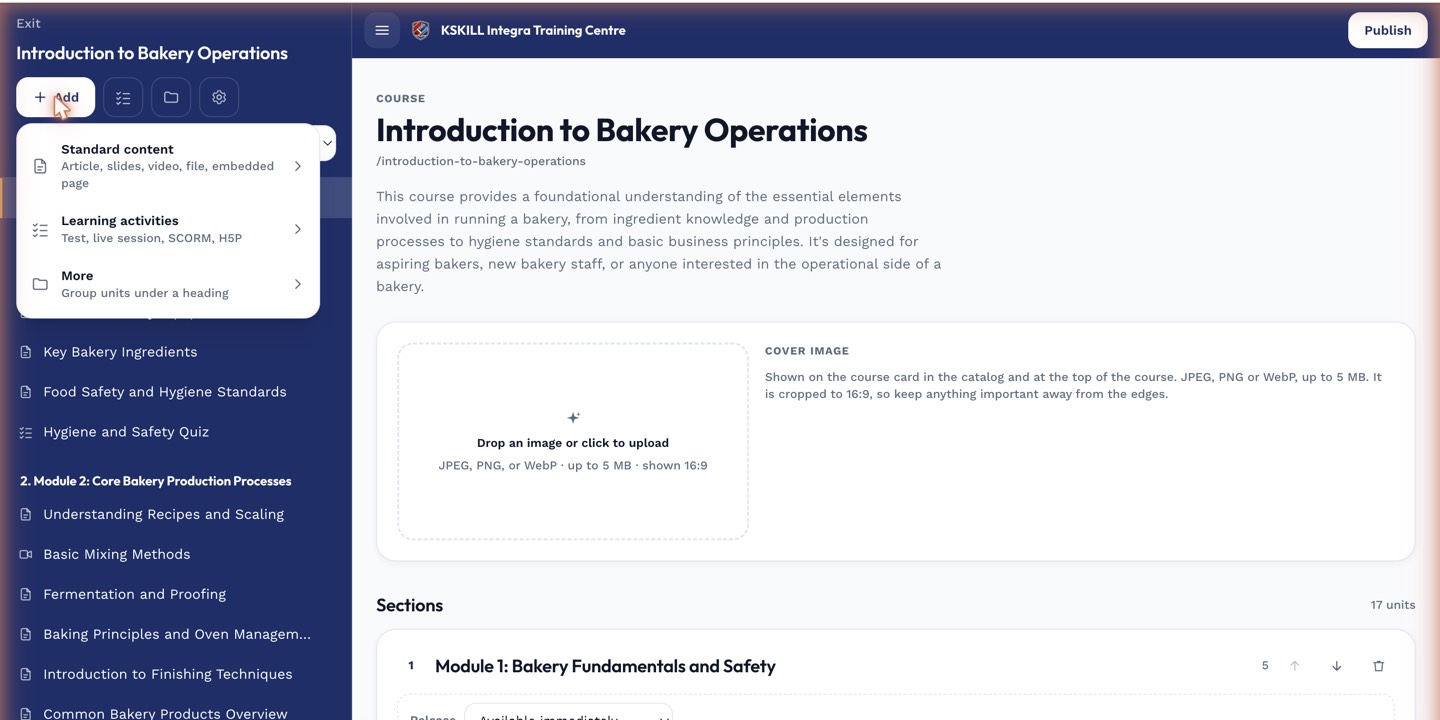
The lesson-type picker is the same one whichever section you add into.
Notes
- Every interactive block is accessible via keyboard — don't skip alt text and labels.
- For heavy interactive experiences, consider H5P instead — it has a wider block library.