Submit an assignment
Assignments are graded by an instructor. This article covers uploading a submission and reading feedback.
Before you start
You need to be enrolled in the course. Some assignments have a deadline — check before you start.
Step 1 — Open the assignment unit
The assignment unit shows the prompt, any attached files, and an upload area. The header shows the deadline if any and the current attempt count.
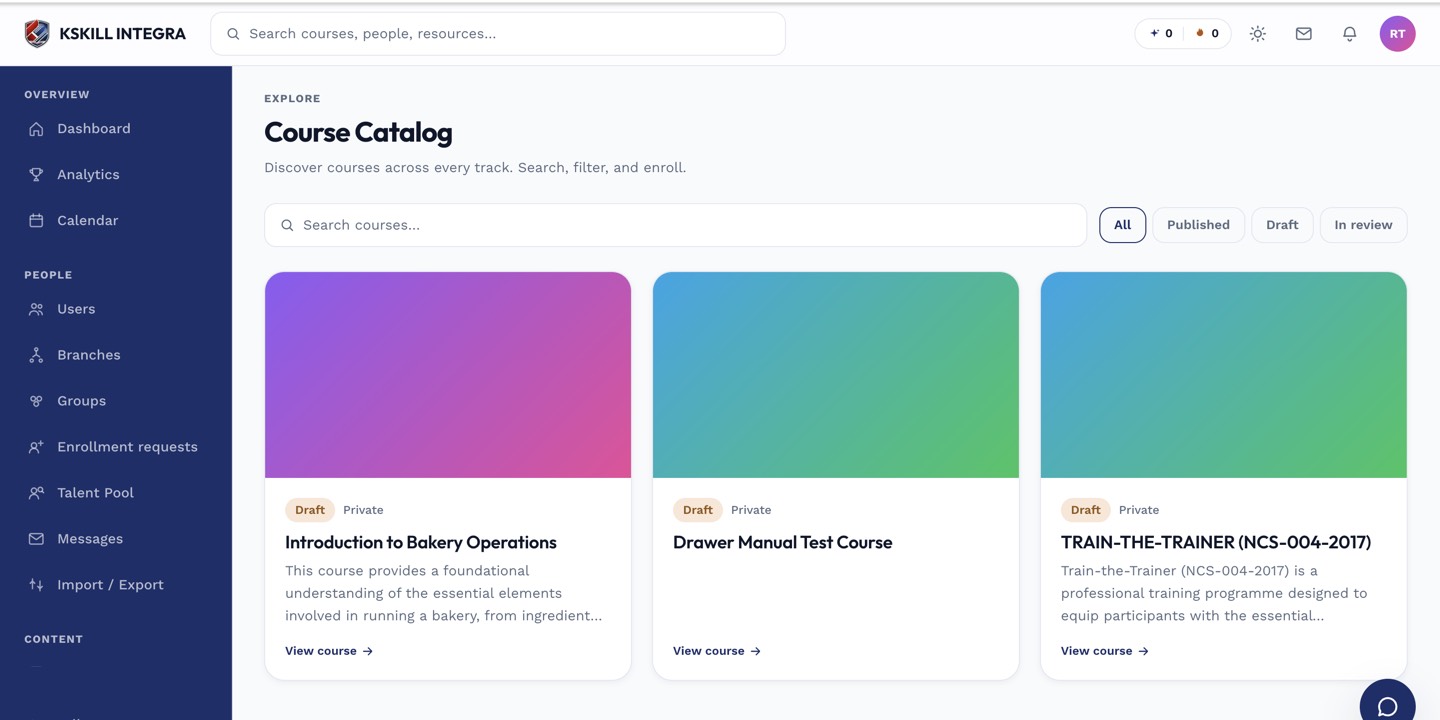
My Courses is the learner's grid of everything they are currently enrolled in.
Step 2 — Upload and submit
Drop your files into the upload area, add a short note if useful, and click Submit. The submission is timestamped and locked — you can request the instructor unlock it if you need to redo, but you cannot edit silently.
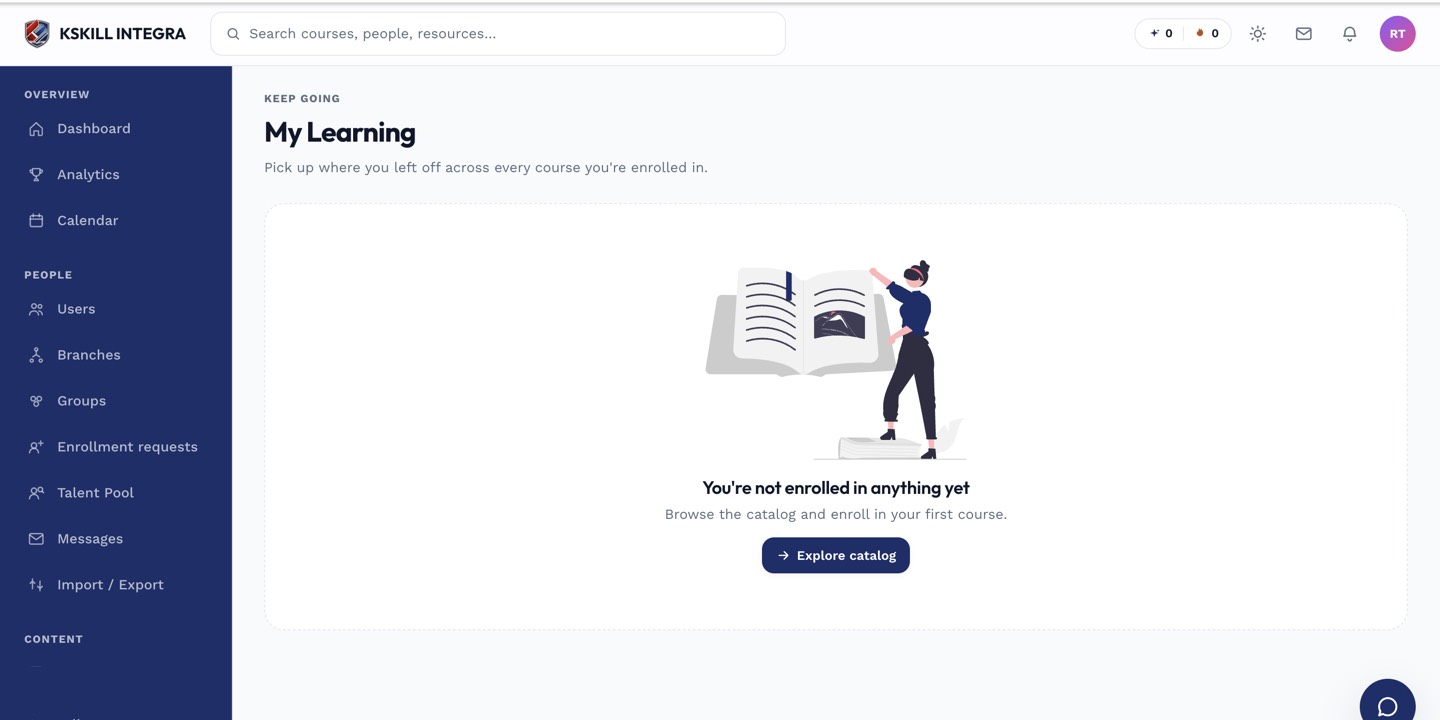
My Learning is the learner's default landing page — every enrolled course is one click away.
Step 3 — Read the feedback
The instructor grades from the Grading Hub. When they are done, the unit updates with your score, feedback and (if there are more attempts) an option to resubmit. You get an in-app and email notification the moment the grade lands.
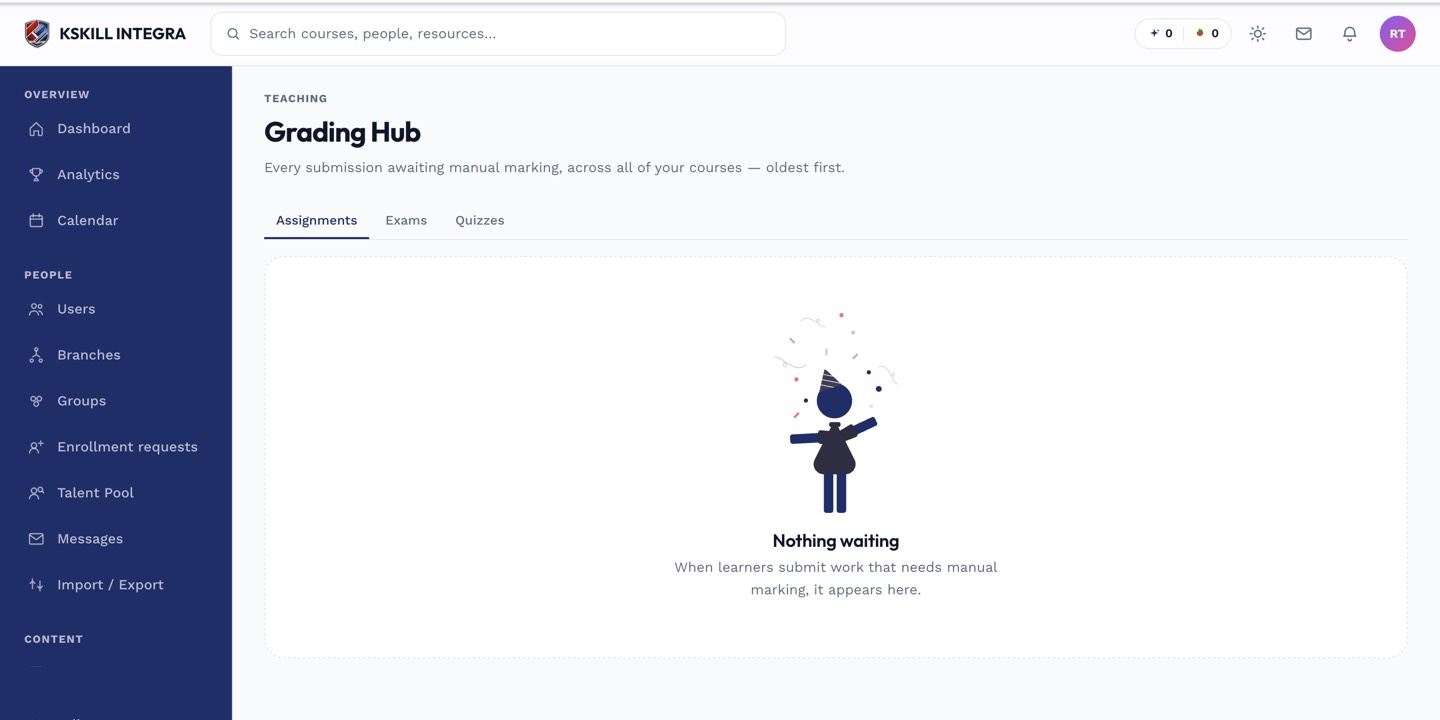
The Grading Hub is one place to grade every free-text answer and assignment across every course.
Notes
- Submissions past the deadline are still accepted unless the author locked late submissions off — check the unit prompt.
- The maximum file size defaults to 100 MB per file; ask your admin if you need bigger.