Take a SCORM course
SCORM packages come from legacy authoring tools and run in an embedded player. This article covers what to expect.
Before you start
You need to be enrolled. SCORM works in every modern browser but does not run inside an iframe if a parent page blocks it.
Step 1 — Open the SCORM unit
The unit opens the package inside an embedded frame. Navigation is provided by the package itself — Next/Back buttons live inside the SCORM UI, not the LMS chrome. Complete each slide or interaction as the package prompts.
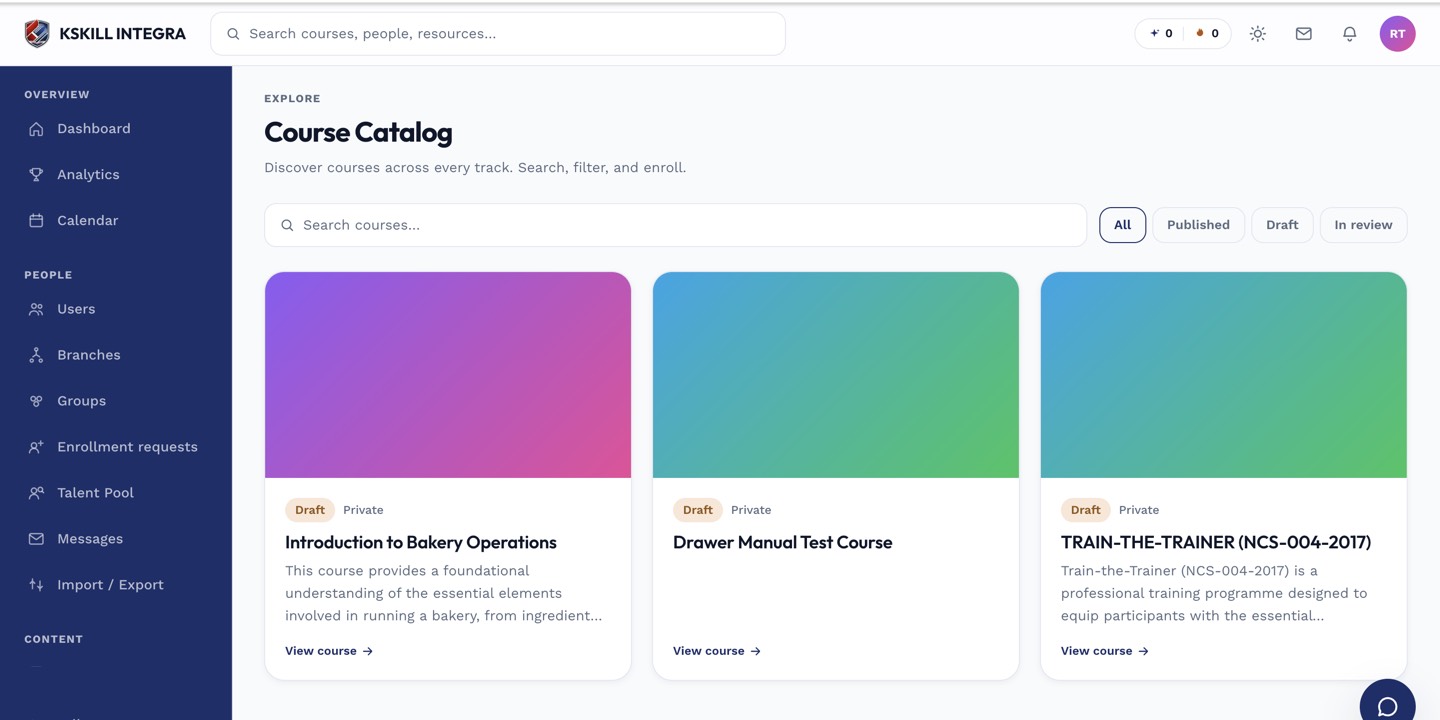
My Courses is the learner's grid of everything they are currently enrolled in.
Step 2 — How progress is recorded
SCORM reports progress and score back to the LMS through the standard bookmark channel. The LMS marks the unit complete when the SCORM tells it to. Do not close the tab mid-lesson — the last few seconds of progress can be lost.
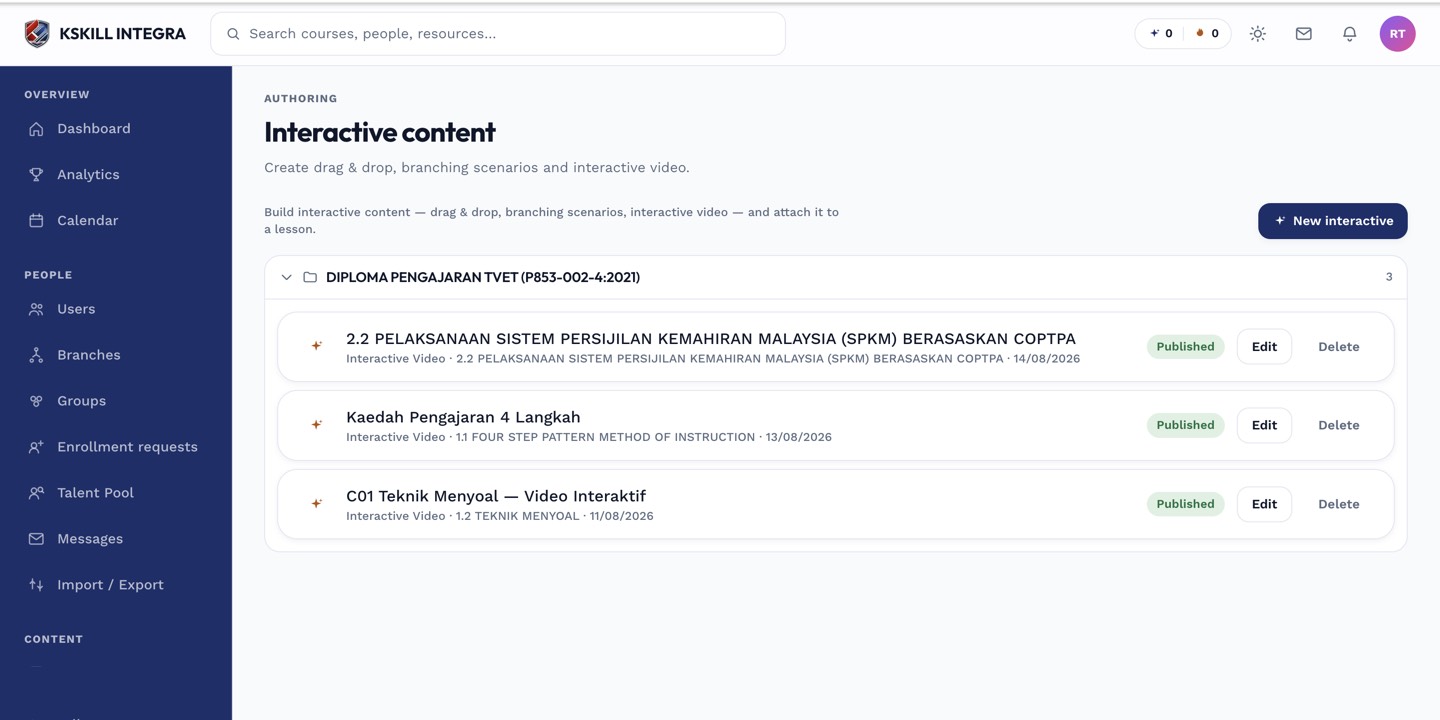
The interactive-content library is where uploaded H5P and SCORM packages are managed.
Step 3 — If it looks stuck
If the package appears frozen, try refreshing the page. SCORM bookmarks survive refresh. If completion never registers, the package might have a bug — flag it to your admin who can reset your registration.
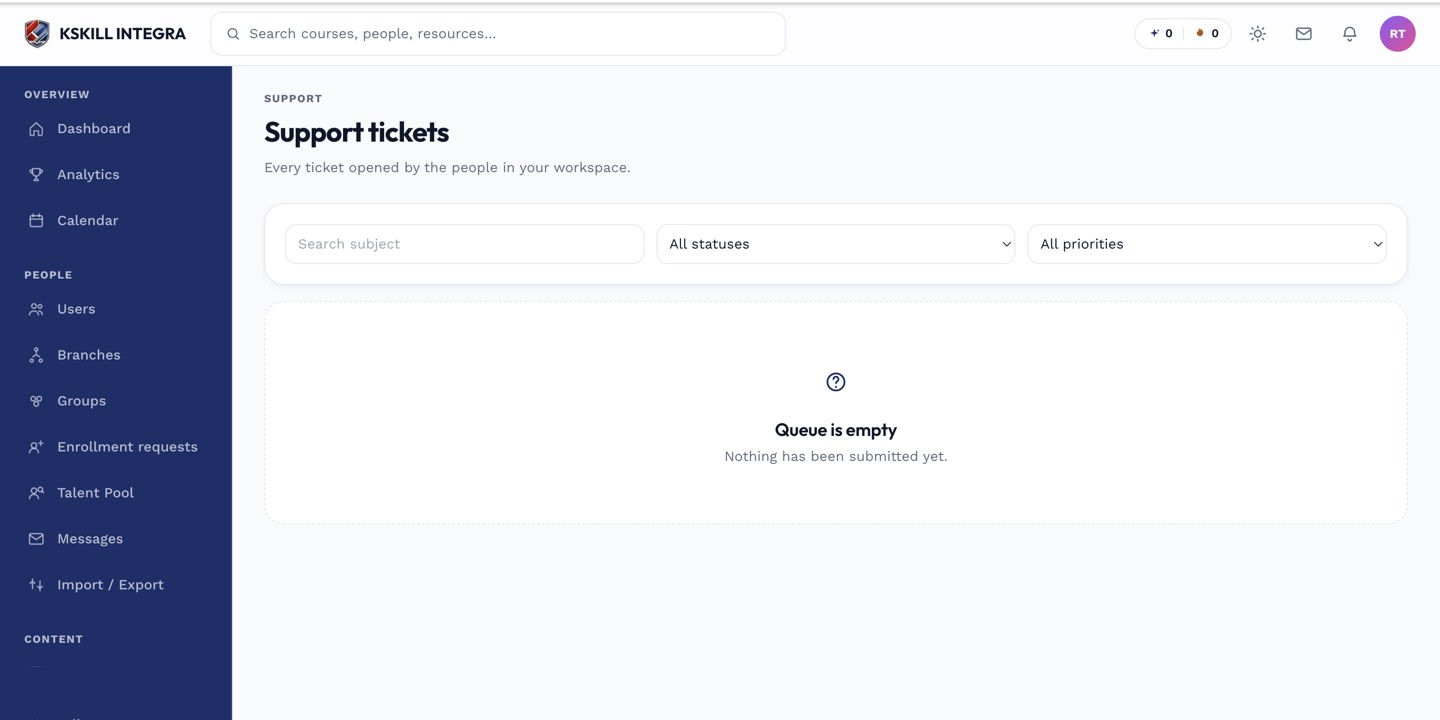
The admin queue is where every open ticket for the tenant lands.
Notes
- SCORM 1.2 and 2004 are both supported; cmi5 is a separate, newer standard also supported.
- Popups and full-screen mode may be blocked by your browser — allow them for the LMS origin if a lesson needs them.