Take a test or quiz (learner)
This article covers taking a test — starting, submitting, and reading your score.
Before you start
You need to be enrolled in the course. Some tests have prerequisites within the course; you cannot start until they are done.
Step 1 — Open the test unit
The test appears as a unit in the course outline with a distinctive icon. Click it and the intro screen shows the pass mark, time limit (if any), and how many attempts you have left.
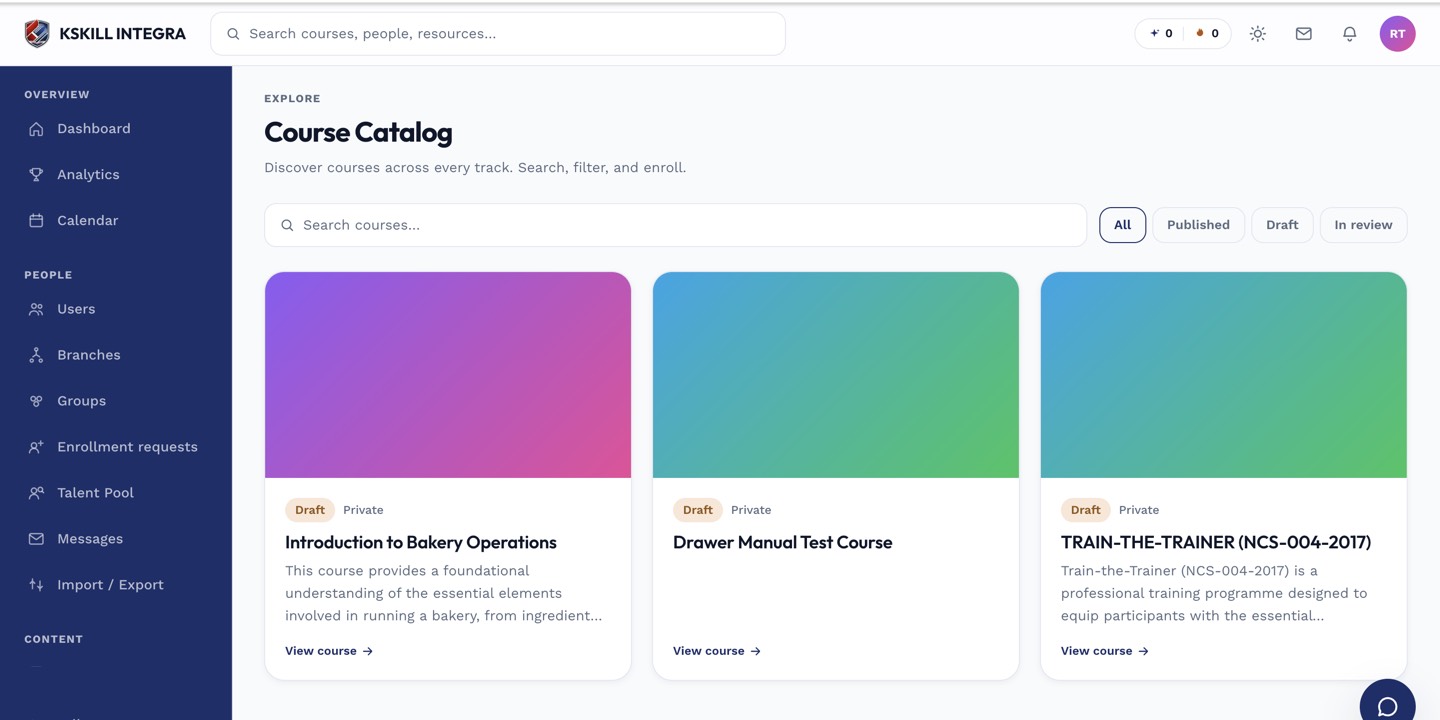
My Courses is the learner's grid of everything they are currently enrolled in.
Step 2 — Take the test
Click Start attempt. Answer each question and use Next to move on. The timer, if any, counts down in the header. You can pause between questions on most tests; do not close the tab mid-test or the attempt is submitted as-is.
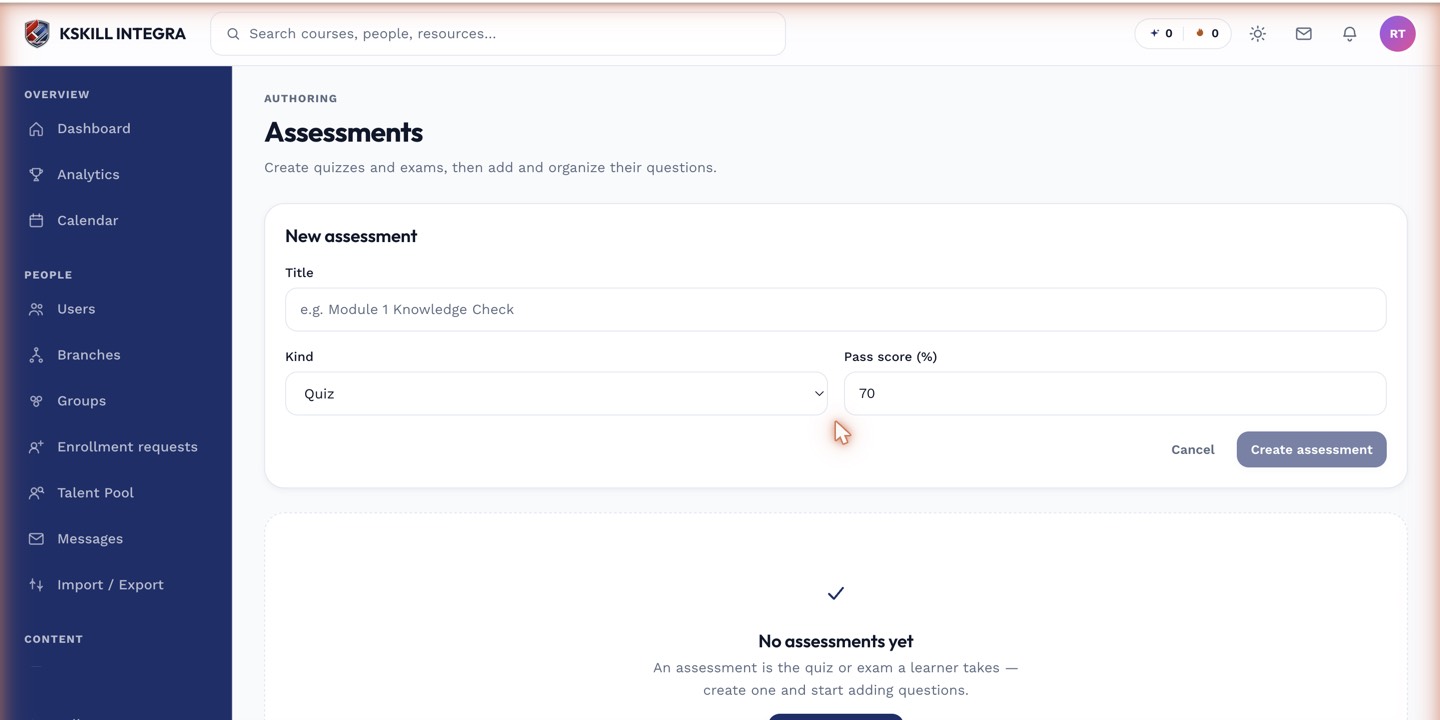
The builder combines the settings panel and the question list on a single screen.
Step 3 — Read your result
Submit at the end. The results screen shows your score, whether you passed, and (where the author allowed it) a review of each question with the correct answer. If you failed and have attempts remaining, retake immediately or come back later.
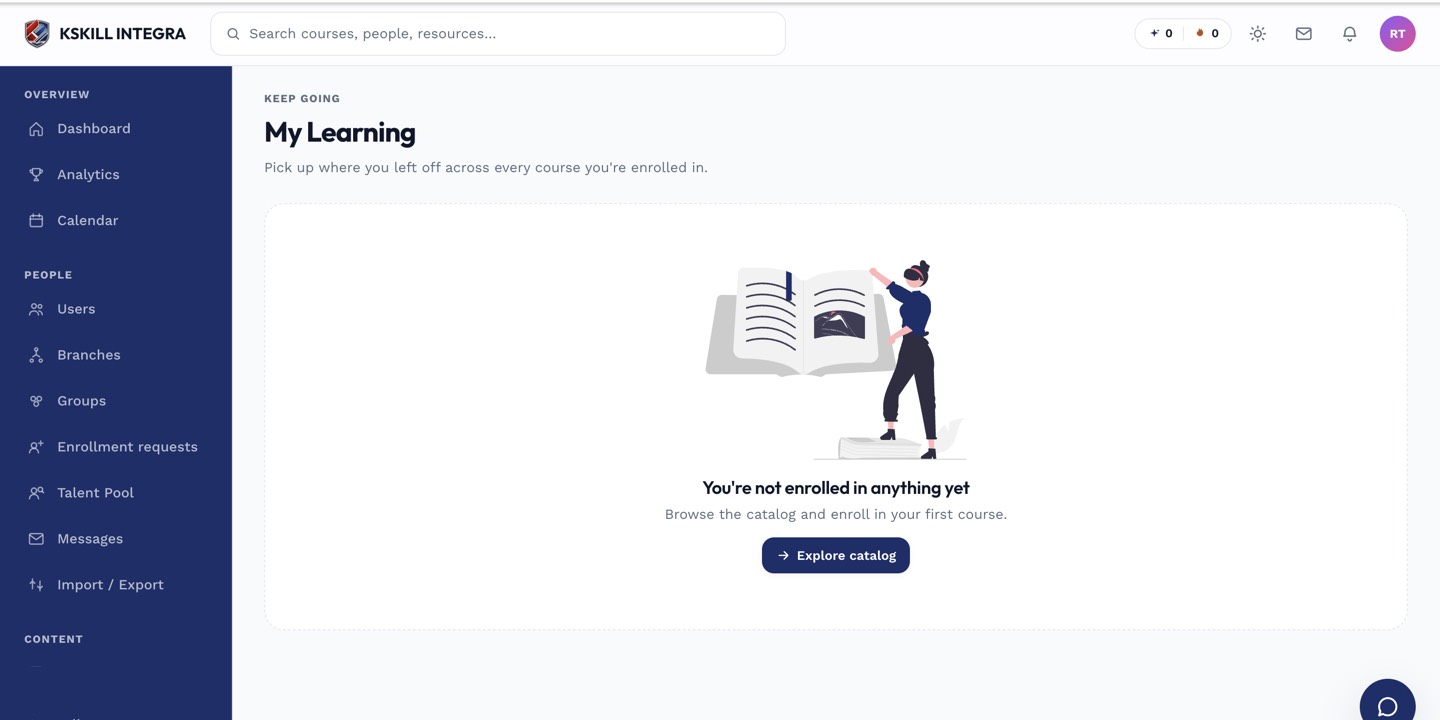
My Learning is the learner's default landing page — every enrolled course is one click away.
Notes
- Short-answer questions may be pending until an instructor grades them — your final score is provisional until then.
- Passing a test that awards a skill grants that skill on submission — check My Skills.