Track your progress
This article covers where progress is visible and how to read the different views.
Before you start
You need to be signed in and enrolled in at least one course.
Step 1 — Read the My Learning grid
My Learning shows every enrolled course with a progress bar. The bar reflects units complete divided by units total, weighted by the completion criteria the admin set. Cards you interacted with most recently sort to the top.
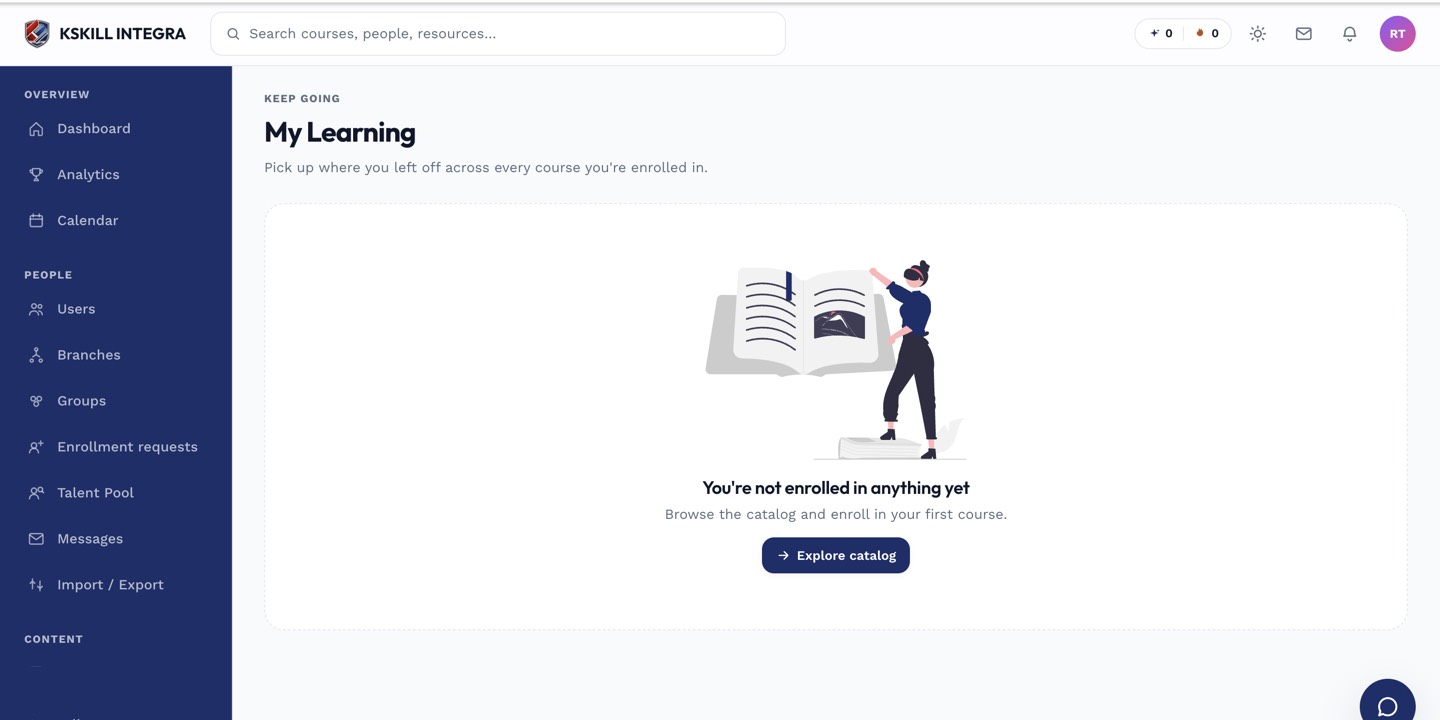
My Learning is the learner's default landing page — every enrolled course is one click away.
Step 2 — Drill into a course
Click any card to open the course. The sidebar shows every section and unit with its state — done, in progress, or locked. The header shows overall progress, remaining time, and the pass state on any attached exam.
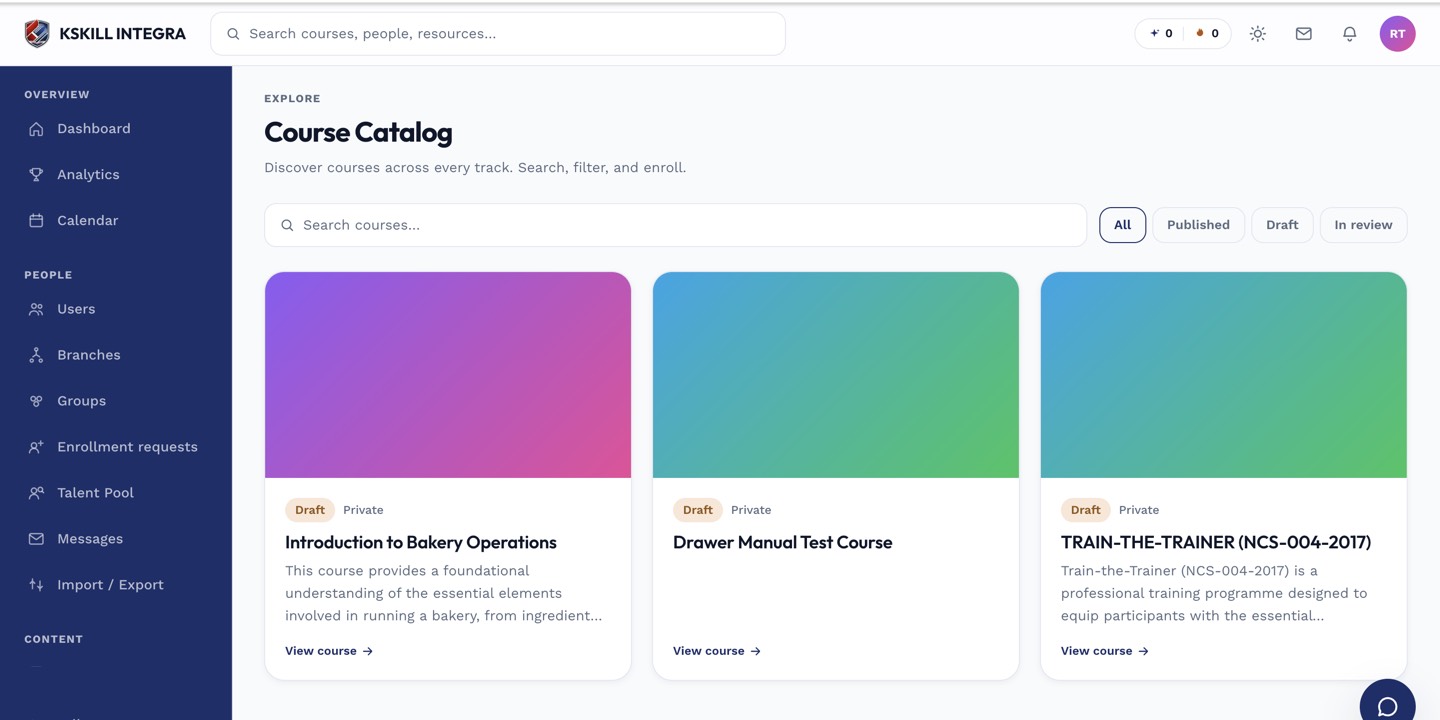
My Courses is the learner's grid of everything they are currently enrolled in.
Step 3 — Cross-reference My Learning paths
For a curriculum-level view, open Learning paths. Each path has its own progress bar spanning the whole sequence — useful when a target certification requires four courses in a specific order.
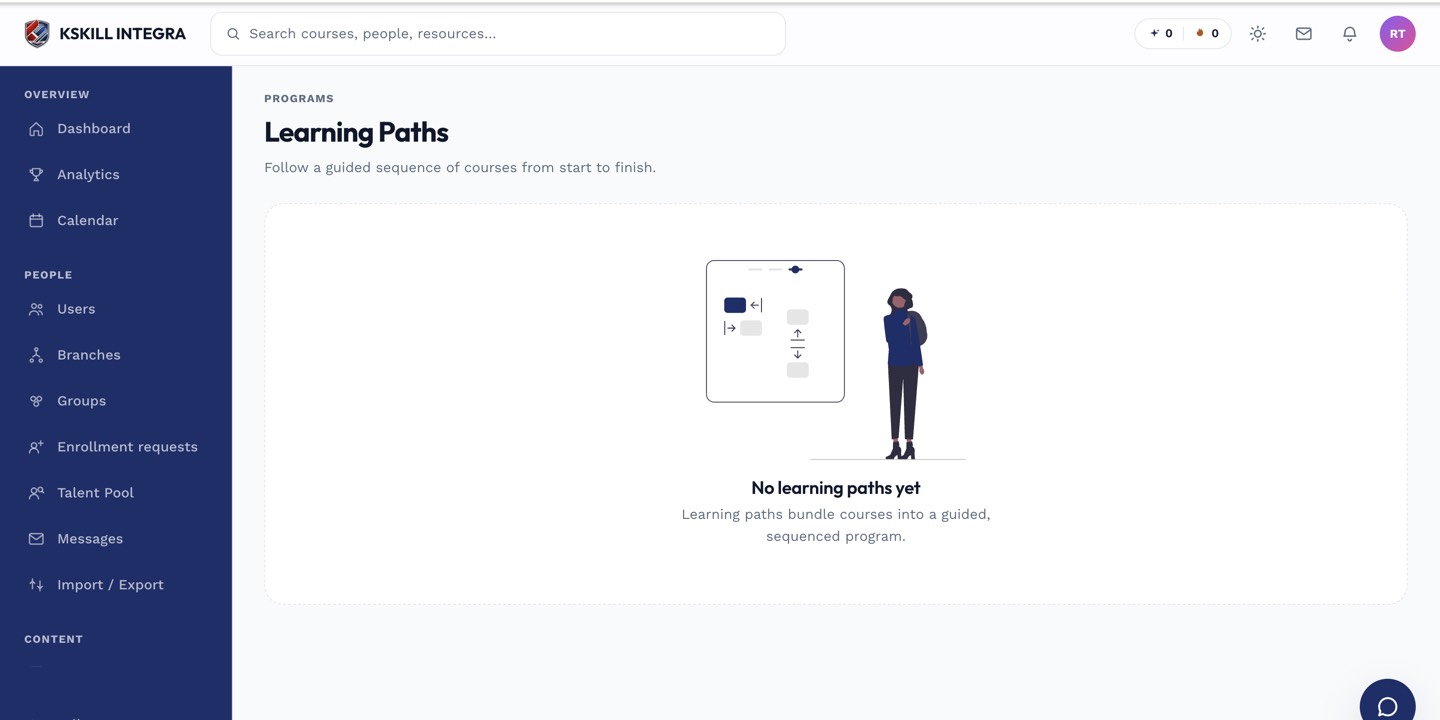
Learners open Learning paths to see the sequence they are working through.
Notes
- Progress syncs across devices — start on desktop, continue on mobile.
- SCORM and cmi5 units report completion through the standard bookmark channel; give it a moment after you close the tab.