Add course expiration
Course expiration retires an enrolment after a set period. Use it for compliance training that must be redone annually.
Before you start
You need the Admin role. Expiration is a per-course setting — configure it once and it applies to every future enrolment.
Step 1 — Open the course options drawer
Open Content → Courses, click the course, and open the options drawer. Find the Expiration section — it lives near the completion criteria because the two settings work together.
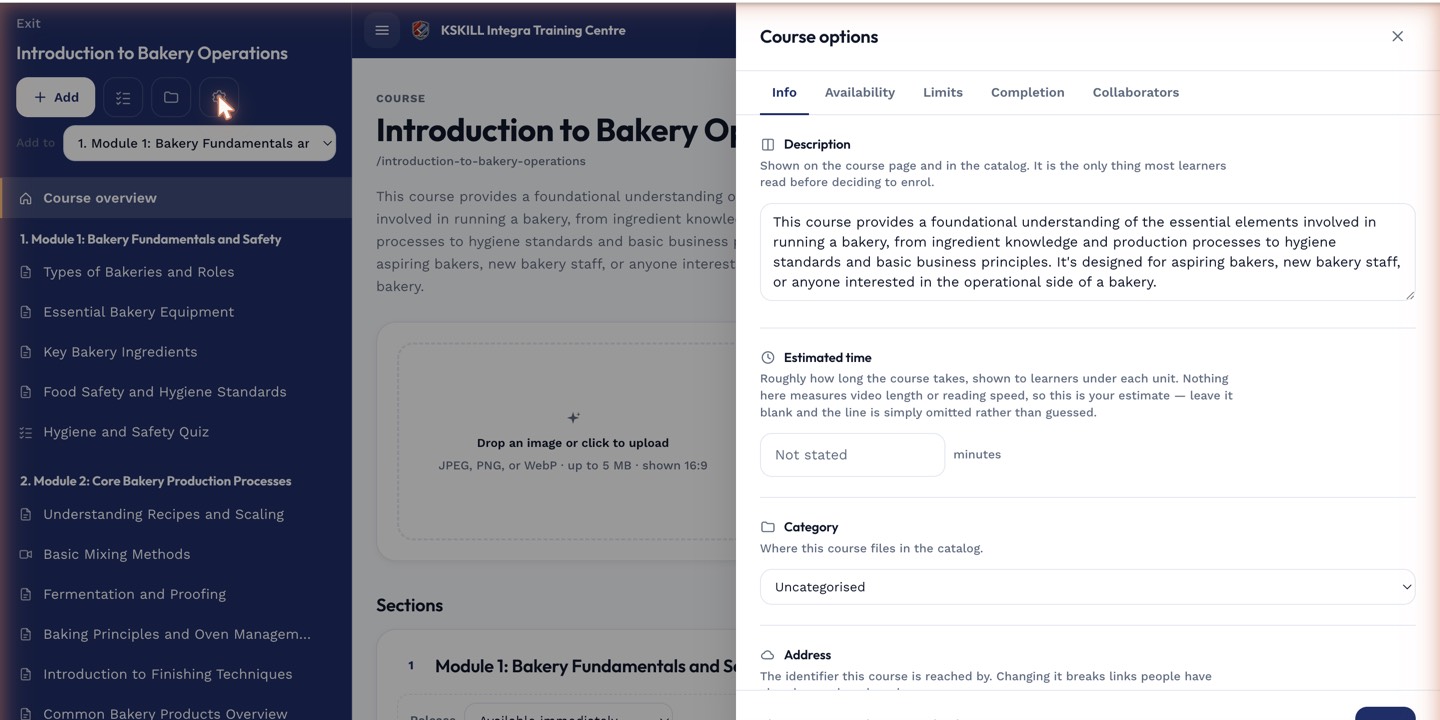
The options drawer is where every per-course rule lives — visibility, price, completion criteria, expiration.
Step 2 — Pick an expiration rule
Choose Never, After N days from enrolment or After N days from completion. Compliance courses usually pick the third — the annual clock only starts once the learner has actually finished. Save.
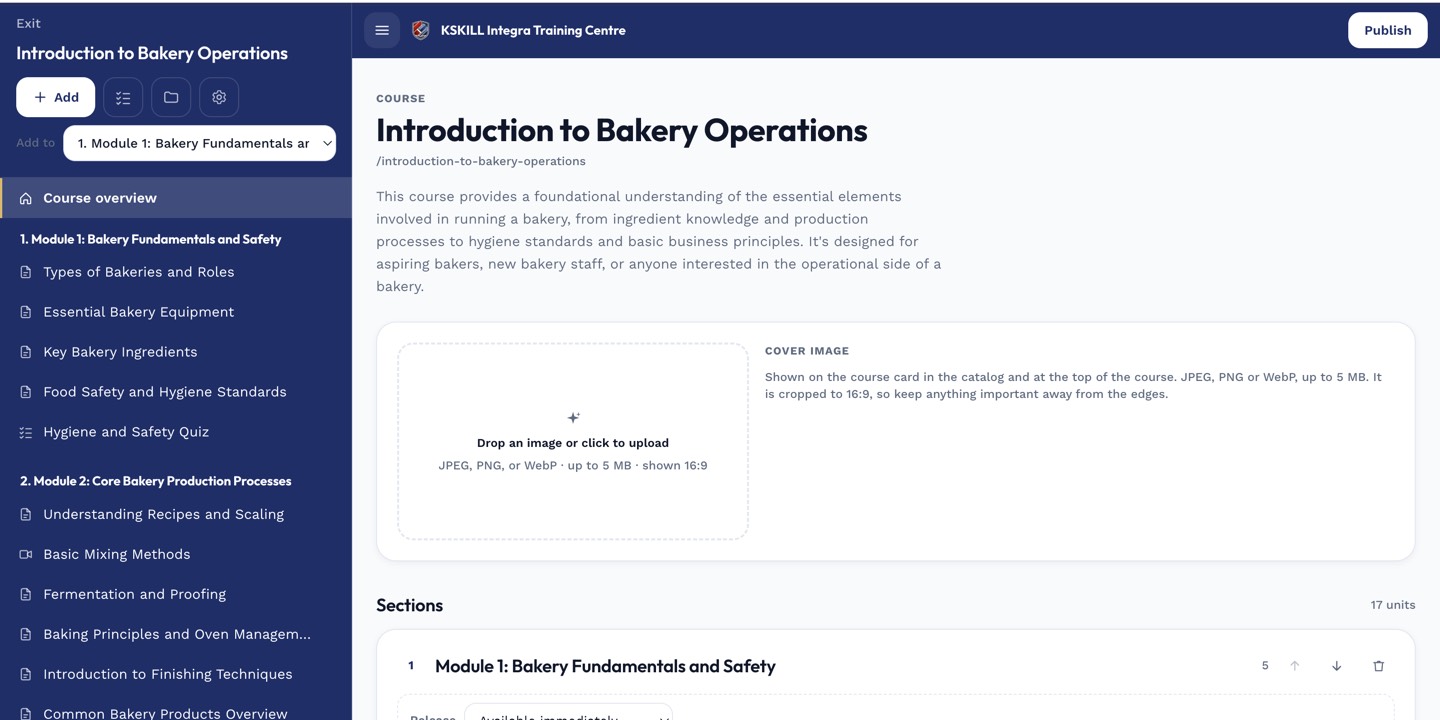
The editor shows sections and units together so you can drag either one to reorder.
Step 3 — What learners see
The learner sees the expiry date on their course card. A week before expiry they get a reminder notification; the day it expires the course flips back to In progress and they need to redo the units. Any attached certificate also expires on the same date.
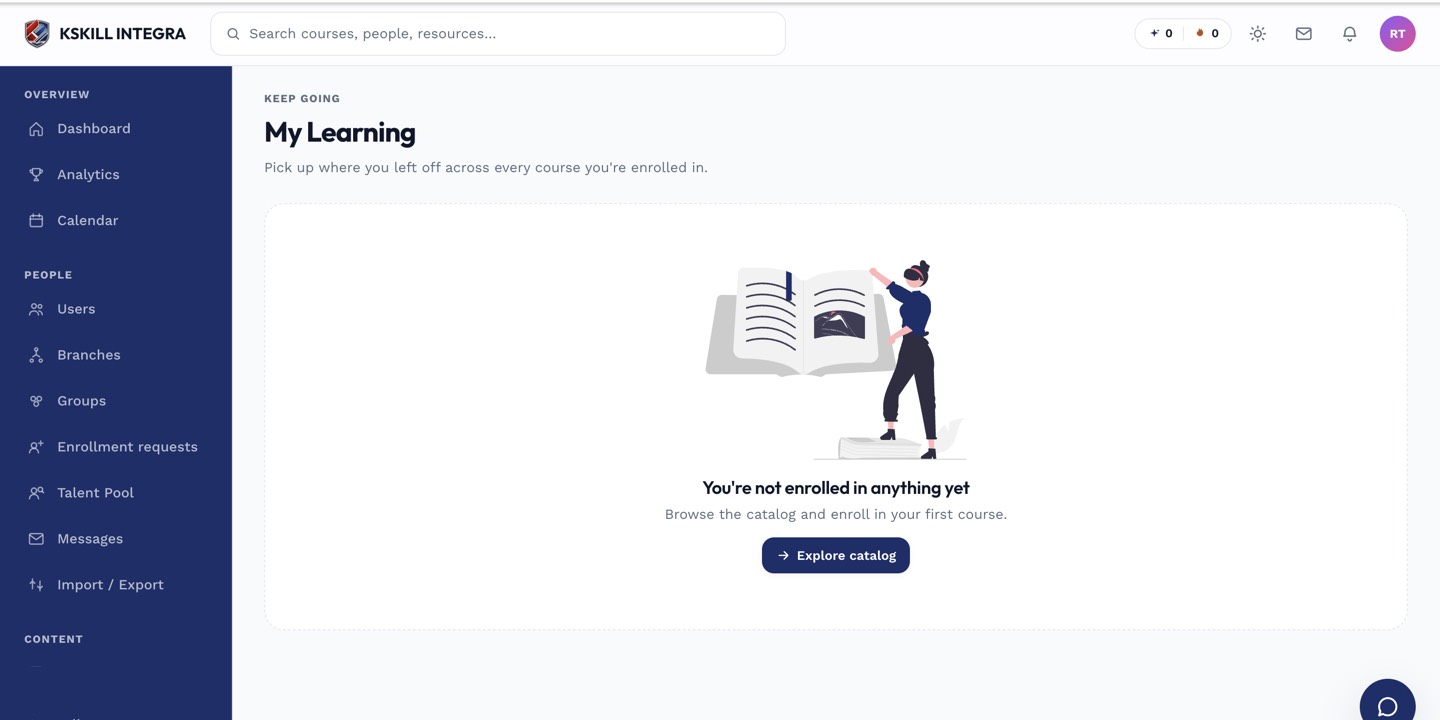
My Learning is the learner's default landing page — every enrolled course is one click away.
Notes
- Expiration only applies to enrolments created after you turned it on. Existing enrolments stay unchanged.
- Combine with a certificate that also expires so learners are chased through both surfaces.