Add lessons to a course
A course is made of sections that hold units — one unit is one lesson, video, document or interactive package. This article covers how to add and order them.
Before you start
You need an existing draft course. If you have not made one, start with Create your first course.
Step 1 — Open the editor
Open Content → Courses and click the course title. The editor shows every section with its units nested underneath. Drag a unit by its handle to reorder it, or drop it into a different section entirely — the order you see is the order learners see.
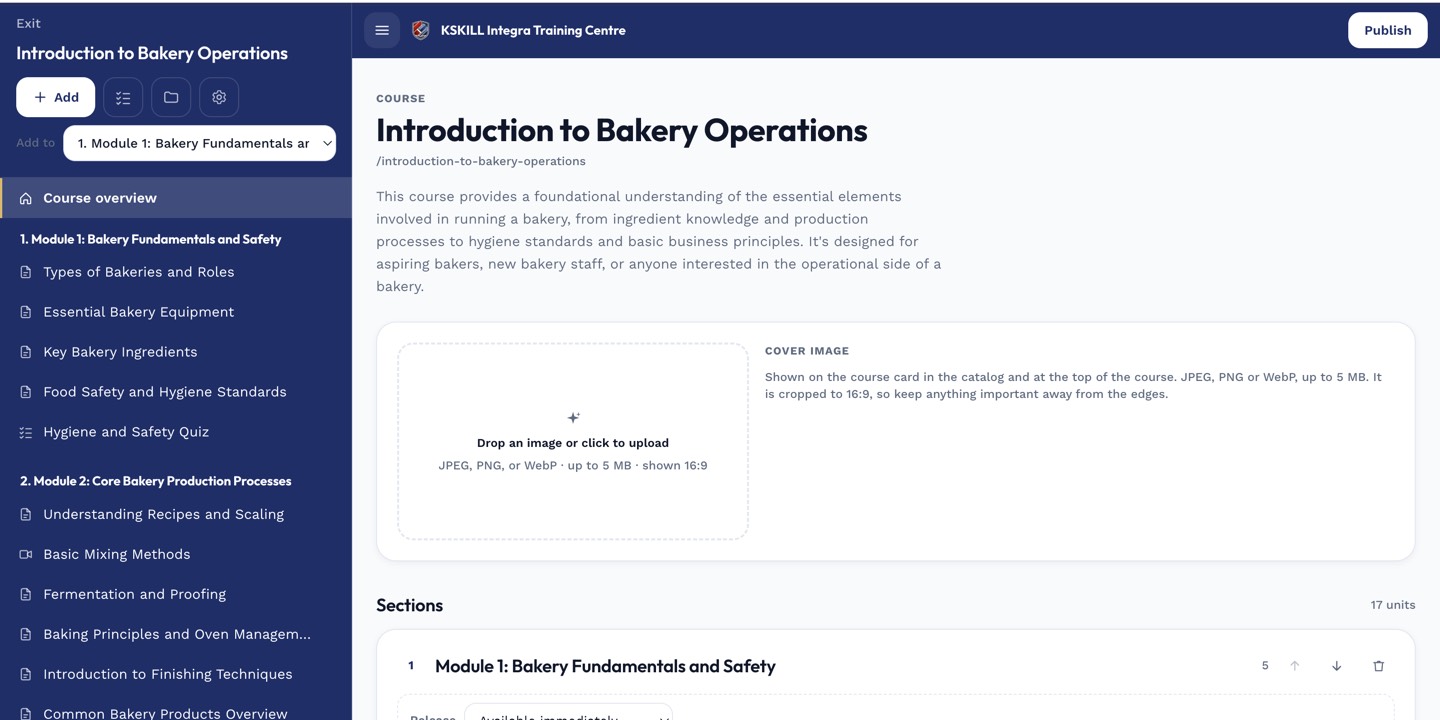
The editor shows sections and units together so you can drag either one to reorder.
Step 2 — Add a unit
Click Add unit inside the section you want to add to and pick the lesson type from the menu. Each type serves a purpose: Video streams uploaded files or embeds YouTube/Vimeo; Text is rich-text authored inline; Slide deck plays PDF or PPTX one slide at a time; SCORM and cmi5 host legacy packages; H5P hosts interactive content.
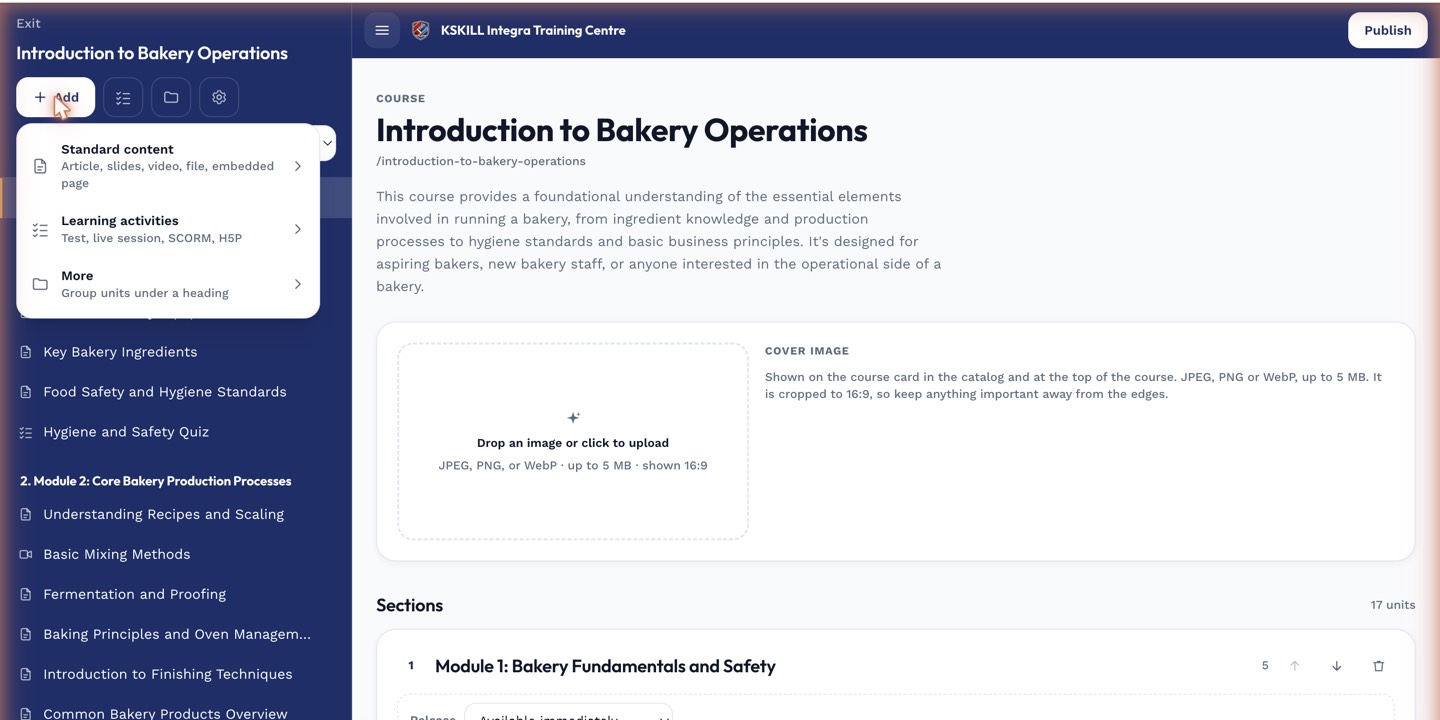
The lesson-type picker is the same one whichever section you add into.
Step 3 — Break long courses into sections
Once a course has more than a handful of units, add sections to keep it navigable. Click Add section and give it a title like Chapter 2 — Advanced topics. Learners see sections as collapsible groups in the course sidebar, which makes a long syllabus feel like chapters instead of an endless list.
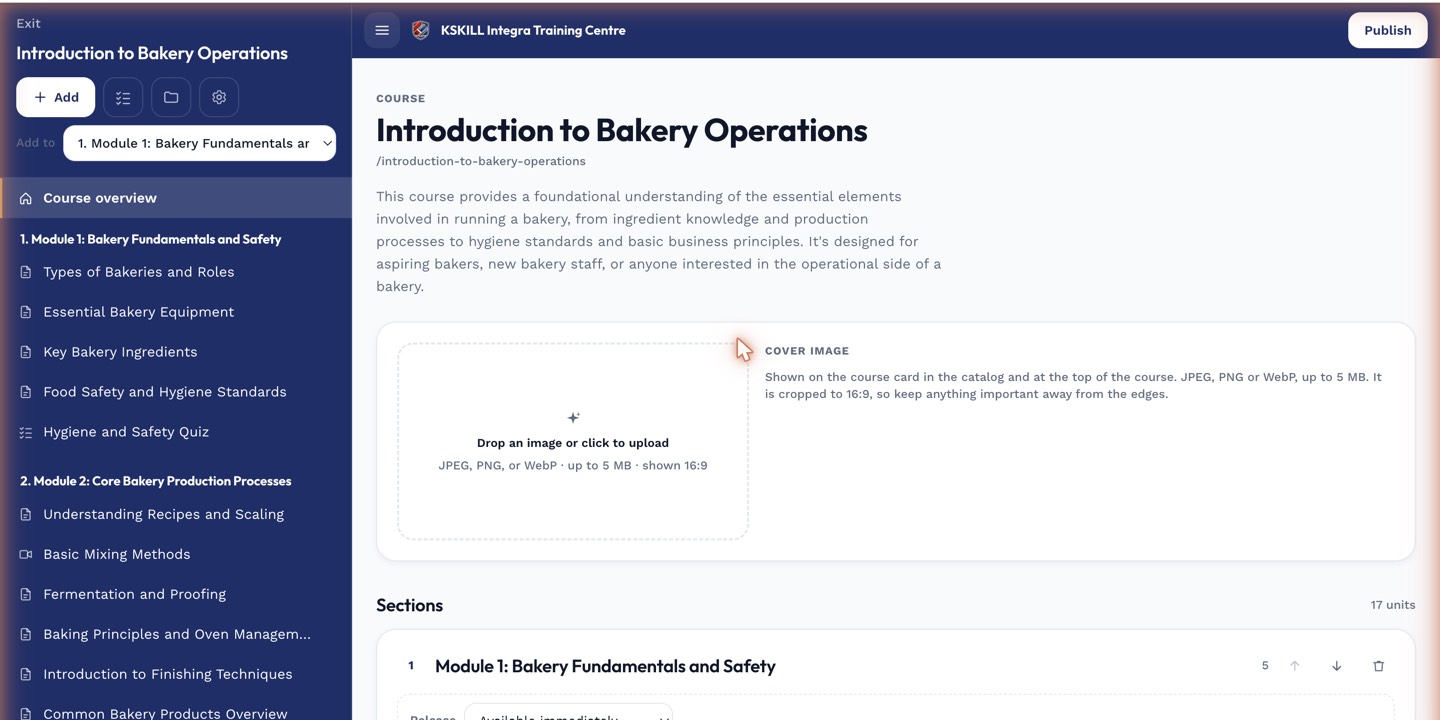
The editor is where sections and units live — everything you configure per-course starts here.
Notes
- Every unit reports progress independently. SCORM/cmi5 report scores back through the standard bookmark channel.
- H5P and SCORM units count toward completion the same way as any other unit.