Build a test or quiz
Tests measure whether a learner has absorbed the material. This article covers building one, adding questions and setting a pass mark.
Before you start
You need a course in draft or published state. Tests always live inside a course — they cannot exist on their own.
Step 1 — Open the Tests tab
Open the course editor and switch to the Tests tab in the header. The empty state prompts you to create your first assessment. Every test is scoped to the course it lives in — if you need the same questions in two courses, use the QuestionBank so you can share them. For a tenant-wide roll-up of every assessment, open the Assessments section from the sidebar.
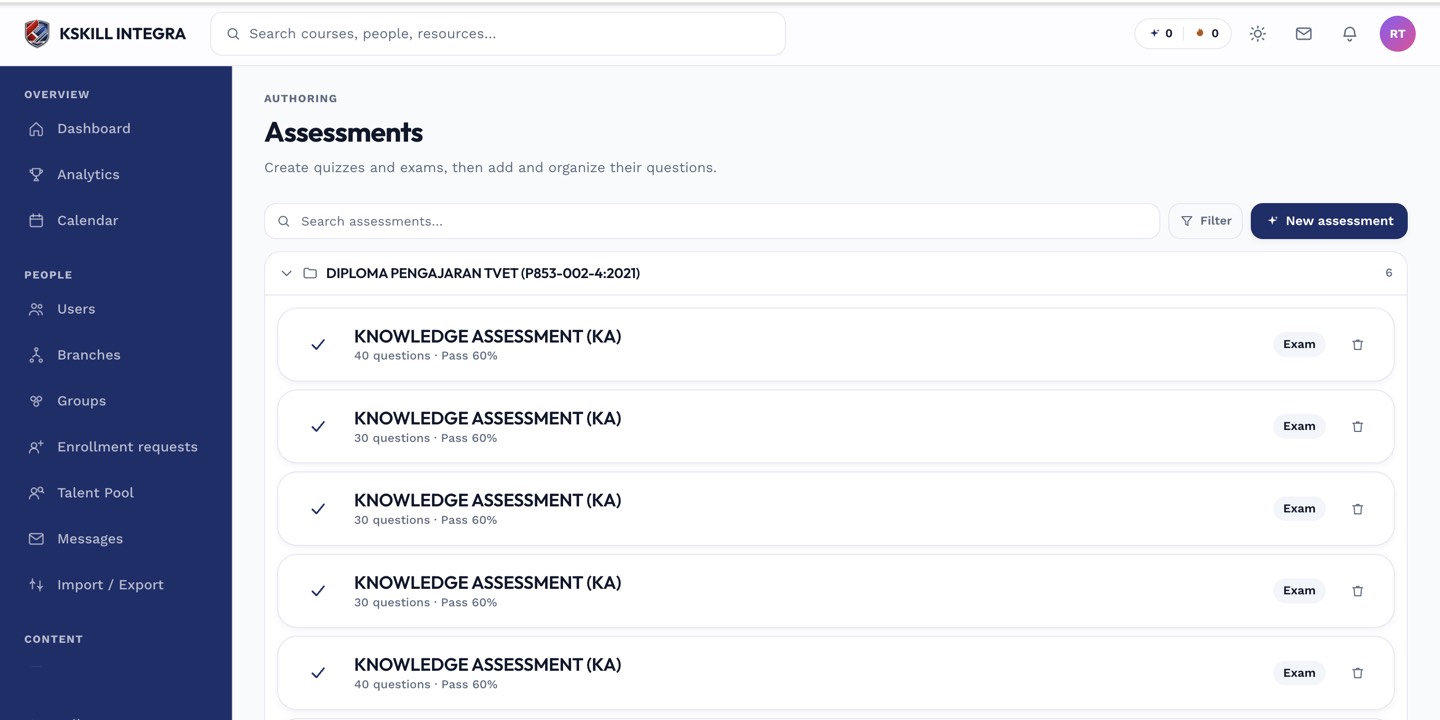
The all-assessments view rolls up every test on the tenant so you don't have to hop course by course.
Step 2 — Build the assessment
Click New assessment and give it a name. Add questions using the built-in types — SINGLE choice, MULTI choice, MATCH, SHORT answer (regex or manual grading), and LIKERT (ungraded survey). Set a pass mark as a percentage: anything at or above counts as a pass.
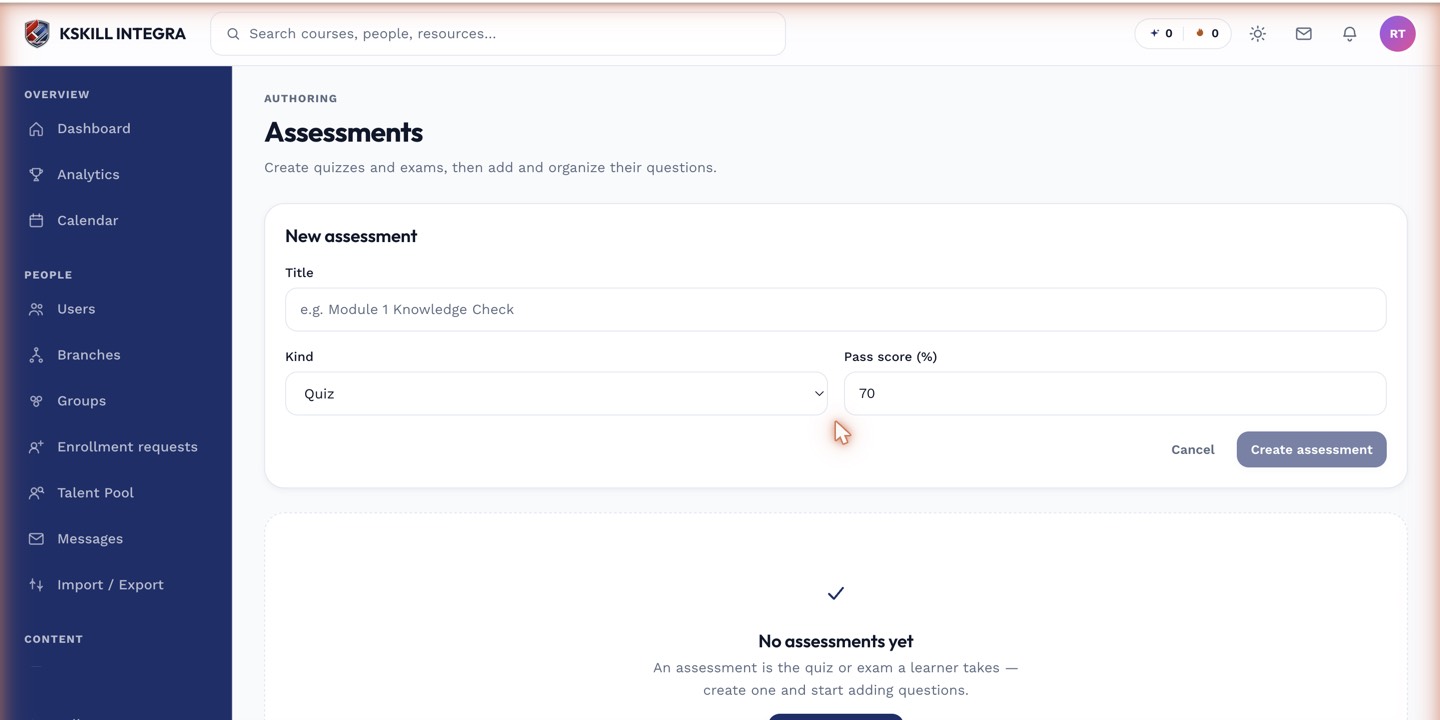
The builder combines the settings panel and the question list on a single screen.
Step 3 — Grade free-text with the Grading Hub
SHORT answer questions that need judgement land in the Grading Hub. Open it from the sidebar to grade every pending submission across every course in one screen. Give a score, leave feedback, and the learner is notified.
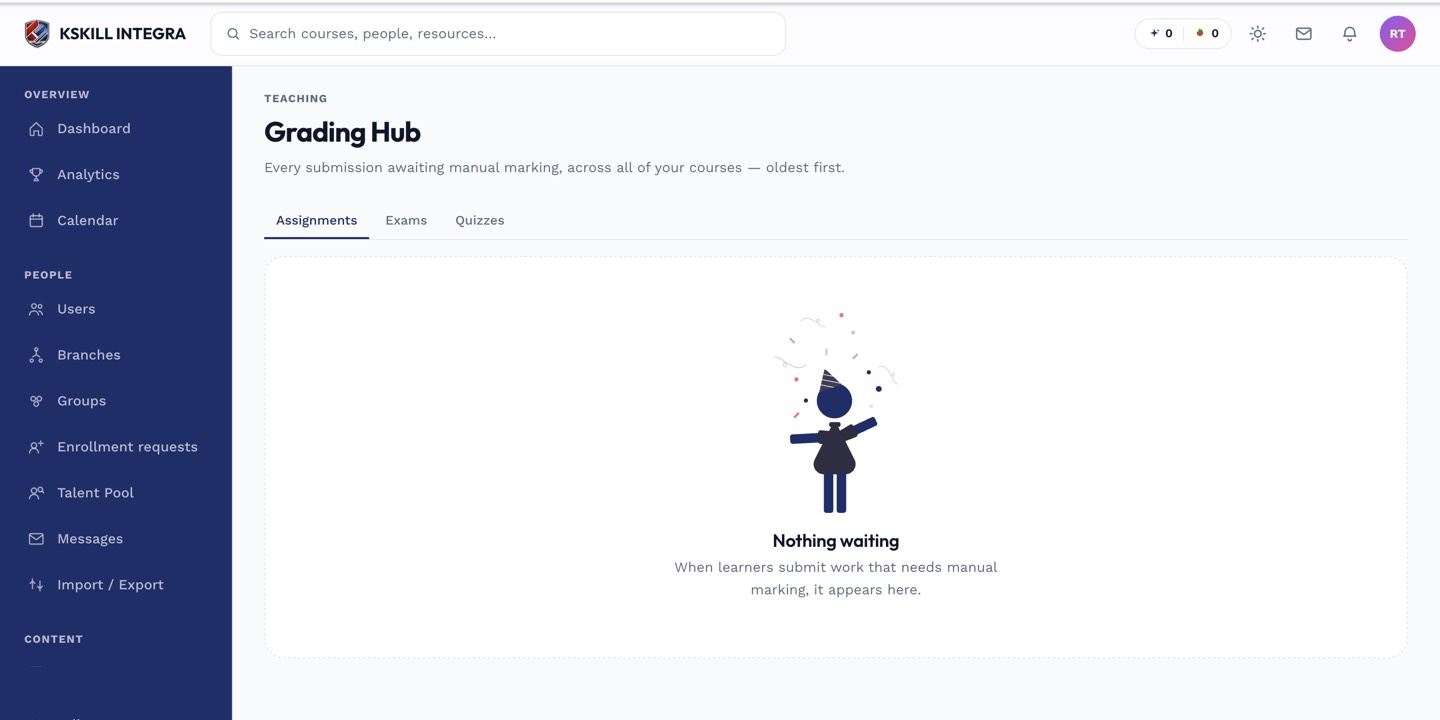
The Grading Hub is one place to grade every free-text answer and assignment across every course.
Notes
- Author more questions than each attempt needs — the pool draws a random subset per attempt, making answer-sharing pointless.
- Combine a strict pass mark with a limited attempt count when a test gates a certificate.