Editing an existing skill
Skill names, descriptions, level counts, and expiration windows can all be changed after a skill is live. Editing does not touch grants that already exist, but it does change what learners see going forward.
Before you start
You need the Admin role. Think about who already holds the skill before you edit level definitions — changing what a level means does not retroactively re-check anyone who already earned it at that level.
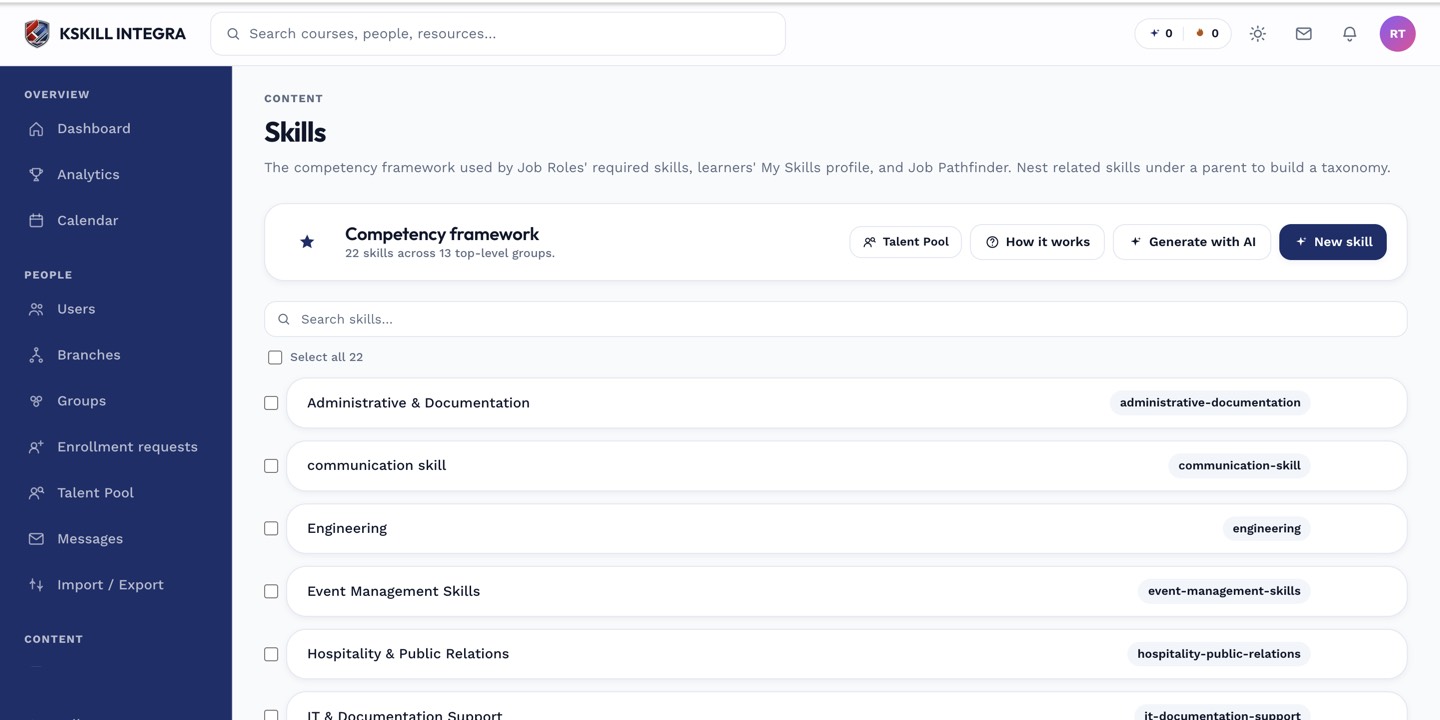 Click any skill row in the Skills manager to open it for editing.
Editing a skill
- Open Manage → Skills and click the skill you want to change.
- Update the name, description, levels, or expiration window in the drawer.
- Save.
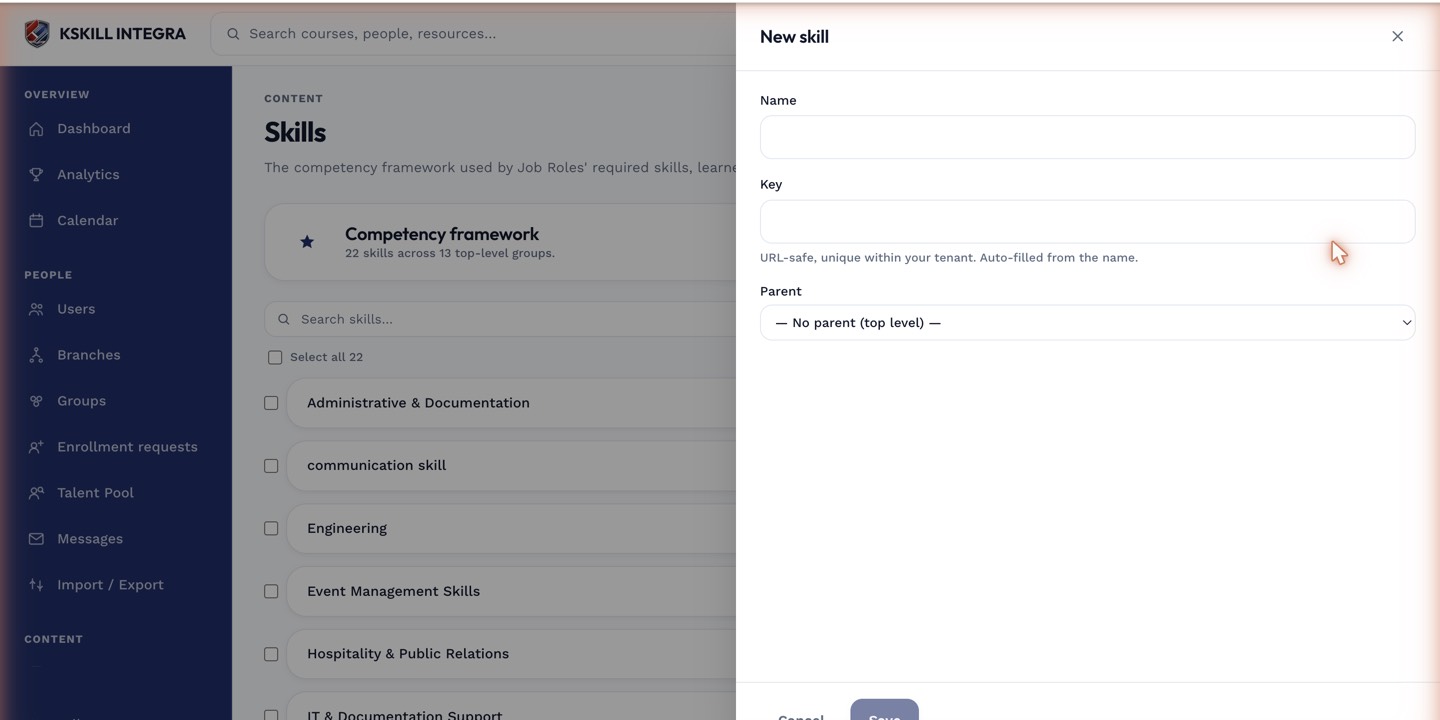 The same drawer used to create a skill lets you edit every field afterward.
Notes
Renaming a skill also updates its label everywhere it is referenced — job role bundles, the Talent Pool, and every learner's My Skills page. If a skill is used inside a job role bundle or a course's award-skill setting, removing levels it currently references can leave those configurations pointing at a level that no longer exists, so extend rather than shrink where you can.