Course completion criteria
Completion criteria decide when a course counts as done. This article covers the three progression modes.
Before you start
You need the Admin or Instructor role.
Step 1 — Open Progression
Open the course options drawer and find Progression mode. The three choices are OPEN, STRICT_LINEAR and CONSUME_TO_COMPLETE. Each has different implications for what counts as complete.
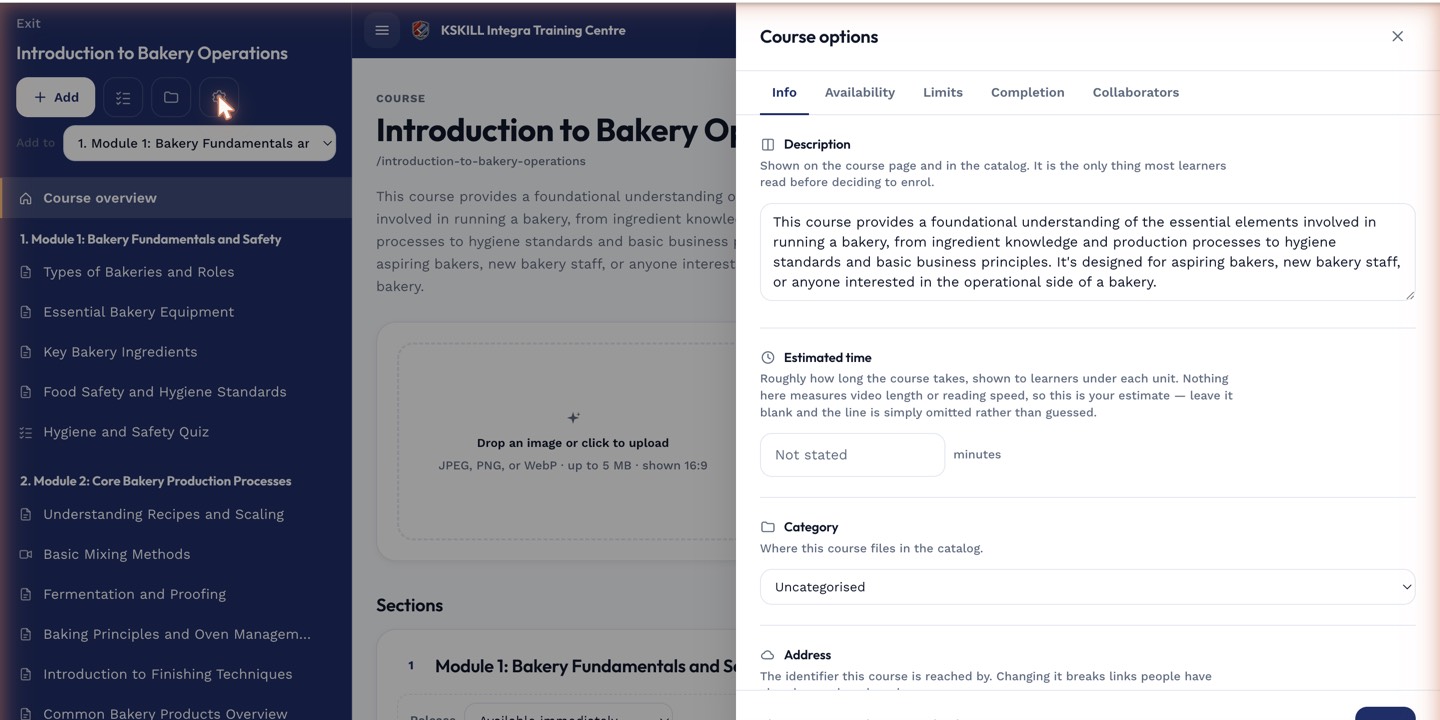
The options drawer is where every per-course rule lives — visibility, price, completion criteria, expiration.
Step 2 — Understand each mode
OPEN lets learners take units in any order; completion fires when the completion rule is met. STRICT_LINEAR forces order — unit N unlocks only after unit N-1 completes. CONSUME_TO_COMPLETE requires a specific consumption threshold per unit (e.g. 90% watched).
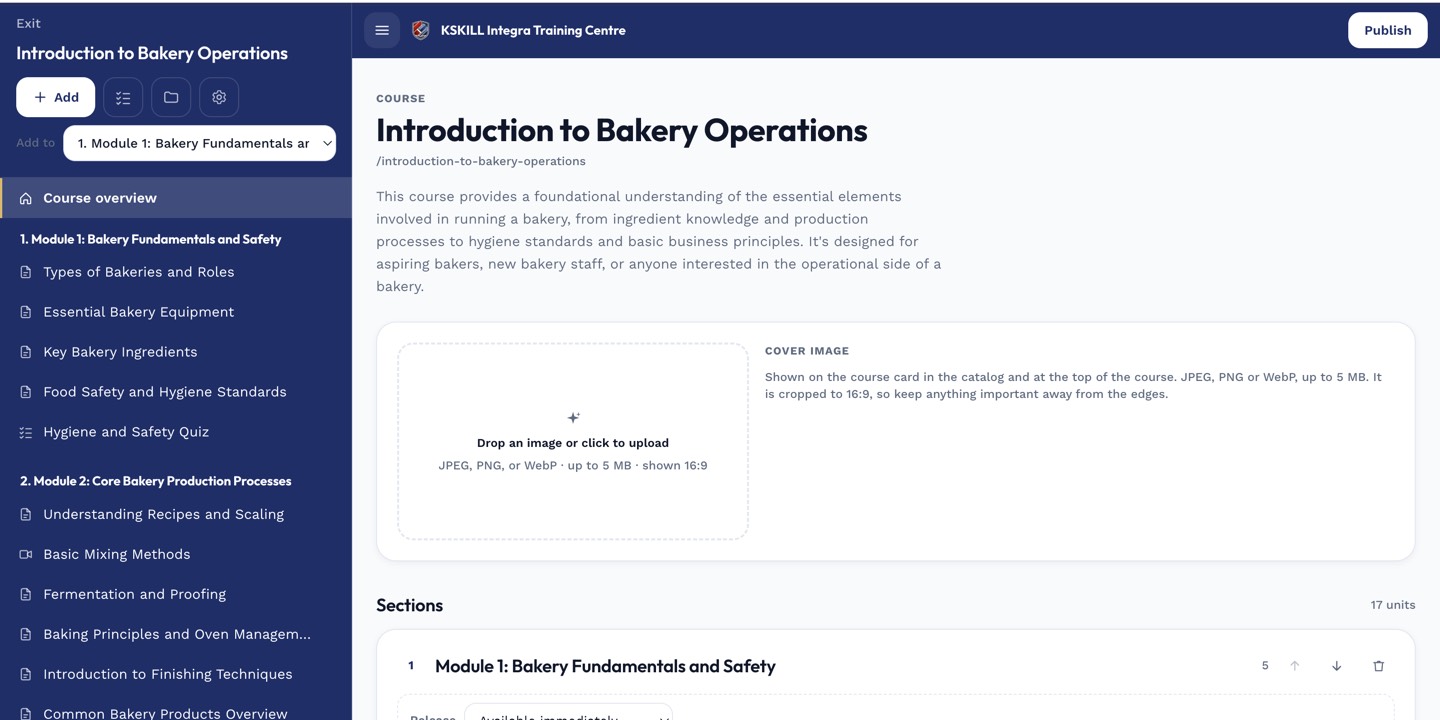
The editor shows sections and units together so you can drag either one to reorder.
Step 3 — Set the completion rule
Underneath progression, pick the completion rule — All units complete, Final exam passed, or Total time on task. Combine mode and rule to match your pedagogical intent. Save.

My Courses is the learner's grid of everything they are currently enrolled in.
Notes
- CONSUME_TO_COMPLETE thresholds live in ProgressService.assertConsumptionSignal.
- For compliance training, STRICT_LINEAR + Final exam passed is the safest combination.