Course versioning
You can maintain multiple versions of a course without breaking existing learners. This article covers the version pattern.
Before you start
You need the Admin role.
Step 1 — Duplicate for a new version
Open the current version and pick Duplicate from the overflow menu. Rename the copy (e.g. append v2). The duplicate is independent — edits don't affect the original.
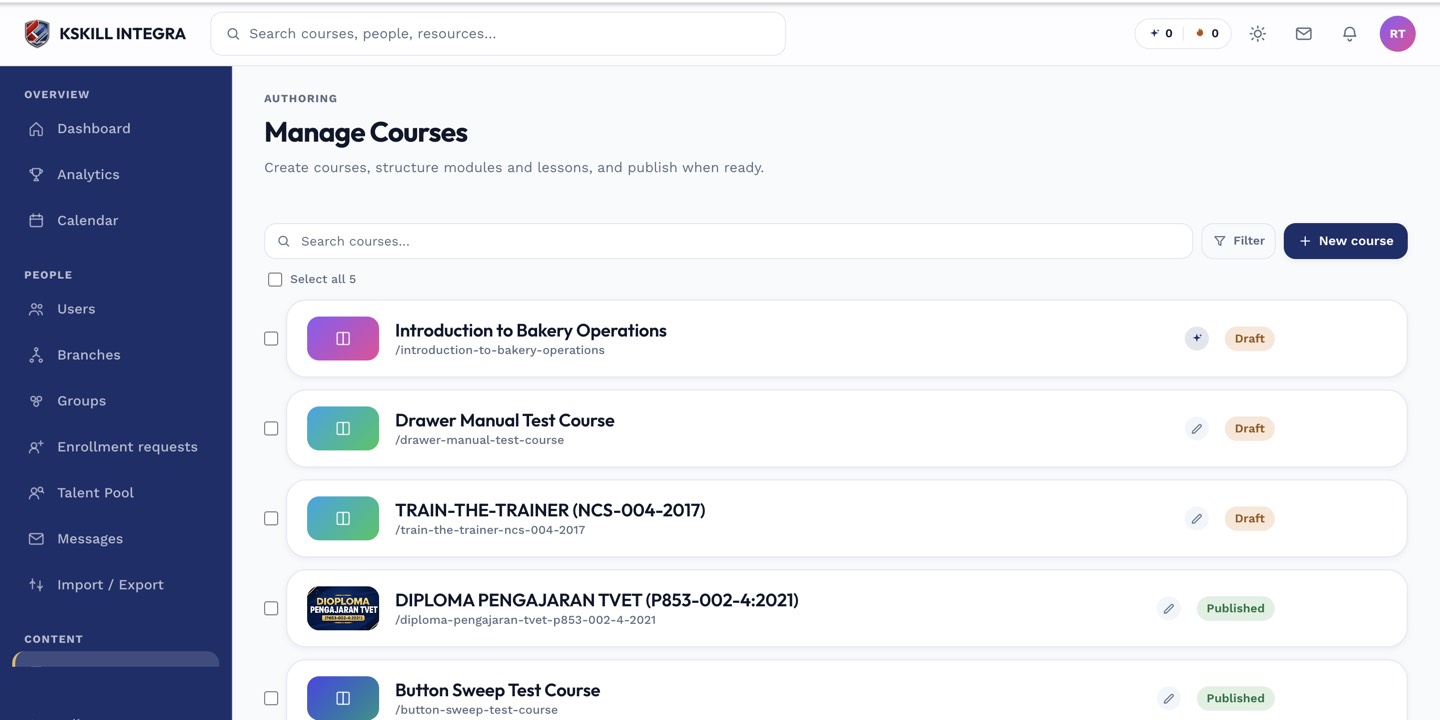
The Manage Courses screen is the launch pad for anything course-related.
Step 2 — Author the new version
Rework the units in the duplicate. Update the certificate template if the credential name changes. Attach the new version to the same Groups the original was attached to — but keep the original attached to existing learners.
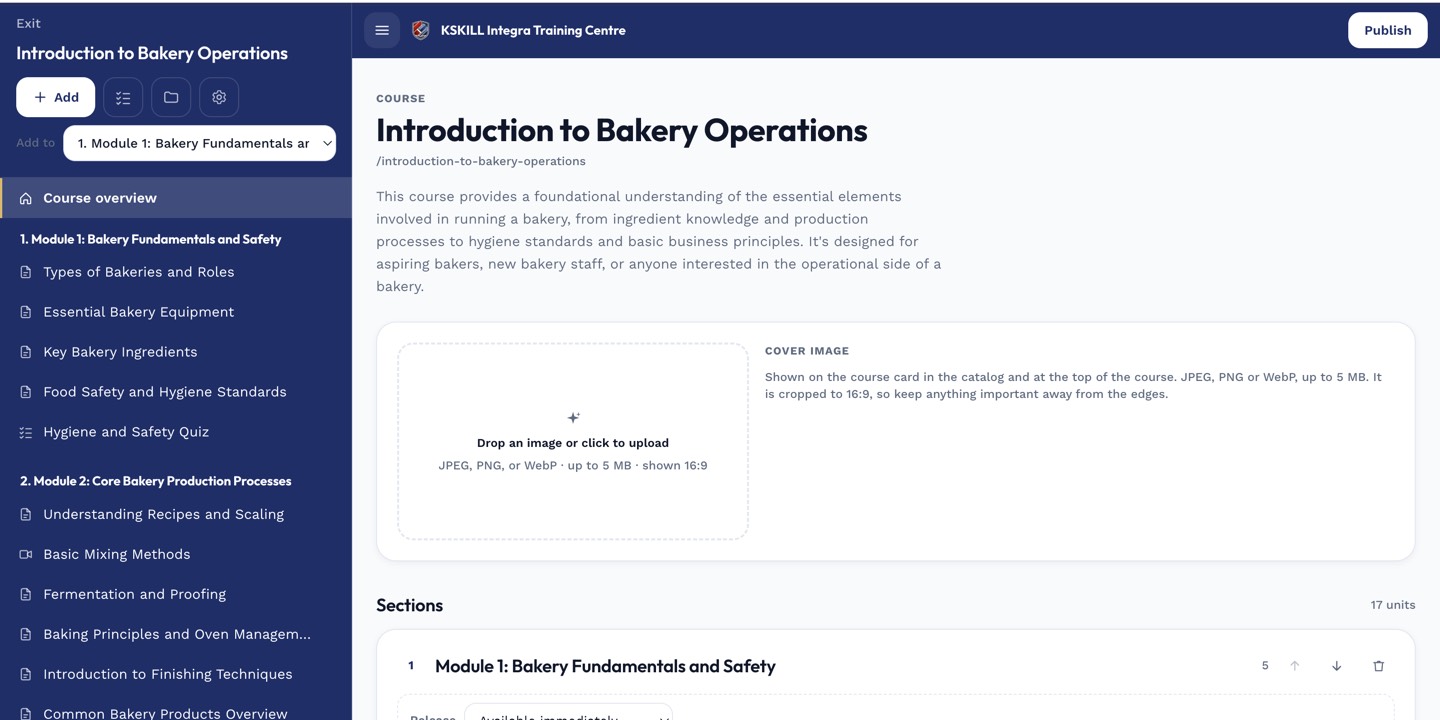
The editor shows sections and units together so you can drag either one to reorder.
Step 3 — Publish and communicate
Publish the new version. Broadcast to affected Groups explaining the change. Give existing learners the option to redo the new version; leave the old version accessible for those who don't need to retake.
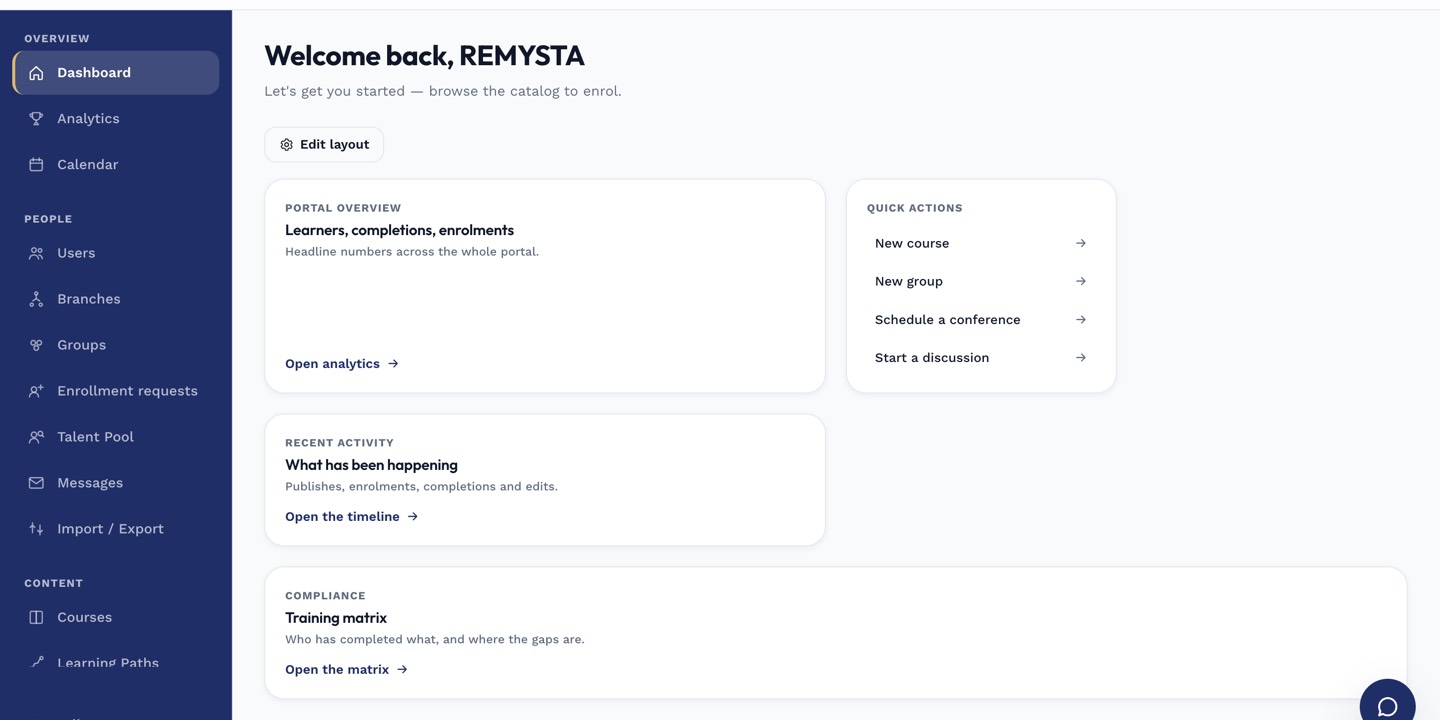
The left rail is the anchor for every admin task; every screen you visit starts with a click here.
Notes
- The platform doesn't have first-class versioning; the duplicate-and-rename pattern is the standard workaround.
- For compliance-driven versions where everyone must retake, unenrol from the old and enrol into the new.